bookme is brandID’s scheduling and booking app. You publish event types, such as a 30 minute intro call, and people pick a time from your availability. bookme checks your calendar, adds the video link, takes payment if you charge, sends reminders and records how each meeting ended. It also runs webinars. New this autumn is an AI Assistants (MCP) page that lets Claude, ChatGPT, Claude Code and other apps work inside your account under rules you set.
This is a long, screenshot-heavy review. We walk through the app in sidebar order, then spend a full section on AI assistants, which is the most different part. For each area we say what it does, what it costs, where the limits are and what is unclear. A few places in the app and Help Center disagree, and we name them.
Key Takeaways
- What it is: a browser-based scheduling app from brandID with event types, availability, meetings, webinars, paid bookings and teams.
- Free plan: Starter is $0 with 10 bookings a month, 1 connected calendar and unlimited solo events. Extra bookings cost $1 each.
- Paid plans: Pro is $2.99 a month and Elite is $11.99 a month. Annual billing saves up to 33%. Fees on paid bookings depend on plan and gateway.
- AI assistants: one address connects Claude, Claude Code, ChatGPT and other MCP apps. You pick View only, View and manage or Custom, and risky steps need your yes.
- Unclear spots: team events depend on your plan, and the Webinars counters read oddly on Starter. We flag each one.
- Limits: our account is Starter, so we saw no paid bookings, payouts or real invitees. We cannot vouch for results.
bookme at a Glance
| Details | |
|---|---|
| Type | Online appointment scheduling, booking pages and webinars, in the browser at bookme.brandid.app |
| Made by | brandID (the publisher of this blog) |
| Starter plan | Free: unlimited solo events, 10 bookings a month, 1 connected calendar, 1 webinar with 10 attendees |
| Pro plan | $2.99 a month: 100 bookings a month, 2 connected calendars, 2 webinars with 20 attendees |
| Elite plan | $11.99 a month: unlimited events and bookings, unlimited calendars and webinars |
| Fees on paid bookings | Own gateway: 15% Starter, 5% Pro, 3% Elite. bookme gateway: 20% on all plans |
| Video and calendar | brandID Meet, Google Meet, Zoom. Google Calendar (Outlook shown as coming soon) |
| AI assistants | MCP address, 67 tools in 10 areas, three safety levels, one pause switch |
What Is bookme?
bookme sits between your calendar and the people who want your time. You set weekly hours and add event types. Each event type has a link. An invitee opens it, sees only the times that are really free, answers a short form and books. bookme writes the booking to your calendar, adds a video link, sends confirmation and reminder emails and lists the meeting on your dashboard. Afterwards you mark what happened, and bookme can send a follow-up.
The sidebar holds the whole product: a big Create button, then Events, Team Events, Meetings, Webinars, Availability, Organization, Contacts, Records, Reminder Workflows, Question Forms, Landing Templates, Integrations, AI Assistants, Earnings, Embed, Upgrade plan and Settings. Your page lives at bookme.brandid.app/book/your-username. bookme offers no custom domains.
The official bookme Help Center has a guide for every screen below, and we link to each where it fits. If you are still choosing a tool, our best appointment scheduling software guide gives the wider market view.
Key Features of bookme
1. Account setup and the dashboard
You can create your bookme account with Google or an email. Email sign-up sends a 6-digit code, and a password is optional. Starter asks for no phone number, card or ID. You then claim a username of 3 to 30 characters, which becomes your booking link.
A short onboarding wizard pre-fills a first event type and leaves you with one live event and a default schedule, which is all a link needs. A Getting Started checklist stays open on the right and suggests six steps. You can see it in every screenshot here. One tip from the guide: book yourself as a test from a private window. A test booking is real and sends real email, so use an address you can open.
2. Event types and the Create event wizard
The Events page is titled Events & Scheduling, with Event types and Archived tabs and list or grid views. Each card shows duration, location, whether it is 1-on-1 or Collective, price and badges such as Co-host (rotating) or a form name. Each also has an eye icon to preview, a Copy link button and a three-dot menu.
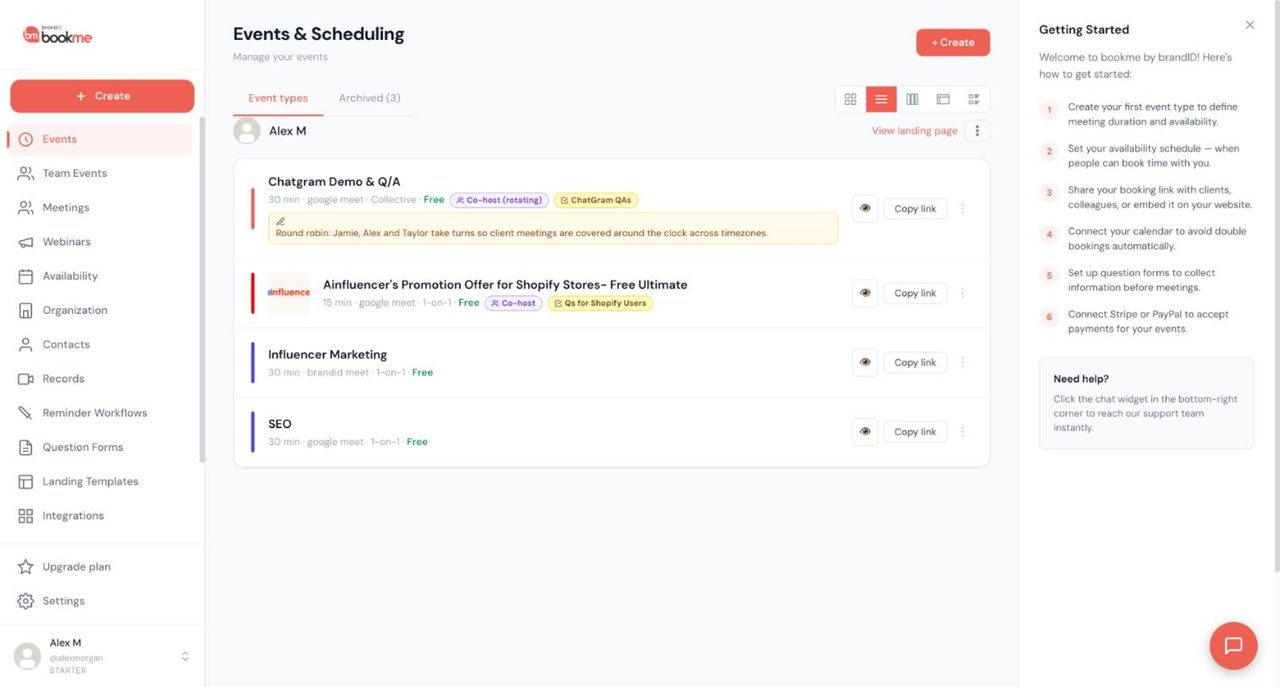
Our test account had four event types and three archived ones. Archiving removes an event from your page and keeps its bookings. To create an event type, press + Create. The wizard has five steps: Type & name, Details, Availability, Questions and Review. A What invitees see card updates as you type.
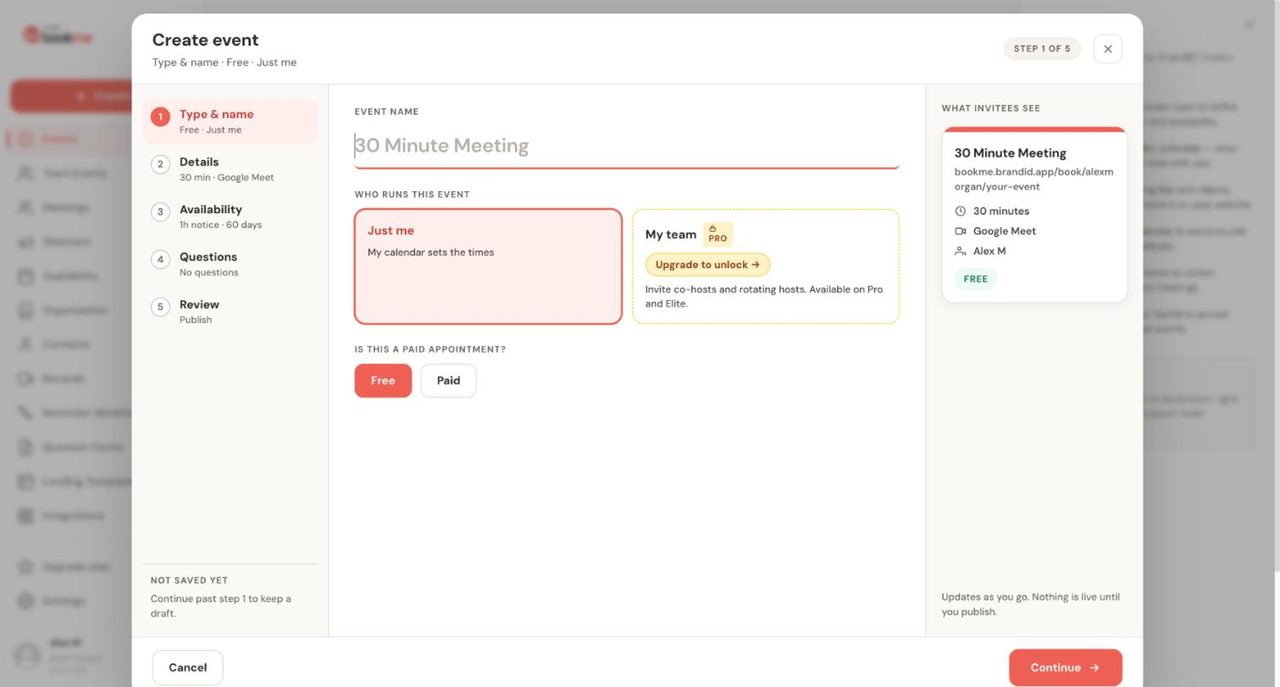
We stopped at step 1, because going further saves a draft. The rest comes from the Help Center. Details sets the description, duration and location (Google Meet, Zoom, brandID Meet, Phone call or In person). Availability picks the schedule and the booking window, from 1 to 730 days ahead. You can also cap bookings per day and add buffers. Questions adds a form. Review ends with Publish event, which shows your link, embed snippets, a QR code and share buttons.
3. Team events, co-hosts and rotating hosts
Team Events lists collective events where several hosts attend one booking, and it is where co-host invitations arrive. Ours shows two pending invitations and two collective events with their hosts and rotating pools.
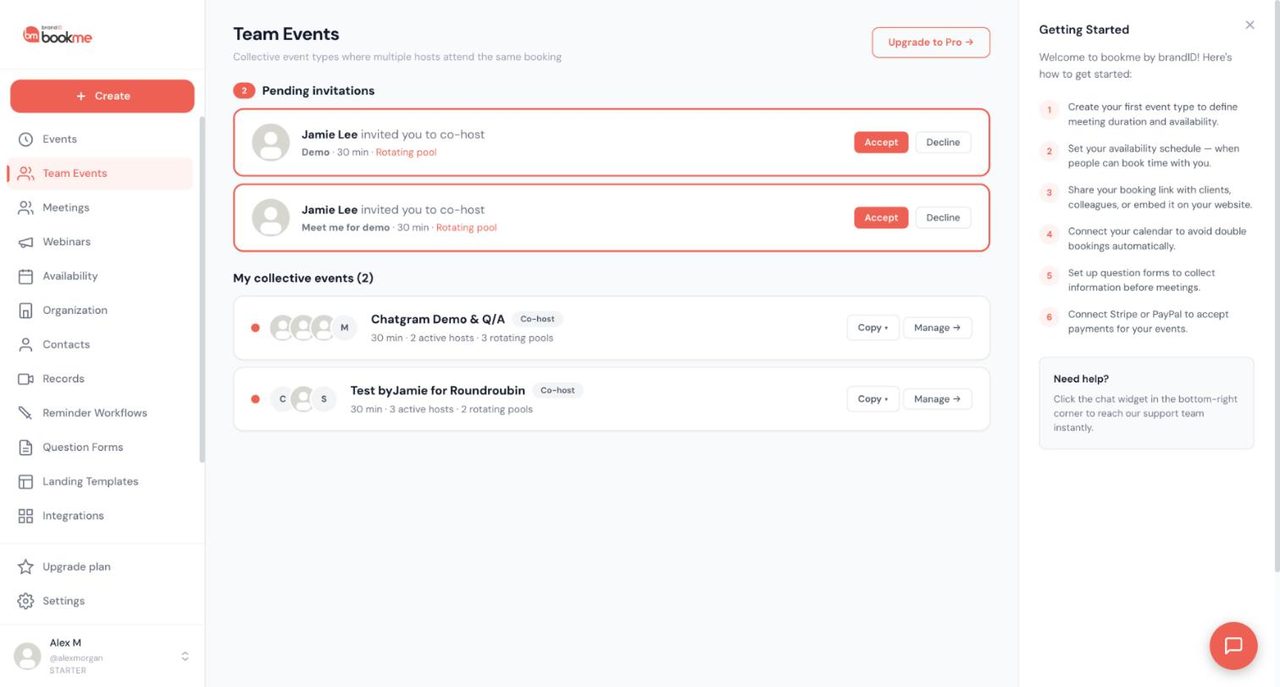
When someone invites you, you answer a co-host invitation with Accept or Decline. After you accept, the event shows a Co-host badge, and your bookings for it get a Co-host chip on Meetings. The guide says co-hosts can be on any plan.
To create a team event, choose My team under Who runs this event. The Help Center describes three styles: everyone attends, take turns, and a required group plus a rotating pool. Invited hosts stay Pending until they accept, and publishing sends the invitation emails.
Now the conflict. The Create event dialog marks My team with a PRO badge and says it is available on Pro and Elite. The Pro card says none of collective, group and rotating event types are included, while the Elite card lists them as unlimited. Both cannot be fully right. Team events depend on your plan, so check the Upgrade plan page and the dialog in your own account before you rely on them.
4. Availability schedules and days off
Availability has Schedules and Date Overrides tabs. Each schedule card shows a time zone, how many events use it and the weekly hours, with Edit, Dup and Del buttons. The first one is called Default and is the fallback for events with no schedule.
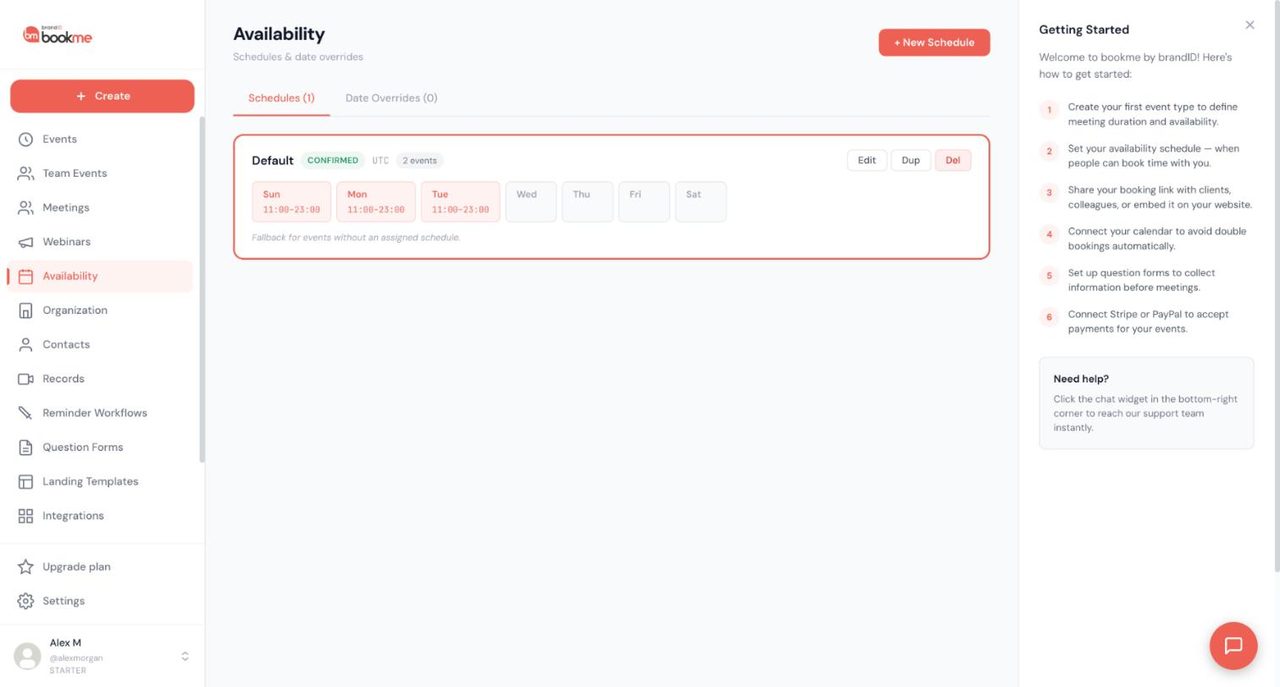
To set your weekly hours, edit the card. Each day can be on or off with several time windows, so lunch is a gap between two windows. Each schedule has its own time zone, separate from Settings, so check both if times look an hour off. Buffers and notice are set per event.
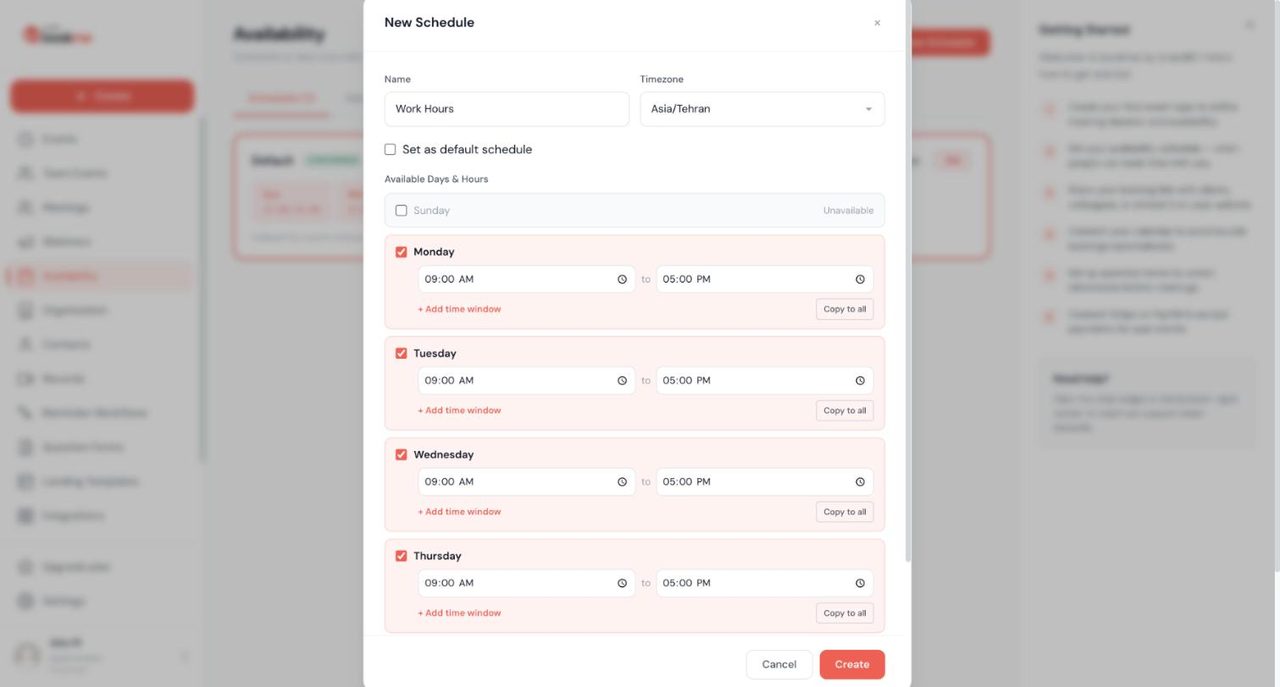
For one-off changes, block a day off with a date override. A blocked day applies to every schedule and event. If it cuts across existing meetings, bookme lists them and lets you reschedule, cancel or keep each one. There is no date range, so a week away means one override per day.
5. Meetings: filters and outcomes
Meetings lists every booking you are part of, split into Upcoming and Past. Status chips are All, Confirmed, Cancelled, Completed and Pending payment. Outcome chips are Any, Met, No-show, I missed it and Rescheduling. Our guide to find and filter meetings adds that the list shows 20 bookings per page, with no event type or date filter yet.
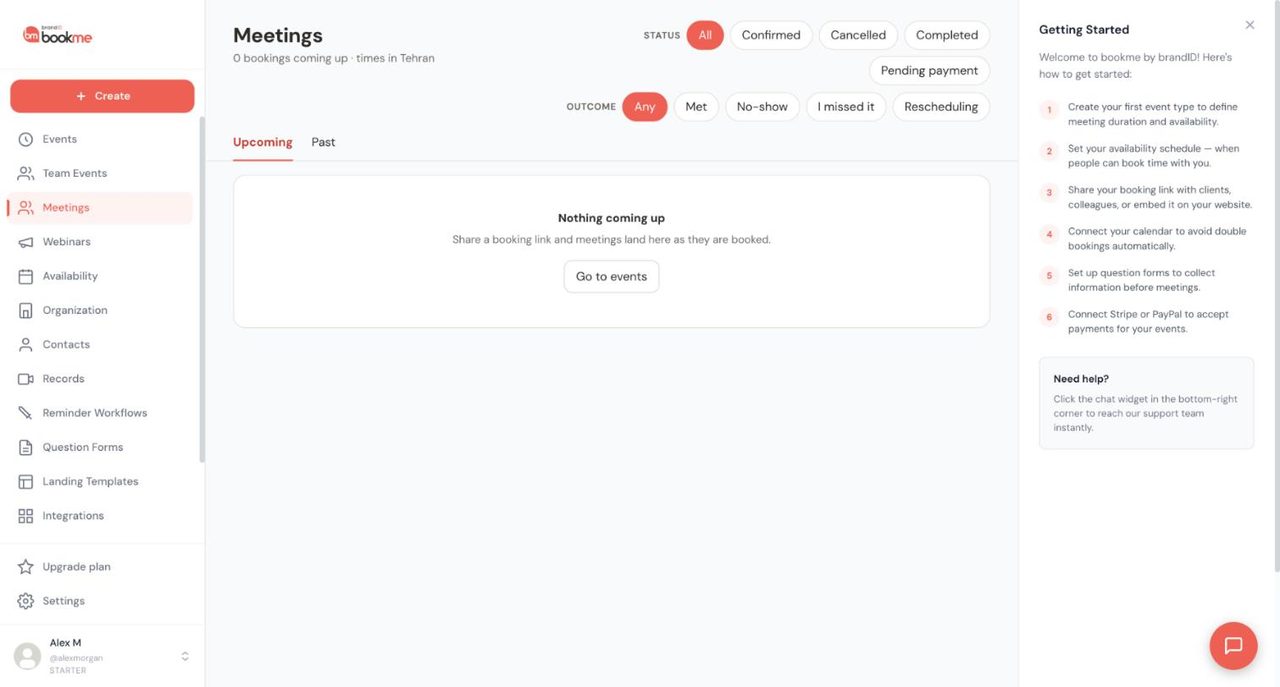
Open a row for the invitee’s answers, notes, hosts, guests and payment, and for Reschedule, Cancel and Refund. Rescheduling and cancelling email the invitee. After a meeting you record a meeting outcome from a check-in email, the Just ended band or the booking details. Each opens a window showing the follow-up email before anything is saved, and a switch lets you save without emailing.
6. Webinars and registrants
A webinar is one session at a fixed time with its own attendee list and emails, unlike an event type where invitees pick any slot. The Help Center groups these pages as Webinar help articles.
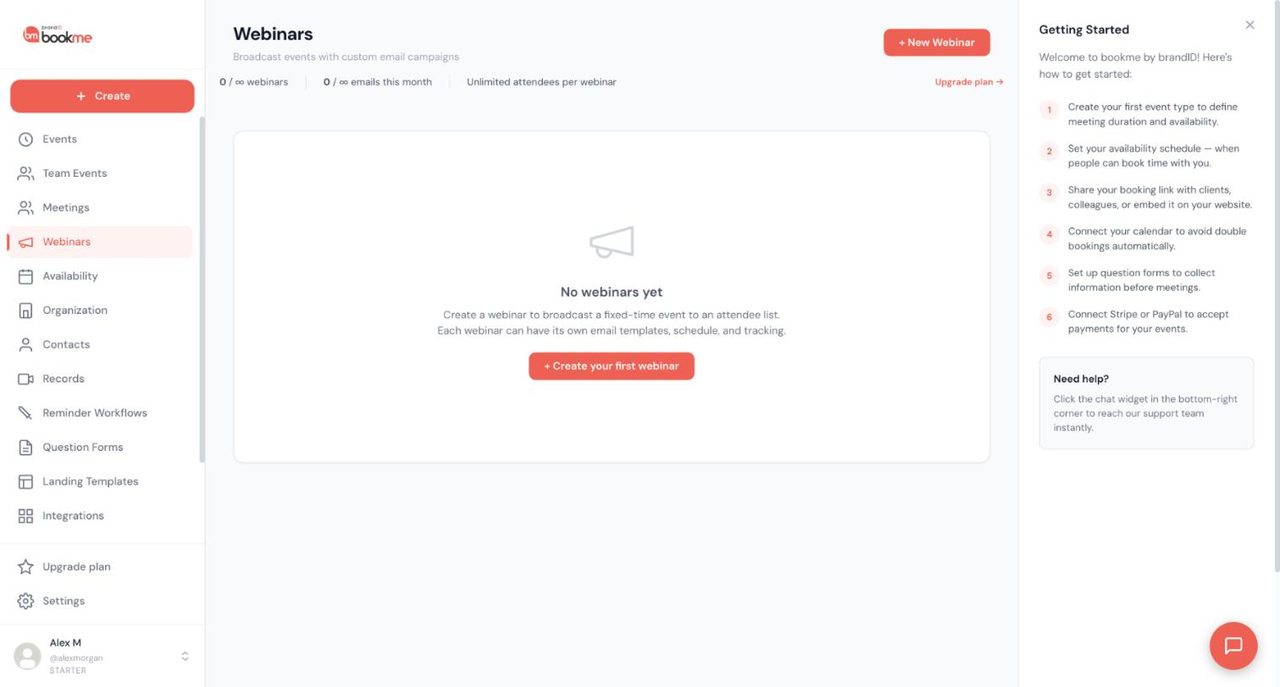
Under the title, counters show webinars, emails this month and attendees per webinar. Here is a second conflict. On our Starter account they read 0 of infinity, 0 of infinity and Unlimited attendees, while the Starter card says 1 webinar, 10 attendees and 100 invite emails a month. We do not know which is right, so read the card and the counters together before a big session.
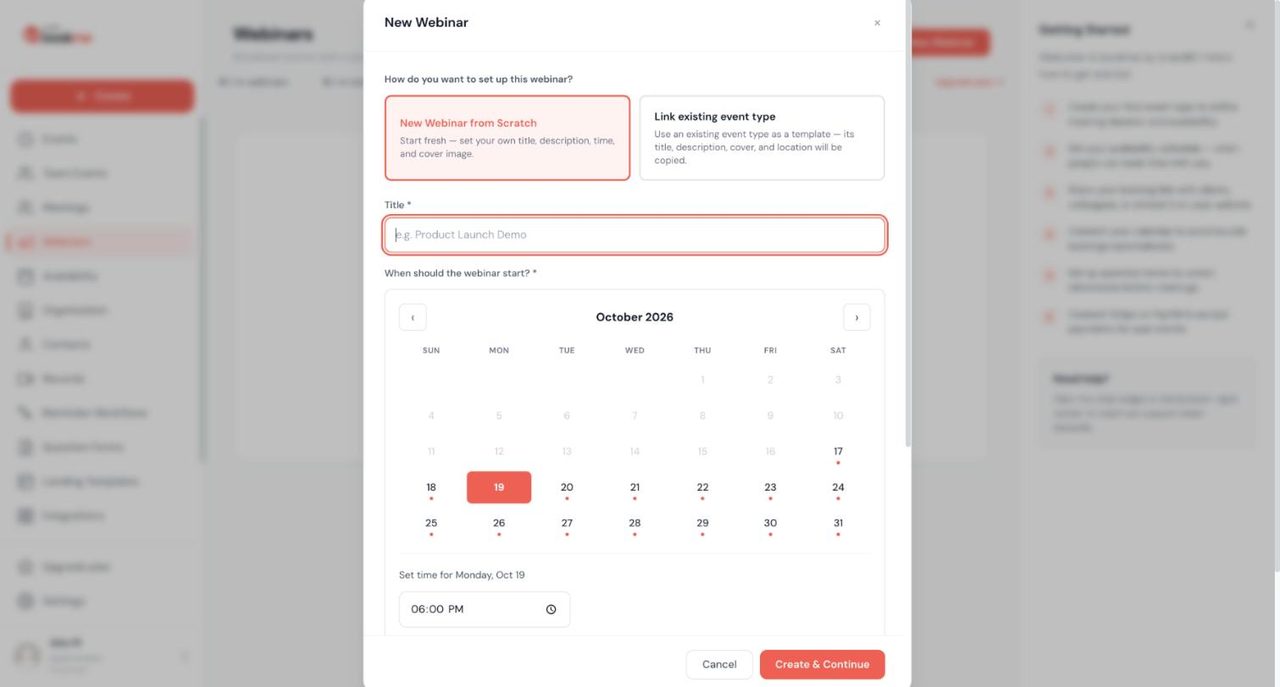
To create a webinar, press + New Webinar and choose New Webinar from Scratch or Link existing event type, which copies its title, description, cover and location. Then add a title, a day and a time. Details cover time zone, duration, meeting type and repeat patterns.
People register on a public page or you add them by email, and each registration creates a booking with a Webinar chip. To invite people to webinars, use the Attendees, Emails and Send tabs. Templates cover an invitation, a reminder and a follow-up, and bookme tracks opens, clicks and RSVPs. Sending reaches the whole list and uses your monthly invite emails, so send yourself a test first. Our guide to check your webinar limits covers each plan, and we repeat the numbers in the pricing section.
7. Reminder workflows and follow-up emails
Reminder Workflows opens a page titled Email Workflows. Each card shows a trigger, its actions, the events it covers and an ACTIVE switch. Our account had four Post-Meeting Follow-up workflows, one per outcome, all active.
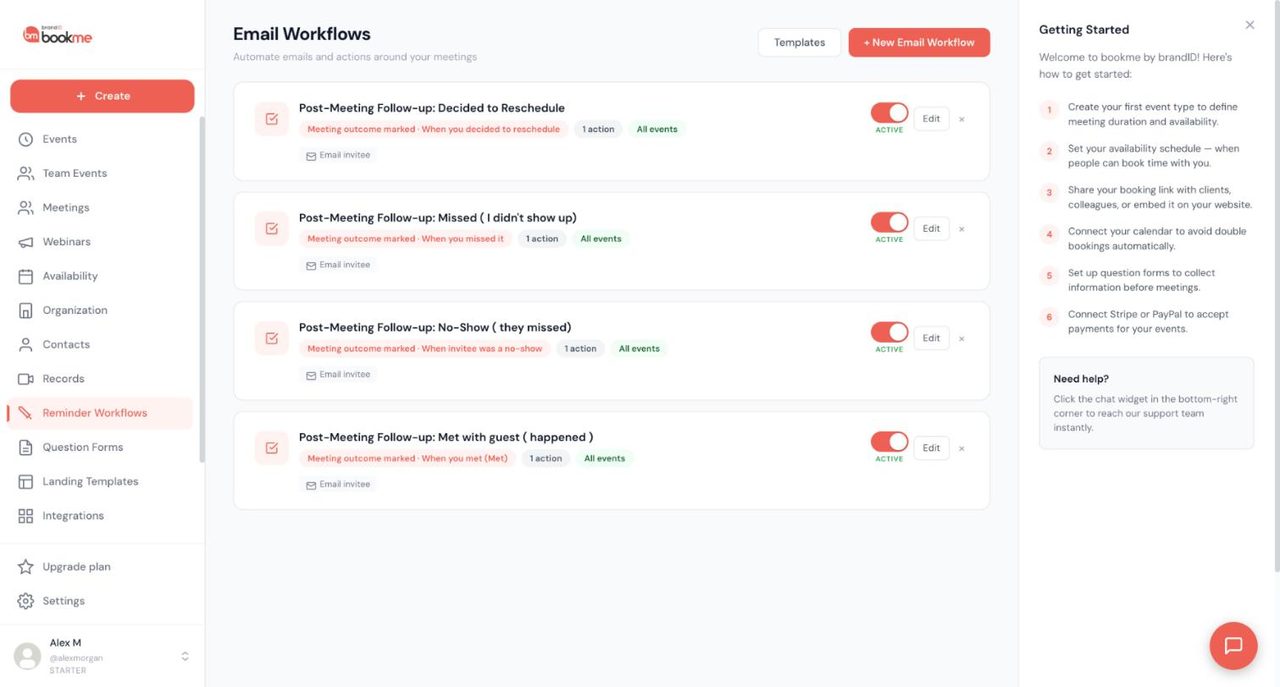
Marking an outcome triggers the matching workflow. Met thanks the invitee, and No-Show sends a gentle note with your link. Edit the wording once and every future email follows it. Our guide to post-meeting follow-up emails lists merge variables such as the invitee name and your reschedule link.
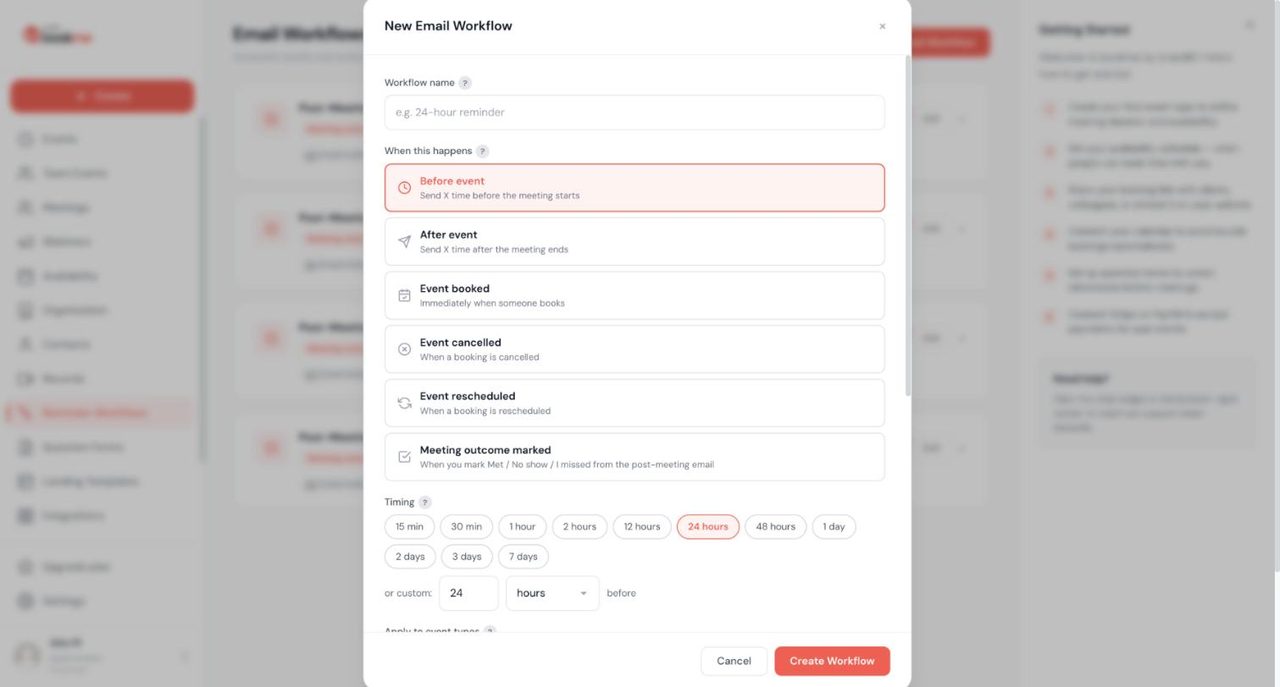
To build an email workflow, name it, pick a trigger (Before event, After event, Event booked, Event cancelled, Event rescheduled or Meeting outcome marked), set the timing and choose the event types. A workflow that emails invitees sends real mail, so test it with your own address. Starter includes unlimited email reminder workflows, and the Elite card adds an AI builder for them.
8. Question forms
A question form adds your own questions to the booking page. You build it once and reuse it on many events.
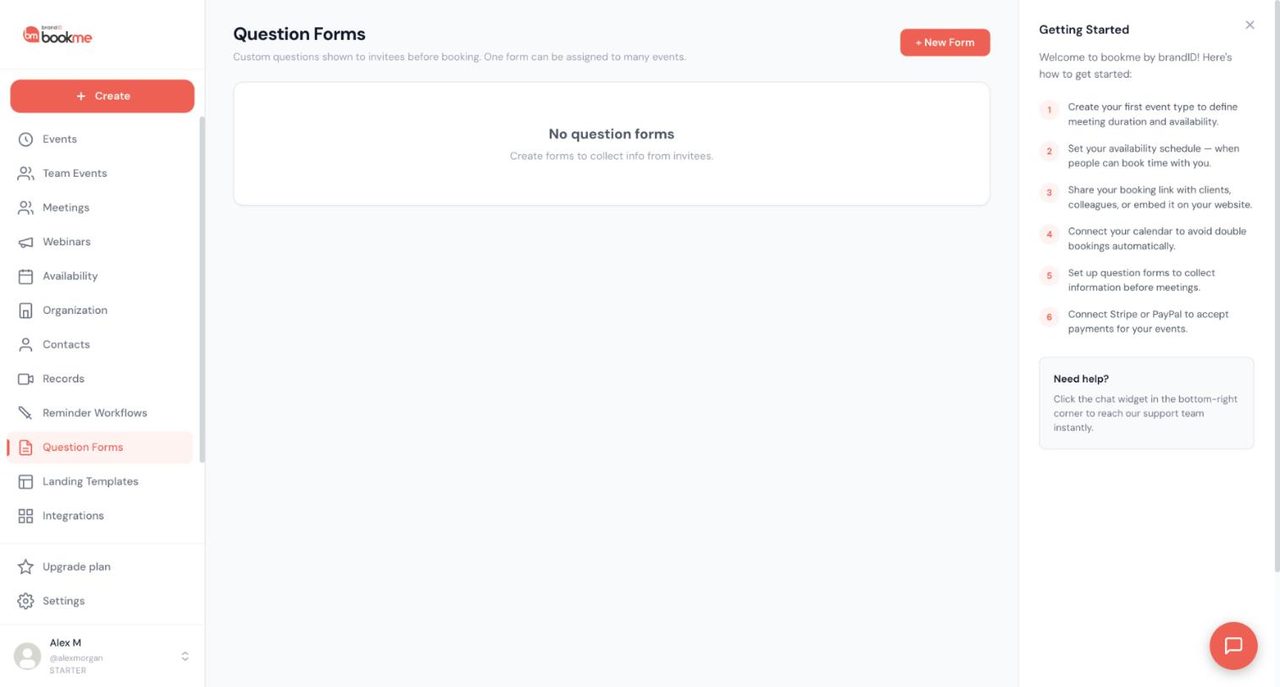
To create a question form, press + New Form, name it and add fields.
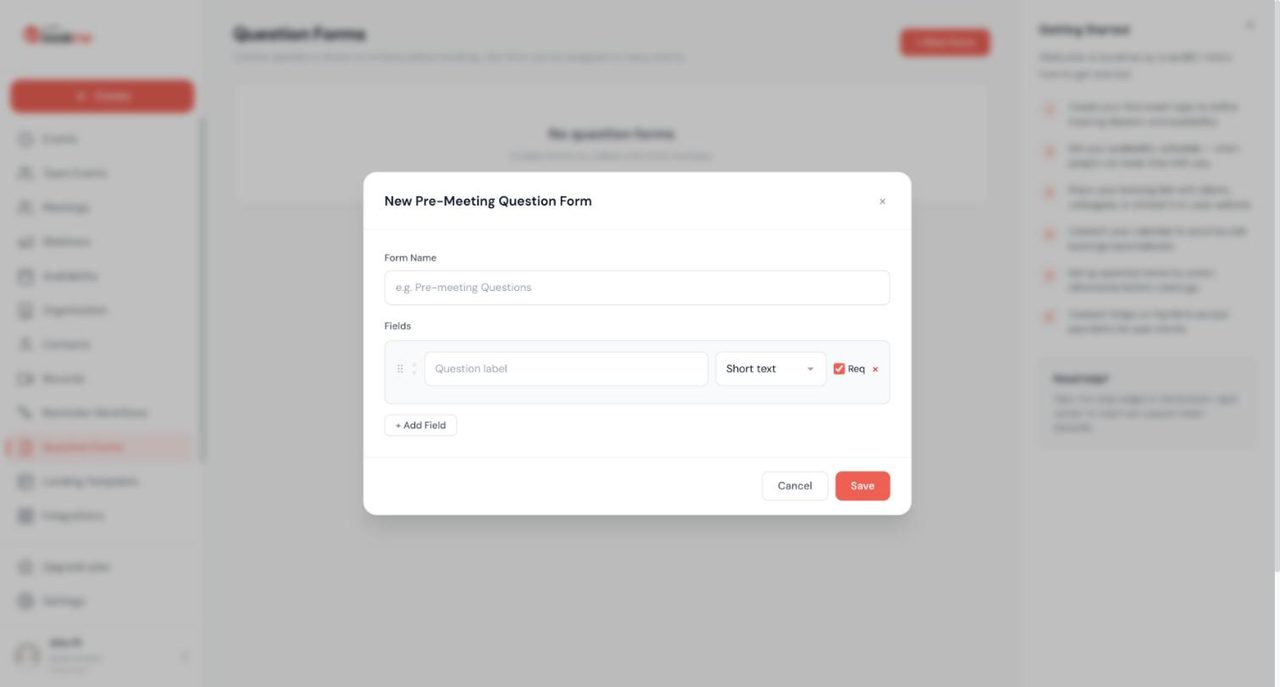
Each field has a label, a type (short text, long text, dropdown, radio or checkbox) and a Req checkbox. Name and email are always asked. Conditional questions are not available, so keep to three or four. Answers reach you in the calendar invite, your booking email and the booking details. One oddity: Events showed a form badge while this page said No question forms. We think the form belongs to a co-hosted event’s creator, but we did not confirm that.
9. Landing templates: the look of your page
Landing Templates sets how your public page looks. A cover photo box sits on top, with 1200 by 400 recommended, and a card per template follows. The active one is marked, and Preview booking page opens it.
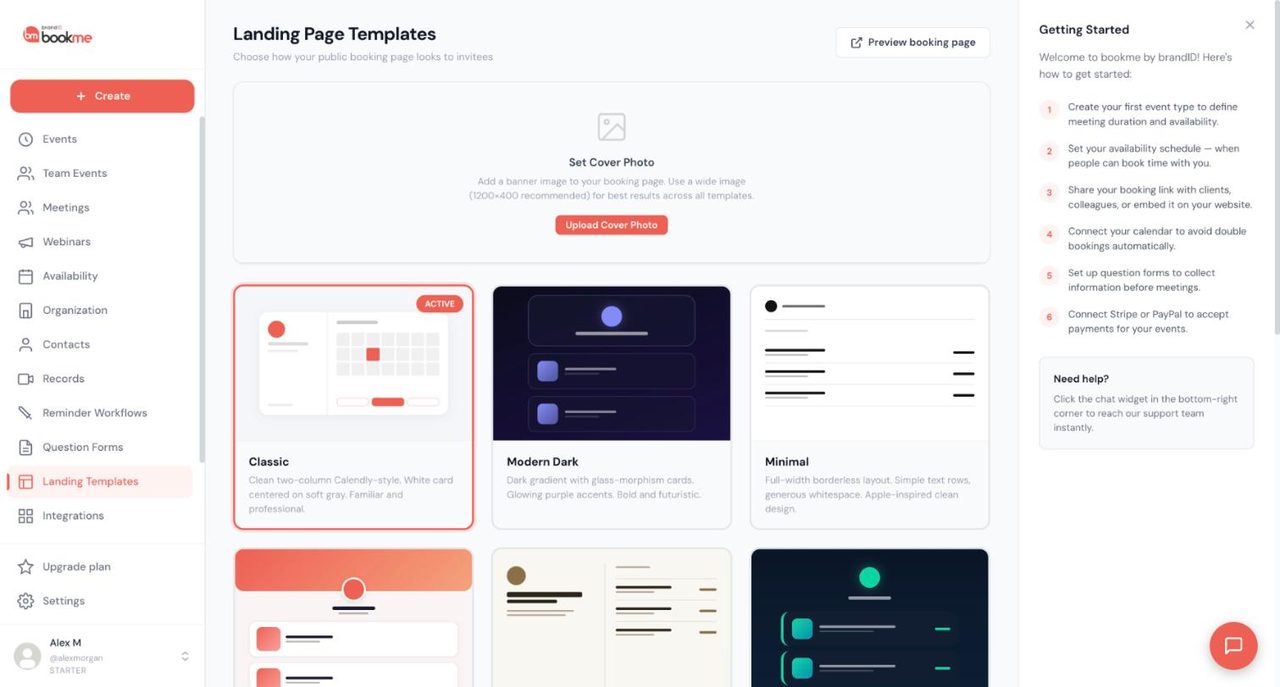
Our notes list seven templates: Classic, Modern Dark, Minimal, Showcase, Elegant, Neon and Corporate. To choose a landing template, click a card. It applies at once to your page and every event page, and nothing else changes. Hero styles look best with a cover photo.
The count is another conflict. The Help Center says twelve templates, the app showed seven, and the Pro card mentions custom branding with 100 landing page designs. We cannot reconcile these, so the count is NOT VERIFIED.
10. Integrations: calendars, video and apps
Integrations & Apps shows counters (1 active, 10 available, 4 categories on our account) and tabs for All, Connected, Calendars, Payments, Video and Apps. Chatgram and DMpro, two other brandID products, are featured on top. A note explains the bookme Payment gateway.
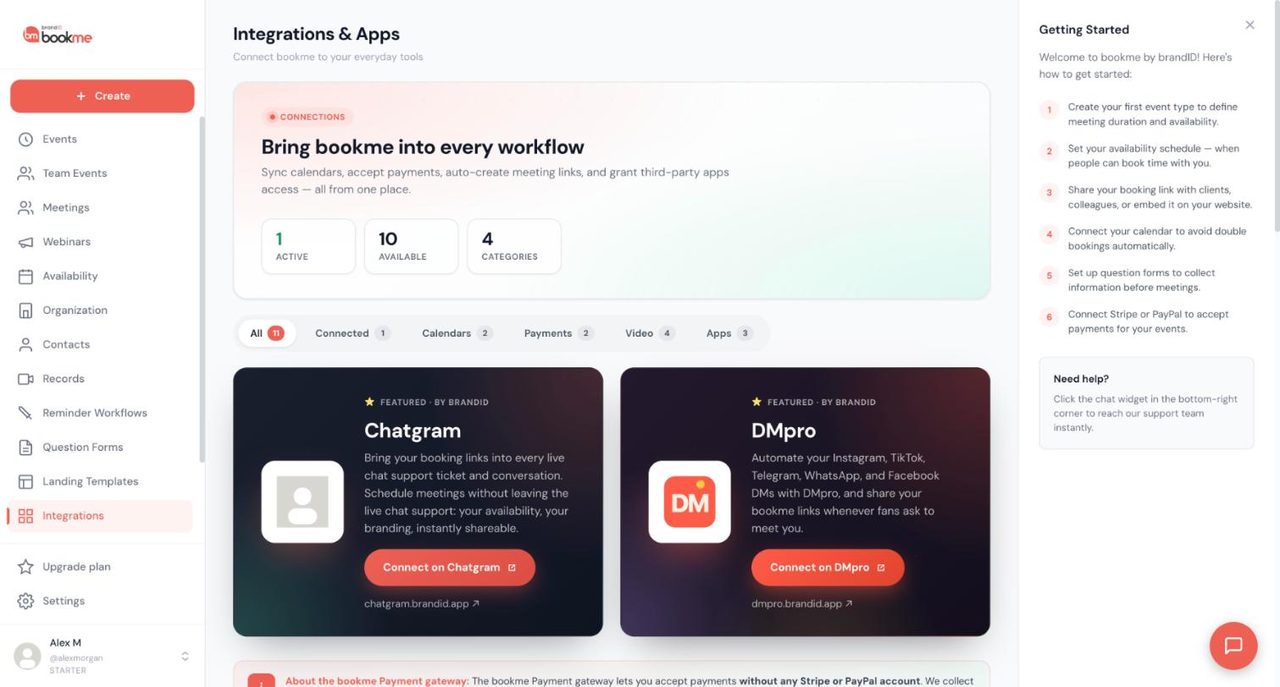
Google Calendar is the supported calendar. To connect your calendar, press Connect and approve access. Busy time then blocks slots and new bookings are written to your calendar. Outlook is shown as coming soon, and iCloud, Apple Calendar and CalDAV cannot connect. You can connect 1 calendar on Starter, 2 on Pro and unlimited on Elite.
Video is chosen per event. brandID Meet is built in and runs in the browser. Google Meet needs Google Calendar, and if that breaks, the booking gets a brandID Meet room instead. Zoom needs a one-time connection. The guide to set up video meetings covers each. A custom link, such as Microsoft Teams, is not a location option.
11. Payments and earnings
Any event can be paid. In the wizard you choose Paid, set a price and currency (USD, EUR, GBP, CAD, AUD or IRR) and pick how you get paid: the bookme Payment gateway, your own Stripe or your own PayPal. To create a paid event, connect your own gateway first if you want one. The bookme gateway needs neither. The invitee pays at checkout, the slot is held for about 30 minutes, and Meetings shows Pending payment until it clears. Fees are in the pricing section.
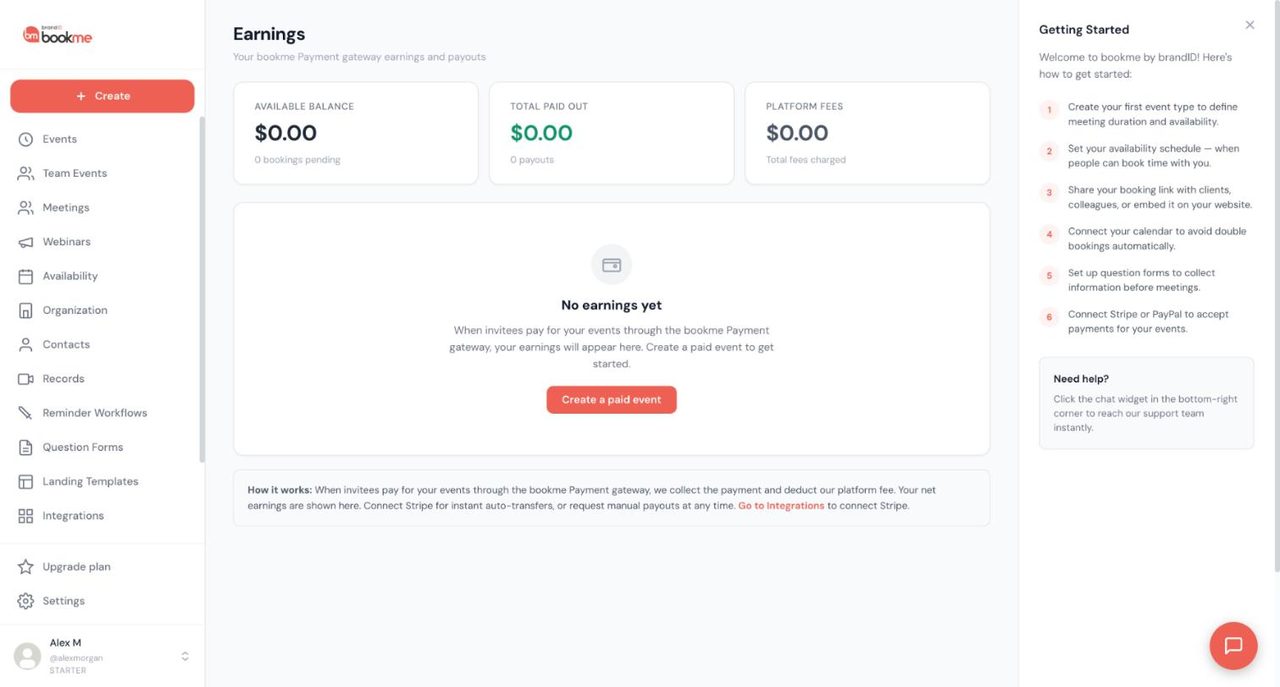
Earnings covers only the bookme gateway. When you read your earnings, you see three cards, then a history with date, gross amount, fee, your share and a status of Pending, Paid or Refunded. Connect Stripe for auto-transfers or request manual payouts anytime. Refunds are full only and take 5 to 10 days to show for the invitee.
12. Contacts, Records and Organization
Contacts is a people list built from your bookings. Per the Help Center and MCP tool notes, it shows name, email, meetings booked, upcoming, no-shows, cancellations and first and last meeting dates, with search and sorting. We have no screenshot, so this is NOT VERIFIED on screen. The help category is contacts, records and organization.
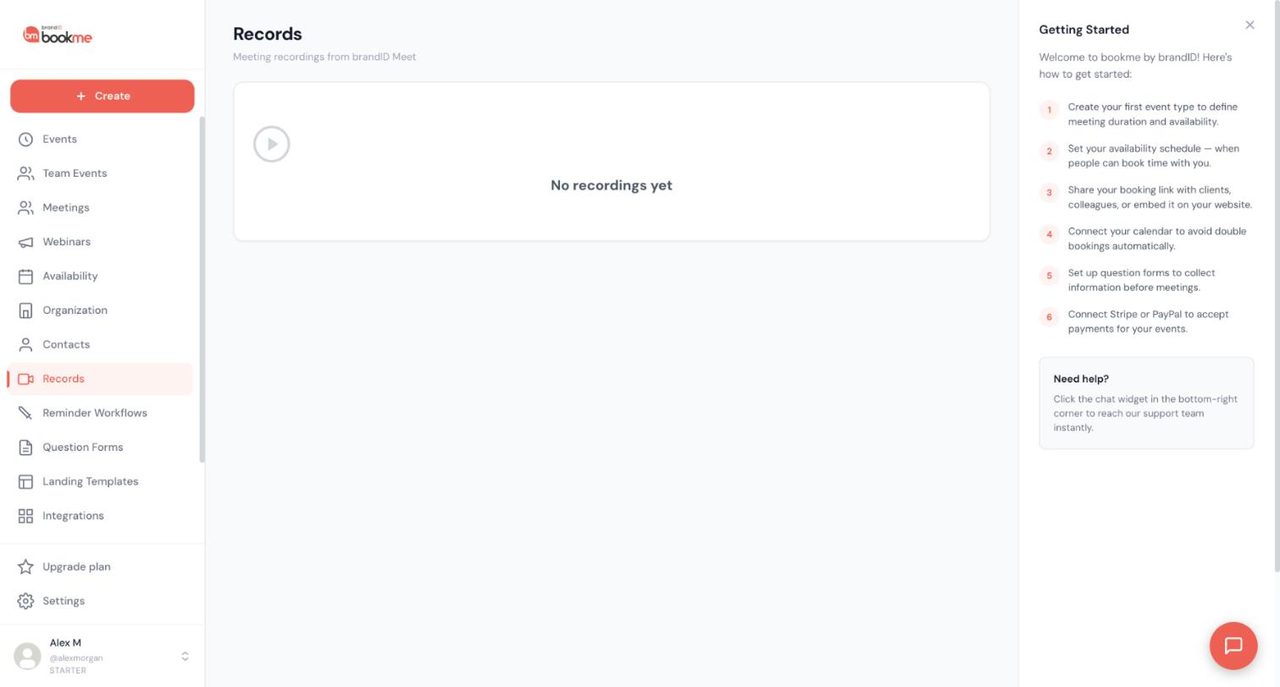
Records lists recordings from brandID Meet. To find your recordings, press Record in the meeting or switch on Auto-record for the event. They download as MP4 and are kept for 30 days, with a temporary share link. Zoom and Google Meet recordings stay in those tools. Which plan includes recording is not stated on the plan cards, so that is NOT VERIFIED.
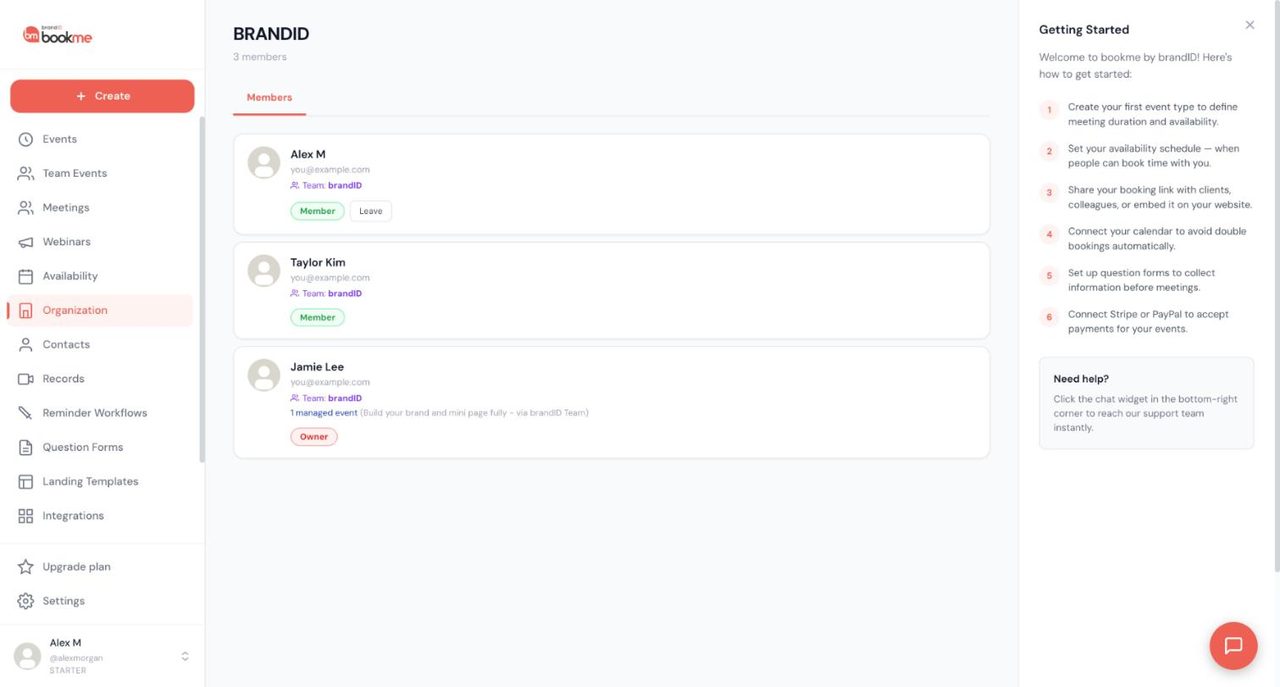
Organization is a shared workspace where members keep their own pages and calendars. Ours shows three members with Member and Owner badges and a managed event. To use your Organization, invite members, group them into teams with a team page and create managed events, which are templates assigned to members. The guide lists Owner, Admin and Member roles, but we saw only Owner and Member badges. The Pro card lists Organization and Managed Events, and Elite adds unlimited seats and teams.
13. Booking links, sharing and embeds
Your booking page lists every live event. A direct event link opens one event’s date picker. To share your booking link, use Copy link on Events or the is-live screen after publishing, which offers an email signature line. You can pre-fill a name and email in the link. Changing your username or an event slug breaks old links.
The Embed page picks all events or one event and offers Inline Embed, Popup Widget and Popup Text, each with ready-to-paste code.
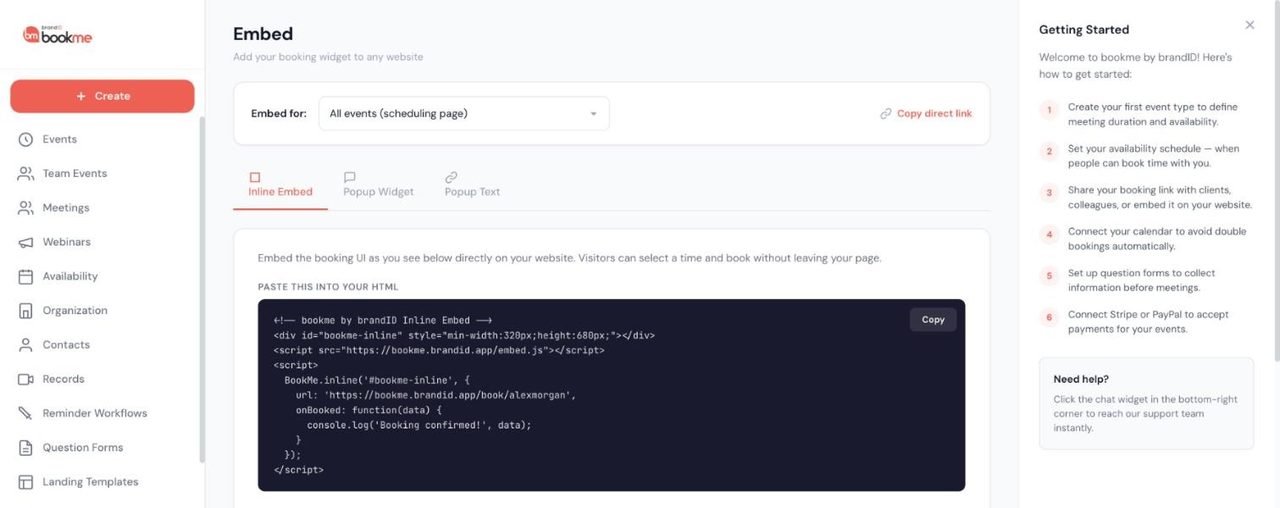
To embed your booking page, paste the snippet into a custom HTML or embed block. Each style accepts an onBooked callback. Embeds do not run inside email, so link to the event there. A test booking is a real booking.
14. Settings: profile, username and contact channels
Settings has Profile, Password, Calendars and Danger tabs. Profile holds your photo (up to 5 MB), display name, username, tagline, bio, brand name and cover photo. When you update your profile, the page changes at once.
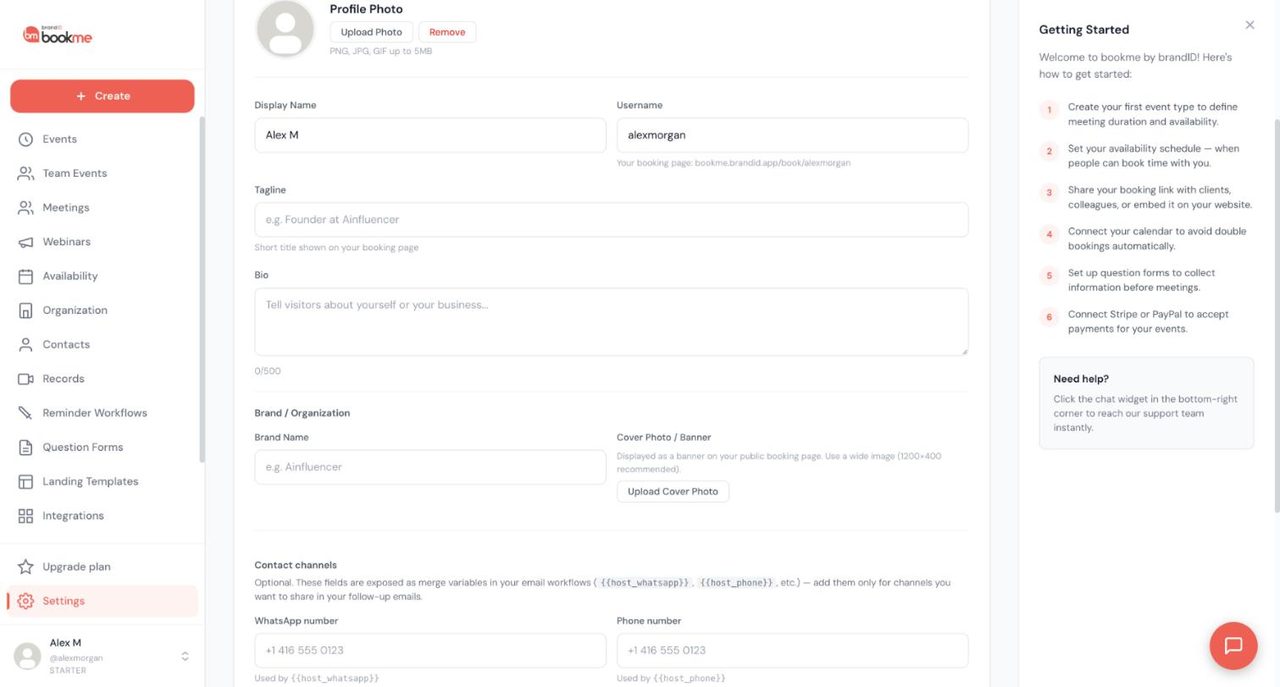
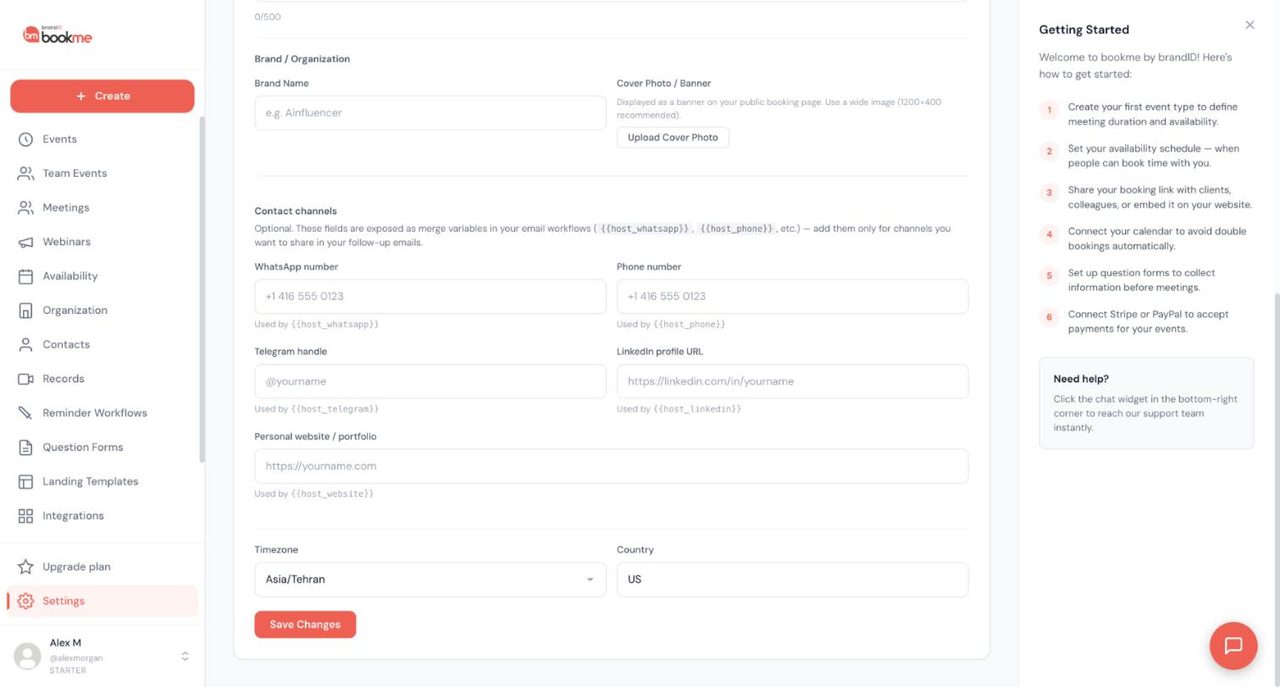
Optional contact channels feed merge variables for your emails: WhatsApp, phone, Telegram, LinkedIn and website. To add contact channels, fill the ones you share, save and place the variables in a workflow sign-off. They do not appear on the page by themselves. The same page holds Timezone and Country, which drives holiday blocking.
15. Plans, usage and upgrading
The Upgrade plan page is titled Plans & Billing, with a Monthly and Annual switch and three cards: Starter (CURRENT), Pro and Elite (BEST CHOICE). Our guide to compare plans and upgrade explains each card. Pressing Start Now begins a paid subscription, so read first.
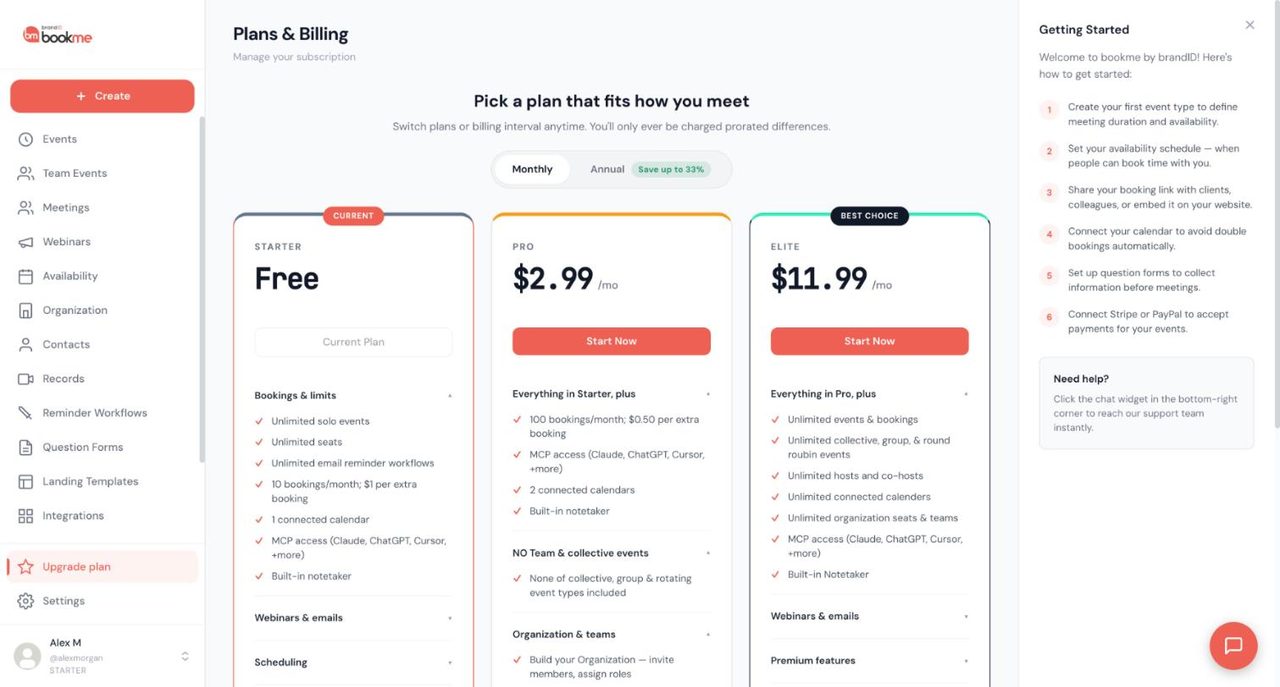
A Usage This Month box shows Bookings, Free left and Overage. To check monthly bookings, read it. A meeting counts when confirmed or completed, in the month it starts.
16. AI Assistants (MCP): what it is and how the page works
MCP is a standard way for an AI app to connect to another product. Once connected, you can say: create a 45 minute Strategy Call on Zoom for Monday and Thursday, list tomorrow’s meetings, block next Friday, or give me a no-show report. bookme gives AI apps 67 tools in 10 areas, plus 7 ready-made commands: daily briefing, weekly review, set up an event type, record outcomes, follow up no-shows, plan time off and prepare a webinar. The Help Center groups these pages as AI Assistants help articles.
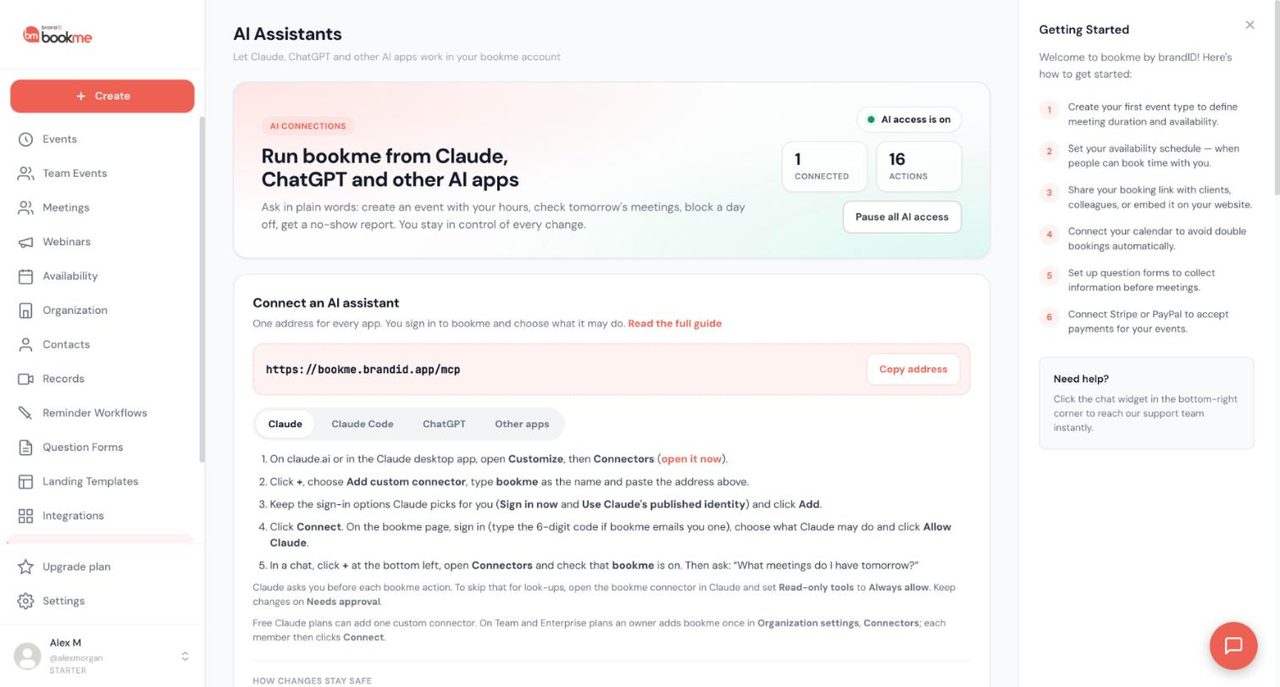
The page top shows an AI access is on badge, Connected and Actions counters and a Pause all AI access button. Below sits one address for every app, https://bookme.brandid.app/mcp, with a Copy address button and tabs for Claude, Claude Code, ChatGPT and Other apps. MCP access is listed on all three plans.
17. AI Assistants (MCP): connect Claude, Claude Code, ChatGPT and more
In Claude, open Customize, then Connectors, press +, choose Add custom connector, name it bookme and paste the address. Press Add, then Connect, sign in to bookme and choose access. The steps to connect Claude to bookme end with a read-only test. Free Claude plans can add one custom connector, and on Team and Enterprise an owner adds it once.
In a terminal, one command adds it. To connect Claude Code, run claude mcp add with the http transport and the address, then type /mcp and sign in. ChatGPT needs developer mode, offered on paid plans, and a connector using OAuth. Here is how to connect ChatGPT to bookme.
Any app with remote HTTP MCP support can join, such as Cursor, VS Code or Gemini CLI. The guide to connect another AI app has the pattern. An app bookme cannot identify is marked Unverified and starts at View only. You always sign in on a bookme page, never inside the AI app, and bookme emails a 6-digit code if your last sign-in is older than 10 minutes.
18. AI Assistants (MCP): the permissions you choose
Each app gets one of three levels. View only looks things up and changes nothing. View and manage can also change your own settings within limits. Custom lets you decide area by area. The guide to choose AI app permissions says changes apply on the app’s next request.
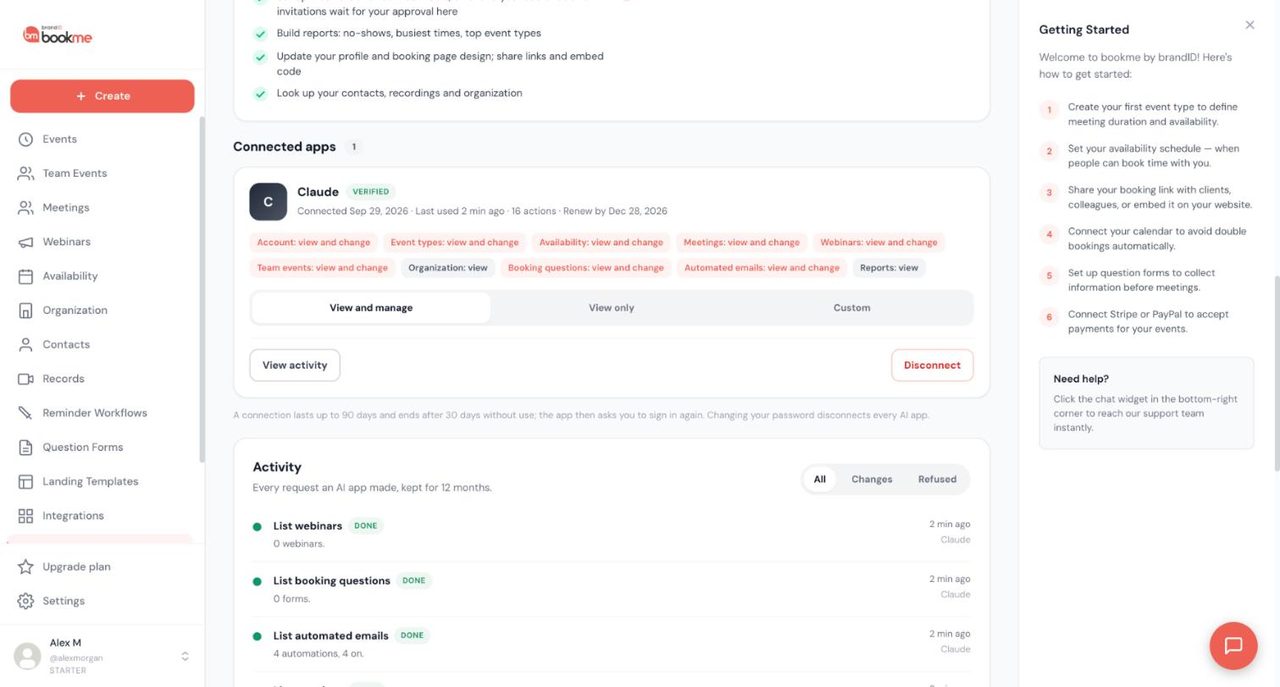
Our account had Claude at View and manage, with Organization and Reports view only. There are ten areas.
| Area | View | Change |
|---|---|---|
| Account | Profile, time zone, plan limits, calendars and apps | Name, bio, time zone, page design. Contact links need approval |
| Event types | Event types, links, embed code | Create, edit, duplicate, pause, delete unused drafts |
| Availability | Schedules, days off, open times | Weekly hours and date overrides |
| Meetings | Meetings, notes, follow-up previews, contacts, recordings list | Notes, outcomes, cancel, reschedule, guests |
| Webinars | Webinars, registrants, email results | Create, edit, repeat, add people, draft emails |
| Team events | Team events, co-hosts, invitations | Co-hosts, organizer, parts, invitations |
| Organization | Members, roles, team pages, managed events | Not available |
| Booking questions | Forms | Create, edit, attach |
| Automated emails | Automations | Create, edit, turn on or off |
| Reports | Meetings, no-shows, busiest times, top event types | Not available |
19. AI Assistants (MCP): safety levels and what an assistant can never do
The box How changes stay safe shows three levels. RIGHT AWAY covers your own settings, which are listed in Activity and mostly undoable for 30 days. ASKS YOU FIRST covers anything that reaches people. The assistant must show exactly what will happen and wait for your yes, which works once, for those details, for 10 minutes. YOUR APPROVAL covers high-impact requests that wait on the AI Assistants page.
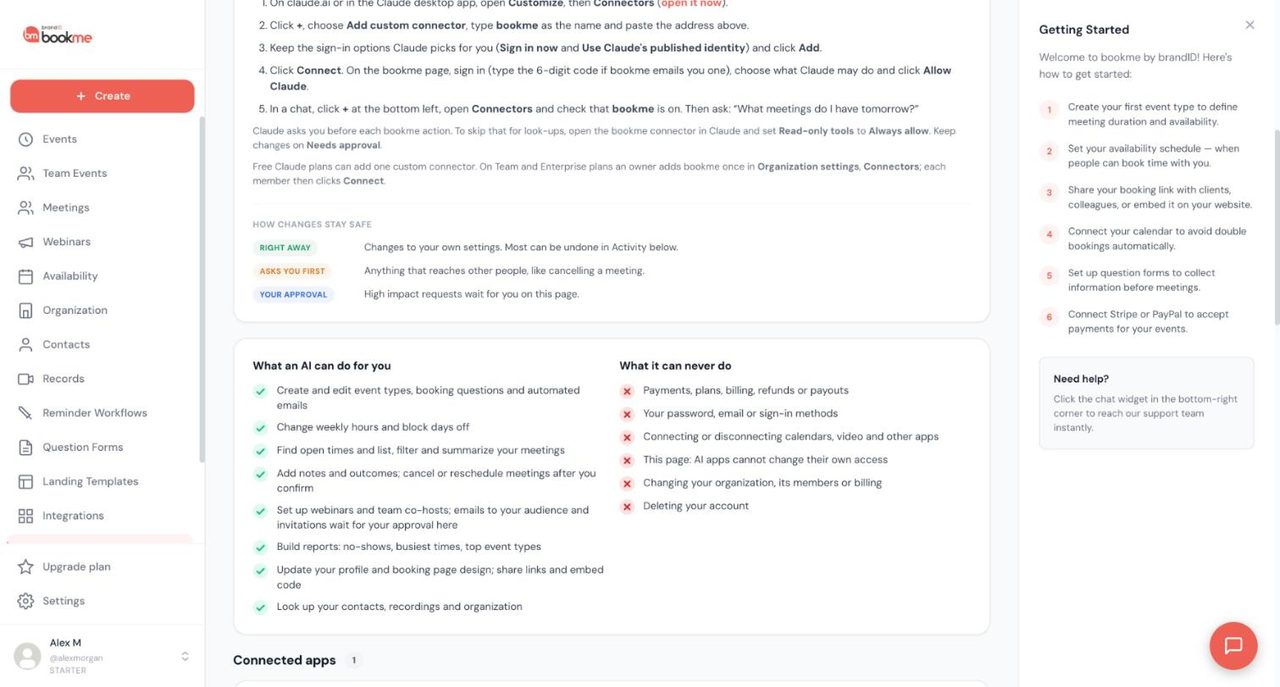
| Level | What lands here |
|---|---|
| Right away | Event types, weekly hours, days off, question forms, workflows, meeting notes, profile |
| Asks you first | Cancel or move a meeting, an outcome that emails the invitee, remove a guest, add a few webinar attendees, change who hosts a team event, delete an unused event type |
| Your approval | Invite someone new, email a whole webinar list, cancel several meetings, automations that send links outside bookme, change contact links, or more than 10 people-affecting changes in an hour |
Waiting requests show Approve and Reject, a badge in the sidebar and an email, at most one every 10 minutes. They expire after 24 hours. Here is how to approve an AI request. Outside links are highlighted red and never clickable. If you did not ask for it, reject it and disconnect the app.
The never list is firm. An AI app can never touch payments, plans, billing, refunds or payouts, your password, email or sign-in methods, your calendar and video connections, your organization or members, its own access, or your account. Paid meetings are never cancelled by an AI app, and prices are never changed. Text typed by invitees is marked as coming from outside.
20. AI Assistants (MCP): activity, undo, pausing and security
Activity lists every request, kept for 12 months, with filters All, Changes and Refused. Each row has a status such as DONE or ASKED TO CONFIRM, a CHANGE label, a summary and the app name.
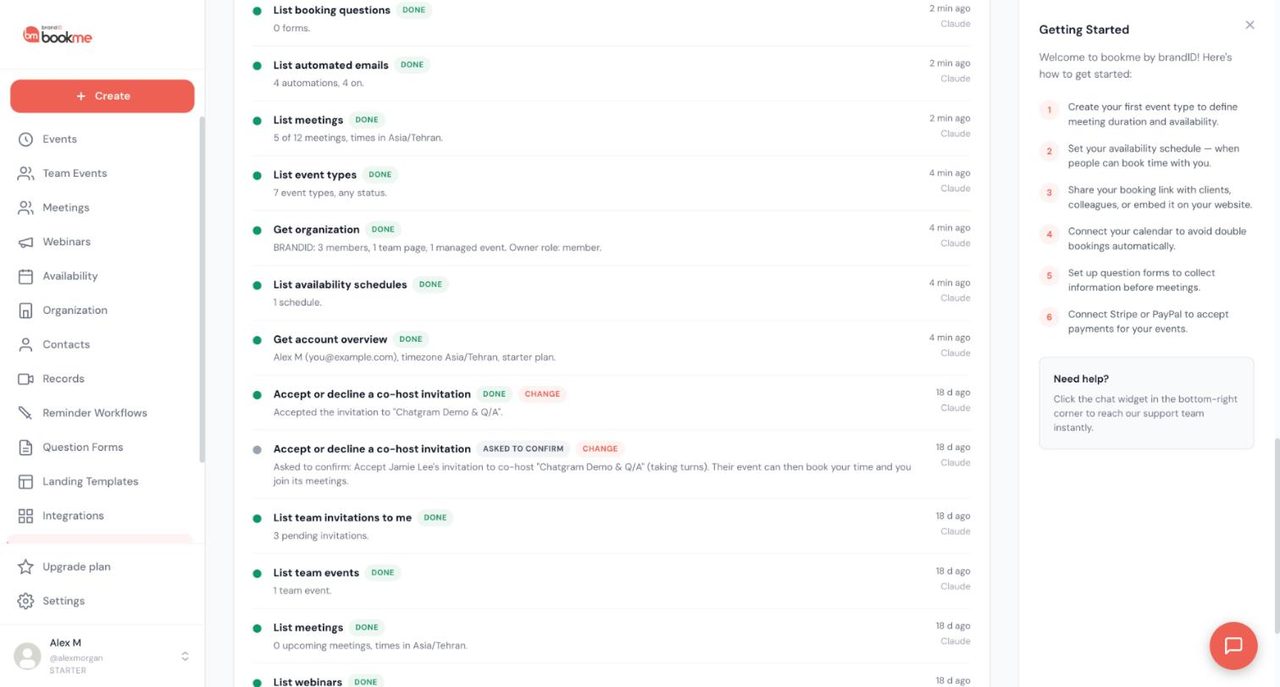
Your own changes have an Undo button for 30 days. The guide to undo an AI change says bookme restores the earlier version of an event type, hours, a day off, a form, a workflow, a note, a webinar or your profile. If you edited it since, you see Undo anyway. Sent emails and moved meetings cannot be undone.
Pause all AI access stops every app until you press Resume, and keeps the connections. Our guide to pause all AI access adds that a connection lasts up to 90 days, ends after 30 unused days, and that changing your password disconnects every AI app. bookme uses OAuth 2.1 with PKCE, and limits are about 90 requests and 20 changes a minute.
21. AI Assistants (MCP): what to ask for
The Help Center has four task guides with paste-ready prompts. Most advise ending with: show me exactly what you will do and wait for my yes.
To run your day, ask for a briefing, open times, a day off or a moved meeting. Blocking a day never cancels booked meetings, and moving one asks first. To build events with AI, describe the event, hours, form and reminder, and expect a preview. Prices are never changed.
To record outcomes with AI, start the record outcomes command, preview each follow-up and let it draft rebooking notes for no-shows. To plan webinars with AI, have it draft an invitation and a reminder and send you a test. Adding over 10 people, or emailing the whole list, needs your approval in bookme.
bookme Pricing
| Plan | Price | What is included |
|---|---|---|
| Starter | Free | Unlimited solo events, seats and email reminder workflows. 10 bookings a month. 1 connected calendar. MCP access, built-in notetaker. 1 webinar. Custom availability and question forms |
| Pro | $2.99 a month | Everything in Starter plus 100 bookings a month, 2 connected calendars, 2 webinars, Organization and Managed Events, custom reminder workflows, custom cancellation messages, custom branding and priority support |
| Elite | $11.99 a month | Everything in Pro plus unlimited events, bookings, collective, group and round robin events, hosts, calendars and webinars, API access, an AI builder for email workflows, removal of bookme branding, advanced admin controls and phone support |
These figures come from the Upgrade plan page in October 2026, which we trust over older Help Center text. Annual billing saves up to 33%, but we saw no yearly price, so we quote none. You can switch anytime and pay only prorated differences.
Platform fees on paid bookings
| Plan | Your own gateway | bookme Payment gateway |
|---|---|---|
| Starter | 15% | 20% |
| Pro | 5% | 20% |
| Elite | 3% | 20% |
The bookme gateway takes 20% on every plan, so its value is convenience: no Stripe or PayPal account is needed. Your own gateway costs less. We did not check Stripe or PayPal’s own charges.
Bookings, overage and calendars
| Plan | Bookings a month | Extra booking | Connected calendars |
|---|---|---|---|
| Starter | 10 | $1 | 1 |
| Pro | 100 | $0.50 | 2 |
| Elite | Unlimited | Not applicable | Unlimited |
For example, 12 bookings on Starter is 2 over the limit, so 2 extra bookings at $1 each. The Help Center says extra bookings are billed at the start of the next month.
Webinar limits
| Plan | Webinars | Attendees each | Invite emails a month | Extra attendee | Extra emails |
|---|---|---|---|---|---|
| Starter | 1 | 10 | 100 | $0.20 | $1 per 1,000 |
| Pro | 2 | 20 | 1,000 | $0.50 | $0.60 per 1,000 |
| Elite | Unlimited | Unlimited | 5,000 | Not applicable | $1 per 1,000 |
This table comes from the plan cards. The Webinars page counters showed infinity on our Starter account, which is the conflict described earlier.
Open questions and what we could not verify
Here is where sources disagree, as of 18 October 2026.
- Team events. The Create event dialog says Pro and Elite, but the Pro card says no collective, group or rotating events. Check your own Upgrade plan page.
- Webinar counters. Infinity counters on Starter versus 1 webinar and 10 attendees on the card. NOT VERIFIED.
- Landing templates. Twelve in the Help Center, seven in the app, 100 designs on the Pro card. NOT VERIFIED.
- Recording. The plan that includes it is not stated. NOT VERIFIED.
- Contacts page. No screenshot. The columns come from the Help Center and MCP notes.
- Branding. Removal of bookme branding is on the Elite card only, and what Pro branding covers is NOT VERIFIED.
- Team seat price. No price found for extra seats. NOT VERIFIED.
- Pro extras. Recurring paid meetings and bundle sales are listed on the Pro card. We did not test them, and we say nothing about group event seats.
We also ran no live bookings, so payment flow, payout timing and calendar sync come from the guides, not from our own tests.
bookme Pros and Cons
bookme Pros
- A real free plan with unlimited solo events and 10 bookings a month
- Low paid prices, and annual billing saves up to 33%
- A five-step wizard that keeps nothing live until you publish
- Post-meeting outcomes with previewable follow-up emails
- Built-in brandID Meet video, plus Google Meet and Zoom
- Webinars with attendee lists, emails and tracking
- The bookme gateway needs no Stripe or PayPal account
- MCP access on every plan, with three safety levels, undo and one pause switch
- A Help Center guide for nearly every screen
bookme Cons
- Team events are unclear: the app disagrees with itself about Pro
- Webinar counters on Starter did not match the plan card
- Only Google Calendar connects today, and no custom domains
- The bookme gateway fee is 20% on every plan
- Refunds are full only, and question forms have no conditional questions
- We could not verify live bookings, payouts or the Contacts screen
Who Should Use bookme?
| If you are… | Fit | Why |
|---|---|---|
| A solo consultant or coach | Strong | Free covers 10 bookings a month, video links and follow-up emails |
| A freelancer who charges per session | Good | Paid events work with your own gateway or the bookme gateway |
| A trainer who runs webinars | Good | Registration pages and emails, but check the limits on your plan |
| A team that wants rotating hosts | Check first | Team events depend on your plan, so confirm on the Upgrade plan page |
| Someone who wants AI to run the calendar | Strong | One address for Claude, ChatGPT and more, with permissions and undo |
| A team that needs Outlook or a custom domain | Not yet | Outlook is coming soon and custom domains are not offered |
bookme Alternatives
| Alternative | Choose it if | Pricing basis |
|---|---|---|
| A calendar app’s built-in booking page | You only need simple one-to-one slots | Often included with the calendar |
| Other scheduling apps | You want a different feature mix or more integrations | Per month, often per seat |
| A booking plugin on your own site | You want everything inside your own website | One-off or yearly fee |
| A human assistant | You want a person to manage your diary | Per hour or per month |
For a wider view, see our scheduling tool alternatives roundup, and our group poll scheduling alternatives guide if you mostly schedule groups.
How to Get Started With bookme
- Step 1. Create an account. Sign up with Google or an emailed code and claim a username.
- Step 2. Set your hours. Edit the Default schedule on Availability and check its time zone.
- Step 3. Create one event type. Use the wizard, choose a location and publish when ready.
- Step 4. Connect your calendar. Link Google Calendar on Integrations.
- Step 5. Test the page. Open your link in a private window and book yourself with an address you can read.
- Step 6. Share or embed. Copy the link from Events, or use the Embed page.
- Step 7. Add an AI assistant if you want one. Copy the address, connect with View only first and widen access later.
Final Verdict
bookme is a broad, sensibly controlled scheduling app. The sidebar is clear, the wizard keeps drafts private until you publish, outcomes and follow-up emails are built in and the free plan is enough to learn the product. Paid prices are low, and fees on paid bookings fall on higher plans if you use your own gateway.
The AI assistant section is the most distinctive part. One address connects Claude, Claude Code, ChatGPT and other MCP apps. You pick a level, risky steps ask first or wait for approval, Activity lets you undo changes for 30 days and one switch pauses everything. It can never touch payments, plans, passwords or calendar connections. What we cannot offer is proof from live use, and a few points are unclear, mostly team events on Pro and the Starter webinar counters. Start on Starter, build one event and read the Upgrade plan page before you pay.
If you take bookings from Instagram, read AiGrow’s lash business booking playbook on the AiGrow blog.
bookme Review FAQs
What is bookme?
bookme is brandID’s scheduling and booking app. You publish event types, people pick a time from your availability, and bookme handles the calendar, video link, reminders, payment and follow-up. It also runs webinars and has an AI Assistants (MCP) page.
Is bookme free?
Yes. Starter is free and includes unlimited solo events, 10 bookings a month, 1 connected calendar and MCP access. Extra bookings cost $1 each. Pro is $2.99 a month and Elite is $11.99 a month, and annual billing saves up to 33%.
What counts as a booking?
A meeting that is confirmed or completed and starts in the calendar month. The Usage This Month box on the Upgrade plan page shows Bookings, Free left and Overage.
What are the fees on paid bookings?
With your own gateway the platform fee is 15% on Starter, 5% on Pro and 3% on Elite. With the bookme Payment gateway it is 20% on all plans, and no Stripe or PayPal account is needed.
Does bookme support team events and round robin?
Yes, but the plan rule is unclear. The Create event dialog says Pro and Elite, while the Pro card says no collective, group or rotating events and the Elite card lists them as unlimited. Check the Upgrade plan page in your account.
What are the webinar limits?
Per the plan cards, Starter has 1 webinar with 10 attendees and 100 invite emails a month, Pro has 2 webinars with 20 attendees and 1,000 emails, and Elite has unlimited webinars and attendees with 5,000 emails. Our Starter counters showed infinity, so check both.
Which calendars and video tools work?
Google Calendar is supported and Outlook is coming soon. iCloud, Apple Calendar and CalDAV cannot connect. Video can be brandID Meet, Google Meet or Zoom. Starter allows 1 calendar, Pro 2 and Elite unlimited.
Can Claude or ChatGPT use bookme?
Yes. Copy the address from the AI Assistants page, add it as a connector in Claude, ChatGPT, Claude Code or any app with remote HTTP MCP support, sign in to bookme and choose View only, View and manage or Custom. ChatGPT needs developer mode on a paid plan.
Is the AI assistant safe?
It has layers. Changes to your own settings happen right away and most can be undone for 30 days. Anything that reaches other people asks you first, and high-impact requests wait for your approval. It can never touch payments, plans, billing, refunds, passwords or calendar connections.
How do I turn off every AI assistant?
Open AI Assistants and press Pause all AI access. Connections are kept, and Resume AI access switches them back on. To remove one app, press Disconnect on its card. Changing your bookme password disconnects every AI app.
 Summarize this article with: