
How to read your earnings and payouts
The Earnings page shows what invitees paid through the bookme Payment gateway, what bookme kept as its platform fee, and what is waiting to be paid out to you.
Before you start
- At least one paid event that uses the bookme Payment gateway. Payments to your own Stripe or PayPal do not appear here.
Open Earnings
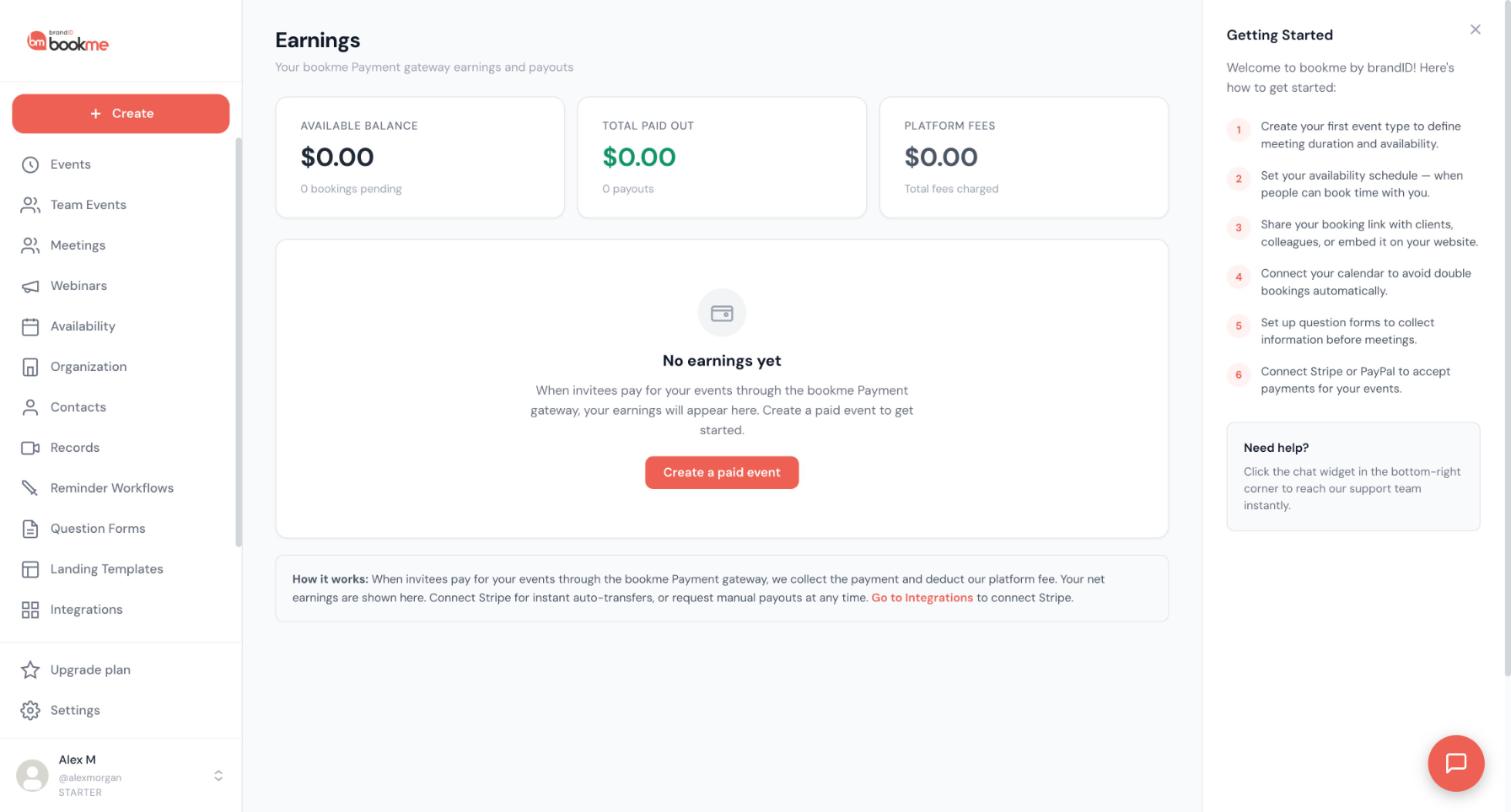
Click Earnings in the sidebar. Before your first payment you see No earnings yet and a Create a paid event button that takes you to the paid event wizard.
Read the three cards
- Available balance: your share of payments that have not been paid out yet, with a count of bookings pending.
- Total paid out: what has already been paid or transferred to you, with a count of payouts.
- Platform fees: the total fees charged on your payments.
Understand what appears here
The page explains that when invitees pay through the bookme Payment gateway, bookme collects the payment and deducts its platform fee. Your net earnings are shown here.
The platform fee with the bookme gateway is 20% on Starter, Pro and Elite. Payments that go straight to your own Stripe or PayPal account are not listed here. Find them in your Stripe or PayPal dashboard, and as a Paid chip on the booking in Meetings.
Check each payment in the history
Once payments arrive, the transaction history lists each one with the date, the gross amount, the fee, your share and a status: Pending (paid by the invitee, waiting for a transfer or payout), Paid (transferred or paid out) or Refunded (returned to the invitee).
Choose how to get your money
The page note gives you two options. Connect Stripe for instant auto-transfers, or request manual payouts at any time. The note links to Integrations, where you connect Stripe.
Once Stripe is connected, you can transfer your balance to it and later gateway payments are auto-transferred as they come in. If you do not use Stripe, request a payout. brandID processes manual payouts by hand and the history shows the payment as paid out when it is done.
Open a booking when you need the details
On Meetings, each paid booking has a Paid chip with the amount. Its details show the gateway and the refund button.
Refund in full sends the money back to the invitee and tells them. Only full refunds are available in bookme, and they take 5 to 10 days to appear for the invitee.
Tips
- Cards show $0.00 until a payment comes through the bookme gateway, even if you have a paid event published.
- You do not need Stripe to take payments. Connecting it only changes how you receive your money.
- If a manual payout has not moved within a few business days, write to [email protected].
If something goes wrong
My paid bookings do not show on Earnings.
The payment status stays Pending.
A booking is cancelled and Unpaid.
Related how-to guides
Still stuck? We’re happy to help.
Create your bookme account, see pricing, or reach out to support directly.




