
How to read the AI activity log and undo a change
Activity lists every request an AI app made in your account. Changes to your own settings can be put back for 30 days.
Before you start
- An AI app that has made a change in your account.
Open Activity and filter to changes
Open AI Assistants in the sidebar and scroll to Activity. It shows every request an AI app made and keeps it for 12 months. The filters are All, Changes and Refused. Click Changes to see only changes, plus your own Undo, Approve and Reject. To see one app only, click View activity on its card.
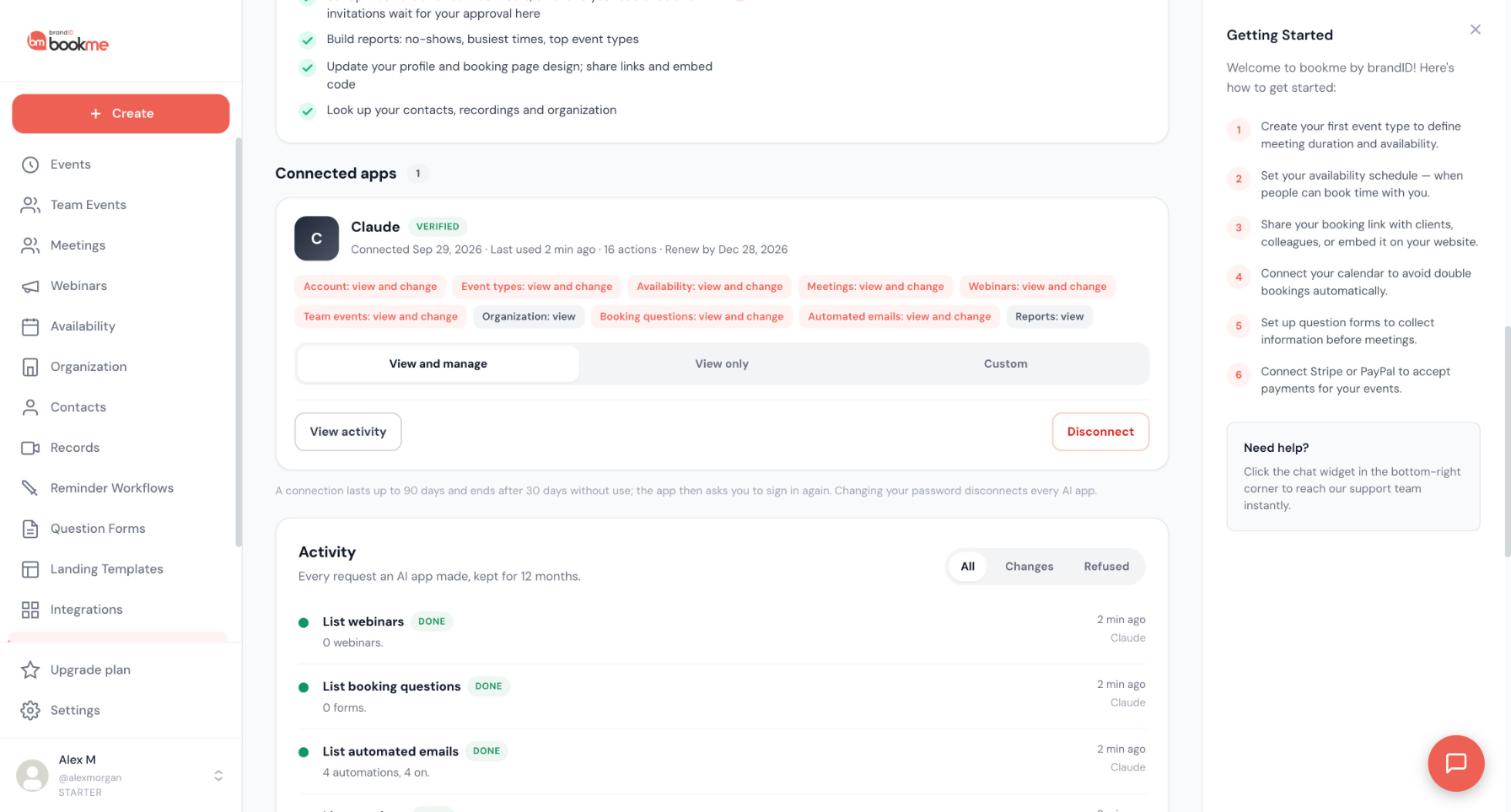
Read a row
Each row shows what the app did, a status such as Done or Asked to confirm, a Change label when it changed something rather than looked it up, a short summary, how long ago it happened and the app’s name. Rows load 25 at a time; click Show more for older ones.
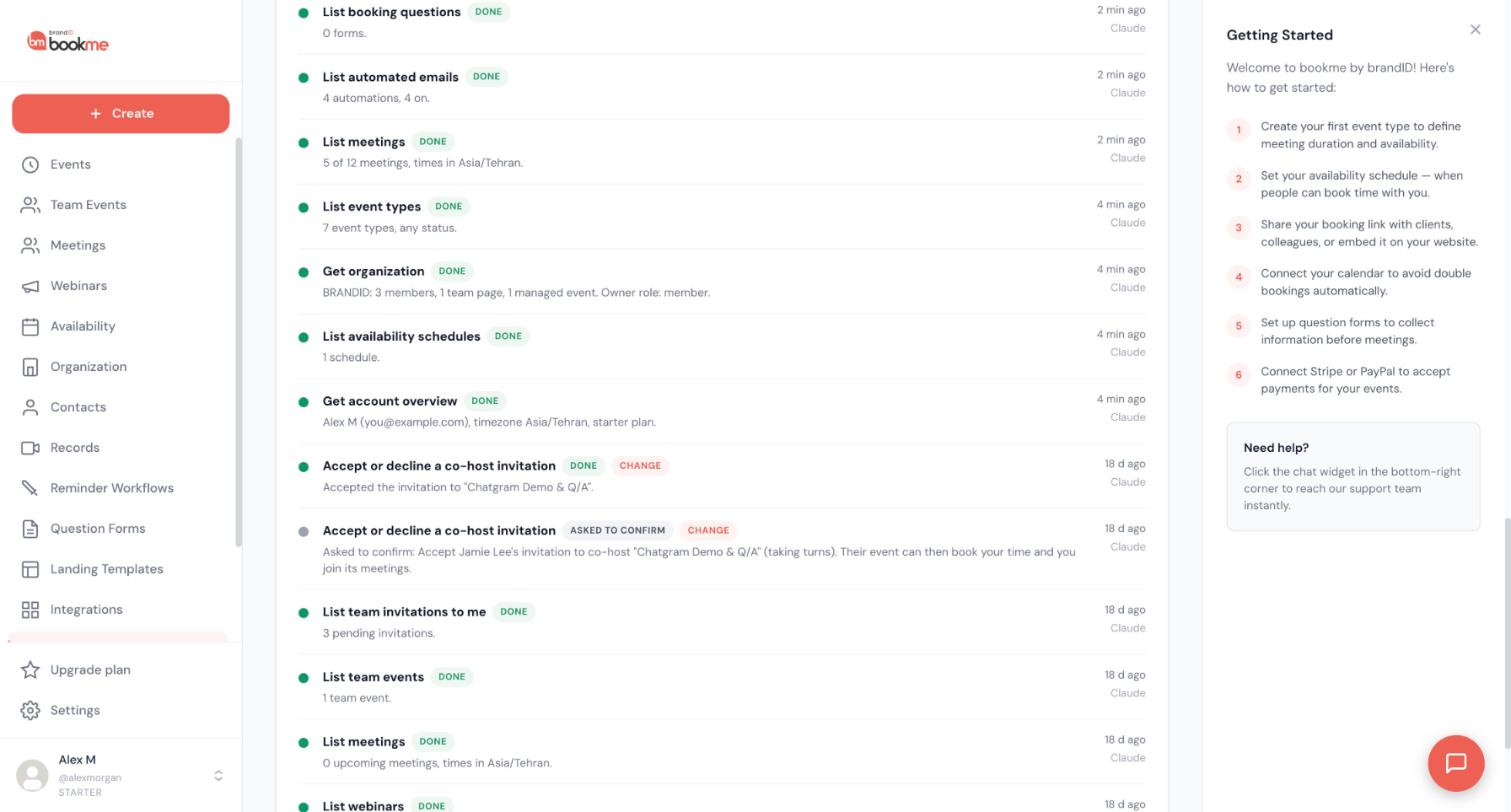
Click Undo
A change to your own settings has an Undo button with the last day you can use it, 30 days after the change. Click Undo on the row, then confirm. bookme puts back the version from before the AI change: an event type’s settings, weekly hours, a day off, a question form, a reminder workflow, a meeting note, a webinar’s details or your profile.
Handle later edits with Undo anyway
If you edited the same thing yourself after the AI change, bookme notices and tells you what was edited again. Click Undo anyway only if you want to replace those later edits.
Undo related changes newest first
One request can create several rows. For example, a request to create a free 60-minute event with pre-meeting questions creates the event type and then attaches a question form. Undo the question form first, then the event type. If you undo the event type first, bookme asks before deleting it, because it was changed after it was created. Undo anyway then deletes it, and you can still undo the question form afterwards.
Know what cannot be undone
Anything that already reached people cannot be undone: sent emails, cancelled or moved meetings and invitations. A created event type that already has bookings is turned off instead of deleted, so its booking history stays.
Tips
- A row you do not recognize? Check which app made it, then change that app’s access or disconnect it on the same page.
- A row marked Preview means the app only checked a change. Nothing was changed.
If something goes wrong
There is no Undo button on a row.
Undo asks about later edits.
Related how-to guides
Still stuck? We’re happy to help.
Create your bookme account, see pricing, or reach out to support directly.




