
Webinars
Create webinars, invite people, understand your plan limits, and manage them yourself or with an AI assistant.
A webinar in bookme is one scheduled session for many people. It has a fixed date and time, a registration page, invitation emails and a list of attendees you can track. It is built for broadcasts such as a product demo, a training or a launch, where you decide when it happens and people sign up to come.
An event type works the other way around. You publish a meeting you offer, such as a 30 minute call, and invitees pick any open slot from your availability. A webinar is not an event type: it lives under Webinars in the sidebar, not on the Events page.
The main differences
- Time: an event type offers many slots from your availability schedule. A webinar has one fixed start (or a repeat pattern you set).
- Audience: an event type is usually one invitee per slot, or a group event with seats. A webinar is one session for a whole attendee list.
- Emails: a webinar has its own invitation, reminder and follow-up templates that you can send to the list, with opens, clicks and RSVPs tracked per attendee.
- Registration: people can register on a public page, or you can add them by email yourself.
Each registration also appears on your Meetings page as a booking with a Webinar chip, so the attendee gets the same confirmation and reminders as any booking.
If you only need a few people to share one slot, such as office hours, a group event type may be enough. See Event Types for how group events work. Choose a webinar when you want a registration page, an attendee list and your own emails.
Click Webinars in the left sidebar, between Meetings and Availability. This page lists every webinar you have created and is where you start a new one.
What you see on the page
- A short line under the title: Broadcast events with custom email campaigns.
- A row of counters showing how many webinars you have, how many webinar emails you have sent this month, and the attendee limit per webinar. These follow your plan, so the numbers you see depend on the plan you are on. See What Are The Webinar Limits On Starter, Pro And Elite? for the exact figures.
- An Upgrade plan link next to the counters.
- A + New Webinar button at the top right.
The empty state
Until you create one, the page shows No webinars yet with the message that you can create a webinar to broadcast a fixed-time event to an attendee list, each with its own email templates, schedule and tracking. The + Create your first webinar button opens the same dialog as + New Webinar.
Webinar sign-ups also show up on your Meetings page with a Webinar chip, and recordings of webinars held on brandID Meet are listed under Records.
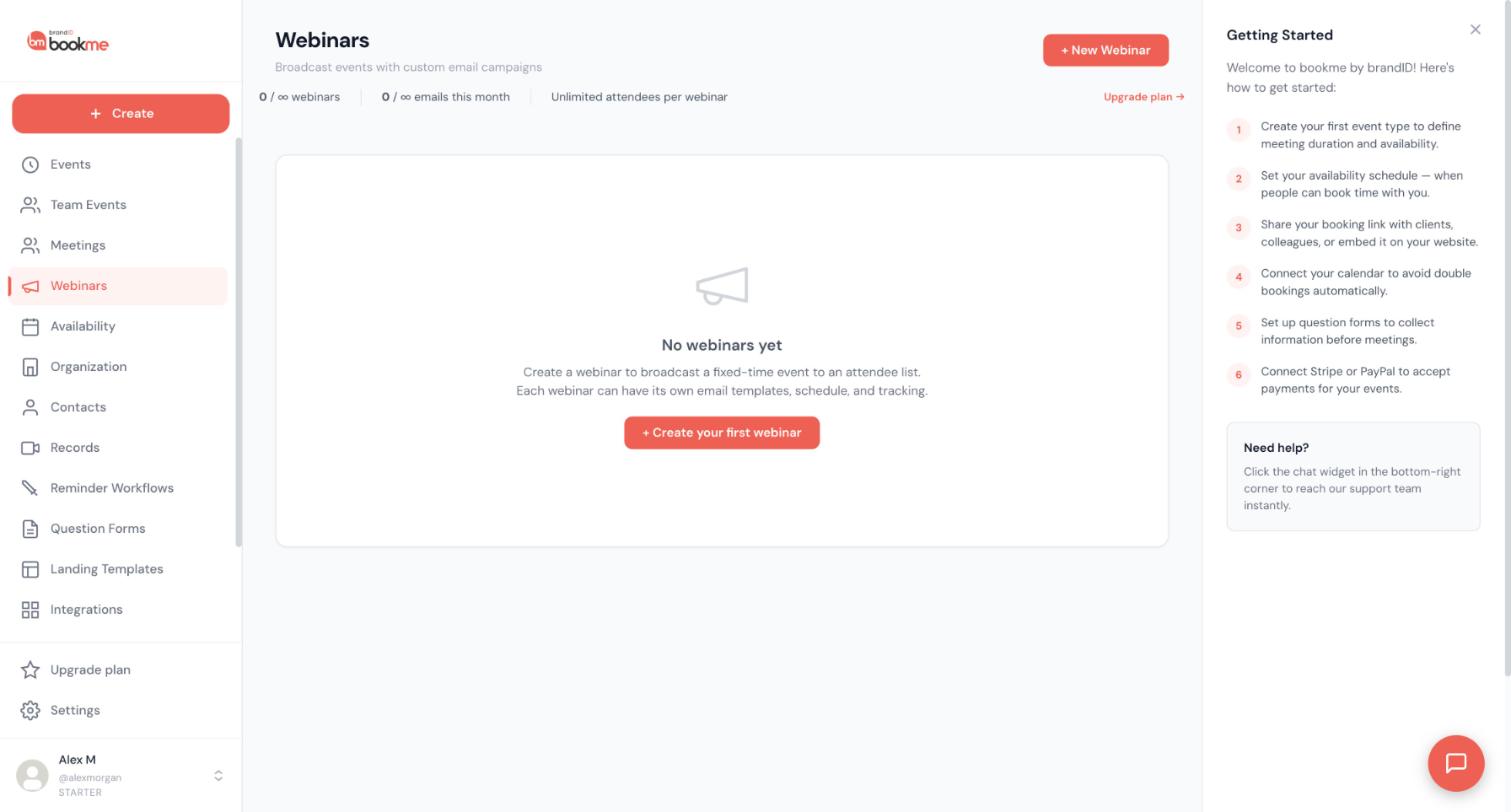
Open Webinars and click + New Webinar. The New Webinar dialog first asks how you want to set it up. This article adds detail to the basic steps in Event Types.
Option 1: New Webinar from Scratch
You start fresh and set your own title, description, time and cover image. Enter a Title, pick the date on the calendar (past days cannot be chosen), set the time, then click Create & Continue.
Option 2: Link existing event type
You use one of your event types as a template. Its title, description, cover and location are copied into the webinar, which saves you retyping them. Pick the event type, set the date and time, then continue.
After you continue
You fill in the rest of the details: description, cover image, time zone, duration and the meeting type (Google Meet, Zoom, brandID Meet, or a custom URL with optional dial-in and passcode). Then you work through the Attendees, Emails and Send tabs described in the other articles in this category.
- Click Webinars in the sidebar, then + New Webinar.
- Choose New Webinar from Scratch or Link existing event type.
- Enter the title, date and time.
- Click Create & Continue and complete the details.
Not sure which to pick? Use Link existing event type when you already have an event with the right description and location, and New Webinar from Scratch when the webinar is a new topic.
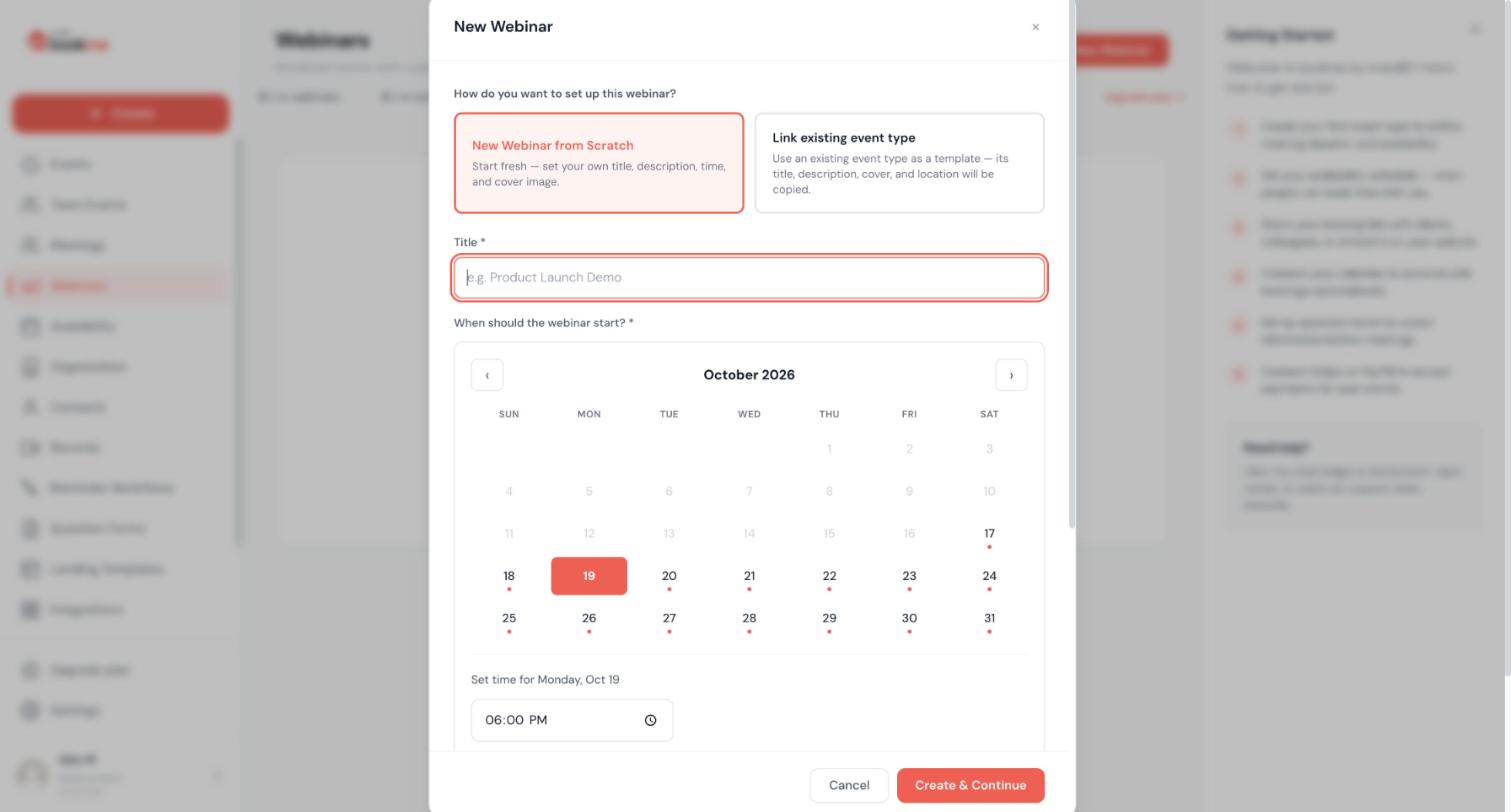
A webinar has a fixed start. You choose it in the New Webinar dialog and can adjust it in the webinar’s details afterwards.
Date and time
- In the dialog, pick the day on the calendar. Days that are already past are greyed out.
- Set the start time in the time field under the calendar.
- In the webinar’s details you also set the time zone and the duration.
Double check the time zone you chose before you invite people.
Repeating webinars
A webinar can be one time, daily, weekly, monthly or every N days. Use a repeat for something regular, such as a weekly Q and A or a monthly training. A one-time webinar is the better choice for a launch or a single event.
Changing the time later
If you move a webinar that people have already registered for, tell them. Registrants are emailed through the webinar’s own emails, so send a short note from the Send tab, and see Conferencing for how the meeting link behaves when the time changes.
Sending an email from the webinar reaches everyone on the attendee list. Check the subject and the time in the text before you send.
There are two ways onto the list. People can register themselves on the webinar’s public registration page, or you can add them yourself under the Attendees tab by email, with an optional name. A webinar linked to an event type takes registrations through that event’s booking page.
What happens when someone registers
Each registration creates a booking on your Meetings page, marked with a Webinar chip. The attendee gets the same confirmation and reminders as any bookme booking, and the webinar’s own invitation and reminder emails can carry a Join the webinar button.
How people join
When you set up the webinar you choose the meeting type: brandID Meet, Zoom, Google Meet, or a custom URL with optional dial-in and passcode. Attendees join with the link from their confirmation, reminder or calendar entry. You can always find the current link in the booking details on the Meetings page (Join and Copy link).
- brandID Meet: runs in the browser, so nobody has to download anything.
- Zoom: needs your Zoom account connected under Integrations. If the time changes, Zoom creates a new meeting with a new link, so people should use the link in the latest email.
- Google Meet: comes with your connected Google Calendar. The link stays the same if the time changes.
Each tool has its own audience size limits. Read Conferencing before you plan a large webinar.
Every webinar has its own email templates, so you can invite people and remind them without writing each message from scratch. Webinar invitations and reminders are listed among the account and system emails bookme sends.
Templates and sending
On the Emails tab you find your invitation, reminder and follow-up templates. Each has a subject, a body, a Join the webinar button, an unsubscribe link and a When to send setting. The Send tab sends a template to the attendees now or on a schedule, and bookme tracks opens, clicks and RSVPs for each attendee. Invite emails count against your plan’s monthly allowance (see What Are The Webinar Limits On Starter, Pro And Elite?).
Draft and test with an AI assistant
- Draft. Ask for a draft, for example “Draft a reminder email for my webinar, one day before it starts.” A draft that you will send yourself is saved right away and shows in Activity on the AI Assistants page.
- Test. The assistant can send a test email to yourself to check the wording, the Join the webinar button and the time. A test goes to you only.
- Send. Emailing a whole webinar list needs your approval in bookme. The request waits on the AI Assistants page for you to click Approve or Reject, and expires after 24 hours.
The ready-made prepare a webinar command creates a draft with an invitation and a reminder and sends you a test.
Sending a template to the list emails every attendee and uses your monthly email allowance. Always test first and check the time in the text.
Your attendee list is the heart of a webinar, and you can see and change it in several places.
Add people
Under the Attendees tab, add people by email, with an optional name. People who register themselves on the public page join the same list.
See who is registered
- The Attendees tab shows the list for the webinar.
- Your Meetings page shows each registration as a booking with a Webinar chip, with the same confirmation and reminders as any booking.
- Opens, clicks and RSVPs are tracked per attendee for the emails you send.
Webinar attendances have no meeting outcomes, so you will not be asked to mark them as met or no-show.
Remove or re-add someone
If a registration is cancelled, it is not revived from the Meetings page. The person registers again from the webinar page, or you add them again under Attendees.
With an AI assistant
- Listing registrants is read only and needs no confirmation.
- Adding up to 10 people, or removing one person, asks you first and shows exactly what will happen.
- Adding more than 10 people needs your approval in bookme.
Adding people to a webinar can send them emails. Only add people who have agreed to hear from you, and remember that each attendee counts toward your plan’s limit.
Webinar capacity depends on your plan. These are the figures shown on the Upgrade plan page in the app.
- Starter (free): 1 webinar, 10 attendees per webinar and 100 invite emails per month.
- Pro ($2.99 per month): 2 webinars, 20 attendees per webinar and 1,000 invite emails per month.
- Elite ($11.99 per month): unlimited webinars, unlimited attendees per webinar and 5,000 invite emails per month.
What happens beyond the limits
Extra attendees and extra emails are charged at these rates:
- Starter: $0.20 per extra attendee and $1 per 1,000 extra emails.
- Pro: $0.50 per extra attendee and $0.60 per 1,000 extra emails.
- Elite: $1 per 1,000 extra emails. Attendees are unlimited, so there is no per-attendee charge.
bookme sends an email notice when an overage charge applies.
Going over your attendee or email allowance costs money. Check the counters on the Webinars page before you invite a large list, or upgrade first.
Change plan
Open Upgrade plan in the sidebar. You can switch plans or the billing interval at any time, and you are only charged prorated differences. See Account, Billing And Plans for how billing works.
On the Webinars page the counters show what your account currently allows. If they differ from the numbers above, the numbers on your Upgrade plan page are the ones that apply.
Where a webinar recording ends up depends on the meeting type you chose for it. bookme does not pull every tool’s recordings into one place.
brandID Meet
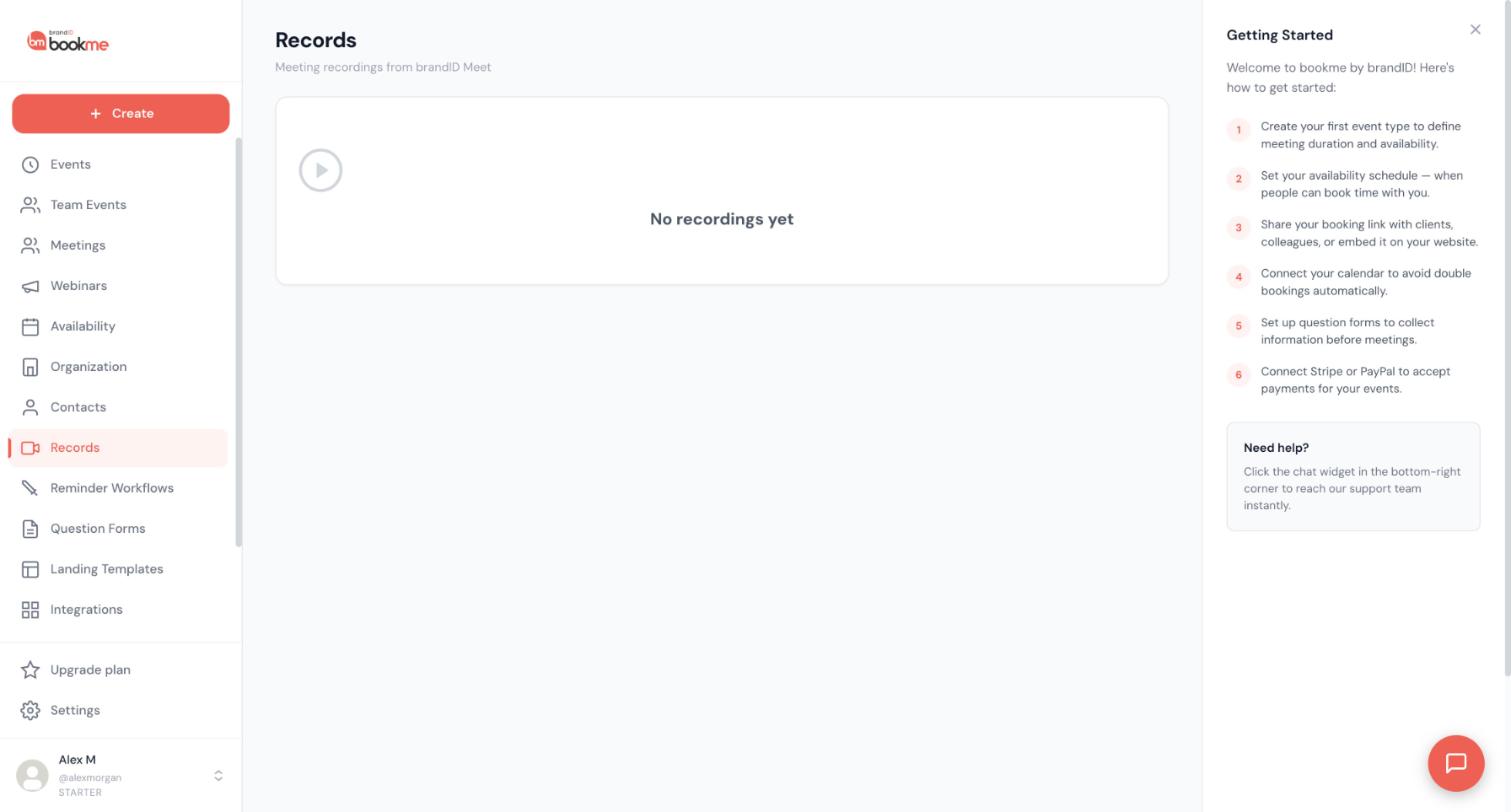
Start the recording with Record in the meeting toolbar. The recording is stored in bookme’s secure cloud and listed on the Records page in the sidebar (described there as meeting recordings from brandID Meet), next to the booking it belongs to. According to the Help Center, it is kept for 30 days and can be downloaded as an MP4 file, so download the ones you want to keep. Records only lists recordings of your own bookings and webinars.
Zoom
You start the recording inside Zoom, and it is stored in your Zoom account. bookme does not copy Zoom recordings into Records. Find them on zoom.us under Recordings.
Google Meet
You start the recording inside Google Meet. It is saved to your Google Drive. bookme does not copy it into Records.
Custom URL
If the webinar uses a custom URL, recording is handled by whatever tool hosts that link.
Tell your attendees at the start if you are recording. Recording availability can depend on your plan and on the plan of the tool you use, so test it before the day of the webinar.
The full comparison is in Conferencing.
Changing a webinar affects everyone on its list, so plan the message before you make the change.
Moving a webinar
Change the date or time in the webinar’s details, then tell your attendees with an email from the Send tab. What happens to the meeting link depends on the tool:
- brandID Meet and Google Meet: the link stays the same and the calendar event moves.
- Zoom: the old Zoom meeting is cancelled and a new one is created with a new link, so ask people to use the link in the latest email.
Cancelling a webinar
Cancelling ends the session for everyone on its list. Send your attendees a short message so nobody turns up at an empty room.
If someone cancels their own registration
A cancelled webinar registration is not brought back from the Meetings page. The person registers again from the webinar page.
With an AI assistant
- Moving a webinar that people are on asks you first. The assistant shows what will change and waits for your yes.
- Cancelling a webinar needs your approval on the AI Assistants page in bookme.
Cancelling or moving a webinar reaches every attendee. Do not confirm it until the new time or the reason is clear.
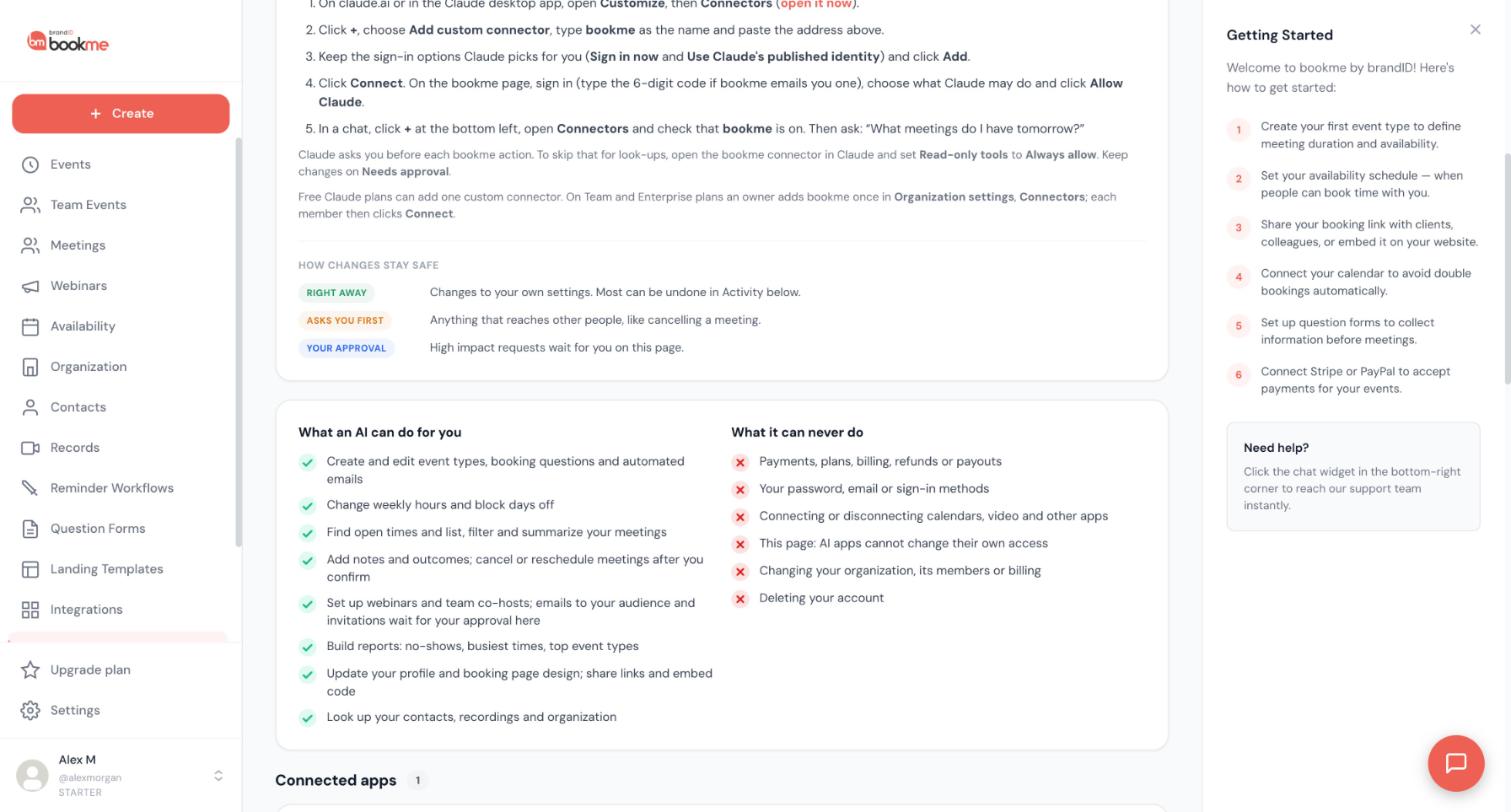
If you connect an AI assistant such as Claude or ChatGPT to bookme, it can set up and manage webinars for you. This needs the Webinars area to be allowed on the consent screen: View lets it read webinars, registrants and email results, and Change lets it create and edit, repeat, add people and draft emails.
Examples to try
- “Draft a reminder email for my webinar, one day before it starts.”
- Run the ready-made prepare a webinar command.
What happens right away
Creating a webinar, saving a draft email for you to send yourself, sending a test email to yourself, and copying or stopping an email. These are your own settings and show in Activity.
What asks you first
Editing a webinar (including moving one that people are on), adding up to 10 people, and removing a person. The assistant shows exactly what will happen and waits for your yes. Your yes is valid once, for those exact details, for 10 minutes.
What needs your approval in bookme
Emailing a whole webinar list, setting an email to send automatically, cancelling a webinar, and adding more than 10 people. These wait on the AI Assistants page, where you click Approve or Reject. Requests expire after 24 hours.
You can pause all AI access with one switch on the AI Assistants page, and undo most changes from Activity for 30 days.
See AI Assistants for connecting and for every safety rule.
Still stuck? We’re happy to help.
Create your bookme account, see pricing, or reach out to support directly.




