Captions on TikTok do two jobs: they keep silent-scrolling viewers watching and they make your videos accessible to anyone who cannot or does not want to hear the audio. Over 85 percent of TikTok content is reportedly watched with sound off, which turns on-screen text from a nice-to-have into one of the biggest watch-time levers you have.
This article covers both intents. If you are a viewer trying to figure out how to turn on closed captions on TikTok videos you are watching, scroll down to the viewer section. If you are a creator trying to add captions to TikTok videos you post, this is a complete map of every method. Clean captions are one of the first habits creators learning how to make money on TikTok pick up, because watch time is the input every monetization path on the platform runs on.
You will see five ways to add captions to TikTok, how to turn captions on and off as a viewer, how to fix auto-caption errors, how to add captions in a different language, placement rules the TikTok UI quietly enforces, and the troubleshooting steps for the usual breakages. All methods verified in the current 2026 TikTok app.
Key Takeaways
- How to Add Captions on TikTok: the native TikTok auto-captions tool is the fastest method; tap Captions in the right-side editor toolbar after recording or uploading, choose your spoken language, and TikTok transcribes the video in 10 to 30 seconds.
- How to Turn Captions On TikTok (Viewer Side): tap the Share icon on any TikTok video with captions, then tap Captions in the menu to toggle them on; a global setting also exists under Settings > Accessibility > Captions.
- Does TikTok Have Auto Captions: yes; the Captions tool uses TikTok’s own speech-to-text and is free, built into the editor on both iOS and Android. Availability varies by region and app language.
- How to Add Subtitles on TikTok Automatically: you have five options: TikTok native auto-captions, TikTok Studio desktop, CapCut Auto Captions, and third-party tools like Submagic, Captions.ai, Veed, and Kapwing.
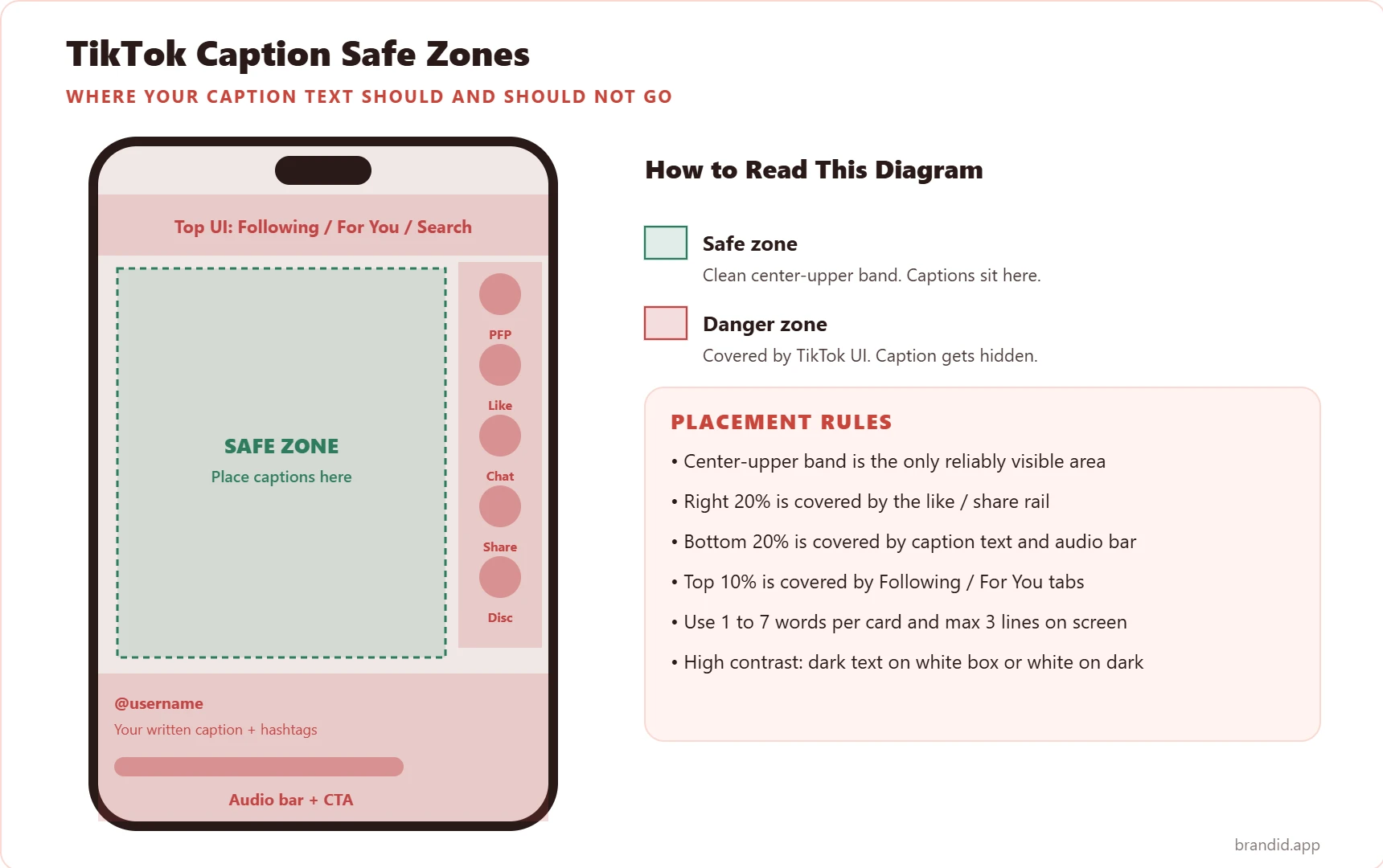
- Caption Placement Matters More Than Font Choice: the TikTok UI covers roughly 40 percent of the screen with its header, action rail, and caption or audio bar. Keep text in the center-upper band or it gets hidden.
Why Captions Matter on TikTok in 2026
Captions are no longer a nice extra. In 2026 they directly affect three things that control how a TikTok performs:
- Watch time on silent plays. Over 85 percent of social video is watched with the sound off. Without text on screen, you lose those viewers in the first second.
- Accessibility reach. Roughly 15 percent of adults report some degree of hearing difficulty, and captions are the only way they consume your content.
- Retention and completion. Captioned videos measurably increase average watch time and completion rate, both of which feed TikTok’s For You Page ranking signals.
- Hook delivery. Your first-second hook lands twice when it is spoken AND written on screen, which raises the odds a scroller stops.
Viewer or Creator: Which Section Do You Need
Two different search intents land on this question. Pick the one that matches you:
- I am watching a TikTok and want to see captions. Jump to the viewer section below for the per-video and global accessibility toggles.
- I am posting TikToks and want to add captions to my videos. The creator sections start with Method 1: native auto-captions.
How to Turn On Closed Captions on TikTok (Viewer Side)
If you are watching TikToks and want to see captions on videos that already have them, there are two ways: a per-video toggle and a global setting that applies to every TikTok you watch.
Per-Video Toggle
- Open the TikTok video you want captions on.
- Tap the Share icon (the arrow on the right-side rail).
- In the share sheet, tap Captions.
- Captions toggle on for that video. Tap again to turn them off.
If you do not see a Captions option in the share menu, the creator did not add captions and TikTok has nothing to display. The Captions tool only shows up on videos that have a caption track attached.
Global Captions Setting (Every Video)
- Open your TikTok profile and tap the three-line menu (top right).
- Tap Settings and privacy.
- Tap Accessibility.
- Tap Captions, then toggle Always show captions on.
With the global setting on, every TikTok that has a caption track available will display captions automatically. This is the fastest way to turn captions on TikTok permanently without touching individual videos.
Method 1: How to Add Auto Captions on TikTok (Native Tool)
TikTok’s built-in auto-captions tool is the fastest way to add subtitles on TikTok automatically. It uses TikTok’s own speech-to-text to transcribe your spoken audio into a timed caption track that viewers can toggle on and off.
Step-by-step:
- Record or upload your video. Open TikTok, tap the plus button, and record a new clip or upload one from your camera roll.
- Tap Next to open the editor.
- Tap the Captions tool in the right-side editing toolbar. It looks like a speech bubble with lines inside it.
- Select the spoken language in the dropdown. Pick the language you are actually speaking, not the UI language of your phone.
- Wait 10 to 30 seconds for TikTok to transcribe. Longer videos take longer.
- Review the captions that appear overlaid on the preview. Scroll through every segment to spot errors.
- Tap Save or Done to apply the caption track.
Method 2: How to Add Manual Text Captions on TikTok
If you want styled text with custom fonts, colors, and sync to specific moments rather than a full-video transcription, use TikTok’s manual Text tool. This is the right call for hook lines, section titles, and highlighting a key phrase mid-video.
- Open the TikTok editor after recording or uploading your clip.
- Tap Text (Aa) at the bottom of the screen.
- Type your caption text. Keep it short, one to seven words per card is the mobile sweet spot.
- Pick a font, color, and background style from the formatting bar above the keyboard.
- Tap Done to drop the text onto the video canvas.
- Drag the text to position it inside the safe zone (center-upper band, see the diagram above).
- Tap and hold the text sticker on the timeline, then drag the handles to set when it appears and disappears.
- Repeat for each additional text card.
Method 3: How to Add Captions on TikTok Using TikTok Studio Desktop
TikTok Studio (web) is TikTok’s creator dashboard for the desktop. It supports uploading videos and generating auto-captions in the browser, which is useful if you edit on a laptop or want a bigger screen for caption cleanup.
- Go to studio.tiktok.com and sign in with your TikTok account.
- Click Upload and select your video file from your computer.
- In the upload editor, locate the Captions section in the right-side settings panel.
- Toggle Auto-generated captions on and choose the spoken language from the dropdown.
- Wait for TikTok to process the transcript. This is usually faster on desktop than mobile for the same file.
- Click any caption line in the right-side editor to edit the text directly.
- Click Post to publish with the caption track attached.
The desktop route is the single best option when you need to edit a long transcript, because typing corrections with a real keyboard is far faster than tapping on mobile.
Method 4: How to Add Captions to TikTok Using CapCut
CapCut is TikTok’s sister editing app and offers more styling control than the native Captions tool. It is the right pick when caption aesthetics matter to your brand.
- Open your video project in CapCut (mobile or desktop).
- Tap or click Text, then select Auto Captions.
- Choose your spoken language and tap Generate.
- Review the transcript in the caption editor and fix any errors.
- Adjust font, color, size, animation, and position to match your brand.
- Export the video and upload the finished file to TikTok as a normal post.
Method 5: How to Add Captions to TikTok Using Third-Party Tools
Several specialized caption tools target TikTok, Reels, and Shorts creators with features the native tool does not have, like word-by-word animation, auto-emoji, and viral caption templates.
The main ones in 2026:
- Submagic. Word-by-word captions, viral templates, auto-emoji, auto B-roll. Paid, from $10/month.
- Captions.ai. AI-generated captions with lip-sync correction, voiceover, and face tracking. Paid, from $10/month.
- Veed.io. Browser-based editor with auto-subtitles, translation, and styled templates. Free tier plus paid plans.
- Kapwing. Browser-based with auto-subtitles, SRT export, and translation into 50+ languages. Free tier plus paid.
- Opus Clip. AI-generated short-form clips from long videos with auto captions baked in. Paid.
All of these follow the same workflow: upload video, generate captions, edit transcript, export, upload to TikTok as a video with burned-in text. Viewers cannot toggle these off, so pick native TikTok captions if accessibility matters.
How to Edit or Fix Auto-Captions on TikTok
TikTok’s auto-captions are accurate most of the time, but they regularly stumble on names, slang, technical terms, hashtags, and anything the speaker mumbles. Cleaning them up takes under a minute and is worth doing on every upload.
- After generating captions, tap the pencil icon next to the caption preview, or tap directly on the caption text in the preview.
- Tap any caption segment to open it in an editable text field.
- Delete the incorrect word and retype it correctly.
- Tap the checkmark or Done to confirm the edit.
- Repeat for every error across the transcript.
- Tap Save to return to the editor.
How to Add Captions in a Different Language on TikTok
There are two cases: adding captions in the language the speaker is actually using (standard), and translating the captions so viewers who speak a different language can follow along.
Captions in the Speaker’s Language
This is the default. In TikTok’s native Captions tool, make sure to select the spoken language from the dropdown, not the UI language of your phone. If you speak Spanish but your phone is set to English, pick Spanish.
Translated Captions in a Second Language
TikTok’s native tool does not auto-translate captions. For translated captions you have three routes:
- CapCut auto-translate. Generate auto-captions, then use CapCut’s translate button to convert the transcript to another language before export.
- Third-party translator apps. Purpose-built video translator apps like Kapwing and Veed handle TikTok videos end-to-end: upload, translate captions, export, re-upload.
- Manually translate. Export the TikTok auto-caption transcript, translate it (DeepL, ChatGPT, Google Translate), paste back as Text cards synced to the timeline.
Caption Styling Best Practices for Higher Watch Time
The caption copy and placement matter more than the font. Six rules that consistently improve watch time:
- 1 to 7 words per caption card. Longer cards get skipped before readers finish them.
- Max 3 lines of text on screen at any moment. Four lines becomes a wall and loses viewers.
- Place captions in the center-upper safe zone. The right 20 percent and the bottom 20 percent are covered by TikTok’s UI (see diagram above).
- Use high contrast. Dark text on a white or semi-opaque background, or white text on a dark background. Transparent text on busy video is unreadable.
- Keep font size large enough. If you can read it from across the room on your phone, it is probably big enough.
- Front-load your hook in the first caption. The first word on screen should be the reason the viewer stays.
TikTok Caption Tools Compared
| Tool | Captions | Viewer Toggle | Translation | Best For |
|---|---|---|---|---|
| TikTok Native | Auto + manual | Yes (viewer-togglable) | No | Accessibility, fast workflow |
| TikTok Studio Desktop | Auto | Yes (viewer-togglable) | No | Long videos, desktop editors |
| CapCut | Auto + styled | No (burned in) | Yes (auto-translate) | Brand-styled captions, aesthetic control |
| Submagic | Auto, word-by-word | No (burned in) | Yes | Viral styled captions, auto-emoji |
| Captions.ai | Auto + lip-sync | No (burned in) | Yes | Face-tracked captions, voiceover |
| Veed.io | Auto, browser | No (burned in) | Yes (50+ languages) | Multi-language, SRT export |
| Kapwing | Auto, browser | No (burned in) | Yes (50+ languages) | Collaboration, SRT export |
How to Turn Off or Delete Captions on TikTok
Before posting (editor side):
- Open the TikTok editor and tap Captions in the right toolbar.
- Tap Delete or Remove inside the captions panel.
- Confirm the deletion. The caption track is removed from the video.
During playback (viewer side):
- Tap the Share icon on any playing video.
- Tap Captions in the share menu to toggle them off for that session.
Captions generated by TikTok’s native tool are not burned into the video file, so turning them off never affects the underlying video. Burned-in captions from CapCut or third-party tools cannot be removed by viewers.
Troubleshooting: Captions Not Showing, Wrong Language, Lag
The Captions Tool Does Not Appear in the Editor
- Update TikTok to the latest version in the App Store or Google Play.
- Check your device language and spoken-language setting. Auto-captions are not available in every language or region yet.
- Try recording a new short test clip to confirm the Captions tool shows up for a fresh video.
Auto-Captions Detected the Wrong Language
- In the Captions tool, tap the language dropdown and manually pick your spoken language instead of relying on auto-detect.
- If you speak multiple languages, pick the one you use most on this video. TikTok’s current model does not handle code-switching mid-video well.
Captions Are Lagging Behind the Audio
- This is usually caused by background noise or distant microphone placement. Record closer to your phone or use a clip-on mic.
- If you record on one app and import to TikTok, timing can drift. Record directly inside TikTok when possible.
- For a specific line that lags, open the caption segment in the editor and manually shift the timing.
Common Mistakes When Adding Captions to TikTok
- Not reviewing auto-captions before posting. One misheard word (names, brands, slang) makes you look careless.
- Placing captions in the bottom third of the screen. The TikTok caption text, audio bar, and CTA sit here and cover whatever you placed.
- Using manual Text cards when you need accessibility. Text cards are burned in; viewers cannot turn them off.
- Choosing the wrong spoken language. Phone UI in English but video in Spanish means TikTok transcribes gibberish.
- Captioning the music, not the speech. If the video has background music, TikTok sometimes transcribes lyrics instead of your voice. Reduce music volume in the editor or re-record.
- Too many words per card. Cards with 10+ words get skipped. Break them in half.
Turn Captioned TikToks Into Real Business Growth With brandID
Captions get you more views. Views alone do not pay rent. The TikTok creators who turn high-view videos into email signups, product sales, affiliate commissions, or bookings all share one piece of infrastructure: a bio link that routes viewers to the thing they came to buy, read, or book.
Open brandID, hit Build with AI, type something like “a TikTok creator storefront with my digital product, Amazon affiliate picks, and a newsletter signup”, and the entire page builds itself in under a minute. Hero section, product grid, newsletter block, click analytics, custom brandid.app/handle, all on the free plan.
If you use Claude, brandID has an official MCP connector. Say “add my latest TikTok’s top 5 product mentions to my brandID storefront” and Claude edits the page directly through the MCP. No clicking around a dashboard between filming and shipping.
Bottom Line
Adding captions on TikTok takes under two minutes with the native auto-captions tool and immediately boosts watch time, accessibility, and completion rate. Use TikTok’s own tool when you want viewers to be able to toggle captions on and off, use CapCut or Submagic when caption styling matters more than accessibility, and always review the transcript before posting.
If you want to grow TikTok reach beyond captions, the same watch-time discipline feeds getting verified on TikTok. Captions build the time. Verification compounds the trust signal on top of it.
FAQs
Does TikTok have auto captions?
How do I turn captions on when watching TikTok?
Why can’t I add captions to a TikTok after posting?
Why are my TikTok auto-captions wrong?
Can viewers turn off captions on TikTok?
Are TikTok captions the same as subtitles?
How do I add captions to TikTok from a PC or Mac?
Which language does TikTok auto-caption support?
Can I add captions in a different language than the one I speak?
How long should each TikTok caption line be?
Where should I place captions on a TikTok?
Do captions actually boost watch time on TikTok?
 Summarize this article with: