
How to pause all AI access or disconnect an app
You can stop every AI app with one switch, or disconnect a single app. Both take effect on the app’s next request.
Before you start
- At least one AI app connected to bookme.
Pause everything with one click
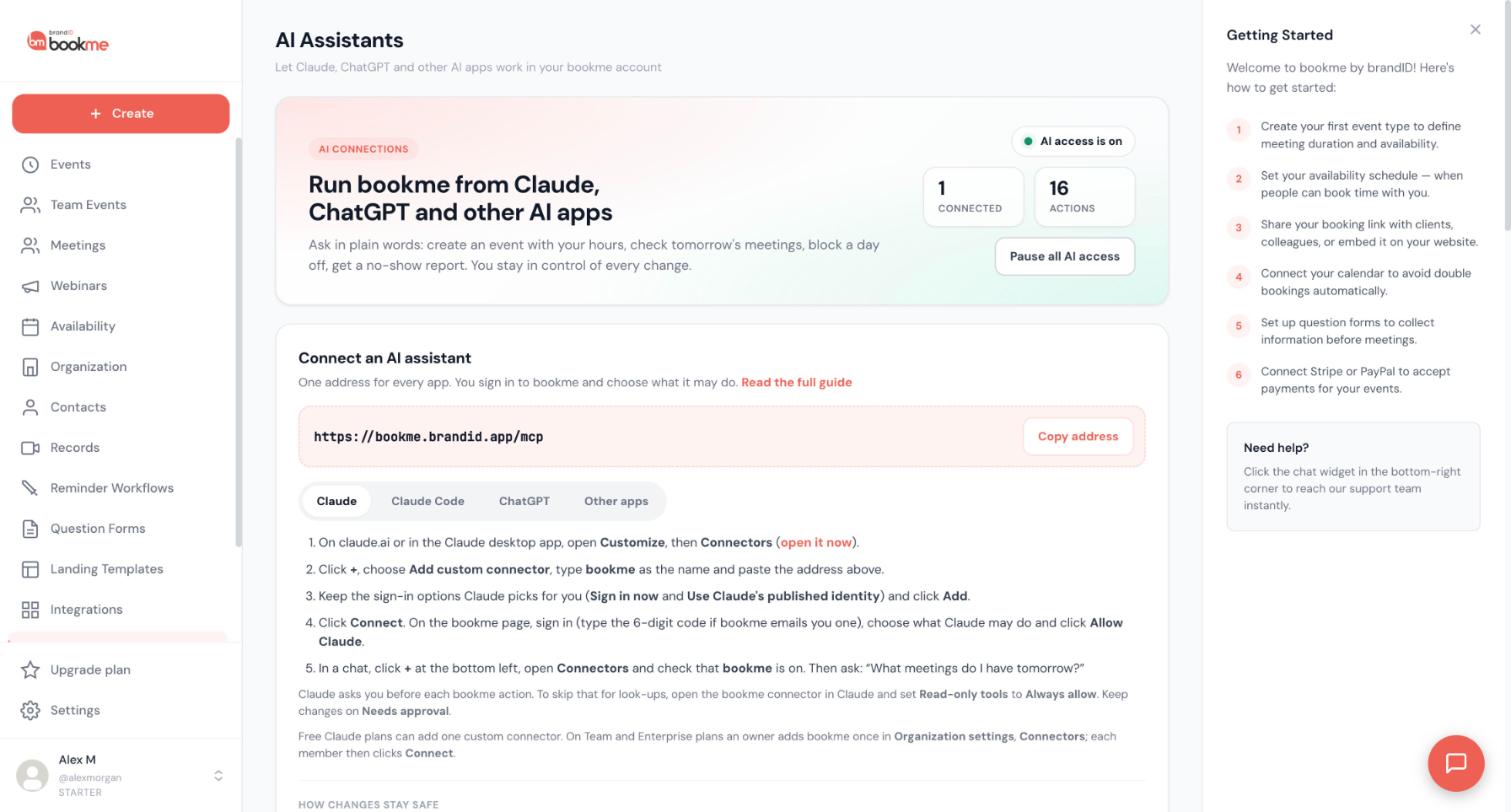
Open AI Assistants in the sidebar. At the top, a badge says AI access is on. Click Pause all AI access. No AI app can do anything until you resume, and every request an app makes meanwhile is refused and listed in Activity. Your connections are kept.
Use this when you want a quiet period, when you are not sure what an app is doing, or while you check Activity. Nothing is deleted and no access settings change, so everything comes back when you resume.
Resume when you are ready
While AI access is paused, the page offers Resume AI access. Click it and your connected apps work again, with the access you gave them.
Disconnect one app
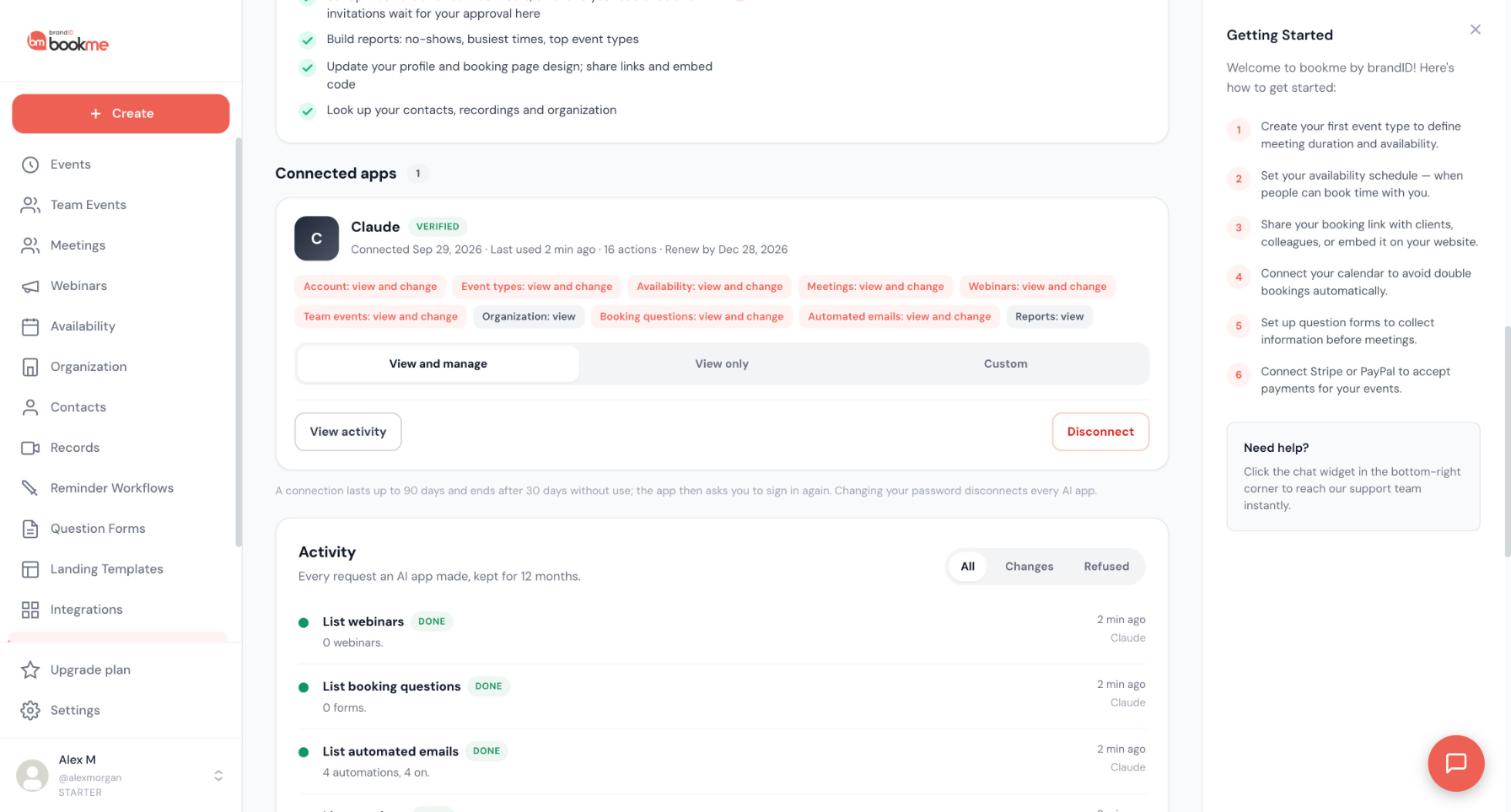
Scroll to Connected apps and click Disconnect on the app. To use it again, connect it again from the AI app.
If you see requests you did not make, click Disconnect, change your bookme password and write to [email protected].
Know when connections end on their own
A connection lasts up to 90 days and ends after 30 days without use; the app then asks you to sign in again. Changing your bookme password disconnects every AI app at once.
Check the record
Scroll to Activity to see what the app did before you paused or disconnected it. The list is kept for 12 months, including refused requests.
Tips
- Pausing is reversible and keeps all connections. Disconnecting means you must connect again.
- Requests already waiting for your approval are not run while AI access is paused.
If something goes wrong
An AI app says it cannot reach bookme.
I changed my password and my AI apps stopped working.
Related how-to guides
Still stuck? We’re happy to help.
Create your bookme account, see pricing, or reach out to support directly.




