
How to connect Claude to bookme
Connect Claude on the web or in the desktop app to bookme once, then run your scheduling in plain words. You choose what Claude may do and can stop it at any time.
Before you start
- A bookme account (MCP access is listed on Starter, Pro and Elite).
- A Claude account on claude.ai or the Claude desktop app. Free Claude plans can add one custom connector.
Copy the bookme address
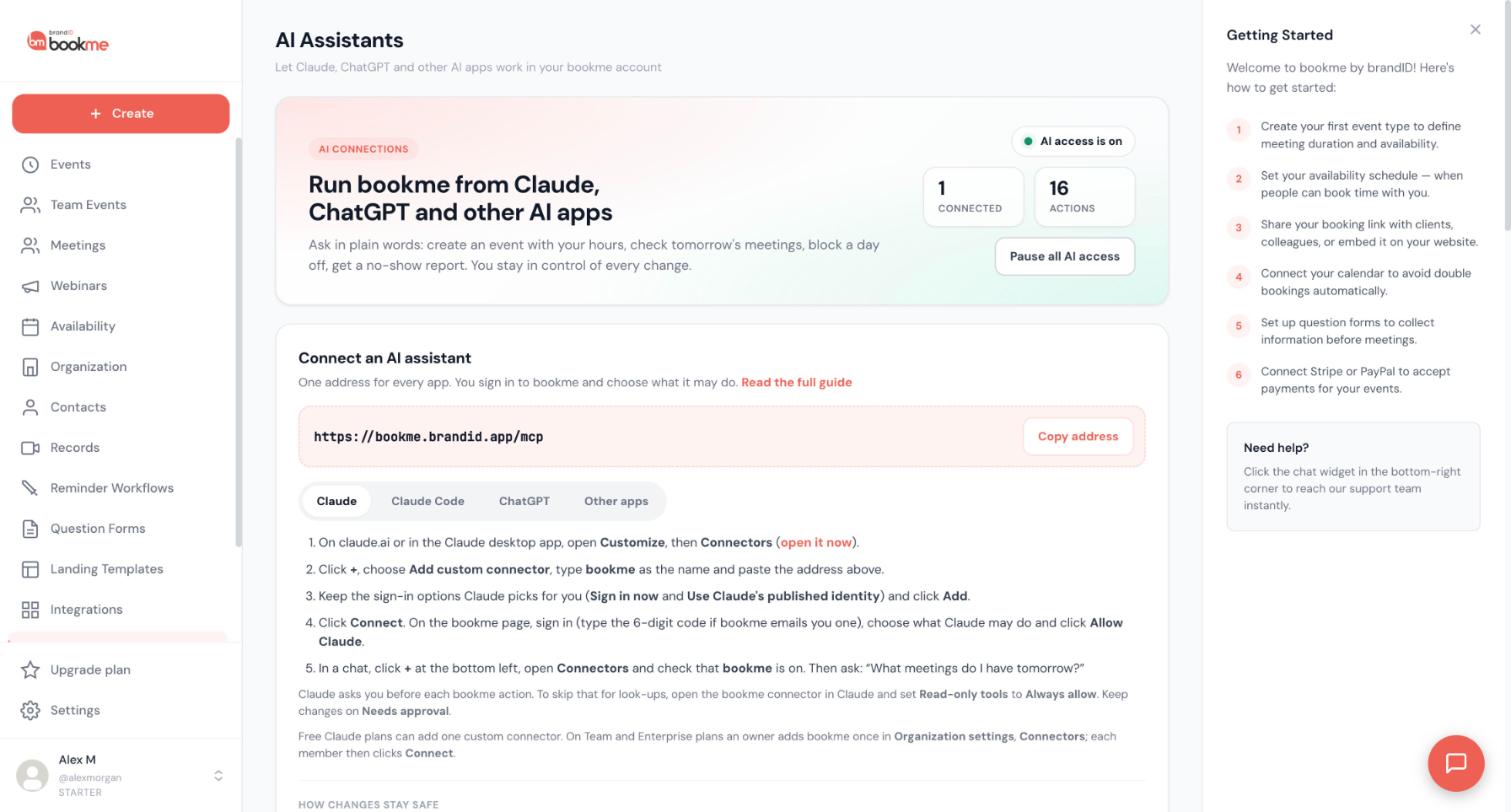
In bookme, click AI Assistants in the sidebar. Under Connect an AI assistant you see one address that every AI app uses: https://bookme.brandid.app/mcp. Click Copy address.
The same page has tabs for Claude, Claude Code, ChatGPT and Other apps. Stay on the Claude tab: it lists the steps below.
Open Connectors in Claude
On claude.ai or in the Claude desktop app, open Customize, then Connectors.
Add bookme as a custom connector
Click + and choose Add custom connector. Type bookme as the name and paste the address you copied.
Keep the sign-in options Claude picks for you (Sign in now and Use Claude’s published identity) and click Add.
Connect and sign in to bookme
Click Connect. Claude opens a bookme page. Sign in to bookme there, never inside Claude. If your last bookme sign-in is older than 10 minutes, bookme emails you a 6-digit code first; type it in.
Choose what Claude may do
On the same bookme page pick View only, View and manage or Custom (area by area), then click Allow Claude. If you are not sure, start with View only. You can change this later (see the AI Assistants Help Center page).
Turn bookme on in a chat
In a Claude chat click + at the bottom left, open Connectors and check that bookme is on. Then ask a first question that only reads your account:
What meetings do I have tomorrow? Only look them up, do not change anything.Claude asks you before each bookme action. To skip that for look-ups only, open the bookme connector in Claude and set Read-only tools to Always allow. Keep changes on Needs approval.
Check the connected app in bookme
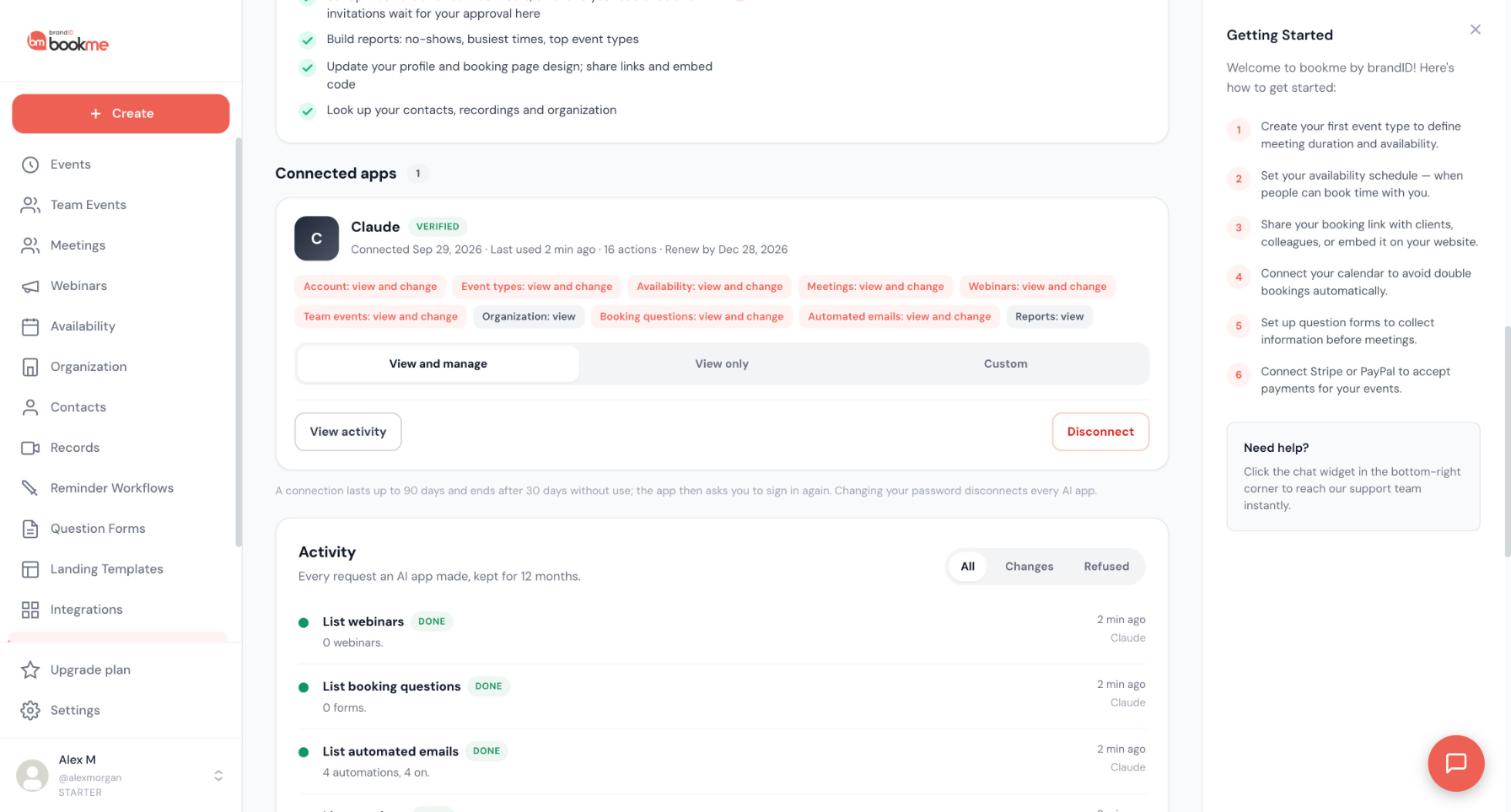
Go back to AI Assistants in bookme. Under Connected apps you now see Claude with a Verified label, when it was last used and how many actions it made. Here you can change its access, open its activity or disconnect it.
Tips
- Team and Enterprise Claude plans: an owner adds bookme once under Organization settings, Connectors, and each member then clicks Connect and signs in with their own bookme account.
- Pick View only first. You can move to View and manage once you trust the setup.
If something goes wrong
bookme asks me for a 6-digit code.
Claude says I cannot add another custom connector.
Claude asked me to sign in to bookme again.
Related how-to guides
Still stuck? We’re happy to help.
Create your bookme account, see pricing, or reach out to support directly.




