
How to connect your calendar
Connect your Google Calendar so bookme blocks the times you are already busy and adds every new booking to your calendar. It takes about a minute.
Before you start
- A Google account whose primary calendar is the one you actually use.
- Know your calendar limit: Starter includes 1 connected calendar, Pro 2, and Elite unlimited.
Open Integrations
Click Integrations in the sidebar. Use the filter tabs across the top to narrow the page. Click Calendars to see only the calendar connections.
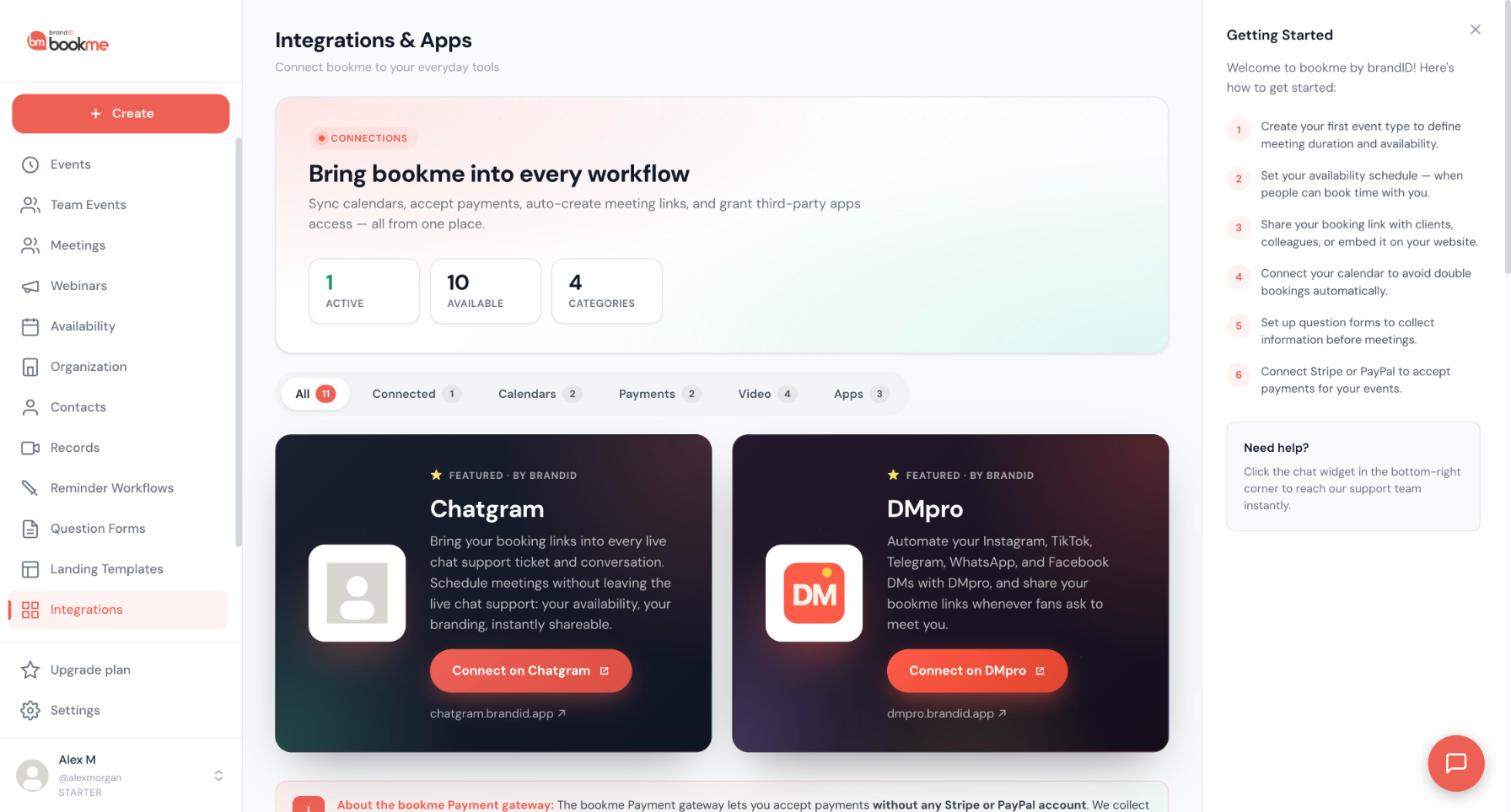
Click Connect on Google Calendar
Find the Google Calendar card and click Connect.
Approve access in Google
Google asks you to choose an account and approve calendar access. bookme asks to see and edit events. Approve, and you are sent back to the dashboard with a Google Calendar connected message.
Choose the account whose calendar you really keep. bookme reads the primary calendar of the account you pick.
See what happens right away
- Your calendar’s busy time starts blocking slots on your booking page.
- Upcoming bookings you already have, as host or co-host, are added to the calendar within a few minutes.
- New bookings are written to the calendar as they happen, with the invitee, your co-hosts and any guests on the invitation. Google sends them its own invitation.
Check the connection status
Each connected Google account is its own row. The row shows Syncing or Needs reconnect, plus a Reconnect and a Disconnect button. The same rows also appear under Settings, then Calendars.
If a row says Needs reconnect, click Reconnect. Google opens with that account preselected. Approve again and bookme adds any upcoming bookings that are missing from the calendar.
Add another account if your plan allows it
To add a second Google account, click Connect under Google Calendar again and pick the other account in Google’s account chooser. It appears as another row. Busy time is read from every connected account, and new events are written to the first one.
How many calendars you can connect depends on your plan: 1 on Starter, 2 on Pro, unlimited on Elite.
Disconnect stops bookme from reading busy time from that account and from writing to it. Events already on the calendar are left as they are, and bookme can no longer move or remove them.
Know what is not supported
Google Calendar is the supported calendar. Outlook Calendar is shown as coming soon on the Integrations page, and iCloud, Apple Calendar and CalDAV cannot be connected. If you use another calendar app, add your Google account to it so the same events show in both. Without a connected calendar, bookme only knows about bookings made through bookme, so use date overrides for appointments you keep elsewhere.
Tips
- With Google Calendar connected, events set to Google Meet get a Meet link on your calendar for every booking.
- bookme reads only start and end times. Titles, descriptions and attendees of your other appointments are never read or stored.
- Only the primary calendar of each account blocks time. Events marked Free in Google, and events on secondary or shared calendars, do not block slots.
If something goes wrong
The row says Needs reconnect.
I added something to Google but my booking page still shows the slot.
My real appointments do not block any slots.
A booking is missing from my calendar.
Related how-to guides
Still stuck? We’re happy to help.
Create your bookme account, see pricing, or reach out to support directly.




