
How to create a team event with rotating hosts
A team event lets several bookme users host the same booking, either all together or by taking turns. This guide starts one from the Create event dialog and ends with the invitations to your co-hosts.
Before you start
- A bookme account on a plan that offers team events (see step 1).
- The bookme usernames or email addresses of the people you want to invite as co-hosts, for example [email protected].
Check that your plan offers team events
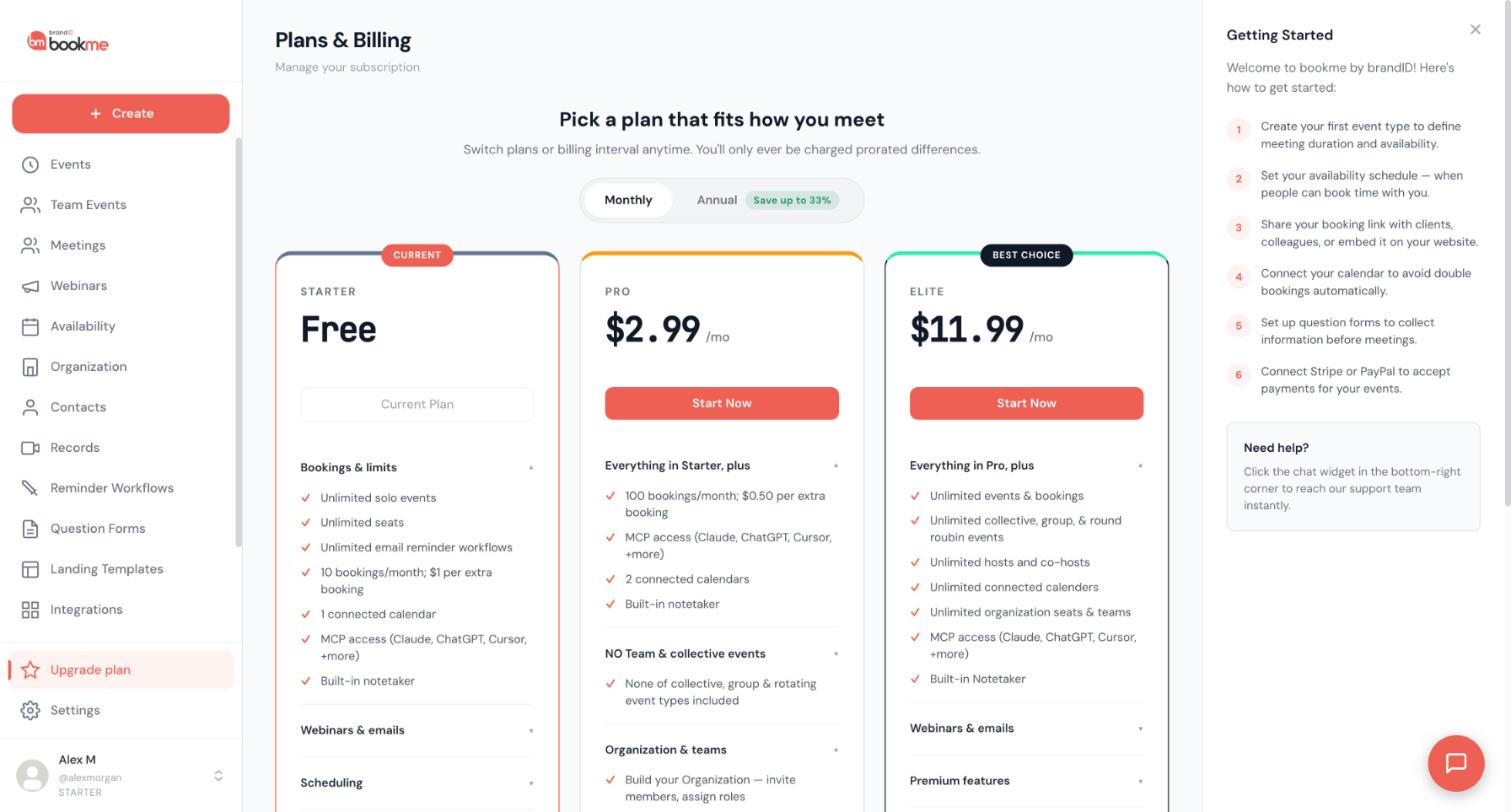
The app shows two statements about team events, and they differ. The Create event dialog says the My team option is Available on Pro and Elite. The Pro card on the Upgrade plan page says that none of collective, group and rotating event types are included, while the Elite card lists unlimited collective, group and round robin events.
Because the dialog and the Pro card differ, do not rely on either one alone. Open Upgrade plan in the sidebar, read the Pro and Elite cards yourself, and decide from there.
Open the Create event dialog and name the event
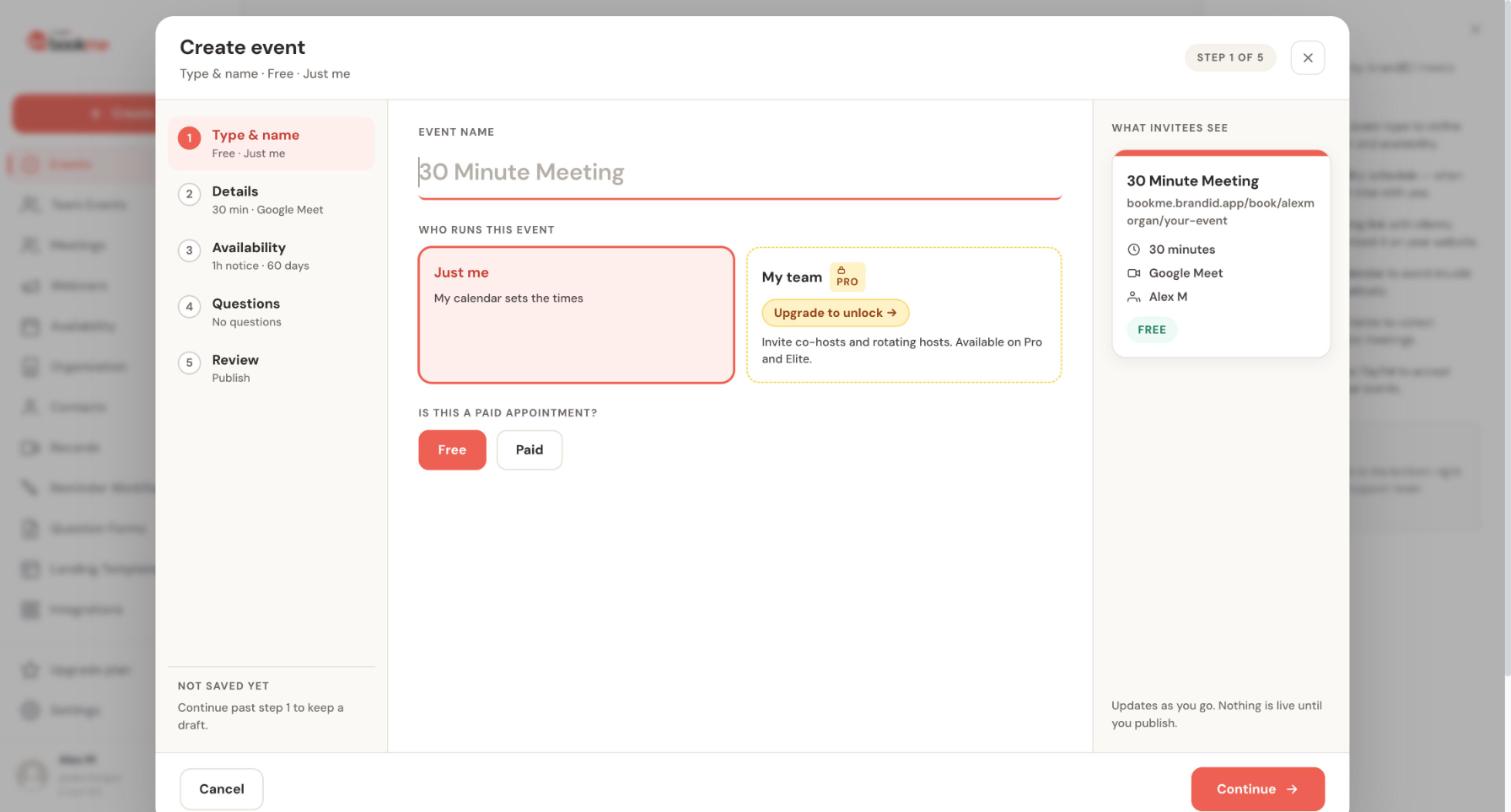
Click Create in the sidebar. The dialog has five steps: Type & name, Details, Availability, Questions and Review. In step 1, type the Event name, for example Discovery Call, and choose Free or Paid under Is this a paid appointment?.
Choose My team under Who runs this event
Under Who runs this event you see two cards: Just me (your calendar sets the times) and My team (invite co-hosts and rotating hosts). Click My team.
On a Starter account the My team card carries a PRO badge and an Upgrade to unlock button.
Pick how the team hosts
When you choose a team, the Help Center describes three hosting styles:
- Everyone attends (collective). All hosts are on every meeting. A time is offered only when every required host is free.
- Take turns (round-robin). One host per meeting, chosen in turn from a pool.
- Required + pool. Some hosts always attend and one host from a rotating pool joins them.
For rotating hosts, choose take turns or required plus pool. Each extra required host can only remove bookable times, while an extra host in a rotating pool adds them.
Fill in Details, Availability and Questions
Click Continue to move through the next steps. Details holds the duration and meeting location, Availability holds the booking window and notice, and Questions is where you add questions for invitees. Continuing past step 1 keeps what you entered as a draft.
Add co-hosts and set your own role
On the hosts part of the event, add people to the required group or to a rotating pool. You can invite by bookme username, by email address, or by sharing an invite link. Each invited host stays Pending until they accept, and hosts who have not accepted are not in the rotation.
Under Your role in this event choose how you take part: always attends, take turns with the rotating hosts, or backup only. I do not host this event becomes available once at least one co-host has accepted.
Review, publish and manage from Team Events
On Review, check the summary and publish. Invitations you queued while the event was a draft are sent when you publish.
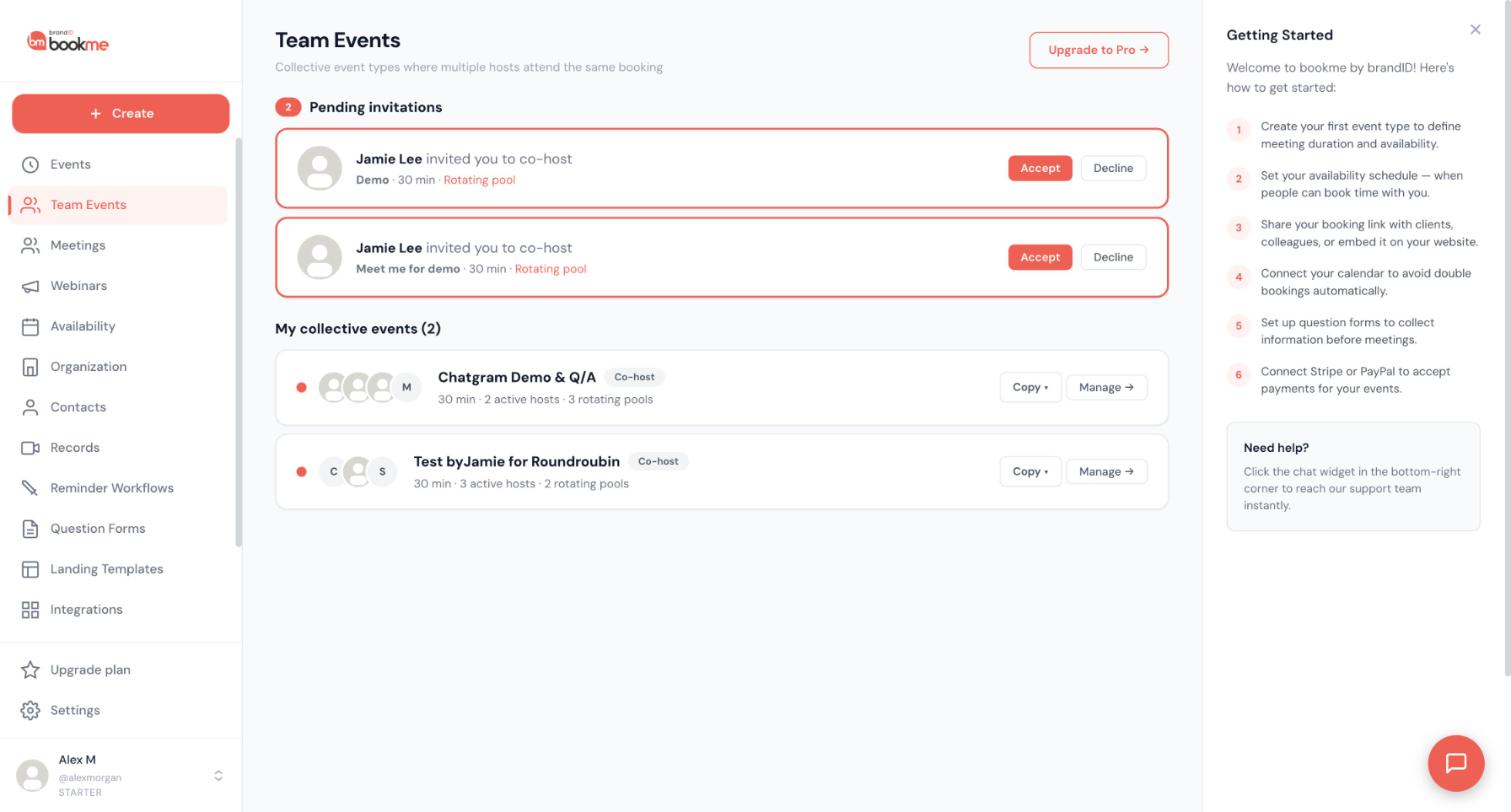
After that, open Team Events in the sidebar. It lists your collective events with their hosts and rotating pools, and each row has Copy and Manage. Pending invitations from other people appear at the top with Accept and Decline.
Tips
- Locking a host’s availability makes them always count as free, so they can be double-booked. Use it on purpose.
- If a host is away for a while, block their time with a date override instead of removing them.
- A connected AI assistant can invite a co-host for you, but the invitation waits for your approval on the AI Assistants page.
If something goes wrong
Adding a host reduced my available times. Why?
A co-host shows as Pending.
My team shows Upgrade to unlock.
What happens to bookings if I remove a co-host?
Related how-to guides
Still stuck? We’re happy to help.
Create your bookme account, see pricing, or reach out to support directly.




