
How to accept or decline a co-host invitation
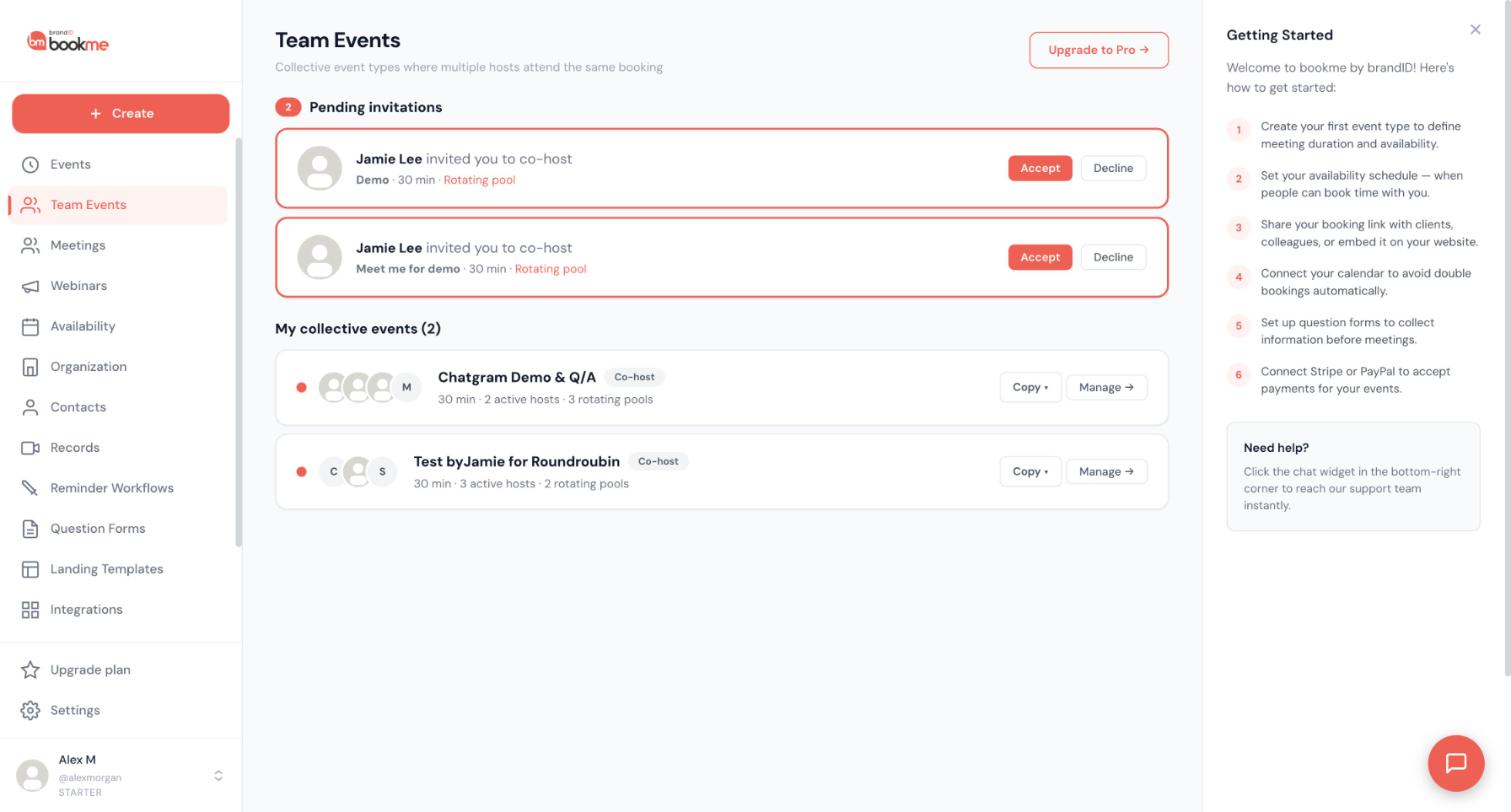
When another bookme user invites you to co-host a team event, the invitation waits for you on the Team Events page. You choose Accept or Decline.
Before you start
- A co-host invitation from another bookme user. You can be on any plan to be a co-host.
- Optional but helpful: your calendar connected, because your own schedule and Google Calendar decide when you are free.
Look for the invitation
You are invited per event, by bookme username, by email or through a shareable invite link. Invitations also reach you by email. If you were invited with an email address that had no bookme account yet, the invitation is redeemed when you finish signing up. If someone sent you a co-host invite link instead, open it: you sign in and join that part of the event.
Until you answer, the event creator sees you as Pending, and a pending host is not in the rotation.
Open Team Events
Click Team Events in the sidebar. Pending invitations are listed at the top under Pending invitations, each with an Accept and a Decline button.
You may see an Upgrade to Pro button on this page when you are on Starter. That button is for creating your own team events. Accepting an invitation is shown on the same page.
Read the invitation
Each invitation shows who invited you, the event name, its length and the part you were invited to, such as a Rotating pool. Make sure you know the person and the event before you answer. If you are not sure, ask the person who invited you before you click anything.
Click Accept or Decline
Click Accept to join the event as a co-host. Click Decline if you do not want to host it, and you are not added.
Accepting puts you in the event’s host availability. Invitees can then be booked with you, and your calendar and emails are involved. Until you accept, a pending host is not in the rotation.
See what changes after you accept
The event appears under your Team Events with a Co-host badge, and your bookings for it show on your Meetings page with a Co-host chip. By default your own schedule and Google Calendar decide when you are free for it, unless the creator sets a different schedule for you on the event or locks your availability.
Leave the event later if you need to
You can leave an event you accepted by using Leave this event. You are taken off the event and off its future bookings, and bookme keeps each booking alive by adding the creator where needed. Past bookings stay on your Meetings page as history.
Tips
- Connect your calendar before you accept so your busy time is respected.
- A connected AI assistant can answer an invitation for you, but it asks for your confirmation first.
- Only the event creator needs Pro or Elite to create team events, and co-hosts can be on any plan.
If something goes wrong
A team event shows few times or none.
I accepted, but I am not getting bookings.
Related how-to guides
Still stuck? We’re happy to help.
Create your bookme account, see pricing, or reach out to support directly.




