
AI Assistants (Claude, ChatGPT & MCP)
Connect Claude, ChatGPT, Claude Code and any MCP-capable app to your bookme account, with two-step confirmations, an approval queue and a full activity log.
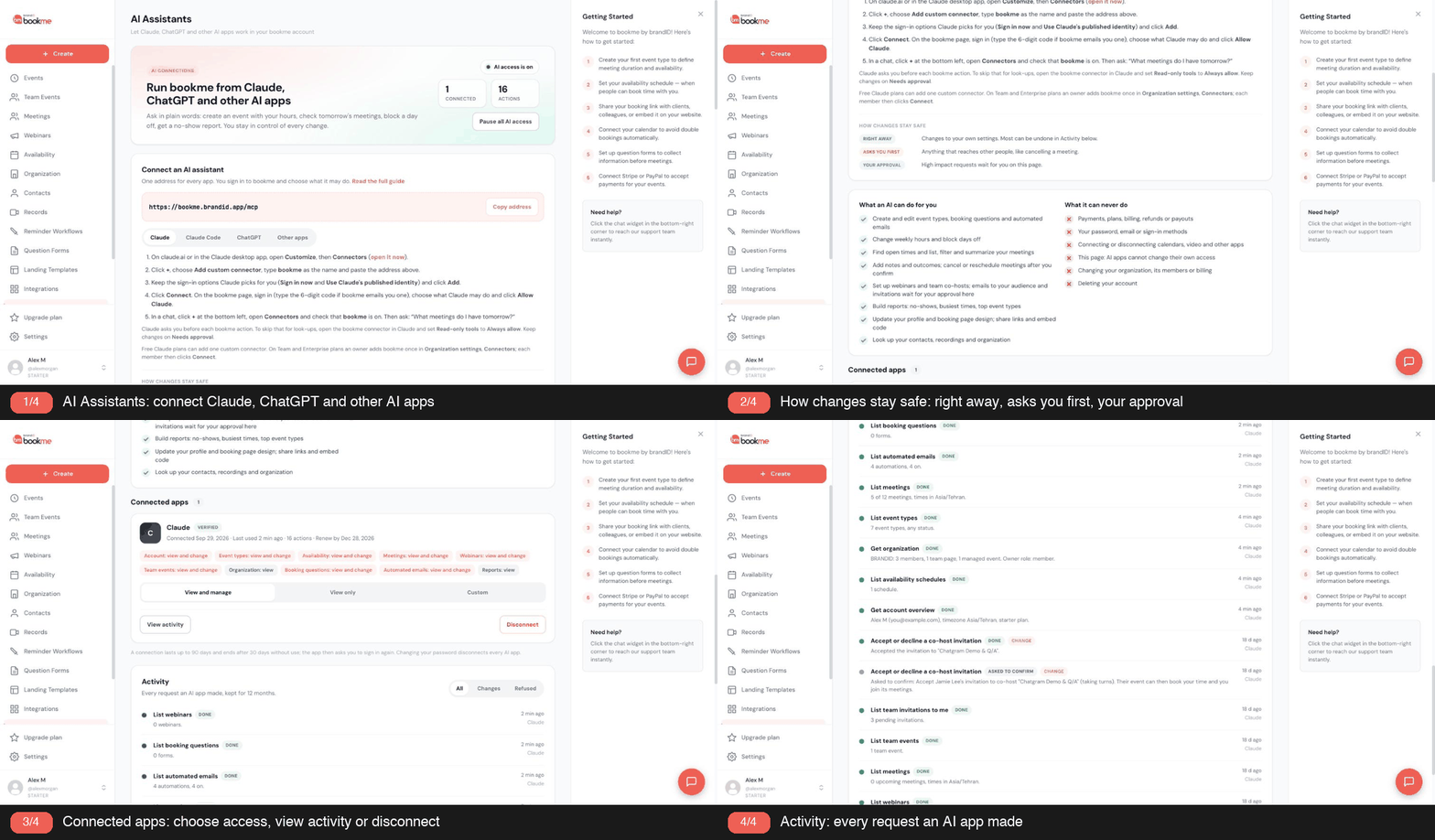
Connect an AI assistant once and you can run bookme in plain words, like “block next Friday” or “what meetings do I have tomorrow?”.
1. The Address
Every AI app uses the same server address: https://bookme.brandid.app/mcp. You also find it, with a copy button, on the AI Assistants page in your dashboard.
2. Claude (Web And Desktop App)
On claude.ai or in the Claude desktop app, open Customize, then Connectors (claude.ai/customize/connectors). Click +, choose Add custom connector, type bookme as the name and paste the address. Keep the sign-in options Claude picks for you (Sign in now and Use Claude’s published identity) and click Add. Then click Connect, sign in to bookme and click Allow Claude. In a chat, click + at the bottom left, open Connectors and check that bookme is on.
Claude asks you before each bookme action. To skip that for look-ups only, open the bookme connector in Claude and set Read-only tools to Always allow; keep changes on Needs approval. Free Claude plans can add one custom connector. On Team and Enterprise plans an owner adds bookme once in Organization settings, Connectors, and each member then clicks Connect.
3. Claude Code
Run claude mcp add --transport http bookme https://bookme.brandid.app/mcp in your terminal, start Claude Code, type /mcp, pick bookme and sign in.
4. ChatGPT And Other Apps
In ChatGPT, turn on developer mode under Apps and connectors (paid plans) and create a connector with the address and OAuth sign-in. Cursor, VS Code, Gemini CLI and other apps that support remote MCP servers work the same way.
5. Sign In And Choose Access
The app opens bookme. Sign in to bookme (never to the AI app) and pick View only, View and manage or Custom (area by area). If your last sign-in is older than 10 minutes, bookme emails you a 6-digit code first.
An AI assistant works in your account with the same rules as your dashboard, inside the access you gave it.
1. What It Can Do
- Create, edit, pause and (for never-booked drafts) delete event types; set weekly hours, days off, question forms and reminder workflows (also from bookme’s templates).
- Find open times, and list, filter and summarize your meetings, contacts and recordings.
- Add notes and outcomes (or clear a wrong one), cancel or reschedule meetings, and manage guests.
- Create webinars (one-time or repeating), add people, draft, copy or stop their emails.
- Manage team events: invite co-hosts (the first invitation turns a solo event into a team event), the organizer, who always attends or takes turns, and your answers to co-host invitations.
- Update your name, bio, time zone and booking page design, and get your booking links and website embed code.
- Look up your organization’s members, team pages and managed events (read only).
- Build reports: no-shows, busiest days and hours, top event types.
2. What Happens When It Changes Something
- Right away: changes to your own settings. They show in Activity and most can be undone for 30 days.
- Asks you first: changes that reach other people (a cancelled or moved meeting, an outcome that emails the invitee, a removed guest). The assistant must show you exactly what will happen and wait for your yes.
- Your approval in bookme: inviting someone new, emailing a whole webinar list, cancelling several meetings at once, automations that send data or links outside bookme, changing the contact links on your profile, and more than 10 people-affecting changes in one hour.
3. What It Can Never Do
Payments, prices, plans, billing, refunds or payouts; your password, email, username or sign-in methods; connecting or disconnecting calendars, Zoom and other apps; changing your organization, its members or billing; its own access; deleting your account. A paid meeting is never cancelled by an AI app: cancel it on the Meetings page, where you decide about the refund.
Anything that emails or affects other people takes two steps, so nothing reaches your invitees without your yes.
1. Step One: A Description
The assistant first gets a description of exactly what will happen (for example: “Cancel Discovery Call with Ivy on Fri, Oct 2, 10:00 AM. Ivy gets a cancellation email.”). Nothing has changed yet.
2. Step Two: Your Yes
The assistant shows you that description. Only after you agree does it confirm. The confirmation works once, for those exact details, for 10 minutes; if anything differs, bookme refuses and the assistant must ask again.
3. Which Changes Ask First
Cancelling or rescheduling one meeting, recording an outcome that emails the invitee or others, clearing an outcome that opens a held time again, removing a guest, moving a webinar that people are on, adding up to 10 people to a webinar, removing someone from a webinar, cancelling an empty webinar, deleting a webinar email, changing who hosts a team event (organizer, parts, hours), accepting or declining a team invitation, resending a co-host invite, and deleting an unused event type.
4. Reschedules Use Your Real Availability
The new time must be open on the event’s booking page (hours, buffers, notice, calendars). The assistant can look up open times first.
High-impact requests wait for you on the AI Assistants page; nothing happens until you approve.
1. Where To Find Them
Open AI Assistants in the sidebar. A number on the menu item shows how many requests are waiting, and bookme emails you when one arrives (at most one email every 10 minutes).
2. What You See
Each request shows the app that asked, what will happen, and the details: who gets which email with its full text, the list of meetings, the person to invite, and any links to websites outside bookme (highlighted in red). Links are never clickable here.
3. Decide
Click Approve to run it once, exactly as shown, or Reject to drop it. The assistant can check the result. Requests expire after 24 hours. In Activity, the request then shows Approved, Rejected or Expired; Review request on a row that is still waiting takes you to it.
4. When Approval Fails
If the app was disconnected, lost that permission, or AI access is paused, the request is not run. If something changed in the meantime (for example a meeting was already cancelled), bookme skips that part and says so.
Changes an assistant made to your own settings can be put back from Activity for 30 days.
1. Find The Change
Open AI Assistants and scroll to Activity. Use Changes to see only changes, or View activity on an app to see just that app.
2. Undo
Click Undo on the row, then confirm. bookme puts back the version from before the AI change: an event type’s settings, weekly hours, a day off, a question form, a reminder workflow, a meeting note, a webinar’s details or your profile.
3. If You Edited It Since
bookme notices and tells you what was edited again. Click Undo anyway only if you want to replace those later edits.
4. Several Related Changes: Undo The Newest First
One request can lead to several rows. For example, “create a free 60-minute event with pre-meeting questions” creates the event type and then attaches a question form to it. Undo the question form first, then the event type. If you undo the event type first, bookme asks before deleting it, because the event was changed after it was created (the questions were attached); Undo anyway then deletes it, and you can still undo the question form afterwards.
5. What Cannot Be Undone
Anything that already reached people: sent emails, cancelled or moved meetings, invitations. A created event type that already has bookings is turned off instead of deleted, so its booking history stays.
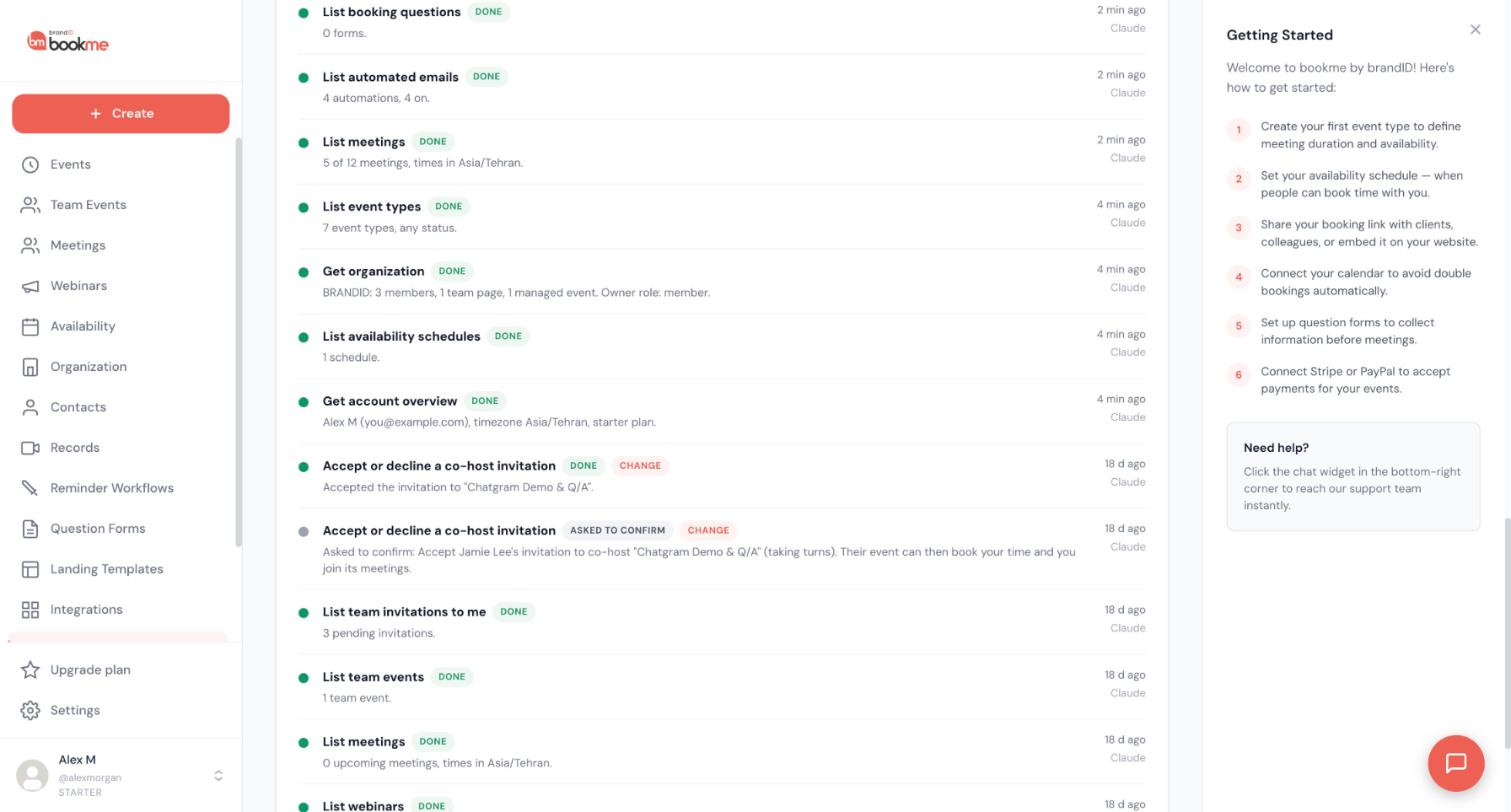
You stay in control of every AI app from one page, and every change takes effect on the app’s next request.
1. Change Access
On AI Assistants, each connected app shows what it may do. Choose View and manage, View only or Custom, then Save access.
2. Pause Everything
Click Pause all AI access. No AI app can do anything until you click Resume AI access; connections are kept.
3. Disconnect
Click Disconnect on the app. To use it again, connect it again from the AI app.
4. When Connections End On Their Own
A connection lasts up to 90 days and ends after 30 days without use. Changing your password disconnects every AI app.
bookme was built so an AI app can only do what you allow, and so you can see and stop everything it does.
1. Sign-In
You sign in on bookme with OAuth 2.1 and PKCE; the AI app never sees your password. Connecting needs a recent sign-in.
2. Keys
Access keys last 15 minutes and refresh keys change on every use. A used key that comes back stops the connection.
3. Verified And Unverified Apps
bookme recognizes apps such as Claude and ChatGPT. Apps it cannot identify are marked Unverified, start at View only and need you to confirm you started the connection yourself.
4. What The App Sees
Only what its tools return, inside the access you gave (for example a meeting’s time, the invitee’s name and email, and notes). What you share in a chat is also covered by that AI provider’s own terms and privacy policy.
5. Full Record
Every request an AI app makes is listed in Activity for 12 months, including refused ones, and each one counts in that app’s number of actions. Refused shows what bookme did not allow (no permission, AI access paused, rejected by you, or a limit reached). A Preview row means the app only checked a change; nothing was changed. See “How To Read The AI Activity Log: Actions, Filters And Statuses?” below for every label.
bookme gives AI apps a set of ready-made commands (MCP prompts) so common jobs take one click.
1. Where To Find Them
In Claude, look for bookme’s commands in the chat’s + menu once bookme is connected. In Claude Code, type / and pick a command that starts with mcp__bookme__ (for example /mcp__bookme__daily_briefing). Other apps that support MCP prompts show them in their own menus.
2. The Commands
- Daily briefing: your meetings for a day with who, when, their answers and what to prepare.
- Weekly review: last week in numbers (meetings, no-shows, busiest times) and the week ahead.
- Set up an event type: describe the meeting in words; you see a preview before it is created.
- Record outcomes: goes through meetings that still need an outcome and shows each follow-up email first.
- Follow up no-shows: finds recent no-shows and drafts a rebooking note for you to send yourself.
- Plan time off: shows meetings on the days you will be away before blocking the free days.
- Prepare a webinar: creates a draft with an invitation and a reminder, and sends you a test.
3. Same Rules
A command is only a starting message. Everything the assistant then does follows the same access, confirmations and approvals as any other request.
Activity on the AI Assistants page lists every request an AI app made in your account, so you can see exactly what it looked up, changed, asked for or was refused.
1. The Actions Number
The top of AI Assistants shows Connected (apps connected now) and Actions. Each connected app’s card shows its own count, for example “12 actions”. An action is any request the app made: a look-up, a change, a preview, a change it had to ask you about, a request waiting for your approval, and also a refused, limited or failed request. Your own Undo, Approve and Reject are listed in Activity but never counted as the app’s actions. The top number adds up the apps connected now; when you reconnect an app, its new connection starts again from zero.
2. Reading A Row
Each row shows what the app did (for example Create event type), a status, a Change label when it was a change rather than a look-up, a short summary (for example: Created “Strategy Call” (45 min, active), or: 1 meeting from 2026-09-28 to 2026-10-04), how long ago it happened (hover for the exact time) and the app’s name.
3. Statuses
| Status | What it means |
|---|---|
| Done | It worked. |
| Failed | bookme could not do it, for example the item no longer exists or a rule did not allow it. Nothing changed. |
| Refused | Not allowed. The app lacks that permission, AI access was paused, or you rejected the request. |
| Limited | The app made too many requests in a short time; it can try again a little later. |
| Asked to confirm | The change reaches other people, so the app got a description and must ask you first. |
| Waiting for you | The request needs your approval. Review request takes you to it. Once you decide, the same row shows Approved, Rejected, Expired (after 24 hours) or Not done (approved but it could not be completed). |
| Preview | The app only checked what a change would do. Nothing changed. |
| Undone | You put this change back. |
4. Filters
- All: every request.
- Changes: only changes, plus your Undo, Approve and Reject.
- Refused: requests bookme did not allow, including limits.
Click View activity on an app’s card to see only that app, and Show all apps to go back. Rows load 25 at a time; Show more loads older ones. Activity is kept for 12 months.
5. Undo From Activity
A change to your own settings has an Undo button with the last day you can use it (30 days after the change).
6. It Stays Up To Date
When you come back to the AI Assistants tab after working in Claude or another AI app, the numbers, the requests waiting for you and Activity refresh by themselves (at most every 10 seconds). If you opened older rows with Show more, the list stays where you are until you reload the page.
Once an AI assistant is connected, you ask in plain words. Here are example asks, grouped by the job they do. Use them as they are or change the names and times to fit your day.
Set things up
- Create a 45 minute “Strategy Call” on Zoom, Monday and Thursday 10 to 4.
- Give me the embed code for my Discovery Call on a popup button.
Look things up
- What meetings do I have tomorrow, and who booked them?
- Who are my most frequent clients, and who has not booked in 3 months?
Manage your time
- Block next Friday, I am at a conference.
- Move my 3 pm with Ivy to any open time on Thursday.
Record what happened
- Mark yesterday’s meetings: Ana met, Ben did not show.
Report and plan
- How many no-shows did I have last month, by event type?
- Draft a reminder email for my webinar, one day before it starts.
You do not need to know which tool does what. The assistant picks the tools for you, inside the access you gave it. If you prefer one click, bookme also offers ready-made commands such as the daily briefing and the weekly review (see the article about ready-made commands above).
bookme gives AI apps 67 tools in 10 areas. Each tool is marked by how it behaves: reads (only looks, changes nothing), right away (changes your own settings), asks first (the assistant shows what will happen and waits for your yes) or your approval (waits for you on the AI Assistants page). This article covers the first four areas.
Account and organization
- Reads:
get_account(profile, time zone, plan limits, connected calendars and apps),get_organization(members, roles, team pages, managed events, never billing),check_approval(checks whether a held request was approved). - Right away:
update_profilechanges your name, bio, time zone and booking page design. Contact links need your approval.
Event types
- Reads:
list_event_types,get_event_type,get_share_links(booking links and embed code). - Right away:
create_event_type,update_event_type(never prices),duplicate_event_type,set_event_type_status(pause or turn on). - Asks first:
delete_event_type, only for drafts and paused types that were never booked.
Availability
- Reads:
list_availability_schedules,list_date_overrides,find_open_times(open times exactly as your booking page offers them). - Right away:
create_availability_schedule,update_availability_schedule,delete_availability_schedule,set_date_override,remove_date_override. None of them cancels a meeting.
Meetings
- Reads:
list_meetings,get_meeting,preview_follow_up_emails(shows the emails, sends nothing),list_contacts,list_recordings. - Right away:
update_meeting_note. - Asks first:
cancel_meeting,reschedule_meeting,record_meeting_outcome,clear_meeting_outcome,remove_meeting_guest. A paid meeting is cancelled in bookme, never by the assistant. - Your approval:
add_meeting_guest,cancel_meetings(several at once).
The next article lists the other six areas.
This is the second half of the tool list. The labels mean the same as in the previous article: reads, right away, asks first and your approval.
Webinars
- Reads:
list_webinars,get_webinar,list_webinar_registrants. - Right away:
create_webinar,send_webinar_test_email,manage_webinar_email, andsave_webinar_emailwhen the email is sent manually. - Asks first:
update_webinar,add_webinar_attendees,remove_webinar_attendee. Adding more than 10 people needs your approval. - Your approval:
send_webinar_email(emails the whole list),cancel_webinar, andsave_webinar_emailwhen the email is automatic.
Team events
- Reads:
list_team_events,get_team_roster,list_team_invitations. - Right away:
set_my_team_schedule. - Asks first:
update_team_event,respond_to_team_invitation,manage_team_email_invite. - Your approval:
invite_team_host,remove_team_host.
Booking questions
- Reads:
list_booking_questions. - Right away:
create_booking_questions,update_booking_questions,attach_booking_questions,delete_booking_questions.
Automated emails
- Reads:
list_automated_emails,list_automated_email_templates. - Right away:
create_automated_email,create_automated_email_from_template,update_automated_email,delete_automated_email,set_automated_email_status(turn on or off). An automation that sends data or links outside bookme needs your approval.
Reports
- Reads:
get_meeting_report(counts, no-show rate, busiest days and hours, top event types).
Open AI Assistants in the sidebar. The top of the page is where you see at a glance whether AI apps can reach your account and how much they have done.
- AI access is on: the green badge in the top right. It tells you AI apps are currently allowed to work in your account.
- Connected: how many AI apps are connected now.
- Actions: the number of requests those apps have made (see the article about the activity log for what counts as an action).
- Pause all AI access: one button that stops every app until you click Resume AI access. Connections are kept.
The connect panel
Below that, Connect an AI assistant shows the one address every app uses, with a Copy address button. Four tabs sit under it: Claude, Claude Code, ChatGPT and Other apps. Click a tab to see the steps for that app. The Claude tab is open first and walks you through adding a custom connector, signing in to bookme and choosing what Claude may do.
The link Read the full guide next to the heading opens the full AI Assistants guide, with every tool listed.
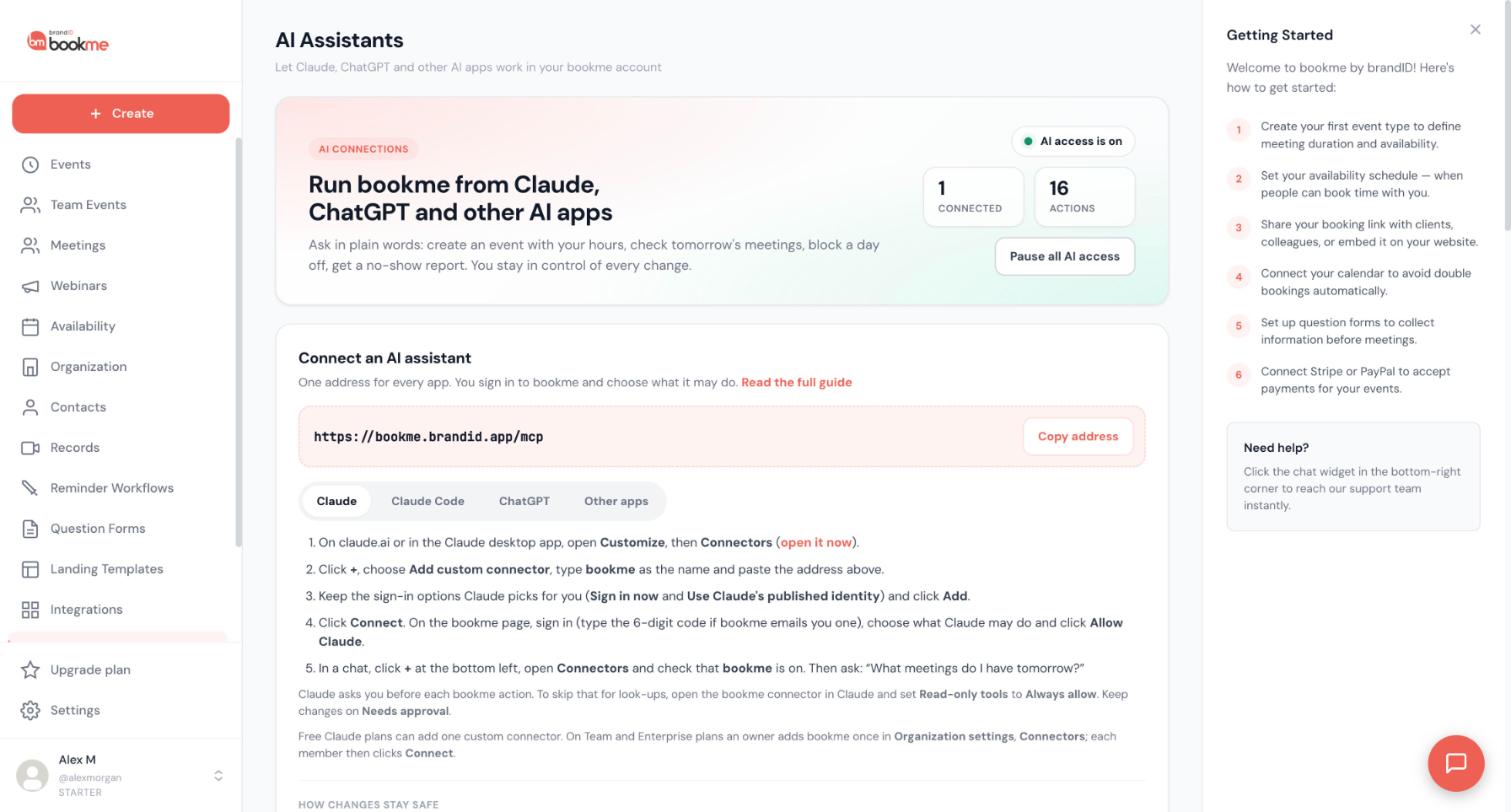
Scroll a little below the connect steps and you find two boxes that sum up the rules. They are a short version of the longer articles on this page.
How changes stay safe
Three colored labels, each with one line:
- RIGHT AWAY: changes to your own settings. Most can be undone in Activity further down the page.
- ASKS YOU FIRST: anything that reaches other people, like cancelling a meeting. The assistant must wait for your yes.
- YOUR APPROVAL: high impact requests wait for you on this page. You approve or reject them under Waiting for your approval.
What an AI can do for you
A list with green ticks: create and edit event types, booking questions and automated emails; change weekly hours and block days off; find open times and summarize meetings; add notes and outcomes, and cancel or reschedule meetings after you confirm; set up webinars and team co-hosts (emails to your audience and invitations wait for your approval here); build reports; update your profile and booking page design and share links and embed code; look up contacts, recordings and your organization.
What it can never do
A list with red crosses: payments, plans, billing, refunds or payouts; your password, email or sign-in methods; connecting or disconnecting calendars, video and other apps; changing your organization, its members or billing; deleting your account. It also says This page: AI apps cannot change their own access. Only you can change access, here.
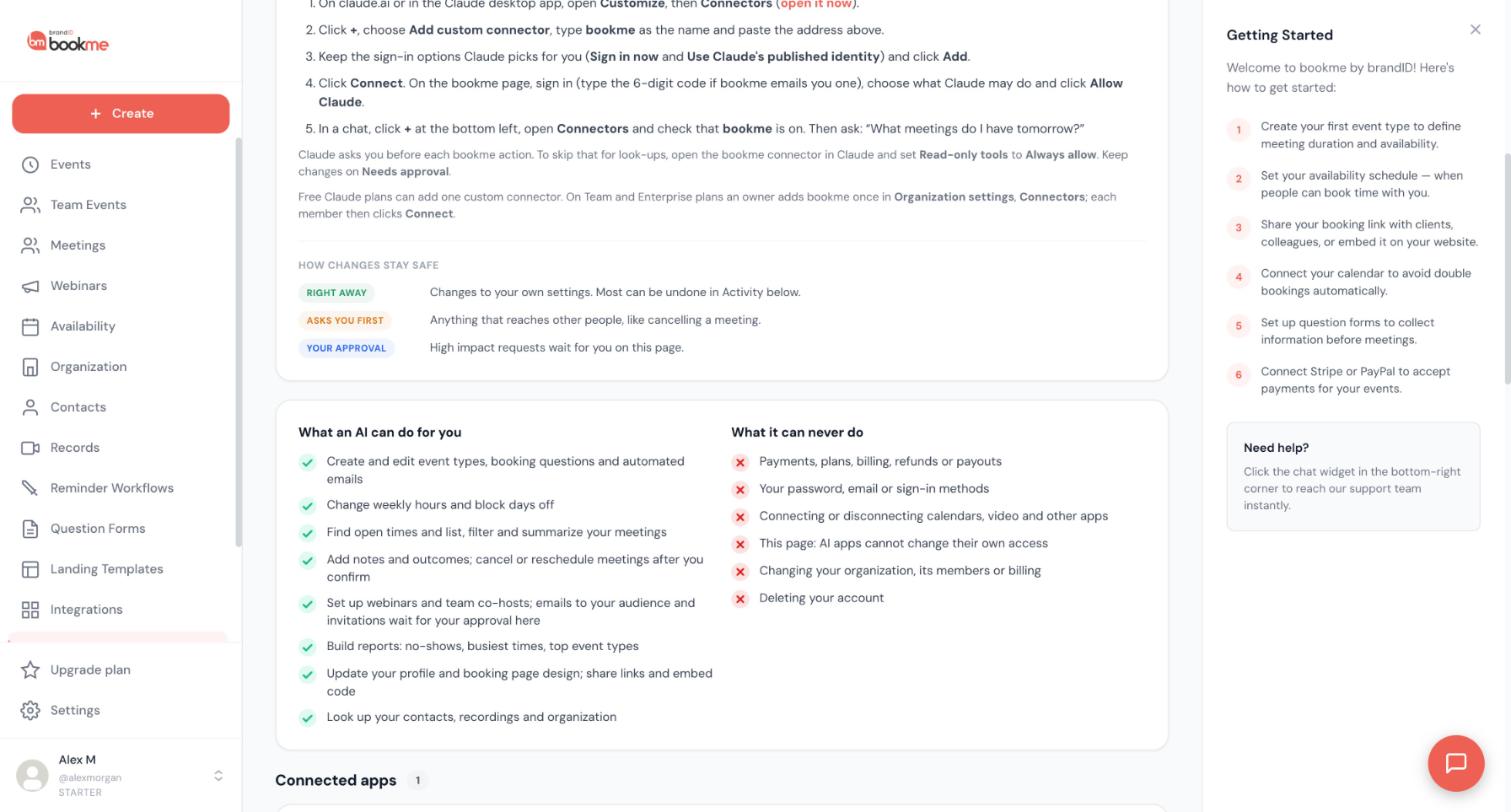
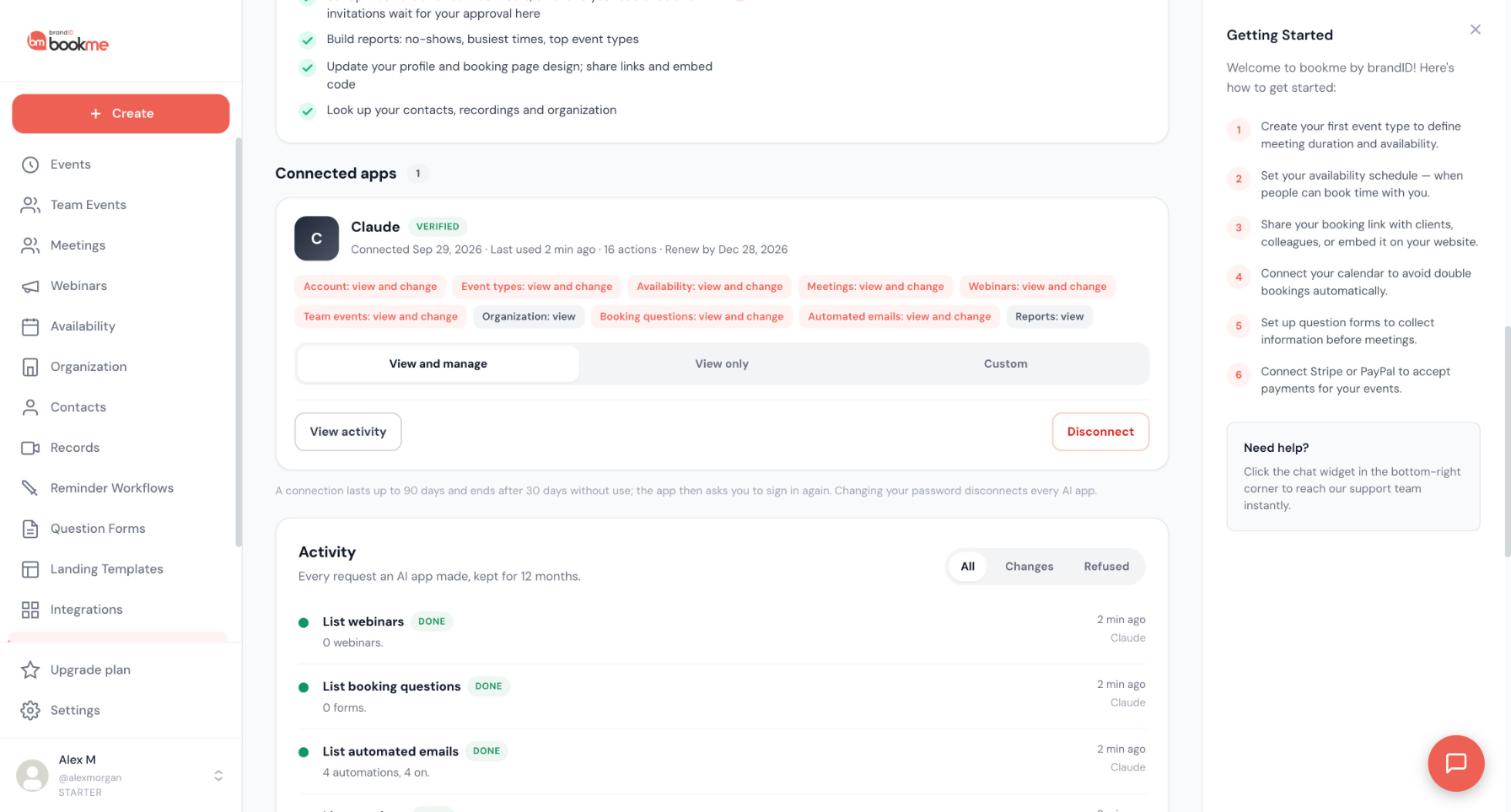
Under the safety boxes, Connected apps shows one card for every AI app that is connected. The number next to the heading is how many there are.
The top of the card
- The app name, with a VERIFIED badge when bookme recognizes it (Claude and ChatGPT, for example). An app bookme cannot identify is marked Unverified and starts at View only.
- A line with the date it was connected, when it was last used, how many actions it made and a Renew by date.
The area chips
Small chips list each area and what the app may do there, for example Event types: view and change or Reports: view. The chips with view and change are highlighted. Organization and Reports are view only, so they always read view.
The three access choices
Under the chips, View and manage, View only and Custom set the access for that app. The one that is selected is the one in force. Choose Custom to decide area by area, then click Save access. A change applies from the app’s next request.
The two buttons
- View activity shows only that app’s rows in Activity. Click Show all apps to go back.
- Disconnect ends the connection. To use the app again, connect it again from the app.
The note under the card repeats the time limit: a connection lasts up to 90 days and ends after 30 days without use, and the app then asks you to sign in again. Changing your password disconnects every AI app.
On the Upgrade plan page, all three plan cards list MCP access:
- Starter (free): MCP access (Claude, ChatGPT, Cursor and more).
- Pro: MCP access.
- Elite: MCP access, and under premium features MCP and API access.
That is all the plan cards say about it. They do not describe a different set of tools or a different number of connected apps for each plan, so this article does not either. If you want to check before you upgrade, open Upgrade plan in the sidebar and read the card for the plan you are looking at.
Limits that come from the AI app, not from bookme
- Free Claude plans can add one custom connector.
- In ChatGPT, developer mode is needed to add a connector, and it is available on paid ChatGPT plans.
Whatever the plan, an AI app never handles payments, plans, billing, refunds or payouts. Your plan only decides what your bookme account offers, and the AI app works inside the same rules as your dashboard.
Most people never need this. It is for anyone building their own MCP client or checking how bookme behaves.
Endpoint and sign-in
- Send requests with
POSTtohttps://bookme.brandid.app/mcp. The transport is Streamable HTTP. - Authentication is OAuth 2.1 with bearer tokens and PKCE. Access tokens last 15 minutes and refresh tokens rotate on every use.
- Discovery is at
/.well-known/oauth-protected-resource/mcpand/.well-known/oauth-authorization-serveron bookme.brandid.app. - Client ID metadata and dynamic client registration are both supported.
Access
The user picks the access on the consent screen: View only, View and manage, or Custom, area by area (view and change for each area). A tool that needs a permission the app does not have is refused and shows as Refused in Activity.
Preview, confirmation and approval
- Every change tool accepts
preview. A preview checks what would happen and changes nothing. It shows in Activity as Preview. - Every change tool accepts
idempotency_key, so a repeated request does not repeat the change. - For a change that reaches other people, the first call returns
status: needs_confirmationand aconfirmation_token. The user must agree, then the call is confirmed with that token. The token works once, for those exact details, for 10 minutes. - For a request that needs the user’s approval in bookme, the call returns
pending_approvaland anapproval_id. Use thecheck_approvaltool to see the result. Requests expire after 24 hours.
The full guide is at bookme.brandid.app/docs/ai.
Cursor, VS Code, Gemini CLI and other apps that support remote MCP servers connect the same way. You add bookme as a remote HTTP MCP server.
- In the app’s MCP settings, add a new remote server of type HTTP. The menu is called something different in each app, so look for MCP or MCP servers.
- Paste the address
https://bookme.brandid.app/mcp. Copy it from the AI Assistants page with Copy address. - Start the sign-in from the app. It opens bookme in your browser. Sign in to bookme, never in the AI app. If your last sign-in is older than 10 minutes, bookme emails you a 6-digit code first.
- Choose View only, View and manage or Custom, then allow the connection.
When it works, the app appears under Connected apps on the AI Assistants page. You can change its access or disconnect it there at any time.
For a step-by-step version, see How to connect Cursor, VS Code or any other AI app to bookme.
Still stuck? We’re happy to help.
Create your bookme account, see pricing, or reach out to support directly.




