
How to use the post-meeting follow-up emails
Your account has four Post-Meeting Follow-up workflows, one for each way a meeting can end. Each one emails the invitee when you record the matching outcome.
Before you start
- Meetings that have ended and an outcome to record. See the outcome guide for how to mark one.
Open Reminder Workflows
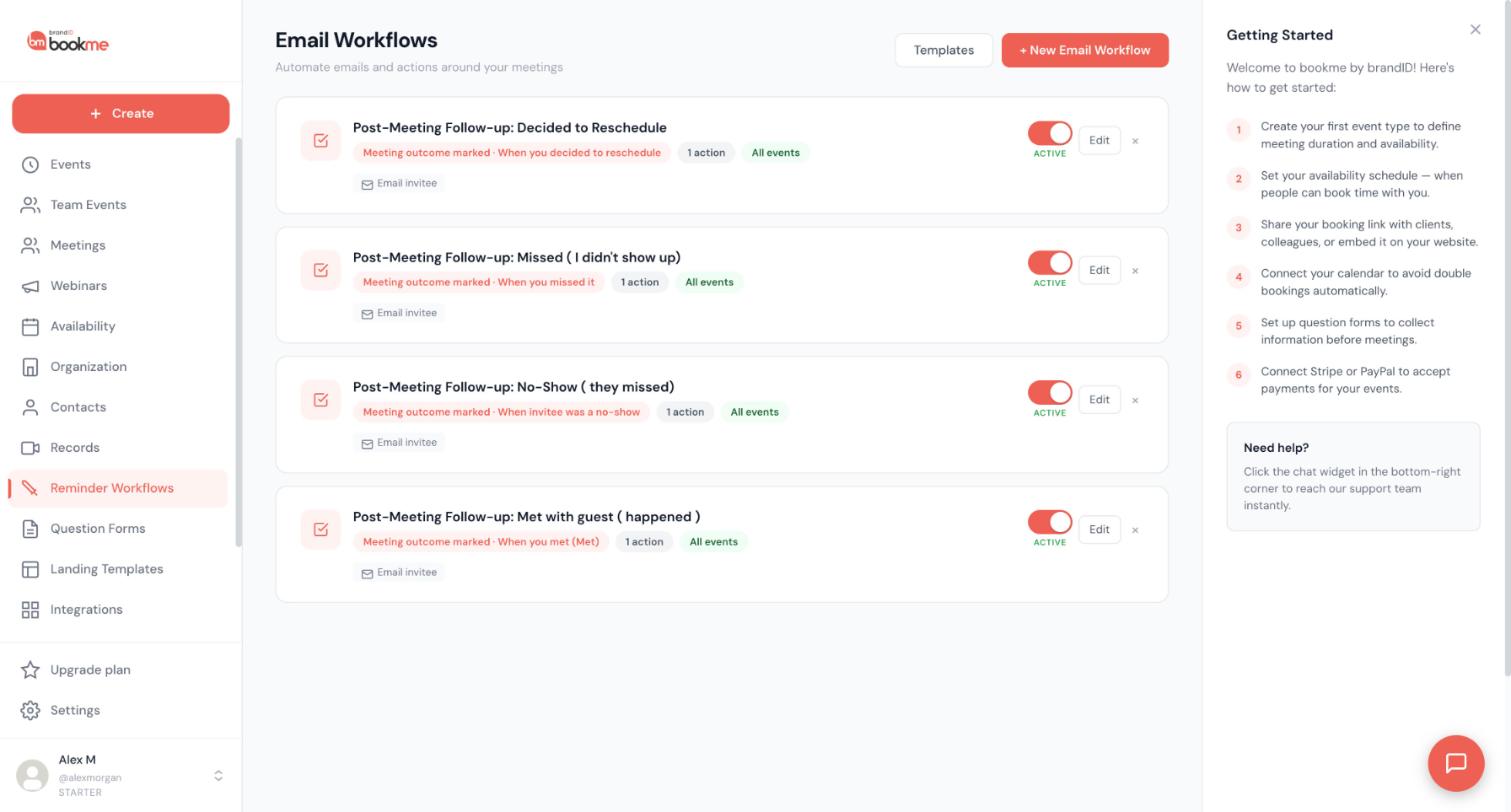
Click Reminder Workflows in the sidebar. The page is titled Email Workflows. You see four workflows, all ACTIVE, applying to All events and each with one action: Email invitee.
Learn what each workflow sends
- Post-Meeting Follow-up: Met: runs when you mark a meeting Met. It thanks the invitee and can include the note you typed when marking it.
- Post-Meeting Follow-up: No-Show: runs when the invitee was a no-show. A gentle message with your booking link to try again.
- Post-Meeting Follow-up: Missed: runs when you mark I missed it. An apology with your booking link.
- Post-Meeting Follow-up: Decided to Reschedule: runs when you mark Decided to reschedule, or use They need a new time on an upcoming booking. It tells the invitee the old slot is released and gives them a reschedule link.
Open a workflow to edit it
Click Edit on the workflow you want to change. You can rewrite the subject and the body, change which events it applies to, or add more actions. The editor previews the email as you type.
Personalize with merge variables
Merge variables are placeholders that bookme replaces with real booking data when the email is sent. Useful ones for follow-ups are {{invitee_name}}, {{host_name}}, {{meeting_title}}, {{booking_link}}, {{reschedule_link}} and {{host_meeting_notes}}. A simple Met body could look like this:
Hi {{invitee_name}},

Thanks for your time today.

{{host_meeting_notes}}

To book another time: {{booking_link}}

{{host_name}}
If you leave the note blank, {{host_meeting_notes}} renders as empty and the email still reads naturally.
Preview before anything is sent
You do not need to wait for a real meeting. On Meetings, choosing an outcome opens a window that shows the exact follow-up email that saving will send. On the Met follow-up, Add this note to the email lets you decide whether your note goes in the email, and Email them now lets you save the outcome without emailing the invitee.
Clicking Save and email sends the email to the invitee, and an email that has been sent is not recalled even if you clear the outcome.
Switch a follow-up off if you do not want it
Click the ACTIVE switch on the workflow to pause it without deleting it. For example, switch off only the Decided to Reschedule workflow if you handle reschedules yourself. Click the switch again to resume it.
Tips
- Edit the wording once in your own voice and every future follow-up uses it. Emails already sent keep their original content.
- Add your contact channels to the sign-off with variables such as {{host_whatsapp}} or {{host_phone}}. Empty fields render as empty, not as the variable name.
- Only the workflows of the host who recorded the outcome fire on a team event, and each booking is classified once.
If something goes wrong
The invitee got no follow-up email.
I need to change a follow-up that already went out.
A follow-up uses text from an older version.
Related how-to guides
Still stuck? We’re happy to help.
Create your bookme account, see pricing, or reach out to support directly.




