
How to create a booking question form
A question form adds your own questions to the booking page, so you know what you need before the meeting. You build it once and reuse it on as many events as you like.
Before you start
- A bookme account
- The two or three things you want to know before a meeting
Open Question Forms
Click Question Forms in the sidebar. The page explains that these are custom questions shown to invitees before booking, and that one form can be assigned to many events. Until you create one it reads No question forms.
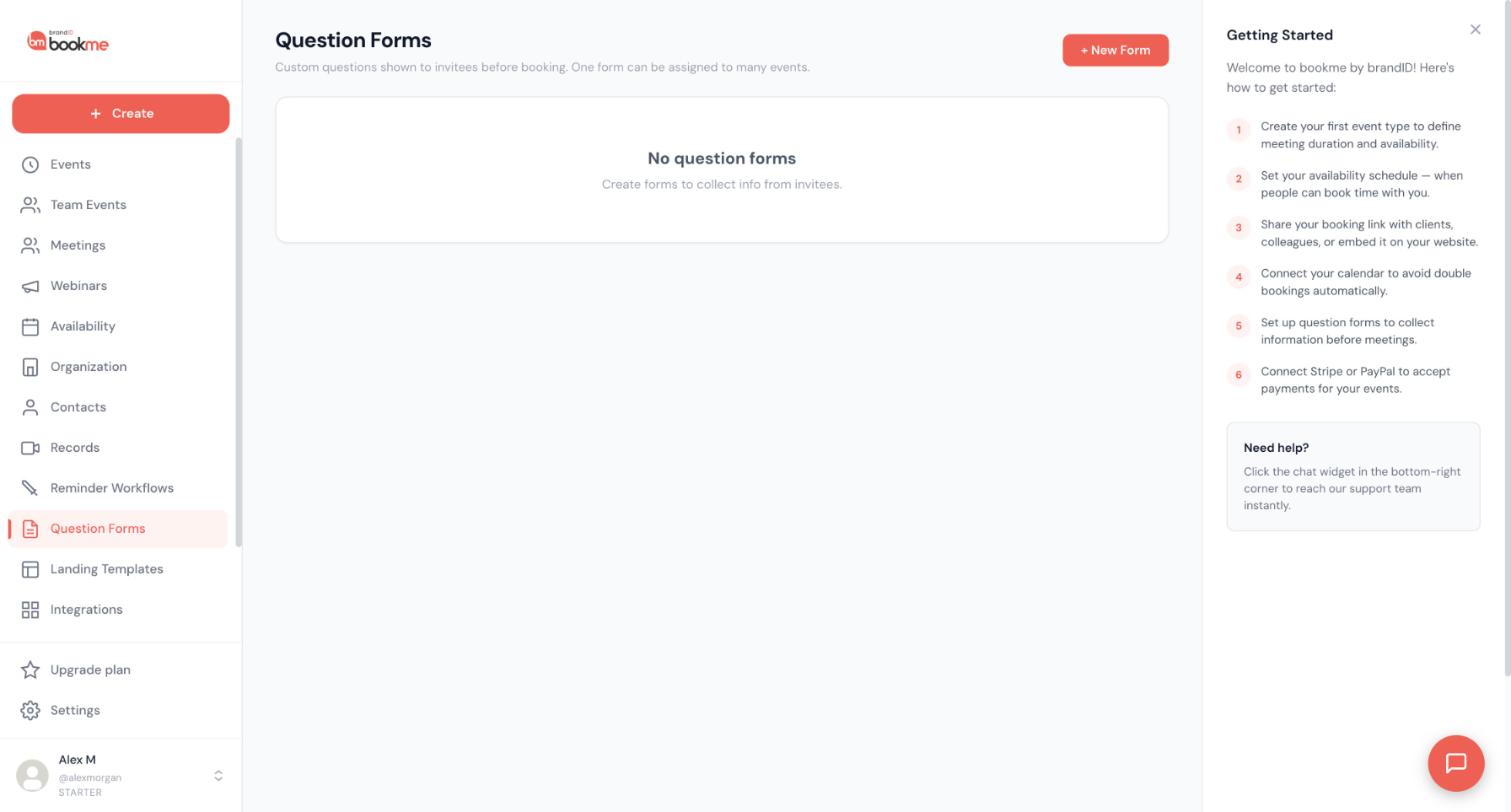
Start a new form
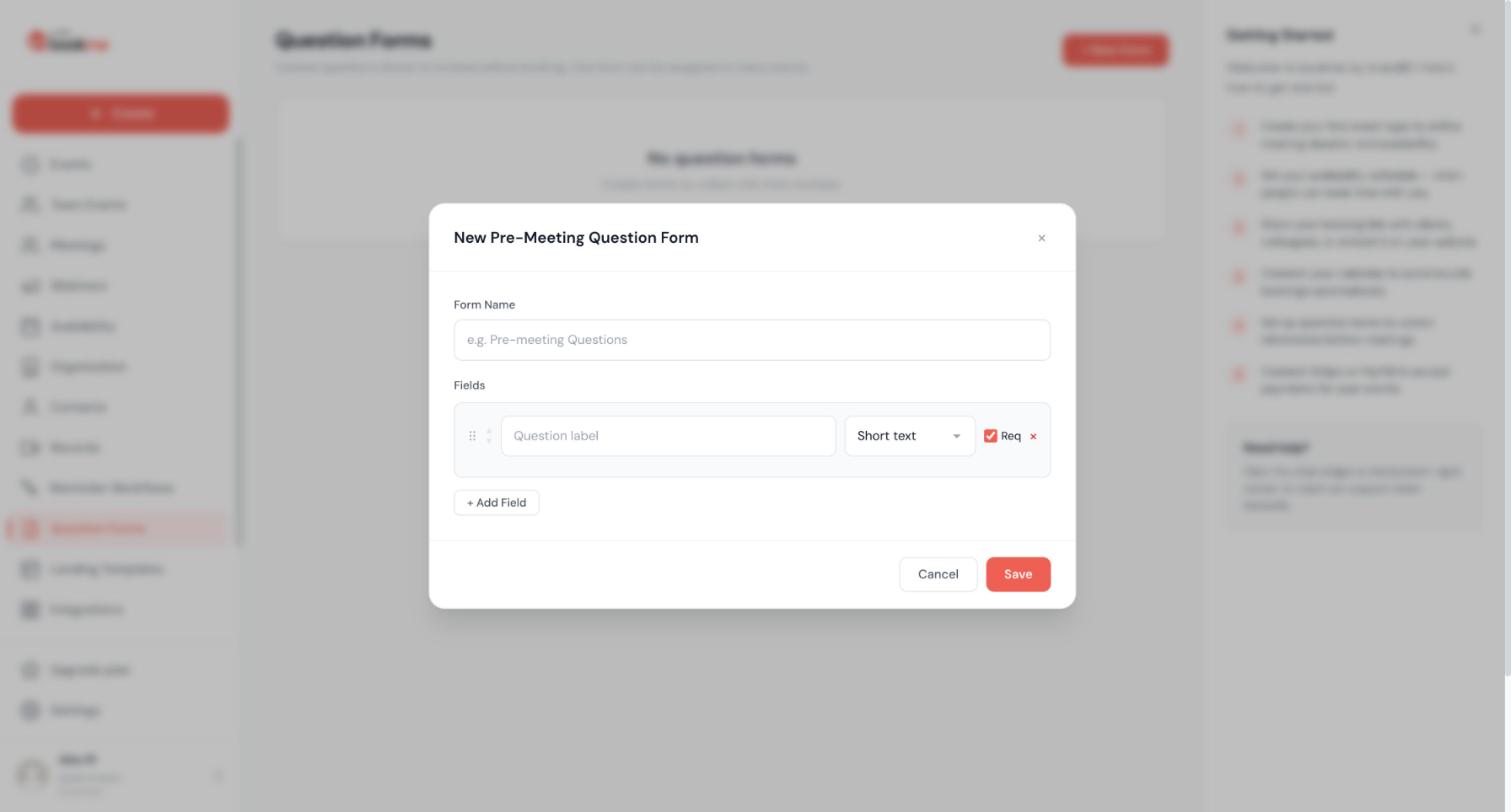
Click + New Form. The New Pre-Meeting Question Form dialog opens. Type a Form Name that tells you what the form is for, such as Pre-meeting Questions.
Add your questions
Each row in Fields is one question. Give it a label, choose its type and decide whether it is required:
- The label is what the invitee sees, for example “What is your goal for this call?”
- The type starts as Short text. The available types are short text, long text, dropdown, radio and checkbox. A dropdown needs at least two options.
- Tick Req to make the question required. Invitees must answer it before the Confirm button works.
Click + Add Field for another question, and the red cross on a row removes it. Name and email are always asked, so you do not add them.
Keep it short and order it
Aim for three or four questions, because each extra one lowers completion. Put the most useful question first and drag the rows into the order you want. The order here is the order on the booking form.
Conditional questions, where one question appears only after a certain answer, are not available. Use a dropdown such as “What is this about?” followed by an optional long-text question instead.
Save the form
Click Save. The form now appears in your list on the Question Forms page.
Assign the form to an event
One form can serve many events. Assign it to one or more event types from the Question Forms page, or open an event, go to the Questions step and start from your saved form. On the Events page, a badge on the event card shows the name of the form it uses.
Editing a form updates every event that uses it.
See the answers
Answers appear after the invitee picks a time. You get them in your calendar invite description, in your booking email, in the invitee’s confirmation email and on the booking in Meetings, under What they told you.
Tips
- The single most useful question is “What is your goal for this call?” It helps the invitee prepare and lets you tailor the conversation.
- Use dropdowns and radios for anything you want to sort or count later, and short text with the format in the label for things like phone numbers (“Phone, with country code”).
- If you do not want invitees to see their own answers repeated in their confirmation email, you can turn that off in the event’s Questions settings.
If something goes wrong
My question does not show on the booking page.
Check that the form is assigned to the event the invitee is booking. A form only appears on events that use it, and an unpublished event does not show on your booking page at all.
I want to send people to different events depending on their answers.
Routing forms are not part of bookme. Name and describe your events so people pick the right one, share a different direct link with each audience, or use a required dropdown and act on the answer from the Meetings page.
I cannot find where the answers are stored.
Open the booking on the Meetings page and read them under What they told you. They are also in the booking email. There is no export button for answers yet.
Related how-to guides
Still stuck? We’re happy to help.
Create your bookme account, see pricing, or reach out to support directly.




