
How to update your profile, username and time zone
Your profile controls how your booking page looks and which name invitees see in emails. Everything lives on one Settings page, and the changes show up immediately.
Before you start
- A bookme account
- A profile photo up to 5 MB if you want one
Open Settings
Click Settings in the sidebar. The first tab, Profile, holds your identity, branding and contact details. The other tabs are Password, Calendars and Danger.
Update your photo, name, tagline and bio
- Profile Photo: click Upload Photo. PNG, JPG and GIF files up to 5 MB are accepted, and you can crop before saving. Remove clears it, and templates then show your initials.
- Display Name: shown on your booking page and in every email invitees get.
- Tagline: a short title shown on your booking page, up to 120 characters.
- Bio: tell visitors about yourself or your business, up to 500 characters.
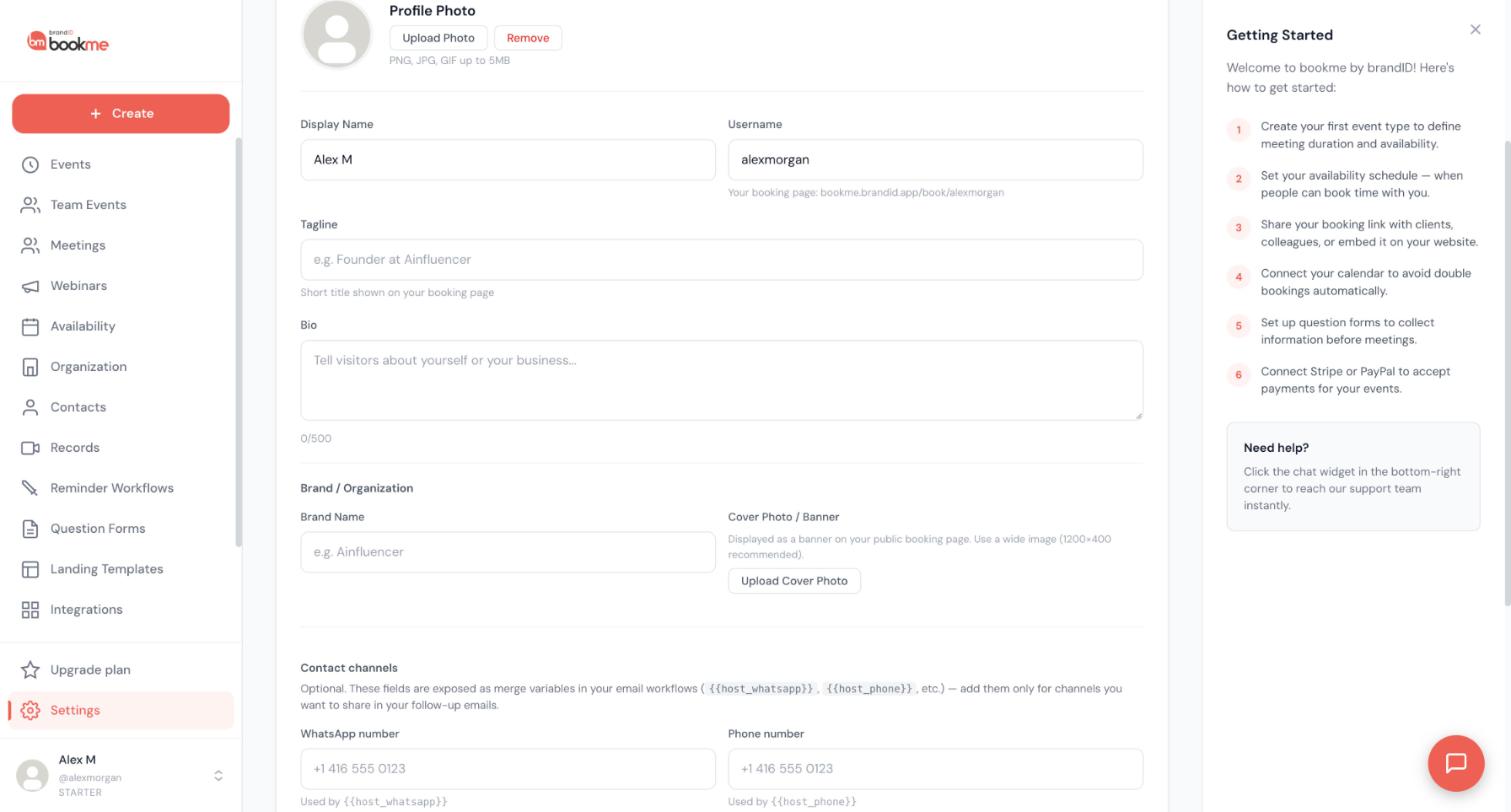
Change your username
The Username field sets your booking link, and the line under it shows the result: bookme.brandid.app/book/your-username. Use 3 to 30 characters of lowercase letters, numbers, hyphens and underscores. The name must be unique and cannot be a reserved word.
Add a brand name and cover photo
Under Brand / Organization, type a Brand Name and upload a Cover Photo / Banner. It appears as a banner on your public booking page. Use a wide image; 1200×400 is recommended. You can set the same cover photo from the Landing Templates page.
Set your time zone and country
Scroll to the bottom of the page.
- Timezone controls how times are shown to you on the Meetings page and in the emails you receive.
- Country drives automatic public-holiday blocking. Clear the field if you do not want holidays blocked, and check it if the wrong days are closed.
Each availability schedule also has its own time zone. Update that on the Availability page if you move.
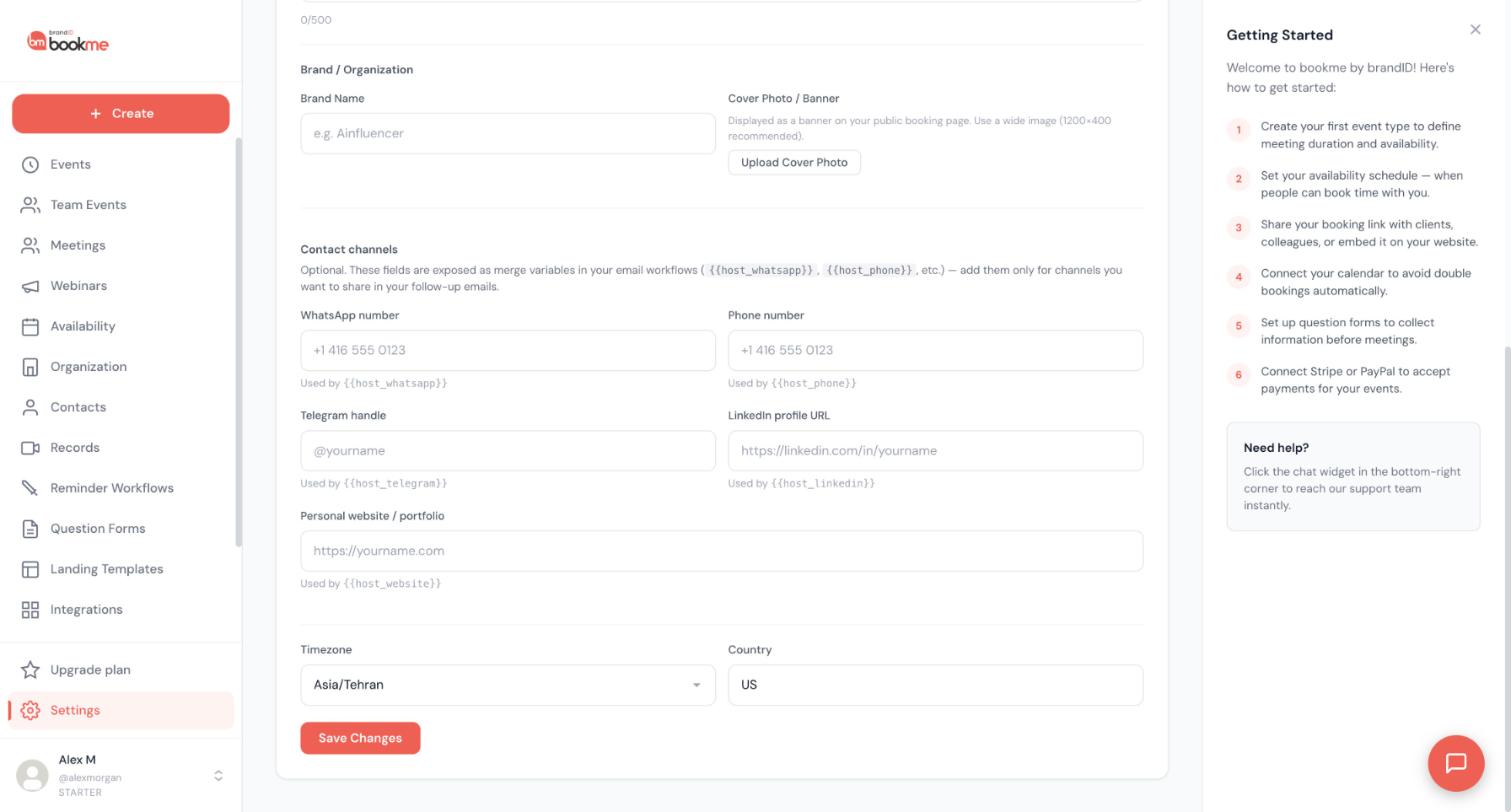
Save your changes
Click Save Changes. Your booking page updates immediately, and every email bookme sends from then on uses the new details.
Check your page
Open bookme.brandid.app/book/your-username in a private window to see what invitees see. Test on your phone too.
Tips
- Use a clear photo of your face, square-cropped, at least 400 by 400 pixels. Small or busy images look blurry once cropped.
- Keep the tagline to one line: what you do and for whom.
- If your username is long, remember shorter links are easier to say aloud and fit on a business card.
If something goes wrong
The time zone on my booking page is wrong.
bookme keeps two zones apart: yours, from your profile and schedules, and the visitor’s, from their browser. Check your profile time zone and the time zone of each schedule on the Availability page. Invitees can also change their own zone with the drop-down on the booking page.
The wrong days are blocked as holidays.
Holidays come from the Country field. It is guessed from your time zone at sign-up, so check it. Clear it to turn holiday blocking off, or add a custom-hours date override for any single holiday you want to work.
My old link stopped working.
That happens when the username changes. Update the link everywhere you shared it, or change the username back.
Related how-to guides
Still stuck? We’re happy to help.
Create your bookme account, see pricing, or reach out to support directly.




