
How to run your day with an AI assistant (briefing, open times, days off)
Once an AI app is connected, you can get a briefing for the day, find open times, block a day off and move a meeting in plain words, and stay in control of every change.
Before you start
- An AI app connected to bookme (see the connect guides).
- For blocking days and moving meetings: View and manage access for Availability and Meetings.
Start with the daily briefing
bookme gives AI apps a ready-made command called daily briefing. It lists your meetings for a day with who, when, their answers and what to prepare. In Claude look for it in the chat’s + menu; in Claude Code type /mcp__bookme__daily_briefing. You can also just ask:
Give me my briefing for tomorrow: who booked, when, their answers and what I should prepare. Only look things up, do not change anything.Find open times
The assistant reads open times exactly as your booking page offers them, so what it finds is what an invitee could book. Ask for a specific event type:
Which times are open on Thursday for my Discovery Call? Only look them up.Block a day off
Blocking a day is a change to your own settings, so the assistant can do it right away and it is listed in Activity, where you can undo it for 30 days. It never cancels meetings that are already booked. Ask it to look first:
I am at a conference next Friday. First show me any meetings already booked that day. Then tell me exactly what day off you would block and wait for my yes.For a longer break use the ready-made plan time off command: it shows meetings on those days before it blocks the free days.
Move a meeting
Moving a meeting reaches your invitee, so the assistant must ask you first. The new time must be open on the event’s booking page (hours, buffers, notice, calendars).
Move my 3 pm with Ivy on Wednesday to any open time on Thursday. Tell me the exact new time and what Ivy will receive, and wait for my yes before you change anything.When you say yes, the confirmation works once, for those exact details, for 10 minutes. If anything differs, bookme refuses and the assistant has to ask again.
Know which steps ask first
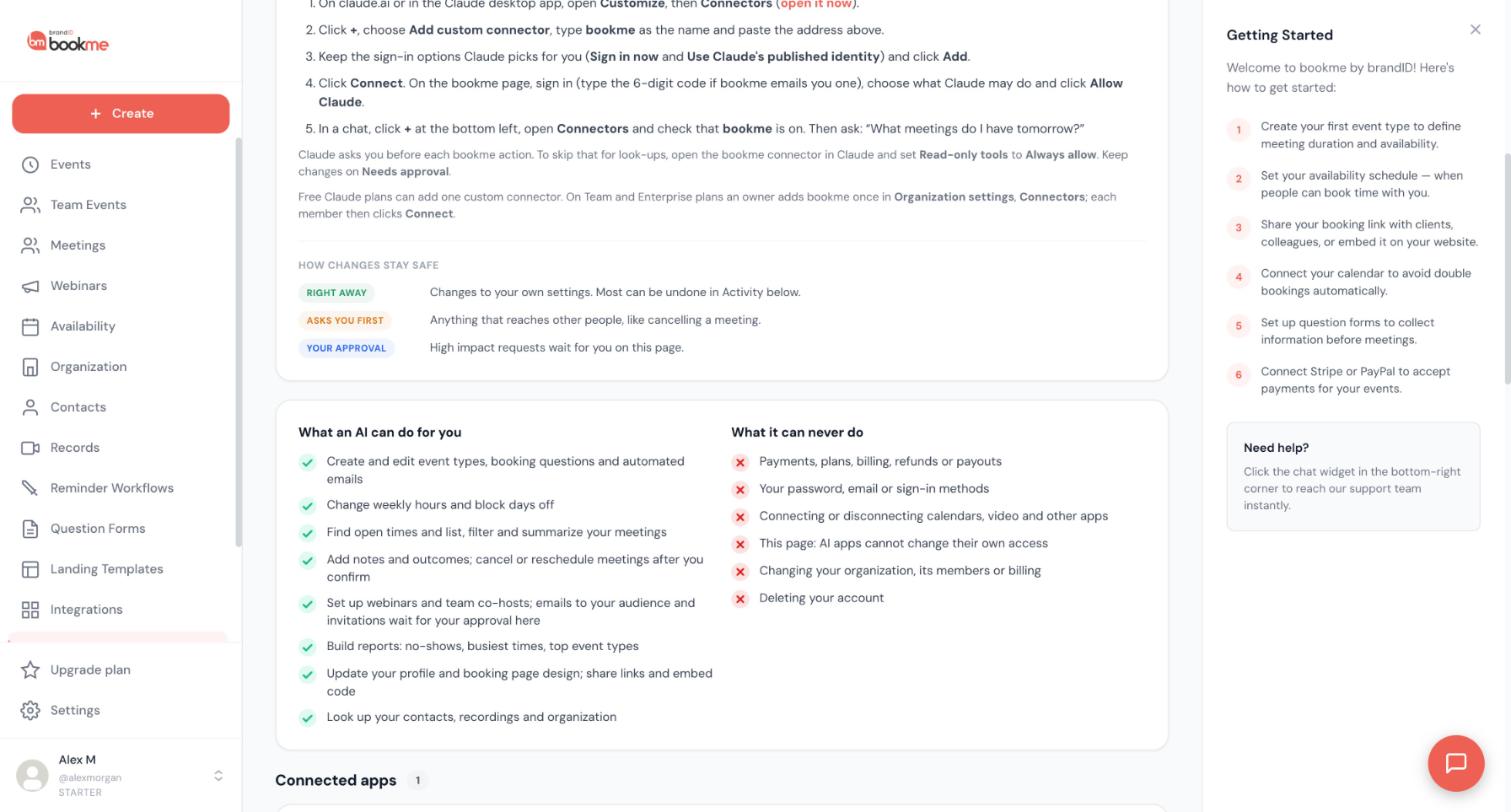
- Right away: look-ups, days off, weekly hours and other changes to your own settings.
- Asks you first: cancelling or moving one meeting, removing a guest.
- Your approval in bookme: cancelling several meetings at once. Approve or reject it on the AI Assistants page.
A paid meeting is never cancelled by an AI app. Cancel it yourself on the Meetings page, where you decide about the refund.
Tips
- End most prompts with: Show me exactly what you will do and wait for my yes before you change anything.
- Ask the assistant what exactly will be sent before you agree to anything that emails an invitee.
- Text your invitees typed (names, notes, answers) is marked as coming from outside your account. Still, read what the assistant proposes before you agree.
If something goes wrong
The assistant cannot move my meeting to the time I asked for.
The assistant wants me to cancel a paid meeting through it.
Related how-to guides
Still stuck? We’re happy to help.
Create your bookme account, see pricing, or reach out to support directly.




