
How to create a paid event
Turn any event into a paid appointment by choosing Paid in the Create event wizard, then set the price and how you get paid. Invitees pay after they pick a time.
Before you start
- A way to get paid: connect Stripe or PayPal, or use the bookme Payment gateway, which needs neither.
- Know the platform fee for your plan (listed in step 4).
Decide how you will get paid
Each paid event uses one gateway.
- bookme Payment gateway: invitees pay brandID, your share builds up on the Earnings page, and no Stripe or PayPal account is needed.
- Your Stripe or Your PayPal: invitees pay your own account directly.
A paid event needs one of these routes to work. If you choose Your Stripe or Your PayPal and that account is not connected, invitees cannot book the event.
Connect Stripe or PayPal if you chose your own
Click Integrations and open the Payments tab. For Stripe, click Connect and finish Stripe’s onboarding (business details and bank account). For PayPal, click Connect, paste your PayPal Merchant ID and save. The Merchant ID is not your email address. Skip this step if you use the bookme Payment gateway.
Start a new event and choose Paid
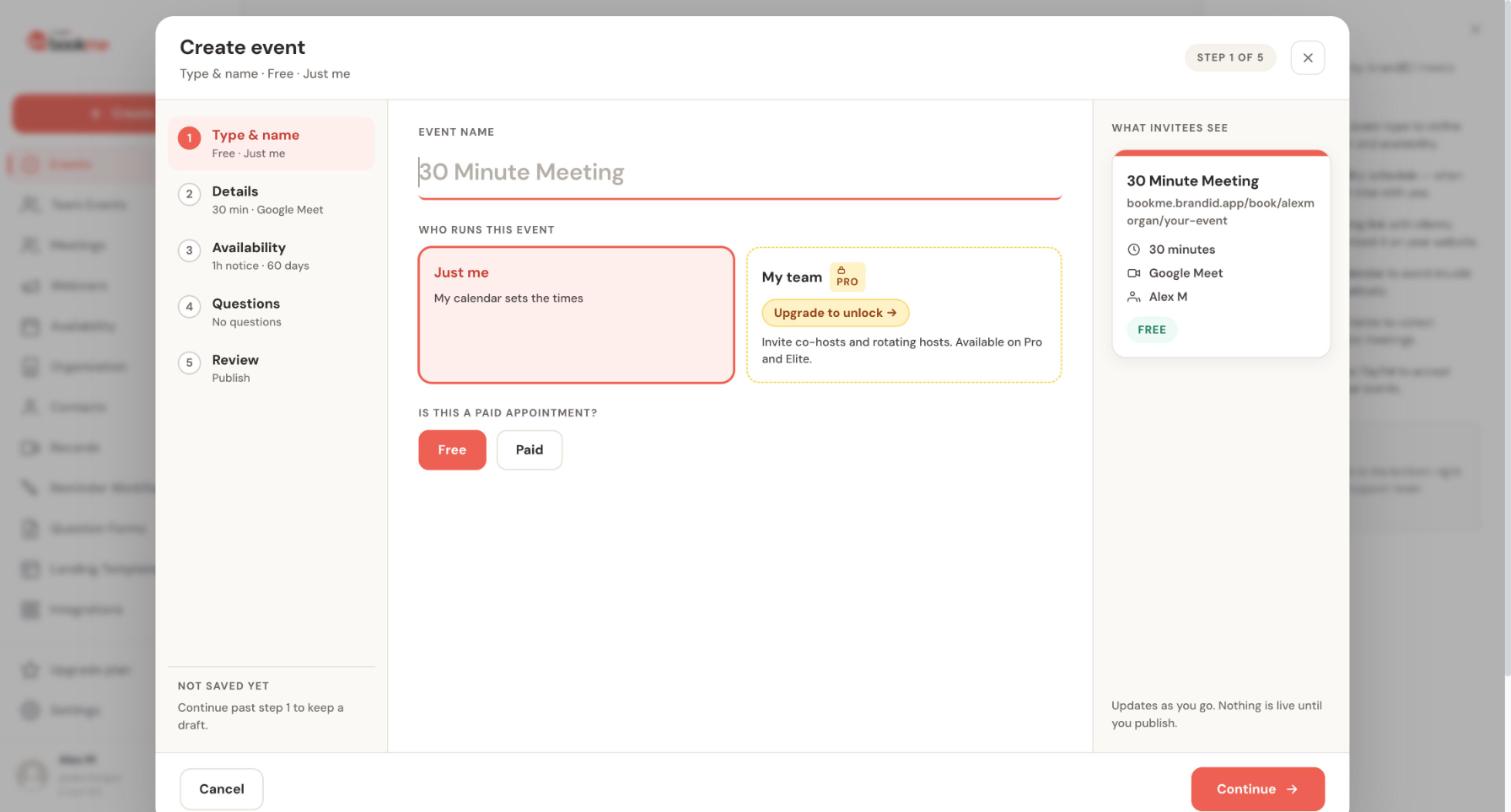
Click Create, type the event name, and under Is this a paid appointment? click Paid. The preview card on the right shows what invitees see.
Set the price, currency and gateway
Enter the amount and pick the currency: USD, EUR, GBP, CAD, AUD or IRR. Then, under How you get paid, choose the bookme Payment gateway, Your Stripe or Your PayPal. The wizard shows the fee percentage for each option on your plan.
Platform fees on each paid booking:
- Starter: 15% with your own gateway, 20% with the bookme gateway.
- Pro: 5% with your own gateway, 20% with the bookme gateway.
- Elite: 3% with your own gateway, 20% with the bookme gateway.
The fee is taken from each paid booking. Stripe or PayPal processing fees apply on top when you use your own account. Free events have no fee.
Finish the other steps and publish
Click Continue through Details, Availability and Questions, then review and publish on the last step. The wizard keeps a draft once you leave step 1, and nothing is live until you publish.
Know what happens when someone books
After picking a time and filling in the form, the invitee goes to checkout. The slot is held for about 30 minutes. On the Meetings page the booking shows Pending payment until it is paid. If the checkout is never completed the hold expires, the slot is offered again and nothing is charged.
Editing the price later applies to new bookings only. Existing bookings keep what they paid.
Tips
- Put your cancellation and refund policy in the event description. Refunds are issued by you from the Meetings page, in full, and an invitee cancelling does not refund them automatically.
- A free intro event next to a paid session is a common setup. There are no discount codes, so use separate events for different prices.
- Track your money on the Earnings page. See the earnings guide for what each card means.
If something goes wrong
Invitees cannot book my paid event.
A booking shows Pending payment.
I need to refund a paid booking.
Related how-to guides
Still stuck? We’re happy to help.
Create your bookme account, see pricing, or reach out to support directly.




