
How to record a meeting outcome
After a meeting ends, tell bookme what happened: Met, No-show, I missed it, or Decided to reschedule. Your answer sets the booking’s status and can send a follow-up email to the invitee.
Before you start
- An ended meeting you hosted or co-hosted. Webinar attendances have no outcomes.
Find the meeting that needs an outcome
There are three places to answer What happened?
- The check-in email you get five minutes after the meeting ends, with four buttons.
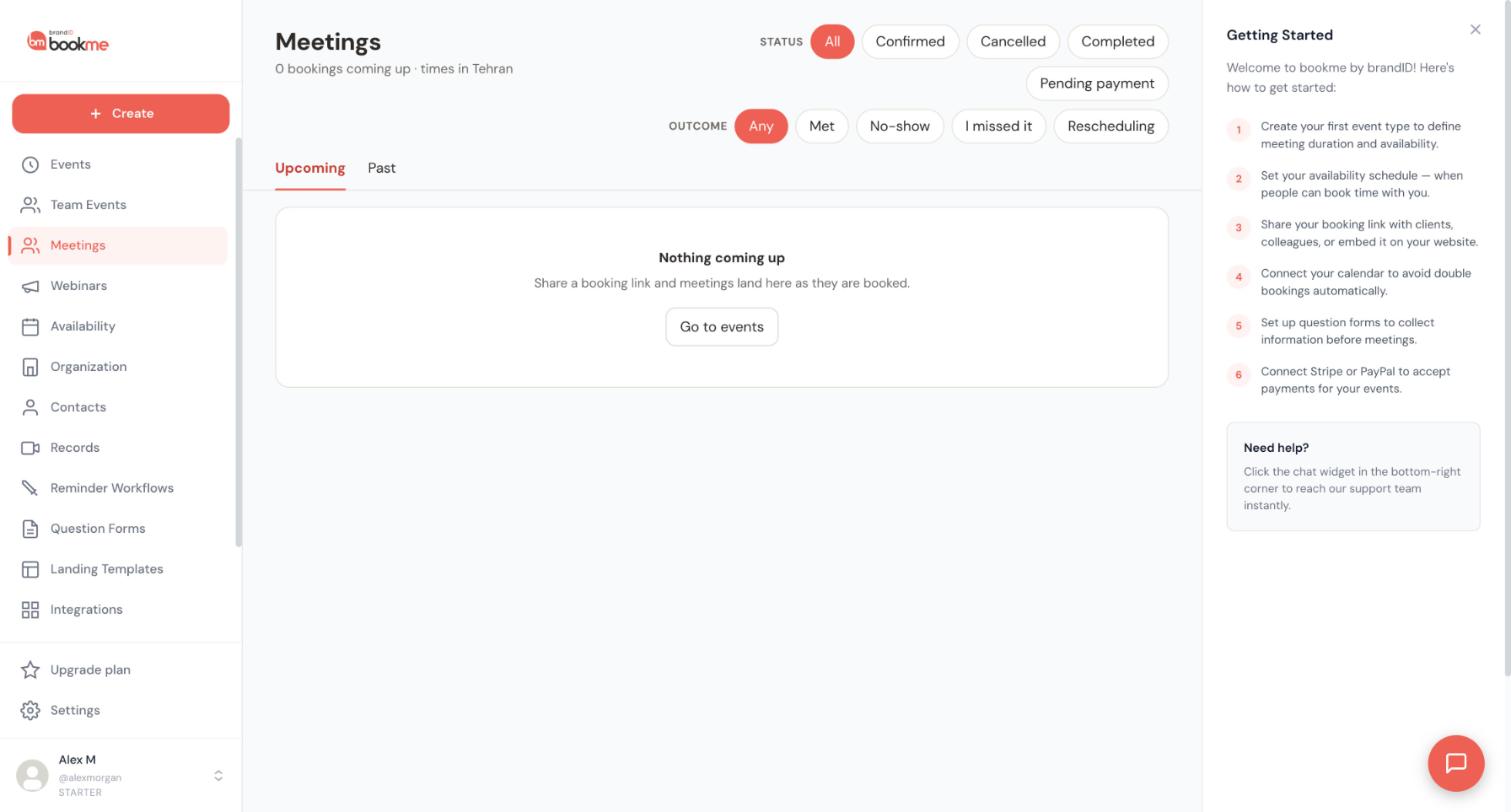
- The Just ended band at the top of Upcoming on the Meetings page. It lists meetings you hosted that finished in the last three days and have no outcome yet.
- The booking’s details, under What happened?
Ended meetings without an outcome show an Outcome needed chip so nothing is forgotten.
Pick the outcome
- Met: the meeting happened. The booking becomes completed.
- No-show: the invitee did not attend. The booking becomes no-show and the invitee gets a we missed each other email.
- I missed it: you did not attend. The invitee gets your apology and your booking link, and the booking becomes completed.
- Decided to reschedule: you both agreed to move it. The slot is released, the calendar entries come off and the invitee gets the reschedule link. The booking stays confirmed and shows Rescheduling until a new time is picked.
Review the outcome window
On the Meetings page every outcome opens a window before anything is saved. It shows what the outcome does, a Note about this meeting box that only you and your co-hosts can see, and the follow-up email exactly as the invitee will see it. If no email is set up for that outcome, the window says so and links to Reminder Workflows.
Choose whether to email the invitee
Email them now is on by default. Switch it off to save the outcome and your note without emailing the invitee. Emails to yourself and webhooks on the workflow still run.
If the follow-up has a place for notes, an Add this note to the email option appears. Tick it to put your note in the email. Leave it unticked and the note stays private.
Clicking Save and email sends the follow-up to the invitee. Cancel or Escape closes the window and saves nothing.
Save, then find outcomes later
Click Save and email (or Save when the email is off). To review outcomes later, open Meetings and use the Outcome filters, most usefully on the Past tab. The filter chip for Decided to reschedule is named Rescheduling.
See which workflow the outcome triggers
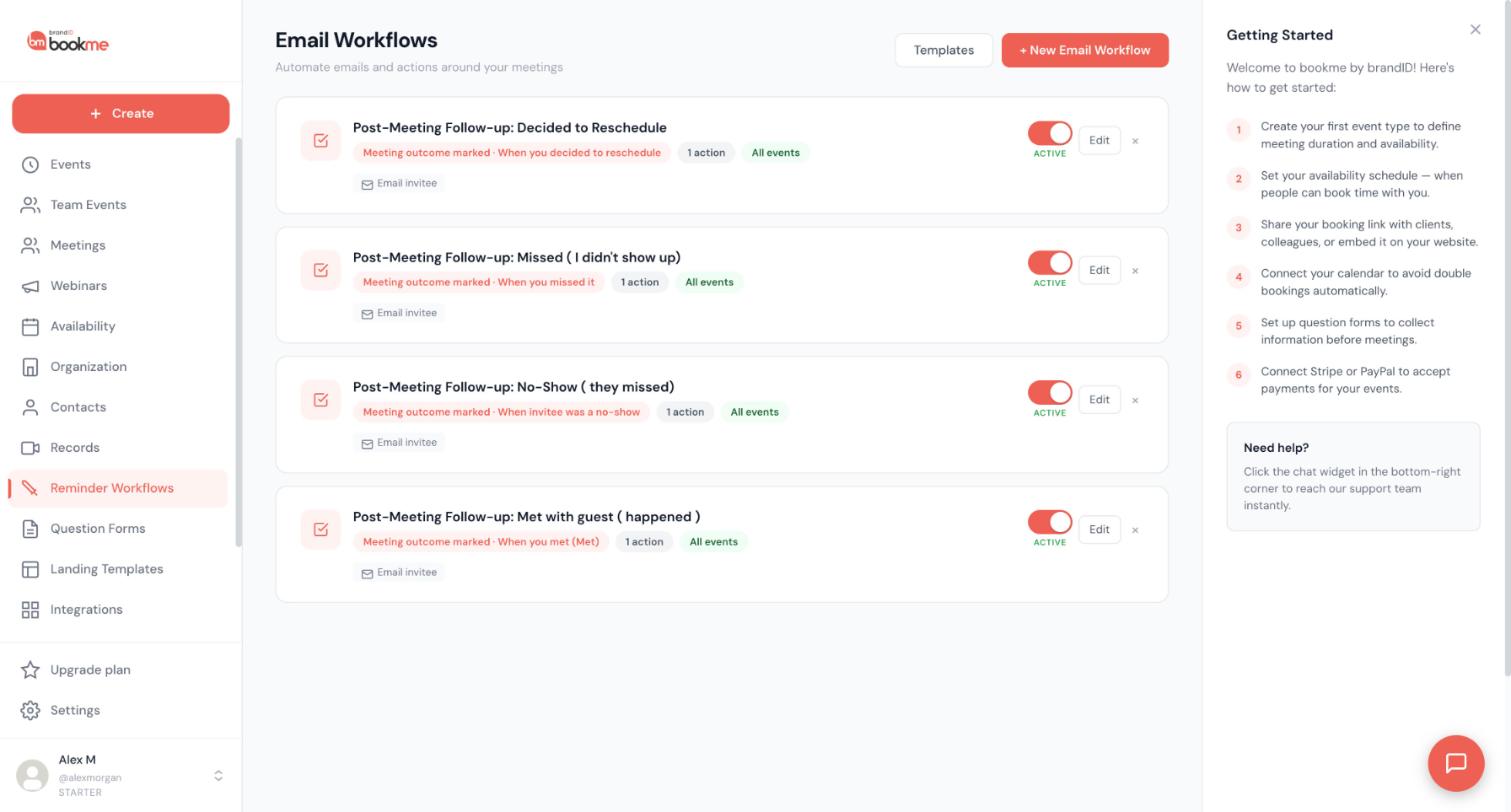
Each outcome matches one workflow on the Reminder Workflows page (the page title is Email Workflows): Decided to Reschedule, Missed, No-Show and Met. Each uses the Meeting outcome marked trigger and emails the invitee. If you switch a workflow off, that outcome sends no email.
Tips
- Mark the outcome soon after the meeting, while your notes are fresh.
- On a team event any attending host can answer. The first answer wins and the follow-up uses that host’s workflows.
- A connected AI assistant can record outcomes for you, and it asks for your confirmation before an outcome that emails an invitee.
If something goes wrong
I chose the wrong outcome.
No email went to the invitee.
The check-in email is gone.
Related how-to guides
Still stuck? We’re happy to help.
Create your bookme account, see pricing, or reach out to support directly.




