
How to invite people to a webinar and send emails
Once a webinar exists you add attendees, write the emails and send them. This guide also shows where the monthly invite email limit comes in.
Before you start
- A webinar already created (see the guide on creating a webinar).
- The email addresses of your guests, for example [email protected] and [email protected].
Open your webinar
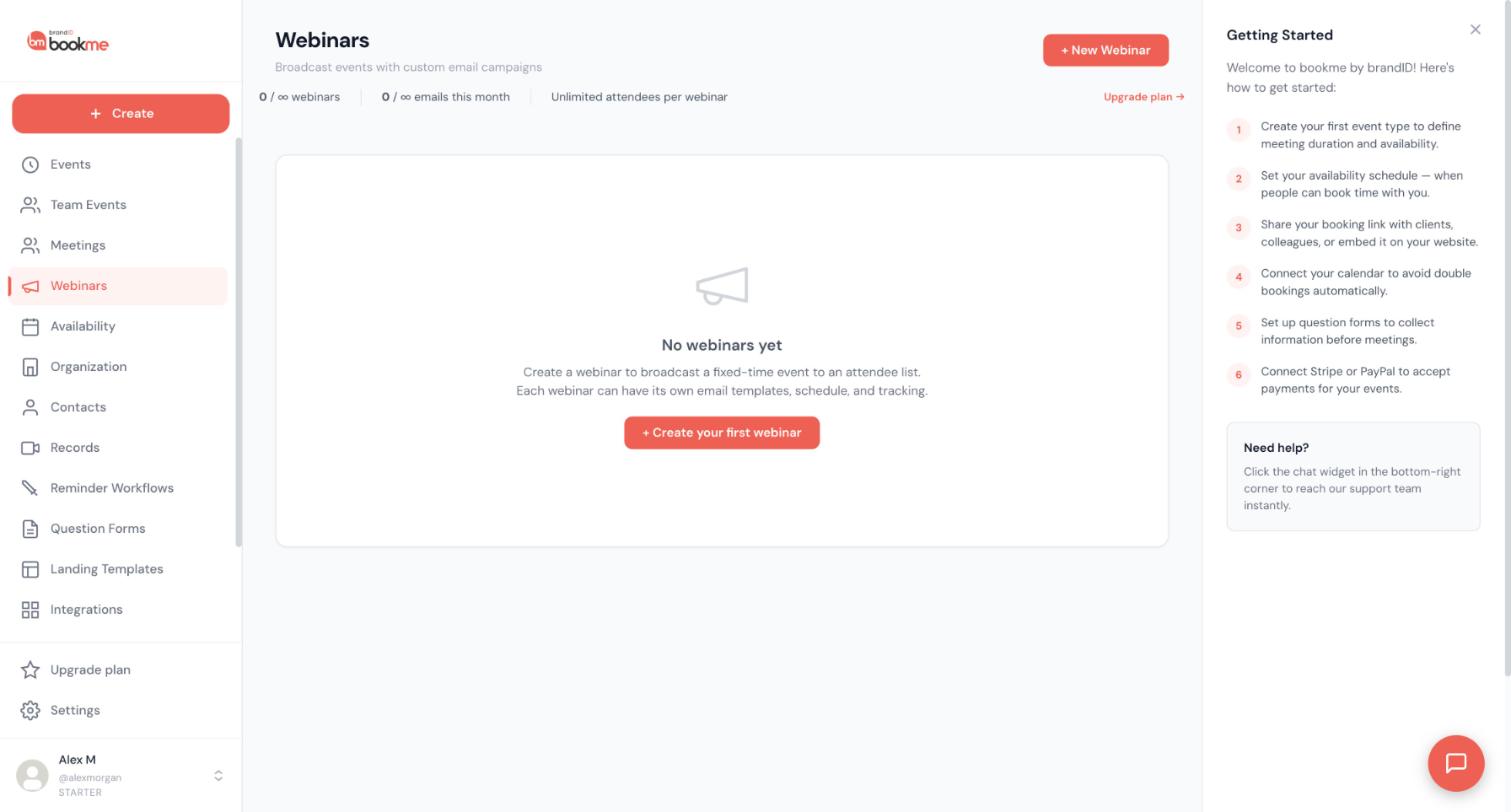
Click Webinars in the sidebar and open the webinar from the list. Its page has an Attendees tab, an Emails tab and a Send tab, according to the Help Center.
Add attendees by email, or let people register
On the Attendees tab, add people by email, with an optional name. People can also register through the webinar’s public page, so you can share that page instead of typing every address.
Each registration creates a booking on your Meetings page, marked with a Webinar chip, and the attendee gets the same confirmation and reminders as any booking.
Check your monthly invite email allowance
Webinar emails count against a monthly allowance of invite emails: 100 on Starter, 1,000 on Pro and 5,000 on Elite. The counters at the top of the Webinars page show your emails this month, and the Upgrade plan link sits next to them.
Extra emails cost money: $1 per 1,000 extra on Starter, $0.60 per 1,000 on Pro and $1 per 1,000 on Elite.
Draft the emails
Open the Emails tab. It holds your templates, which are an invitation, a reminder and a follow-up. Each has a subject, a body, a Join the webinar button and an unsubscribe link, plus a When to send setting.
Write the subject and body in your own words, and set When to send to the time you want, for example one day before the start.
Send yourself a test first
Before anyone else gets a message, check how it looks. A connected AI assistant can send you a test of a webinar email, and its ready-made prepare a webinar command creates a draft invitation and reminder and sends you a test. Sending a test is one of the actions an AI assistant can do right away.
Open the test, read the subject, check the button and look at how the email reads on a phone.
Send the email to your attendees
Open the Send tab and send a template now or on a schedule to the attendees.
Follow what happens
bookme tracks opens, clicks and RSVPs for each attendee. Check them before you send the reminder, so you know how many people to expect.
Tips
- Send the test to yourself every time you change a template, not only the first time.
- Plan the reminder when you plan the invitation: a reminder a day before the start helps people remember.
- Look at the emails counter on the Webinars page after you send, so you know how much of the month is left.
If something goes wrong
My guest says the email never arrived.
A guest cancelled their RSVP. How do I add them back?
I am near my monthly invite email limit.
Related how-to guides
Still stuck? We’re happy to help.
Create your bookme account, see pricing, or reach out to support directly.




