
How to approve or reject an AI request
High-impact requests from an AI app wait for you on the AI Assistants page. Nothing happens until you approve it, and each approval runs once, exactly as shown.
Before you start
- An AI app connected to bookme that has asked for something.
Know which requests wait for you
The page AI Assistants explains three levels under How changes stay safe: Right away for changes to your own settings, Asks you first for anything that reaches other people, and Your approval for high-impact requests that wait for you on that page.
Examples that wait for your approval: inviting someone new, emailing a whole webinar list, cancelling several meetings, automations that send data or links outside bookme, changing the contact links on your profile, and more than 10 changes affecting people in one hour.
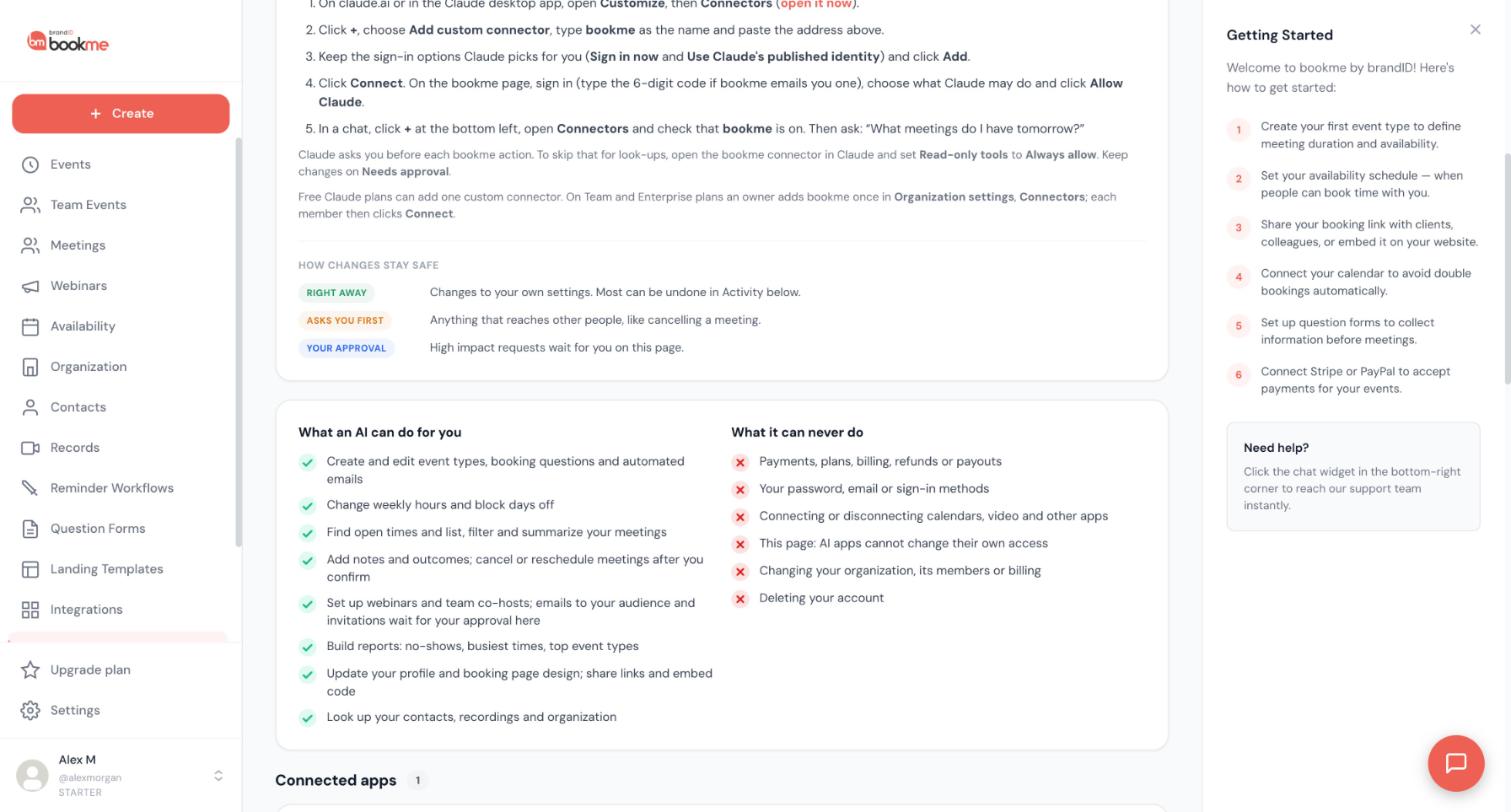
Find the waiting request
Open AI Assistants in the sidebar. A number on the menu item shows how many requests are waiting, and bookme emails you when one arrives. It sends at most one email every 10 minutes, so several requests can arrive in one email.
Read what will happen
Each request shows which app asked, what will happen, and the details: who gets which email with its full text, the list of meetings, the person to invite and any links to websites outside bookme (highlighted in red). Links are never clickable here. Read it as if you were sending it yourself.
Approve or reject
Click Approve to run the request once, exactly as shown, or Reject to drop it. Approving can send emails or cancel meetings, so approve only what you recognize.
If you did not ask an AI for this, click Reject and then disconnect the app on the same page.
Check the outcome in Activity
In Activity the request shows Approved, Rejected or Expired. A request that nobody answers expires after 24 hours. On a row that is still waiting, Review request takes you back to it.
If the app was disconnected, lost that permission or AI access is paused, the request is not run. If something changed in the meantime (for example the meeting was already cancelled), bookme skips that part and says so.
Tips
- When the AI shows you a request in chat, ask it: what exactly will be sent? Then compare its answer with the request in bookme.
- When you come back to the AI Assistants tab after working in an AI app, the waiting requests refresh by themselves.
If something goes wrong
I got an email about a request but see nothing waiting.
I approved a request but nothing happened.
Related how-to guides
Still stuck? We’re happy to help.
Create your bookme account, see pricing, or reach out to support directly.




