
How to use your Organization and managed events
An Organization is a shared workspace where members keep their own booking pages and calendars. This guide covers the Organization page, roles, teams and managed events.
Before you start
- A bookme account that belongs to an Organization, or a plan that lets you build one (see step 6).
- The email addresses of the people you want to invite, for example [email protected].
Open the Organization page
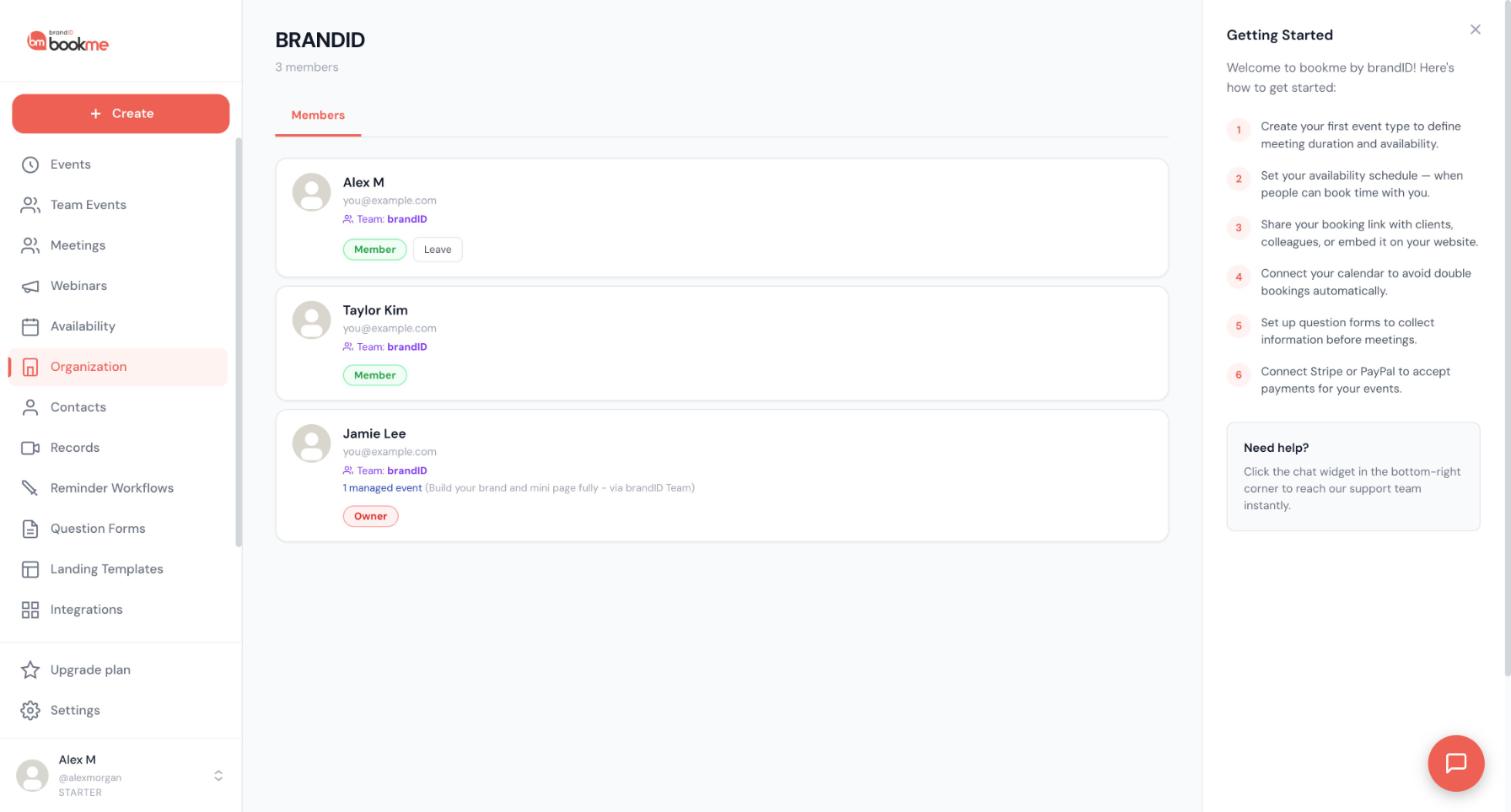
Click Organization in the sidebar. The page shows the organization name, the number of members and a card for each person with their name, their Team label and a role badge such as Member or Owner. A member whose card has a managed event shows a line such as 1 managed event. Your own card shows a Leave button if you are a member.
Know the three roles
According to the Help Center, an Organization has three roles:
- Owner. The one person who created it. The owner can do everything an admin can, plus manage the organization subscription and delete the organization.
- Admin. Runs the workspace day to day: invites and removes members, changes roles, creates teams and managed event templates. Admins cannot touch billing.
- Member. Runs their own account as usual and can see the member list, teams and managed event templates, but cannot invite or remove people.
Owners and admins can also adjust what members are allowed to do in the organization settings.
Create the Organization and invite members
To start one, open Organization and give it a name. You become the owner. To add people, click Invite member, enter their email and choose Admin or Member.
A person can belong to one organization at a time. If the invite form asks you to add seats first, use the Billing section of the Organization page, and read the plan cards before you pay for anything.
Group members into teams and share a team page
Open Organization, then Teams, and create a team with a name. Add members of your organization to it. Owners and admins manage teams.
A team gets a booking page at bookme.brandid.app/team/your-team-slug that shows the team, its members and the events each member offers, so a visitor picks the person and the event. Each member’s events stay their own.
Create a managed event and assign it
Owners and admins can create a managed event template and assign it to members. Each member gets their own copy on their own booking page, under their own name and calendar, with the same duration, location and questions. Settings you lock stay in sync, and members can edit the parts you leave unlocked.
Check which plan covers Organization features
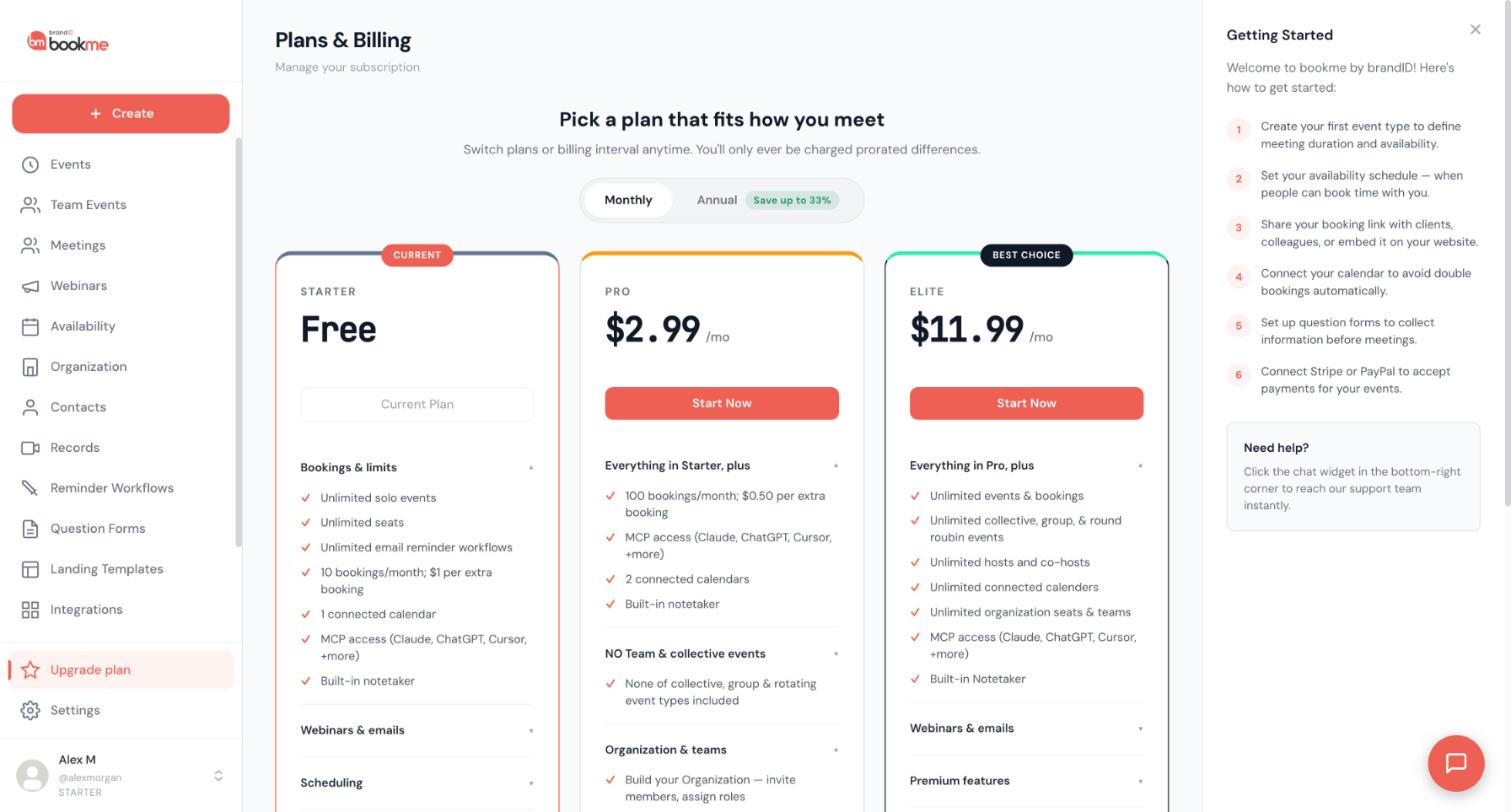
Open Upgrade plan and read the cards. The Pro card lists Build your Organization (invite members, assign roles) and Managed Events (create event templates and assign them to members). The Elite card lists unlimited organization seats and teams, advanced admin controls and advanced member permissions. The cards are the reference for what each plan includes.
Remove a member or leave
To remove someone, an owner or admin opens that person’s row and chooses Remove. The person keeps their personal bookme account. They lose organization features, managed events assigned to them and their place on team pages. A member who wants out uses Leave on their own card.
Tips
- Share the team page link on your website or in your email signature so visitors can pick a person.
- Round robin across a whole team is a team event with the team in the rotating pool, not a team page. See the guide on team events.
- Managed events keep locked settings identical for everyone, which is easier than asking each person to copy an event.
If something goes wrong
I cannot see Invite member.
The invite form asks me to add seats.
Did removing someone delete their account?
Related how-to guides
Still stuck? We’re happy to help.
Create your bookme account, see pricing, or reach out to support directly.




