
How to create an email workflow
An email workflow sends an email when something happens around a meeting: before it, after it, or when it is booked, cancelled, rescheduled or marked with an outcome.
Before you start
- An event type that invitees can book, and a test booking you can make with your own email.
Open Reminder Workflows
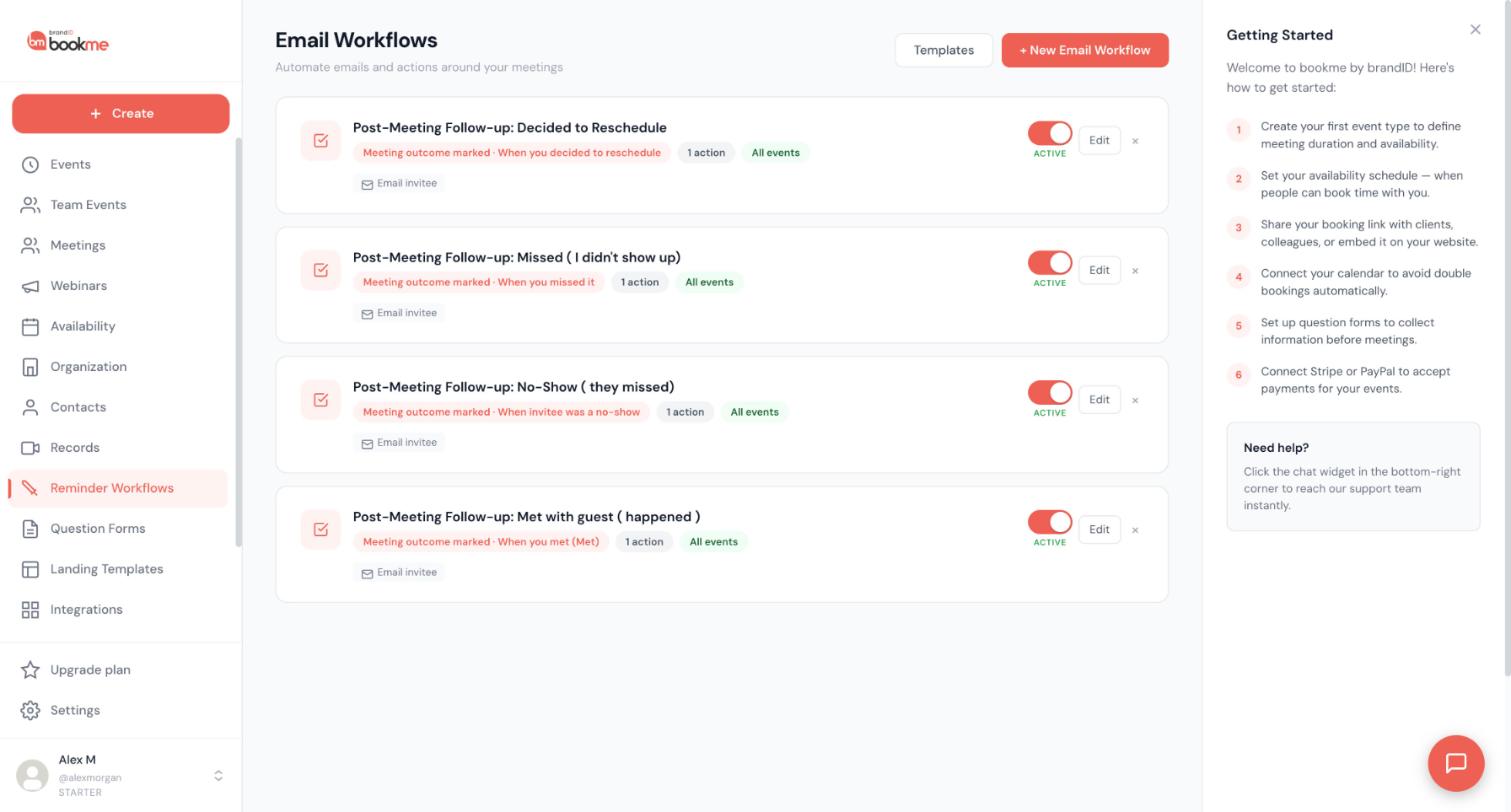
Click Reminder Workflows in the sidebar. The page is titled Email Workflows. Each workflow is a card with its trigger, number of actions, the events it applies to, an ACTIVE switch, Edit and a remove button.
Click + New Email Workflow. The Templates button next to it offers ready-made starting points.
Name the workflow
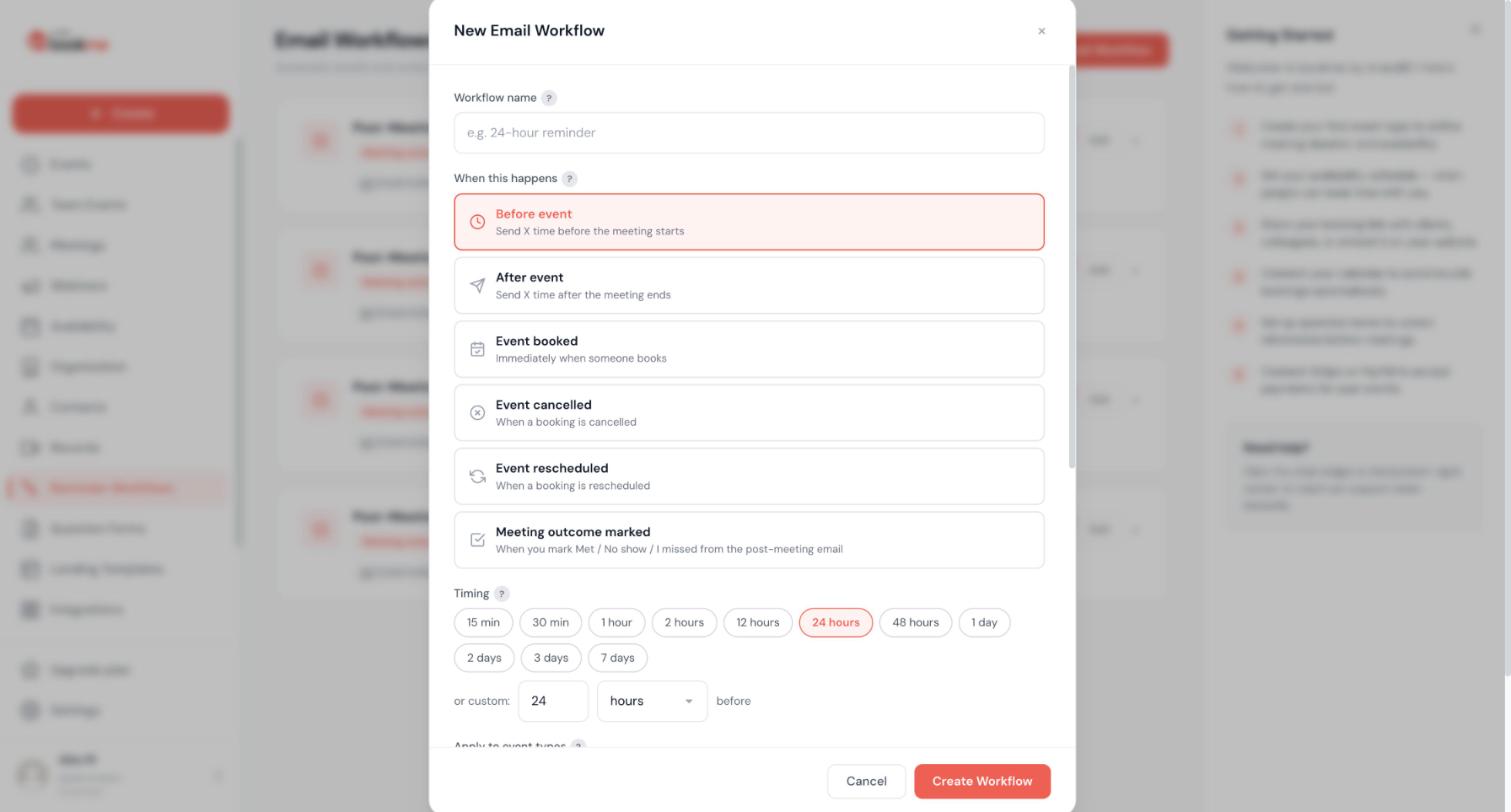
In the New Email Workflow window, type a Workflow name that tells you what it does, for example 24-hour reminder.
Choose when it happens
Under When this happens pick one trigger:
- Before event: send a set time before the meeting starts.
- After event: send a set time after the meeting ends.
- Event booked: immediately when someone books.
- Event cancelled: when a booking is cancelled.
- Event rescheduled: when a booking is rescheduled.
- Meeting outcome marked: when you mark Met, No-show or I missed it after a meeting.
Set the timing
For Before event and After event, click a Timing chip: 15 min, 30 min, 1 hour, 2 hours, 12 hours, 24 hours, 48 hours, 1 day, 2 days, 3 days or 7 days. Or use or custom to enter your own number and unit. The booked, cancelled, rescheduled and outcome triggers fire immediately.
A reminder whose send time has already passed when the booking is made is skipped. A 24-hour reminder on a meeting booked 3 hours ahead does not go out.
Choose event types and write the email
Scroll down in the window to Apply to event types. Leave it empty for all events, or pick specific ones. For an email action, write the subject and body. You can insert merge variables such as {{invitee_name}}, {{event_name}}, {{meeting_time}} and {{meeting_link}}, which are replaced with real booking data when the email is sent.
Create the workflow and test it
Click Create Workflow. It starts working for new bookings.
A workflow that emails the invitee sends real email to real people. Test it first with your own address: book a test event a few minutes ahead and use a short timing, then check your inbox.
To pause a workflow without deleting it, click its ACTIVE switch. A switched-off workflow stops being scheduled for new bookings, but emails already queued for existing bookings still go out.
Tips
- A workflow you create or reword applies to bookings made or rescheduled from then on, not to emails already waiting for existing bookings.
- Scope reminders to the events that need them. A 24-hour reminder suits a paid workshop, and a short one suits an internal check-in.
- Email workflows are unlimited on Starter, and every workflow can be edited, scoped or switched off later.
If something goes wrong
My reminder did not send.
The email reached me but not the invitee.
I changed the workflow but old bookings still use the old text.
Related how-to guides
Still stuck? We’re happy to help.
Create your bookme account, see pricing, or reach out to support directly.




