
How to embed your booking page on your website
The Embed page generates ready-to-paste code so visitors can book without leaving your site. Choose an inline box, a floating popup button or a popup text link.
Before you start
- A bookme account with at least one published event
- Access to edit the page on your website where the code will go
Open the Embed page and choose what to embed
Click Embed in the sidebar. You can also choose Add to Website from an event card’s menu.
At the top, Embed for lets you pick All events (scheduling page) or one specific event. The code below updates when you switch. Copy direct link copies the plain link for the same choice.
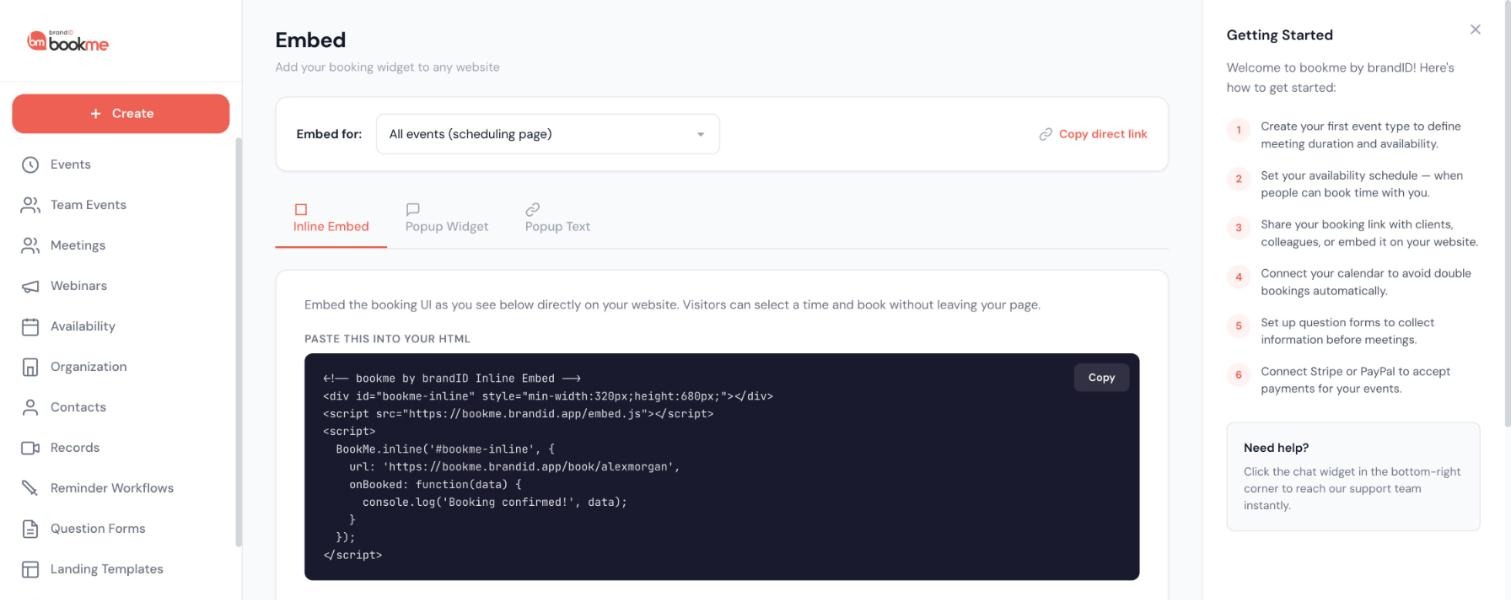
Pick a style
- Inline Embed shows the booking page inside a box on your page, so visitors pick a time without leaving.
- Popup Widget adds a floating button that opens the booking page in an overlay. You set the Button Text, Button Color and Position (Bottom Right, Bottom Center or Bottom Left).
- Popup Text turns a link or button you already have into a booking trigger. You set the Link Text and Link Color.
Copy the code
Click Copy on the snippet. The page fills in your own link, so copy it from the page rather than retyping it. The Inline Embed code looks like this, with your username in place of your-username:
<!-- bookme by brandID Inline Embed -->
<div id="bookme-inline" style="min-width:320px;height:680px;"></div>
<script src="https://bookme.brandid.app/embed.js"></script>
<script>
  BookMe.inline('#bookme-inline', {
    url: 'https://bookme.brandid.app/book/your-username',
    onBooked: function(data) {
      console.log('Booking confirmed!', data);
    }
  });
</script>
The Popup Widget code goes just before the closing body tag of your site.
Paste it into your site
- WordPress: a Custom HTML block.
- Webflow: an Embed element.
- Squarespace: a Code block.
- Wix: an HTML embed.
- Plain HTML, Next.js or React: paste the snippet into the page or component. In React, load
embed.jsonce and callBookMe.inlineafter the container is mounted.
React to a booking (optional)
Every style accepts an onBooked callback. It runs when a booking is confirmed inside the embed and receives the booking details, so you can fire an analytics event or show a thank-you message.
If your site already knows the visitor’s name and email, add them to the URL inside the snippet, for example ?name=Ana%20Lopez&[email protected]. Answers to custom questions cannot be pre-filled.
Test it
Open your live page and check that dates load. Then make a test booking with your own email.
Tips
- On phones the inline embed is a single column that grows with its content, and the popup styles open a centred card with its own close button.
- The embedded page keeps your template but drops the outer background and padding so it blends into your site.
- Embeds do not run inside email. In an email, link to the event instead.
If something goes wrong
The embed stays blank.
An ad blocker or a strict Content-Security-Policy on your site is usually blocking bookme.brandid.app. Allow that domain for scripts and frames.
The embedded page stopped working after I changed my username.
The embed code contains your booking link. If you change your username, the old link stops working, so copy fresh code from the Embed page and paste it again.
I want to use my own domain.
Booking pages are always served from bookme.brandid.app. Embedding the page inside your own site keeps visitors on your domain, or you can set up a redirect on your domain that forwards to your booking link.
Related how-to guides
Still stuck? We’re happy to help.
Create your bookme account, see pricing, or reach out to support directly.




