
How to set your weekly availability
Your weekly hours decide which times invitees can book. You set them once in a schedule, and every event that uses that schedule follows it.
Before you start
- A bookme account
- The days and hours you want to take meetings, and the time zone they are in
Open Availability
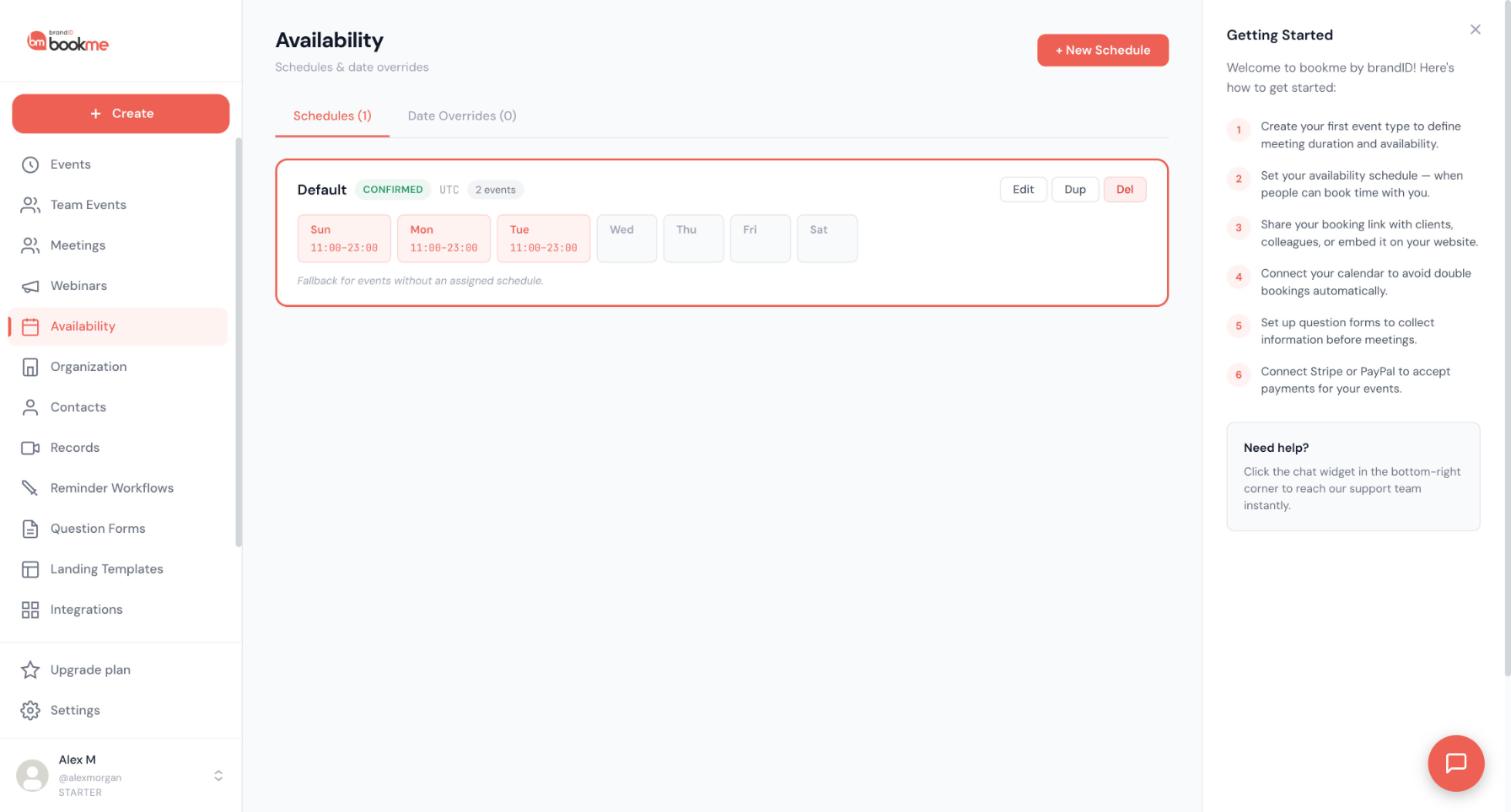
Click Availability in the sidebar. The Schedules tab shows a card for each schedule, with its time zone, how many events use it, and its days and hours. Your first schedule is called Default and carries the note “Fallback for events without an assigned schedule.” Each card has Edit, Dup and Del buttons.
Edit the days and hours
Click Edit on the Default card. For each day you can:
- Switch the day on or off. A day that is off is shown as Unavailable and offers no times.
- Set a start and an end time.
- Add more than one time window to the same day with + Add time window, for example a morning block and an afternoon block with lunch left out.
Time windows cannot overlap, and a window can be any length. A window shorter than an event’s duration simply gives no times for that event.
Copy hours to other days
Set one day the way you want it, then click Copy to all on that day to apply the same hours to the other days. This saves time when Monday to Friday are identical.
Check the time zone
Your hours are read in the time zone of the schedule. If you type 9 AM in New York but the schedule is set to London, the slots will be wrong. Confirm the time zone before you edit the hours.
Create another schedule for special hours
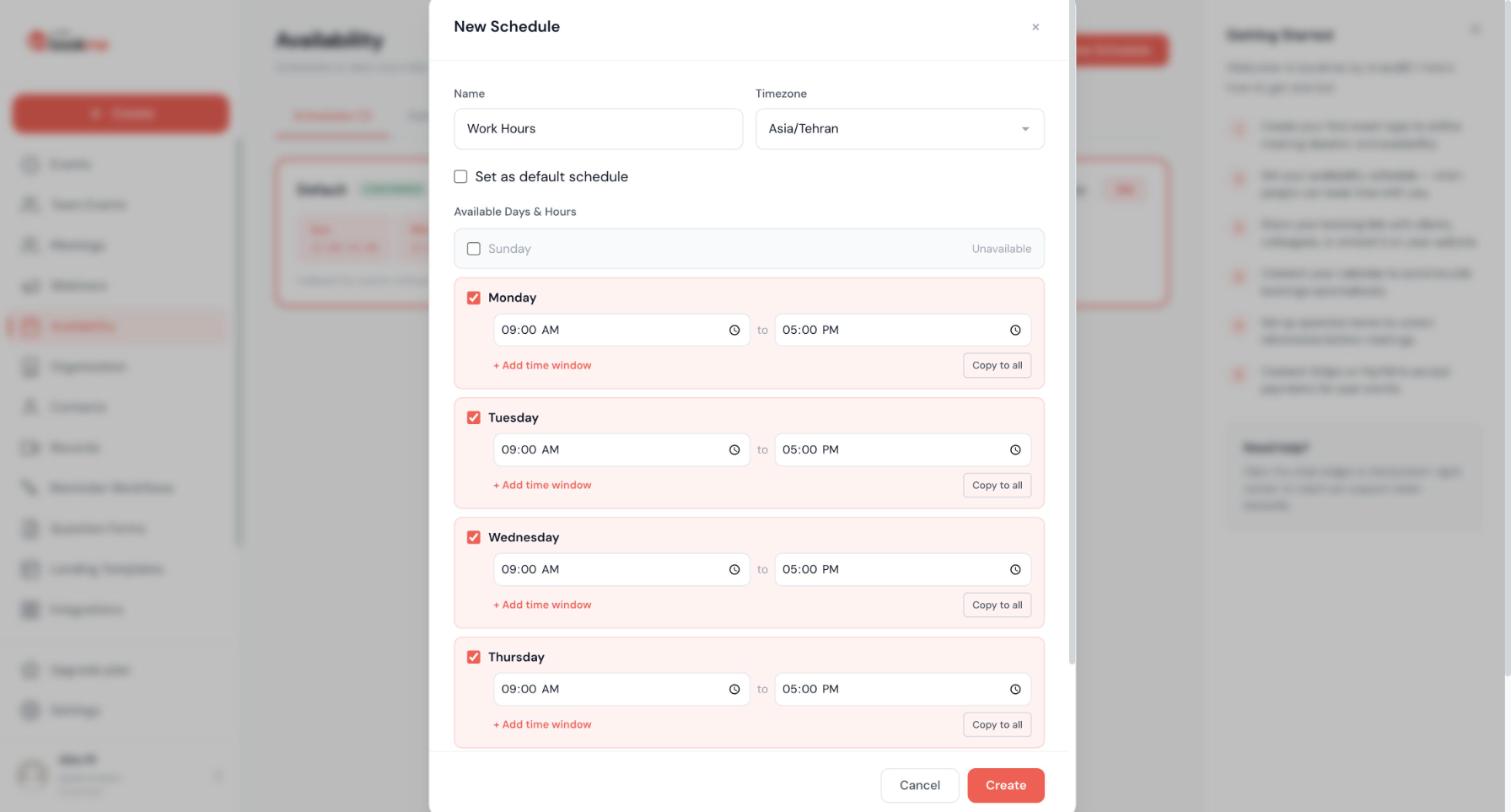
Click + New Schedule to give some events different hours, for example paid sessions only on Tuesdays and Thursdays. The New Schedule dialog asks for:
- A Name and a Timezone.
- A Set as default schedule checkbox.
- Each day under Available Days & Hours, with a checkbox, a from and to time, + Add time window and Copy to all.
Click Create when you are done.
Assign a schedule to an event type
Open the event, go to the Availability step of the wizard and set Schedule to the schedule you want. Events without an explicit choice use your default schedule.
Check the result
Open your booking page in a private window and look at the days and times. Changes reach the booking page within a couple of minutes. Times that are already booked are never moved.
Remember that busy time on your connected calendar and any date override narrow the times further than your weekly hours alone.
Tips
- Start simple. Weekdays 9 to 5 with weekends off works for most people, and you can fine-tune after a week.
- Use separate time windows to carve out lunch. One long window with a lunch hour inside it would still offer slots over lunch.
- Buffers, minimum notice and daily caps are set per event in the wizard, not on the schedule.
If something goes wrong
My booking page shows no times at all.
Open the schedule the event uses. It needs at least one day switched on with a time window. Also check for an accidental unavailable date override, a long minimum notice and a short bookable-up-to window in the event’s Availability step.
I changed my hours but the booking page still shows the old ones.
Changes reach the page within a couple of minutes. Wait, then reload in a private window. If it is still wrong, check that the event uses the schedule you edited, because an event with locked custom hours ignores the default schedule.
Times are an hour off.
bookme keeps two time zones: each schedule has its own, and your profile in Settings has another. If you moved and updated only one of them, slots shift by the difference. Check both.
Related how-to guides
Still stuck? We’re happy to help.
Create your bookme account, see pricing, or reach out to support directly.




