contactID is a Chrome extension and web dashboard that finds the contact form on any website, fills it with the sender details and message you set up once, and submits it. Instead of hunting for email addresses, you send your pitch the way a visitor would: through the form the business already reads. Over the last months it has grown from a simple form filler into a fuller outreach workspace, with a built-in finder for local businesses, an AI writer, deliverability checks, detailed analytics and, since this autumn, AI Assist, which lets Claude, ChatGPT, Cursor and other AI apps work inside your account under rules you control.
This is a long, screenshot-heavy review. We walk through every part of the app in the order you meet it: setup, Agents, Find websites, sending and Settings, Analytics, AI credits, AI Assist, plans and billing, and your account. For each part we say what it does, what it costs, where the limits are and what is missing.
Key Takeaways
- What it is: a Chrome extension plus web dashboard that fills and submits website contact forms for outreach, with a built-in business finder, an AI writer, analytics and AI Assist for AI apps.
- Pricing: 10 free website credits for every new account, pay-as-you-go at $0.15 per website, and four plans from $9.99 to $199.99 a month. You pay a credit only for a send the website confirms.
- AI is separate: AI personalization is paid from a separate AI wallet you top up from $5 to $500. The default model costs about $0.0003 per placeholder.
- AI Assist: connect Claude, ChatGPT, Claude Code, Codex, Cursor, VS Code, Windsurf, Gemini CLI or any MCP app, choose what each may do, set daily limits, approve big actions and undo changes for 30 days.
- Control: pause or stop a run any time, a deliverability check before every send, and a Contacted before guard that warns you about websites you already messaged.
- Missing today: no reply tracking, no screenshots of filled forms, no two-factor sign-in, and it runs only in Chromium browsers.
contactID at a Glance
| Details | |
|---|---|
| Type | Contact form outreach: Chrome extension plus web dashboard |
| Made by | brandID (the publisher of this blog) |
| Free tier | 10 website credits for every new account, one time, never expire |
| Plans | Pay-as-you-go, Starter, Growth, Pro, Scale |
| Billing | Monthly or annual (30 percent off), through Stripe |
| Find websites | Businesses by category and city, counting is free, lead credits to unlock |
| AI | Separate AI wallet, models from OpenAI, Anthropic and Google |
| AI Assist | MCP address https://contactid.brandid.app/mcp, 85 abilities, approvals and 30-day undo |
| Browsers | Chrome and other Chromium browsers |
| Support | In-app chat and [email protected], with a 14-day refund window on unused lead packs |
What Is contactID?
contactID visits each website in your list in a background tab, finds its contact form, types your sender details and message into the right fields, solves the captcha if there is one, submits, and records what happened. A website moves through Queued, Processing, Sent or Failed in front of you, and sites with no form are listed separately so you can retry, open or replace them.
The work is split in two places. The side panel of the extension is where you run a campaign: its tabs are Setup, Agent, Targets and Send. The web dashboard at contactid.brandid.app is where you build lists, change Settings, read Analytics, buy credits and manage your account and AI apps. Both use the same account, so Agents, credits and results are the same everywhere.
You can read the same story in a short, practical form in our our contactID tutorial, and the official contactID Help Center has an article for every setting. This review adds the opinions, the costs and the limits.
Key Features of contactID
1. Setup, onboarding and the dashboard
Setup takes a few minutes. You sign up with an email code or Google, answer a short onboarding (about you, your business, your targets, your first Agent) and install the extension from the Chrome Web Store. The dashboard’s Launch App page checks whether the extension is installed and gives you one big button to open the app. If you need the exact clicks, our guide to install the app covers them.
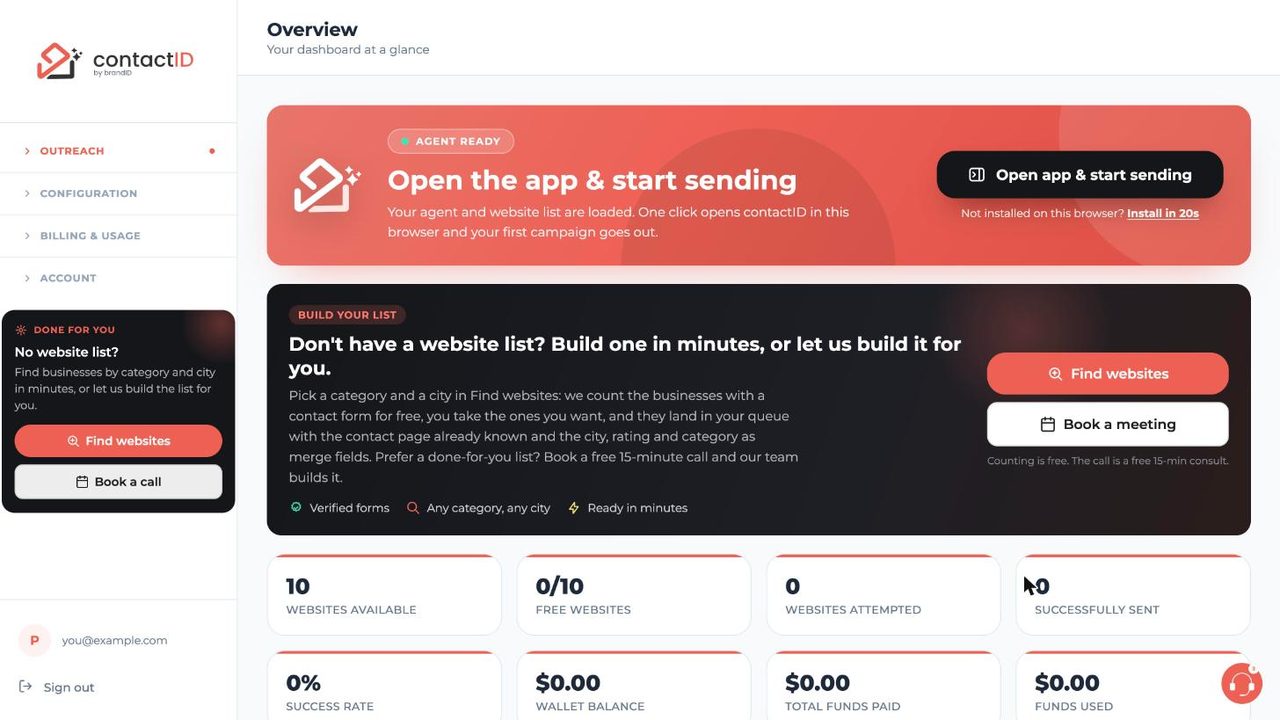
The Overview page is a good example of the product’s tone. It shows how many websites you have available, how many of the 10 free credits are used, your success rate, wallet balance and funds used, plus two big calls to action: open the app and start sending, or build a list with Find websites. The sidebar has four groups: Outreach (Overview, Find websites, Agents, Launch App, Analytics), Configuration (AI Personalization, Settings), Billing and Usage, and Account.
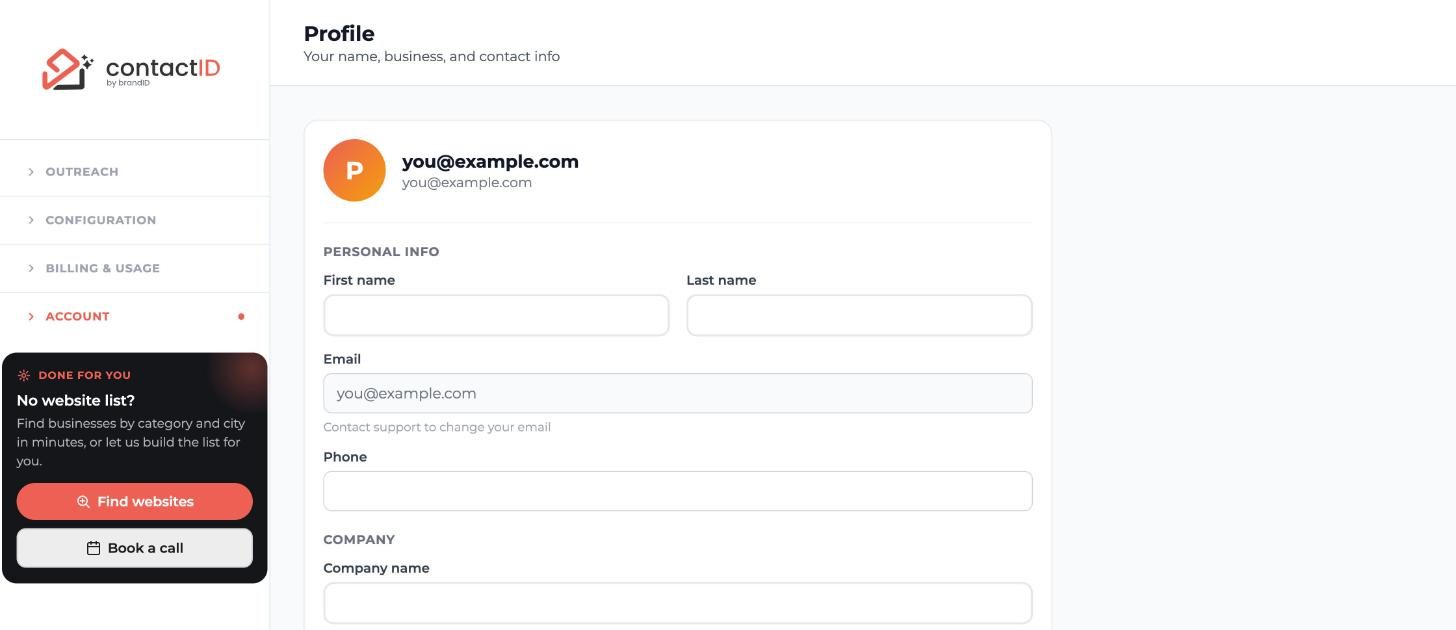
Your account details live under Account. The Profile page holds your name, phone, company, website and industry, and your email can be changed only through support. You can update your profile at any time, and it is worth filling in, because these details prefill new Agents and many forms ask for a phone number.
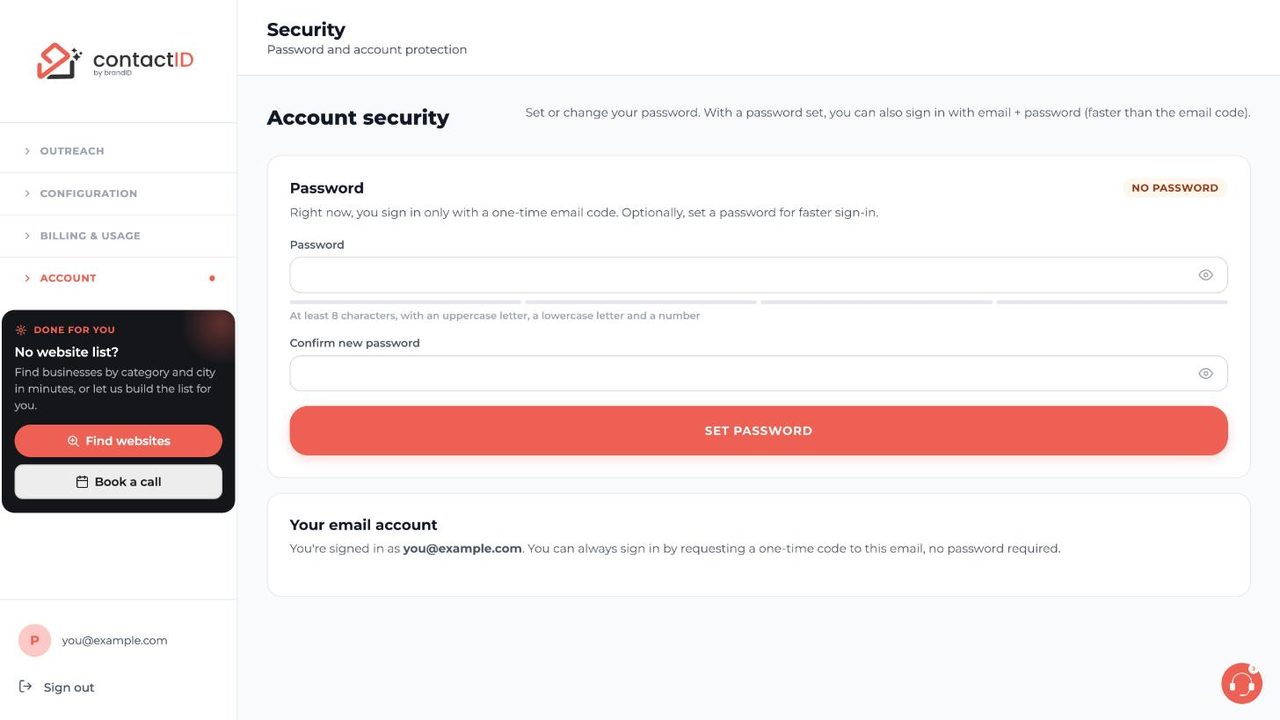
Sign-in is passwordless by default: you get a six-digit code by email, or you use Google. If you prefer, you can set a password on the Security page (at least eight characters with an uppercase letter, a lowercase letter and a number) for faster sign-in. There is no two-factor option inside contactID today. The practical workaround, which the Help Center recommends, is to sign in with a Google account that has two-step verification on.
2. Agents, messages and AI writing
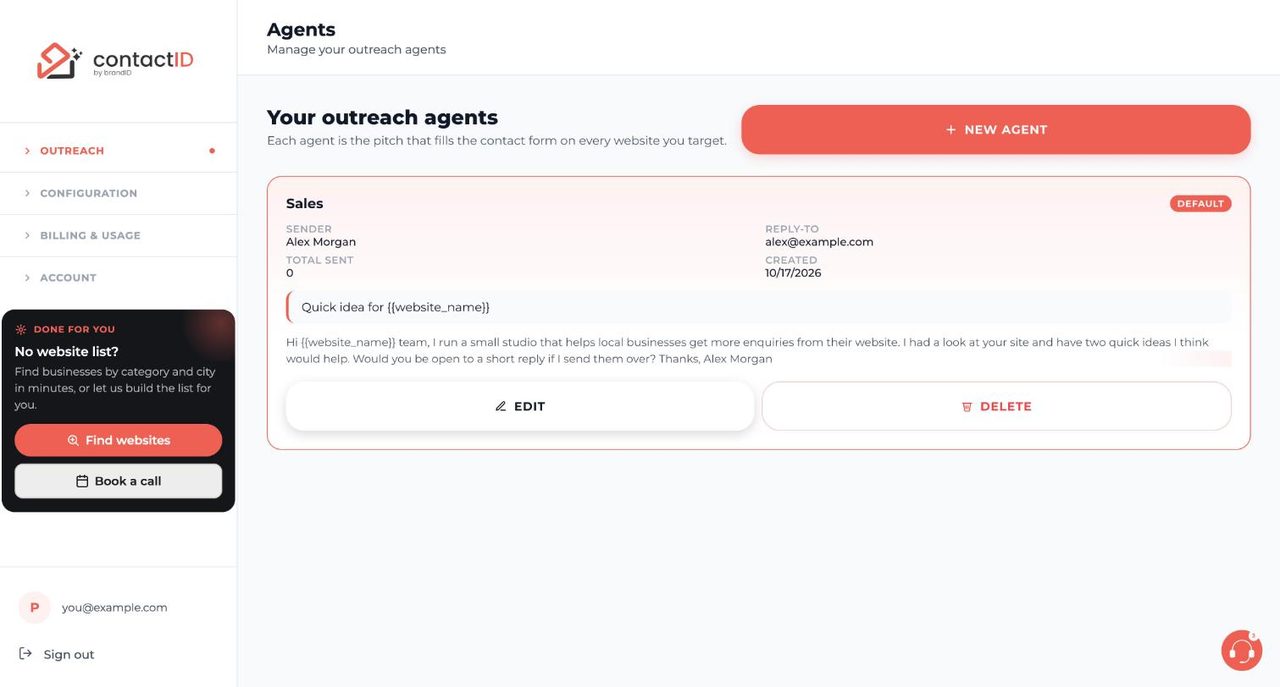
An Agent is the sender: a name, a reply-to email, a subject line and the pitch message, plus the personal details forms ask for. You build it once and reuse it on every site. Agents live on the dashboard’s Agents page (and the extension’s Agent tab), you can have several, and one of them is the default. The step-by-step version is in create your first Agent, and you can start your first campaign as soon as you have targets.
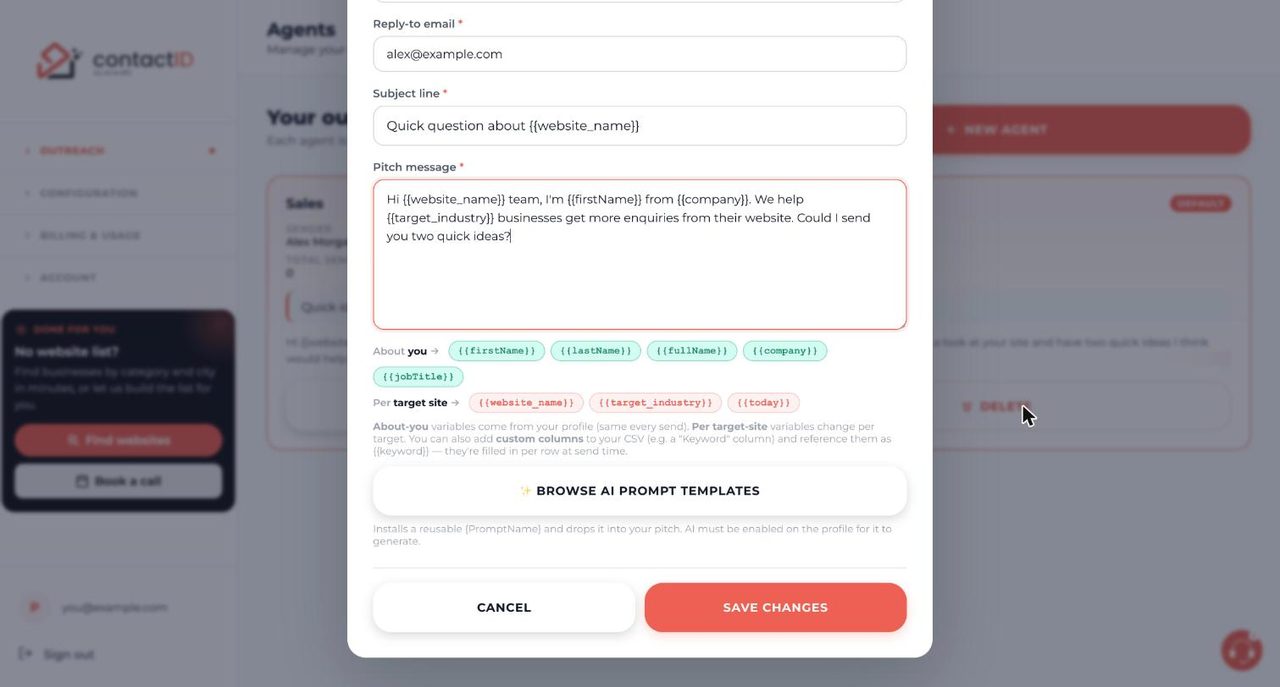
The pitch supports merge fields. Tags about you ({{firstName}}, {{lastName}}, {{fullName}}, {{company}}, {{jobTitle}}) come from your profile. Tags about the target ({{website_name}}, {{target_industry}}, {{today}}) change on every site, and any extra column in your spreadsheet becomes a tag too, so a CSV with a city column gives you {{city}}. A Message column lets you give each website its own personal message.
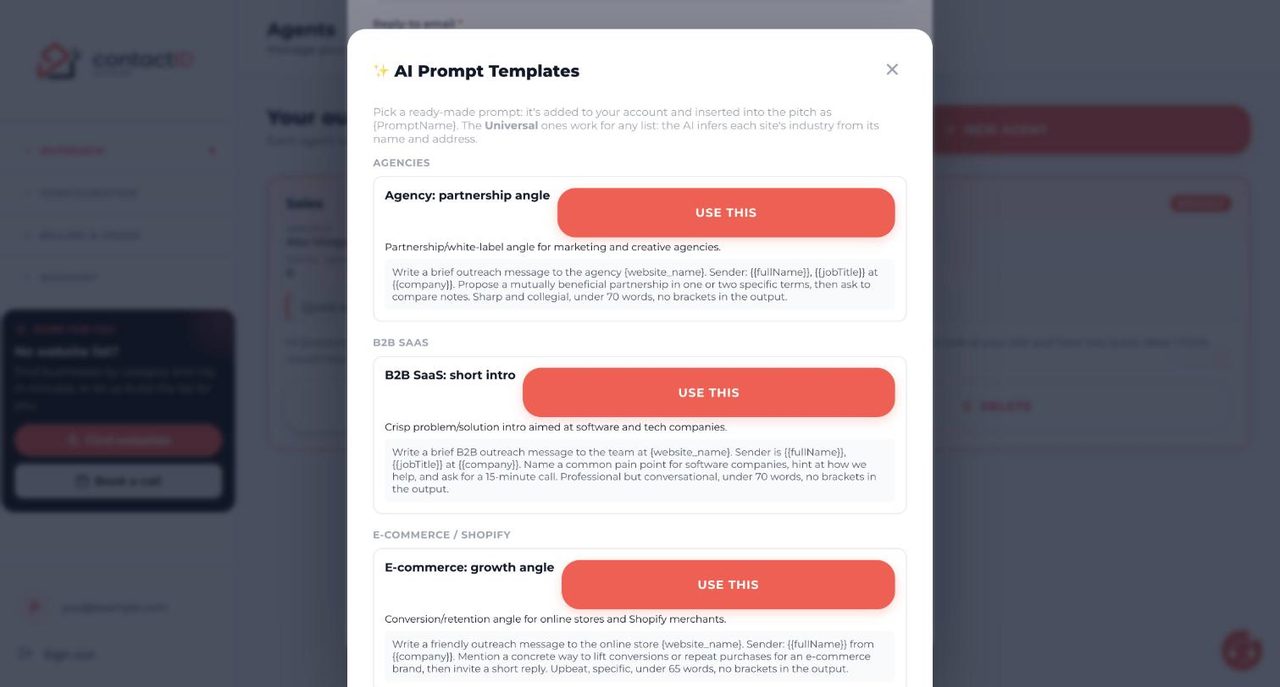
Under the editor you get three helpers. AI write my message turns a short brief, a tone, a length and a goal into three drafts, each with a subject line, paid from your AI credits and usually well under a cent. Message templates gives you twelve ready-made contact-form messages filtered by niche, such as agencies, SaaS, local services and e-commerce. The deliverability check scores your message as Good, Fair or Needs work before it goes out. It looks at links (more than two is a spam signal), all-caps words, spam-trigger phrases, exclamation marks, missing personalization, leftover [hints] and a missing ask. It never blocks sending; it tells you what tends to get outreach ignored or filtered.
If you run more than one Agent, an A/B Split Testing card on the Targets tab lets you share a run between two or more senders. The Send tab then shows each sender’s success rate live and which one is winning. The Help Center suggests giving each sender 50 or more sends before you trust a difference.
3. Find websites: build a list without a file
Find websites is the part that makes contactID usable if you do not already own a list. You pick what you are looking for, where, and optional filters. Counting is free: you only spend lead credits when you unlock a list. The basic flow is in our guide to find websites by city.
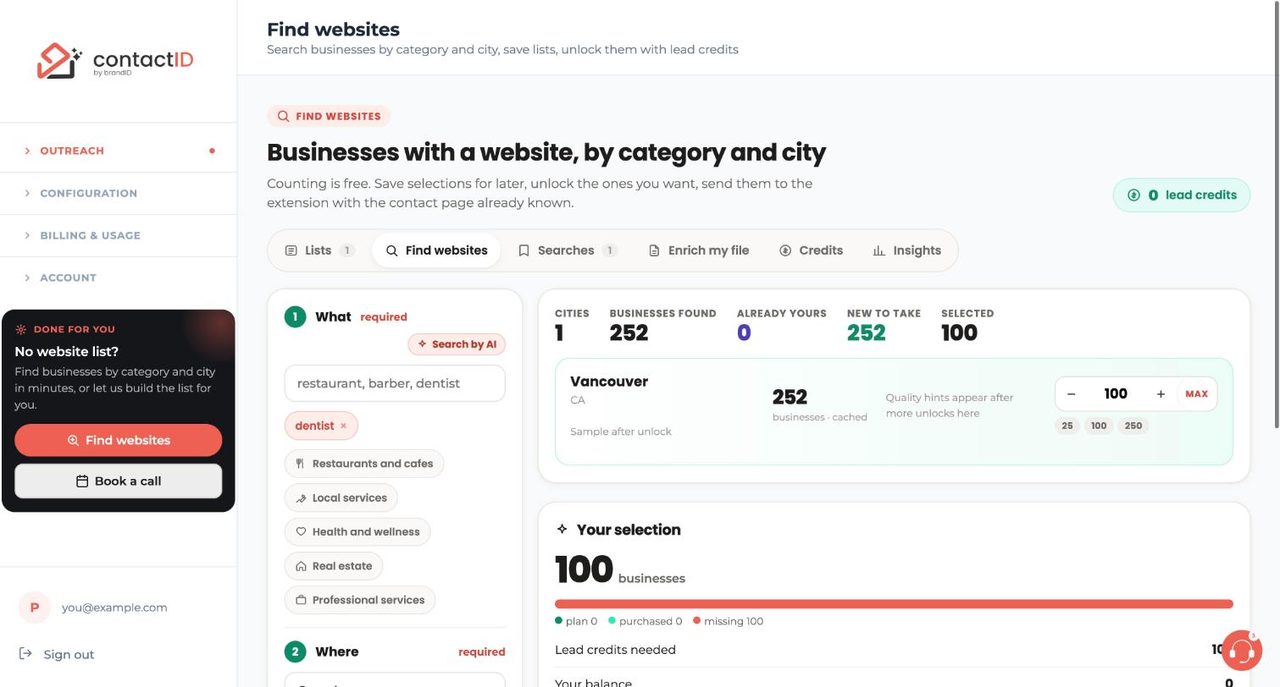
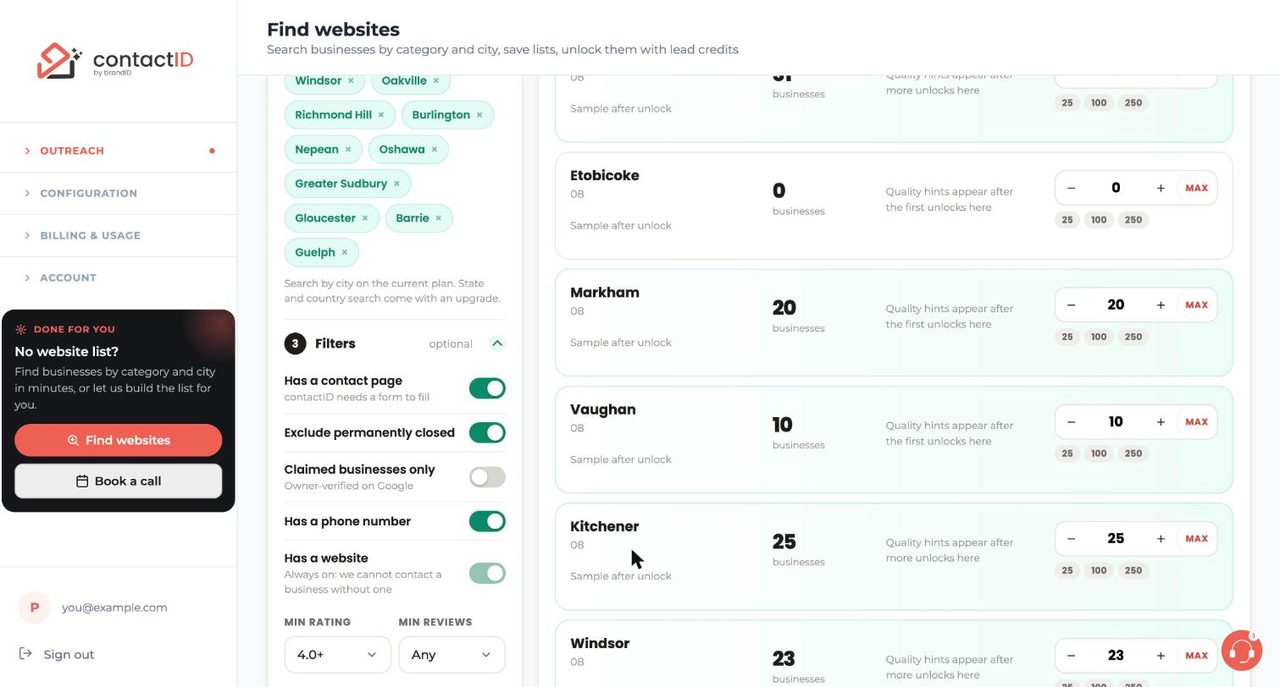
The finder returns businesses from the Google Maps catalog that have a website. Each city card shows a count, up to three sample businesses after you unlock, how many you already hold, and quality hints once there is enough data. You choose a quantity per city, and the totals bar shows cities, businesses found, already yours, new to take and selected. A Your selection card then shows the lead credits needed against your balance, with two buttons: unlock, or Save selection for later (free).
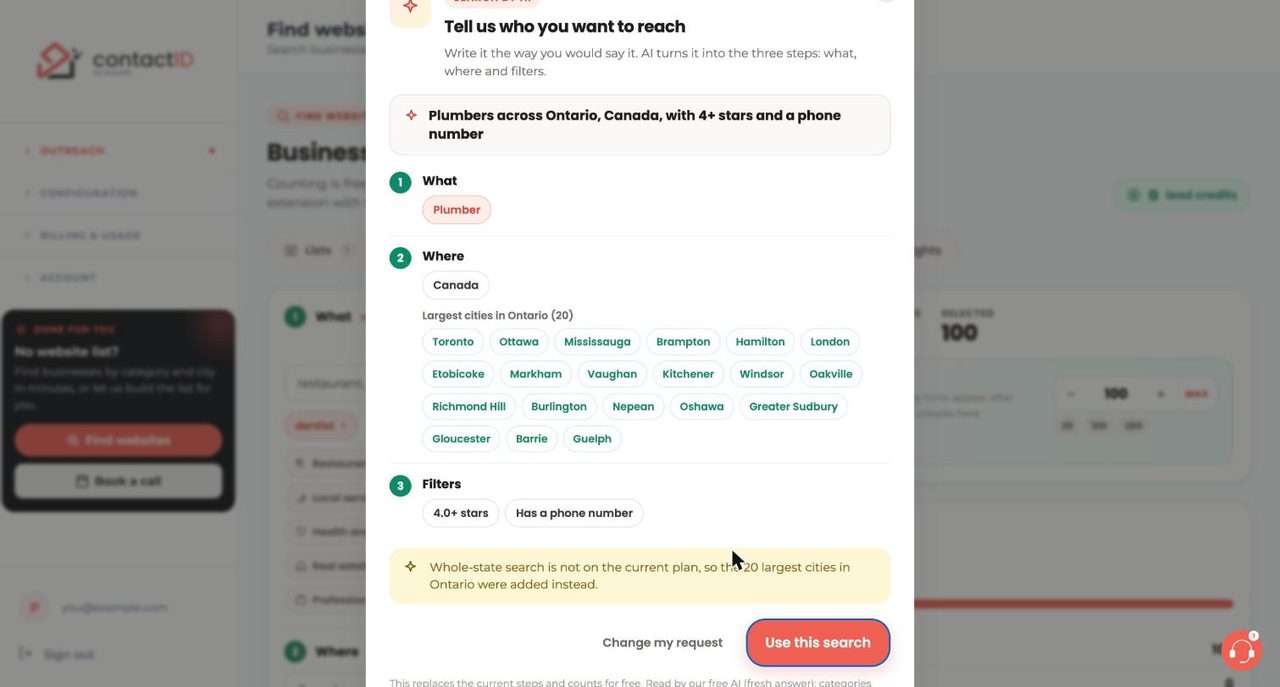
Search by AI is the shortcut. You write a sentence such as “Plumbers across Ontario with 4+ stars and a phone number”, and the finder fills What, Where and Filters for you, explains anything it could not use, and lets you accept it with Use this search or rewrite it with Change my request. It is free: it never uses your AI credits or lead credits. In our test it turned the sentence above into the category Plumber, the 20 largest cities in Ontario (the whole-province search is not on the current plan, and the app said so) and the filters 4.0+ stars and has a phone number. Our walkthrough shows how to use Search by AI.
Filters include has a contact page (on by default, because contactID needs a form), exclude permanently closed (on), claimed businesses only, has a phone number, minimum rating and minimum reviews. Has a website is always on.
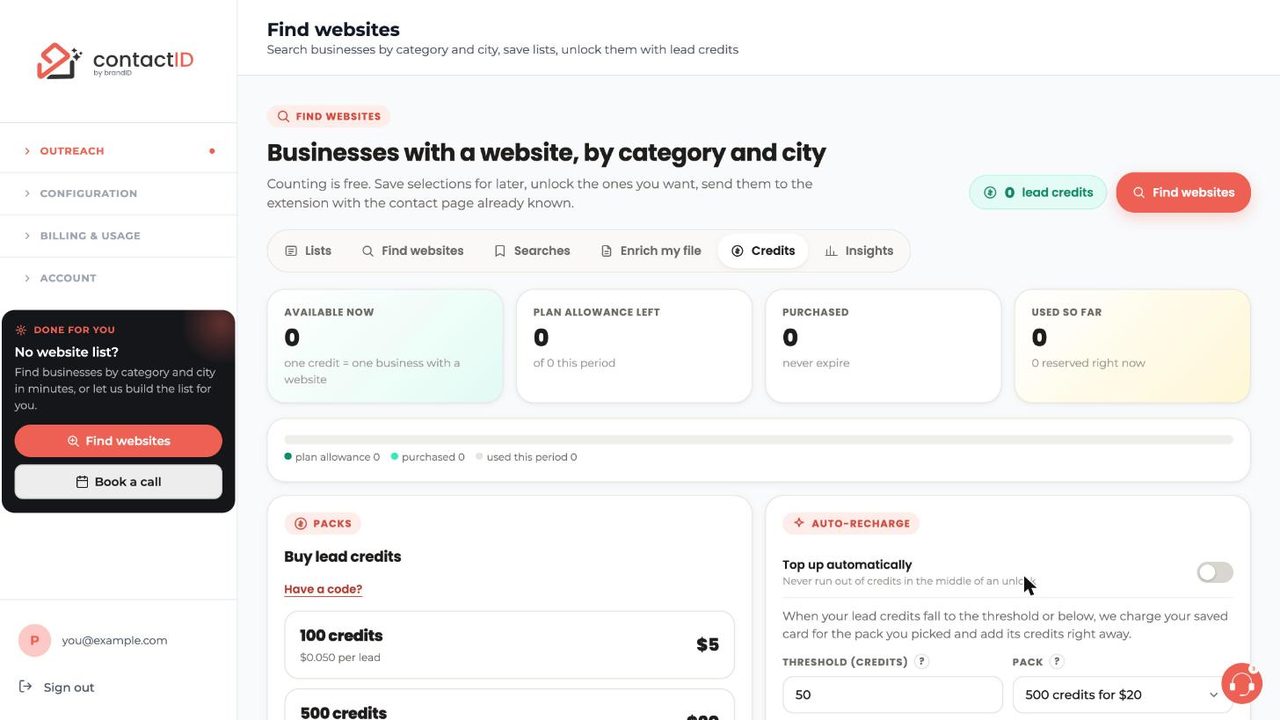
Around the finder are four more tabs: Lists (saved selections with a state such as Draft or Ready), Searches (saved searches you can reuse), Enrich my file (upload your own list and add contact pages, phones and emails) and Credits. Insights shows how many websites have forms by category and city. Lead credits cost one per business delivered with a website: packs are 100 for $5, 500 for $20, 2,000 for $60 and 10,000 for $250, and paid plans include a monthly allowance (Starter 100, Growth 500, Pro 2,000, Scale 5,000). Purchased credits never expire, and unused lead packs are refundable through support within 14 days.
4. Sending, pace and every Settings option
Sending happens in the extension. On the Targets tab you paste websites or drop a CSV, TXT or Excel file (contactID finds the website column by itself and turns other columns into tags). Before a run it shows a pre-flight report with websites that have no form and websites you already contacted. The Contacted before guard matches by main domain across all your browsers and lets you skip them, trash them or keep them. Then you press Start sending, and you can Pause, Resume or Stop at any moment. Stopping returns websites that were in progress to Queued, so nothing is lost.
Most behaviour is controlled on the dashboard’s Settings page, which is one long page with a section list on the left. We went through every section. Settings has a Save button, and changes apply only after you press it.
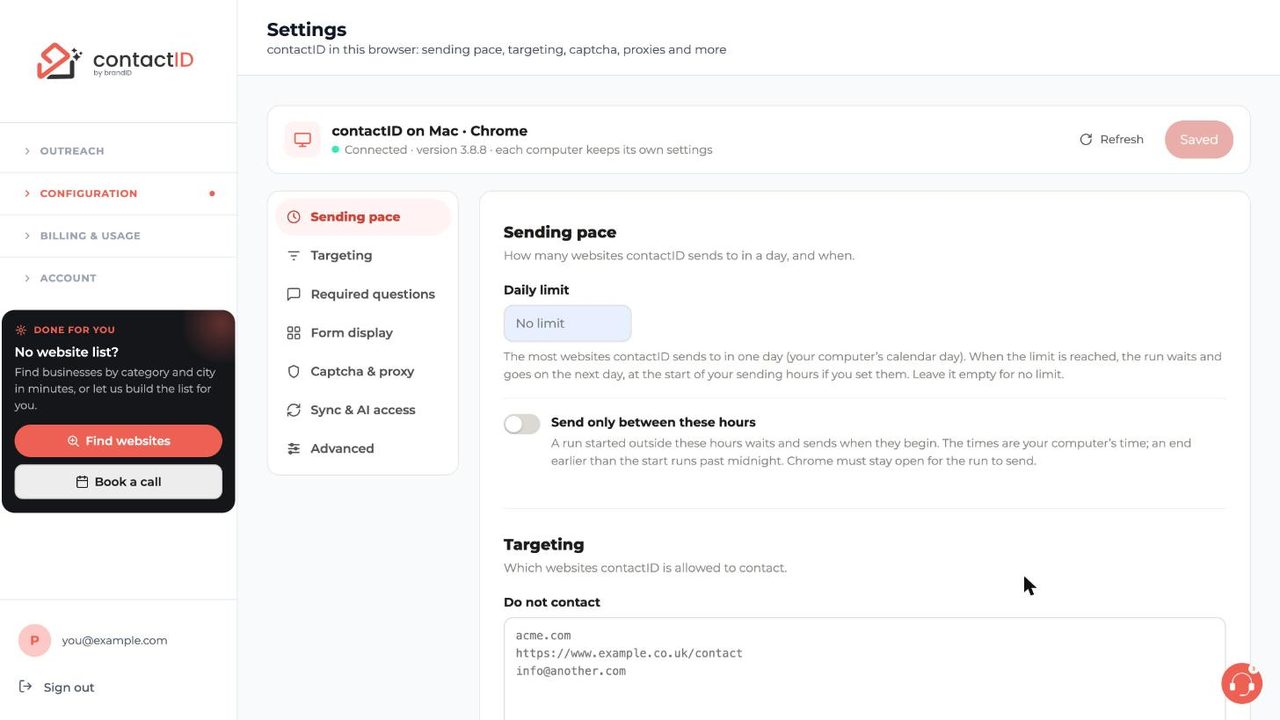
Sending pace lets you set a limit per day and choose the hours when contactID is allowed to send. A run outside your hours shows WAITING and starts by itself when the window opens. Our short guide explains how to set your sending pace. contactID itself puts no per-minute or daily cap on your account, so any cap is your own choice.
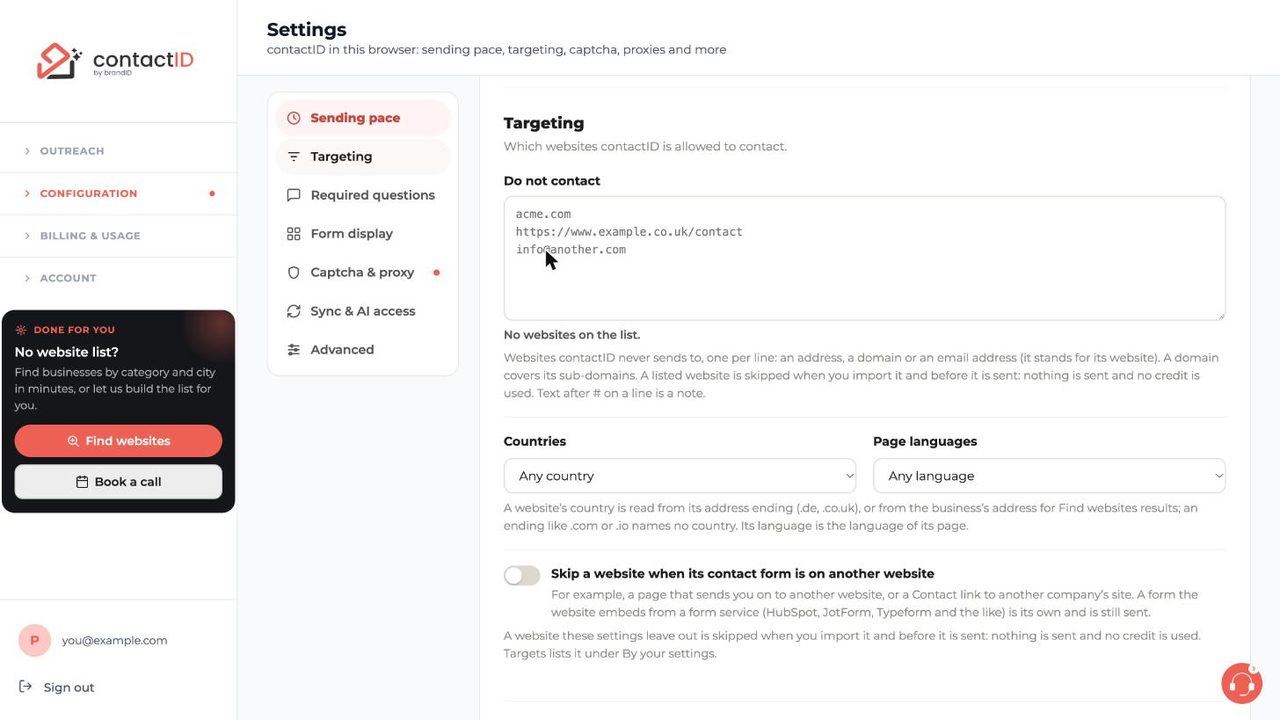
Targeting holds your do-not-contact list: one entry per line, as an address, a domain or an email, with # for notes. A listed website is skipped when you import it and again before it is sent, and nothing is used. You can also limit by country and by page language, and skip a website whose contact form sits on another website. You can block unwanted websites in a minute.
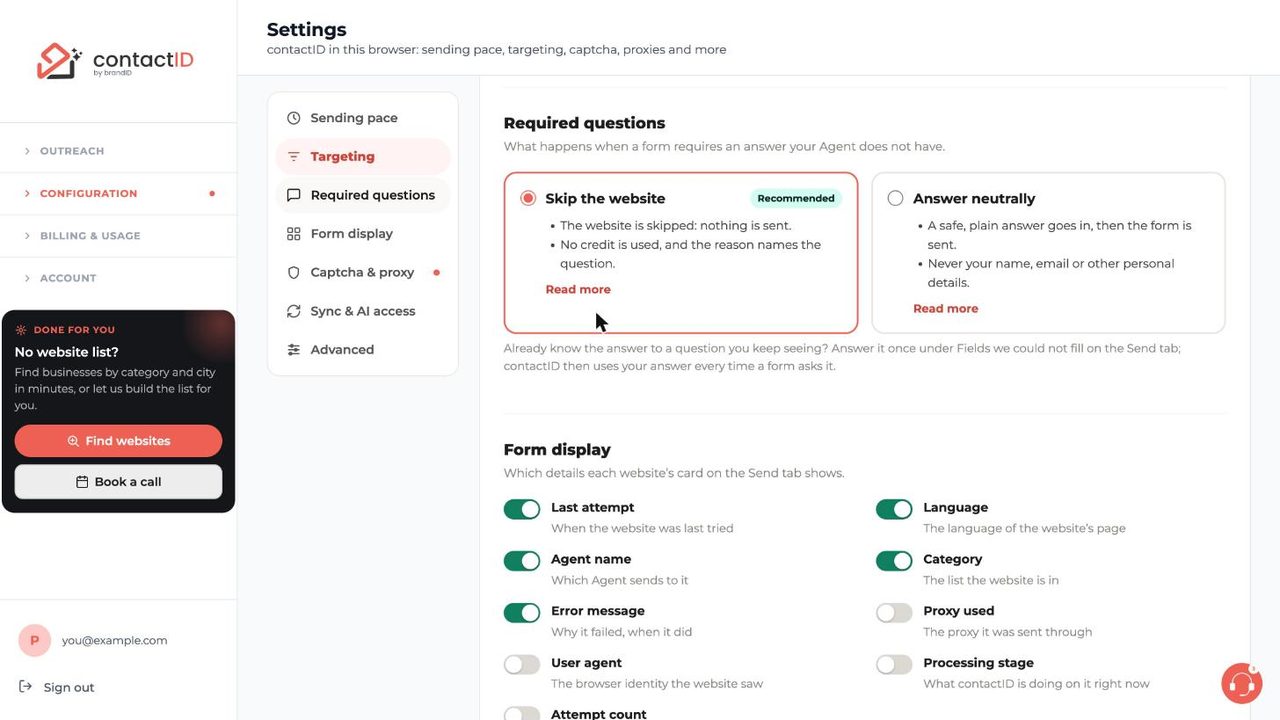
Required questions decides what happens when a form insists on an answer your Agent does not have. Skip the website is the recommended choice: nothing is sent, no credit is used and the reason names the question. Answer neutrally sends a safe plain answer and never your personal details. If you know the answer to a question you keep seeing, answer it once and contactID reuses it. See required question settings.
Form display, just below it, chooses what each website card on the Send tab shows: last attempt, language, Agent name, category and error message are on in our account, while proxy used, user agent, processing stage and attempt count are off. If your cards feel noisy, control website card details here.
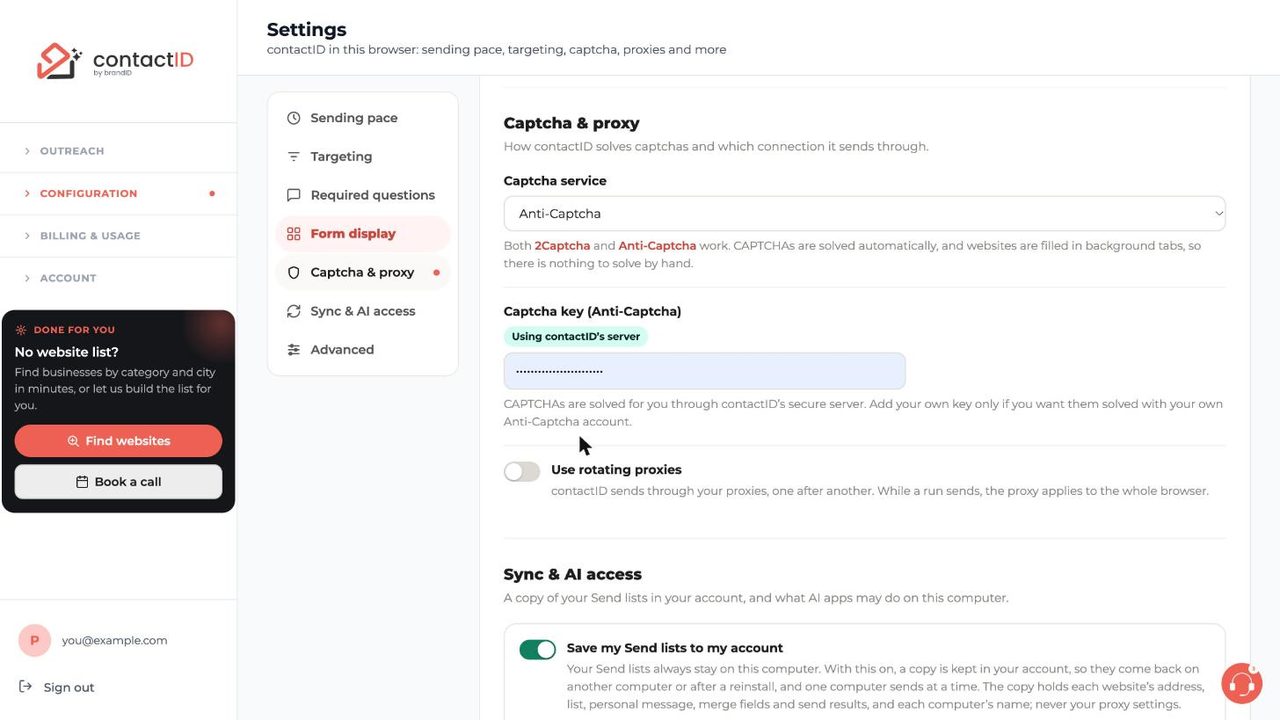
Captcha and proxy is where contactID is most generous. Automatic solving is on by default for reCAPTCHA (v2 and v3), hCaptcha, Cloudflare Turnstile, FunCaptcha and picture captchas, through contactID’s own server, with nothing to set up and no extra charge. You can choose 2Captcha or Anti-Captcha and add your own key, and you can switch on rotating proxies. Sliders and drag puzzles are not solved, and full-page bot checks from services such as Cloudflare’s challenge page, Akamai, PerimeterX or DataDome can still stop a submission. Details are in captcha solving and proxies.
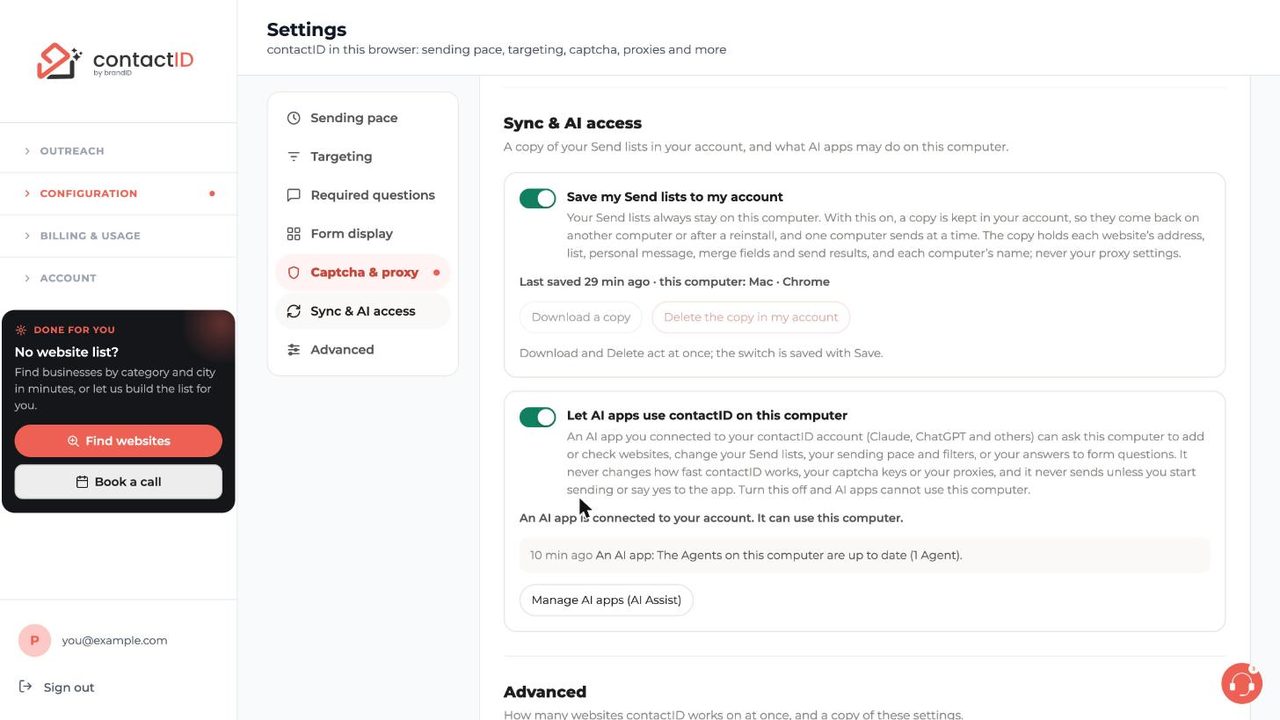
Sync and AI access has two switches. Save my Send lists to my account keeps a copy of each website’s address, list, personal message, merge fields and results in your account, so lists come back on another computer or after a reinstall, and one computer sends at a time. You can download or delete that copy, and our guide shows how to save your Send lists. The second switch, Let AI apps use contactID on this computer, decides whether connected AI apps may work on this browser, which we come back to in the AI Assist section.
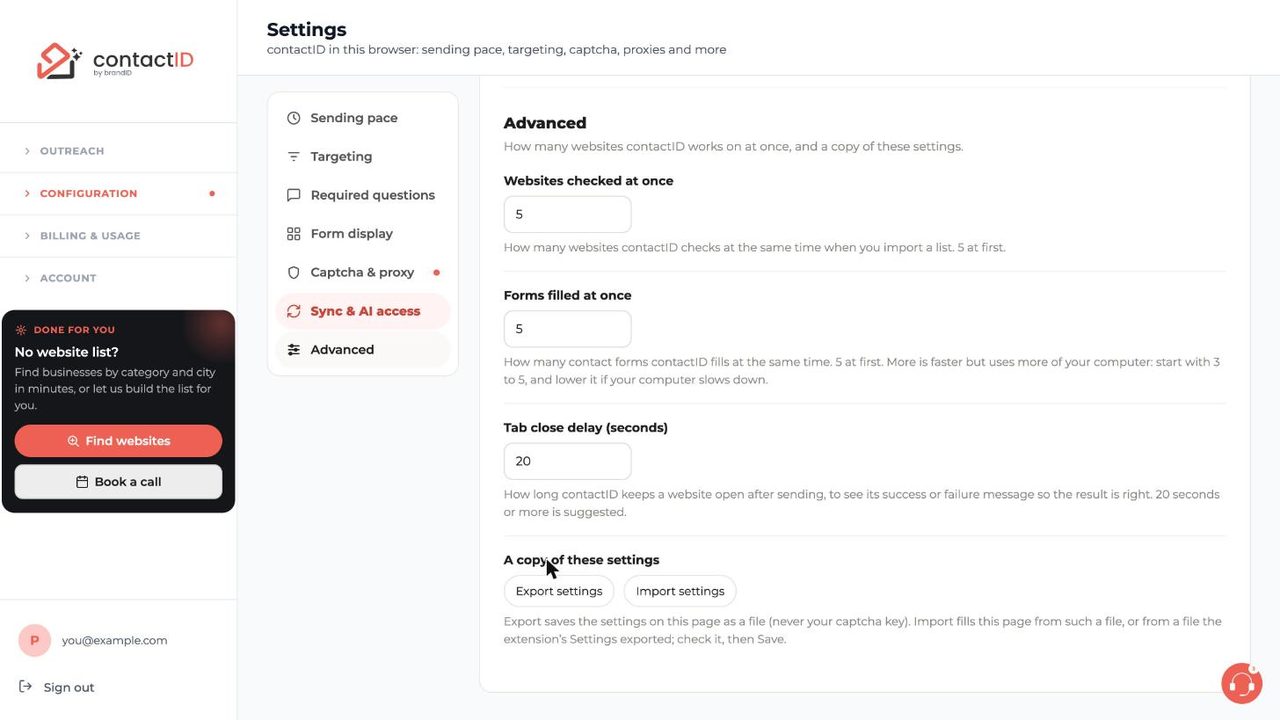
Advanced controls speed. Websites checked at once and Forms filled at once both start at 5, and Forms filled at once can go from 1 to 100. Rough throughput is about 4 websites a minute on one tab, 10 on three tabs, 15 on five and 20 on eight, and contactID starts at most one website on the same domain every 45 seconds. A Tab close delay of 20 seconds keeps each site open long enough to read its success message. You can export and import your settings as a file (never your captcha key). The trade-offs are explained in run websites at once.
5. Analytics and results
Every submission is recorded. The Analytics page filters by Sent, Failed filling, Processed and Failed import, searches by URL and shows best days to send, best hours (UTC) and success by form platform. Opening a record shows every field on the form and the exact value contactID typed or selected, which is your audit trail of what was sent. The extension’s Send tab adds filters and exports, and Advanced Export can write CSV, Excel, JSON, XML, an HTML report or Markdown with 24 columns for websites.
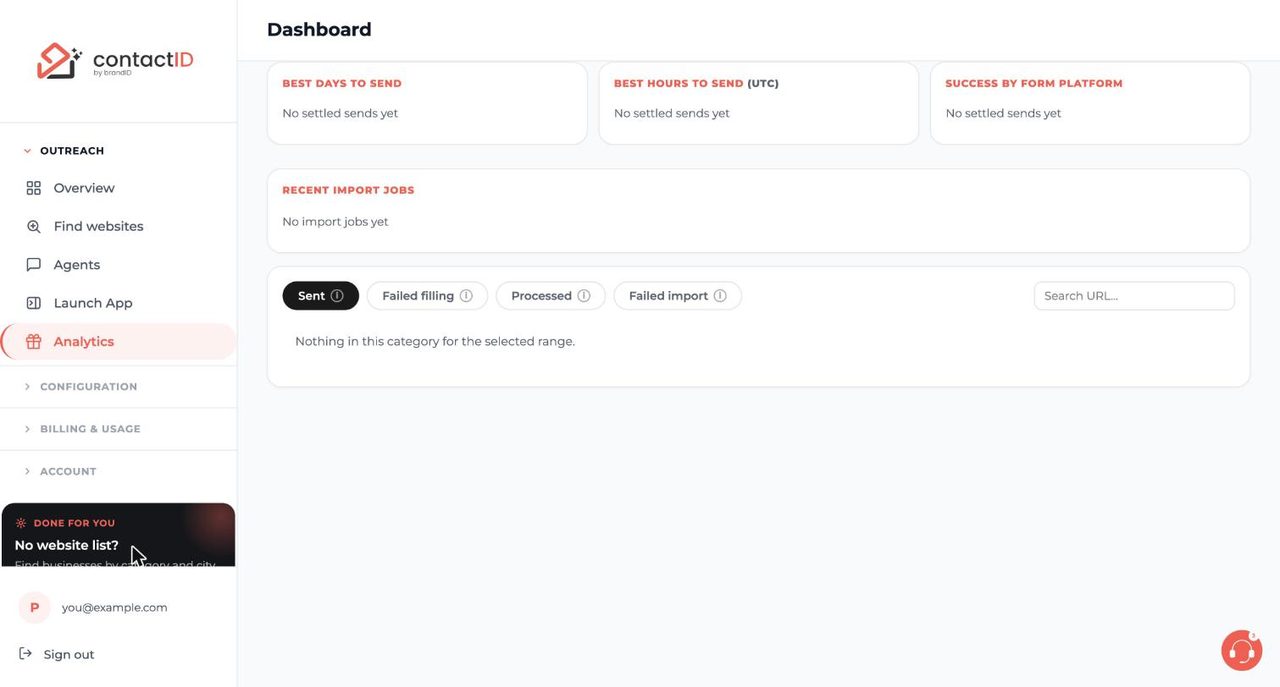
Two honest limits belong here. contactID does not take screenshots of filled forms (it records the field values instead), and it does not track replies. Replies arrive as normal email in the inbox of the address your Agent used, which the extension cannot read, so you count them yourself, for example by searching for your subject line. A reply-tracking option is being designed but is not available.
6. AI personalization, AI models and AI credits
AI personalization writes the text for named placeholders in your message, once per website, using your saved prompt and the website’s name. You enable it per Agent on the AI Personalization page and pick a model from OpenAI, Anthropic or Google. The AI does not read the target website’s pages. Prompts you reuse live in a Prompts Library, and the Help Center includes ready-made ones for agencies, B2B SaaS and e-commerce.
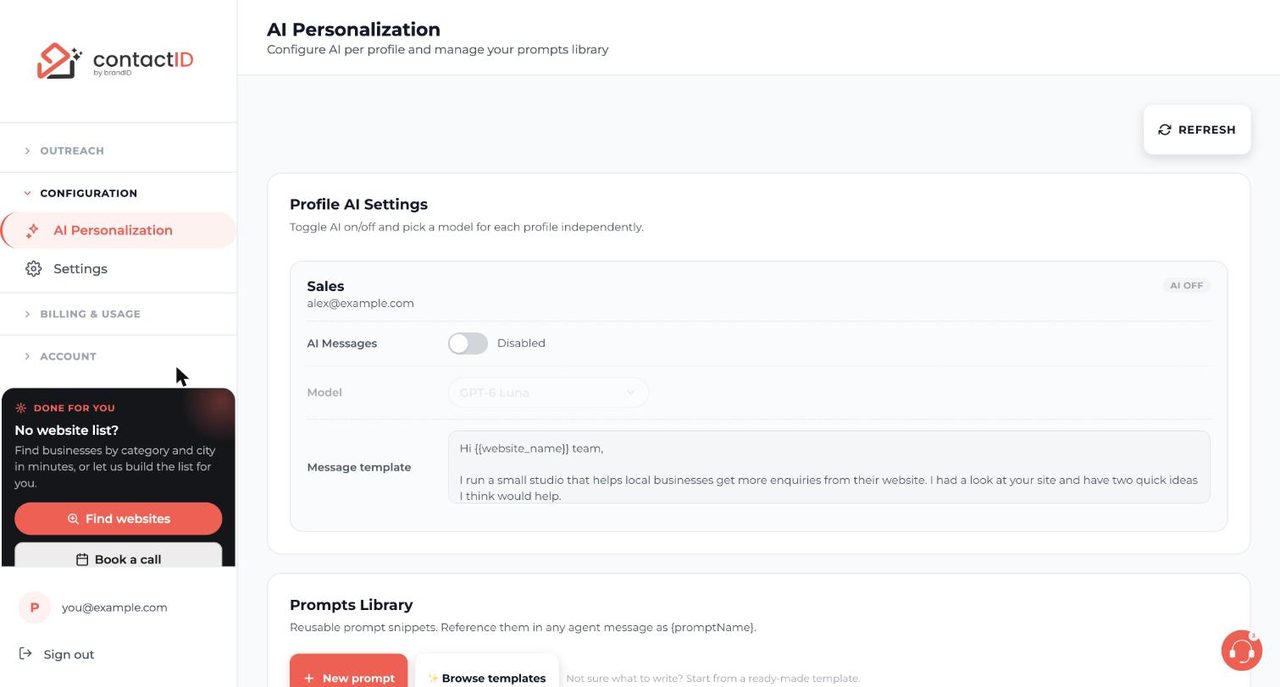
AI runs on its own wallet. No plan includes AI credits; every account, free or paid, tops up separately from $5 to $500, and the balance does not expire. The typical cost is small: about $0.0003 per placeholder on the default model, GPT-6 Luna. Examples from the Help Center on that model are about $0.06 for 200 websites with one placeholder, about $0.30 for 1,000 websites, and about $3 for 10,000 websites. Larger models cost more (roughly five times for Claude Haiku 4.5 and 25 times for Claude Opus 5), and the AI Wallet’s Pricing tab lists every model. Before a large AI run, contactID shows an AI credits may run out estimate, and a run pauses when the balance is too low until you top up and press Resume.
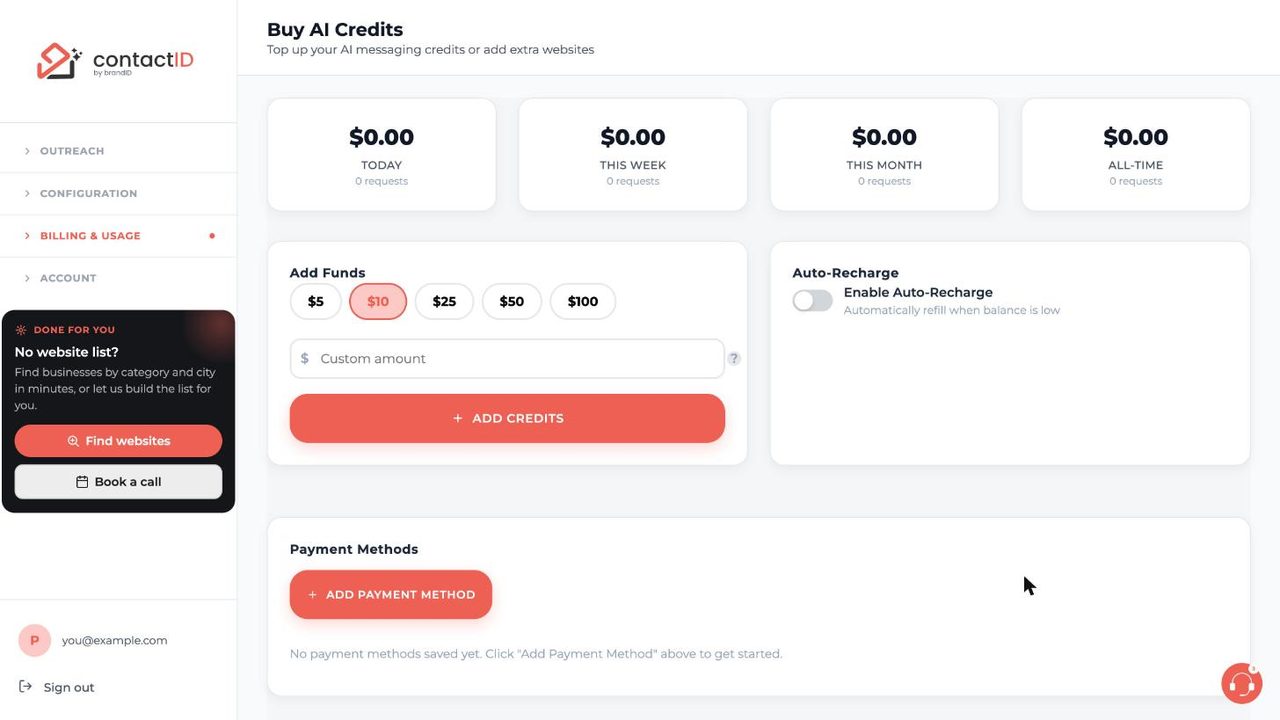
To top up AI credits, open Buy AI Credits in the sidebar, pick $5, $10, $25, $50 or $100 (or a custom amount) and pay through Stripe. If you would rather never pause mid-run, turn on AI auto-recharge, which refills the wallet when it gets low using a saved card. The page also shows what you spent today, this week, this month and all time.
7. AI Assist (MCP): let Claude, ChatGPT and other AI apps work in your account
AI Assist is the newest and most unusual part of contactID. It connects AI apps to your account through MCP (the Model Context Protocol), so you can write something like “Find dentists in Austin and add them to my Send lists” in your own AI chat and have it done. It lives under Account, AI Assist (MCP), and it has nine tabs: Overview, Apps, Approvals, Conversations, Activity, Computers, Abilities, Limits and Help.
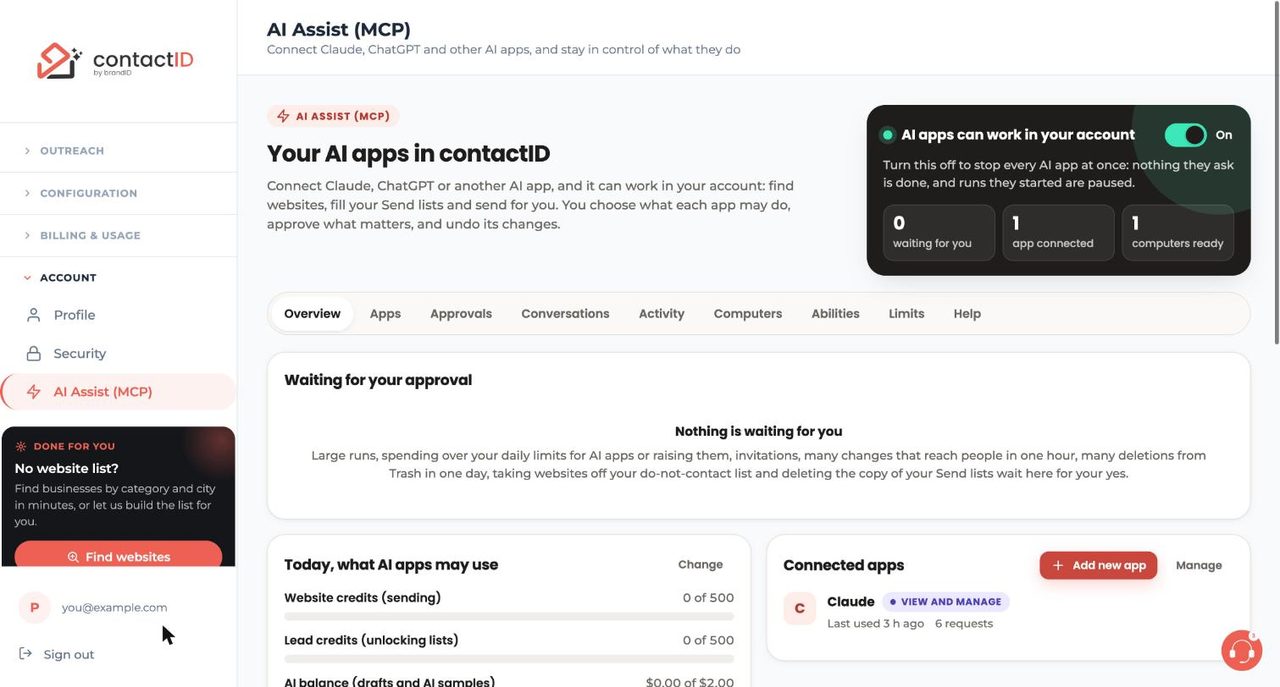
The Apps tab holds a single address, https://contactid.brandid.app/mcp, and per-app steps for Claude, ChatGPT, Claude Code, Codex, Cursor, VS Code, Windsurf, Gemini CLI and other apps. We cover the two most common in separate guides, connect Claude to contactID and connect ChatGPT to contactID, and the rest are equally short.
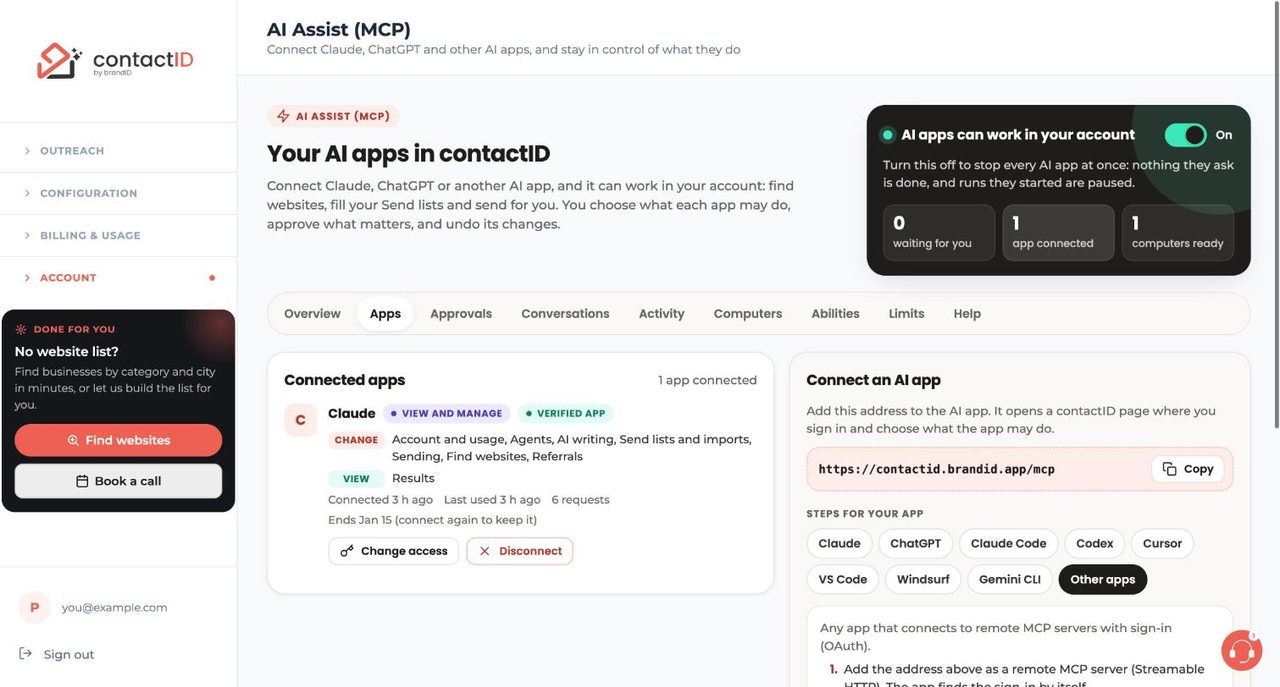
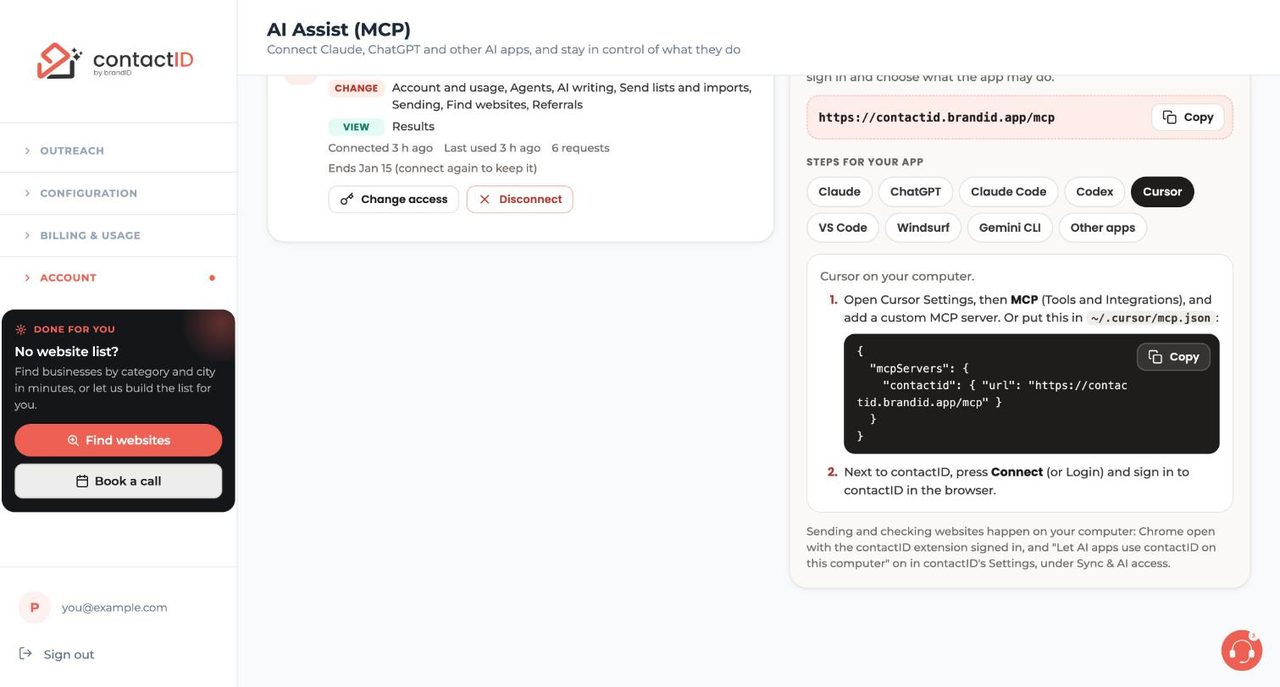
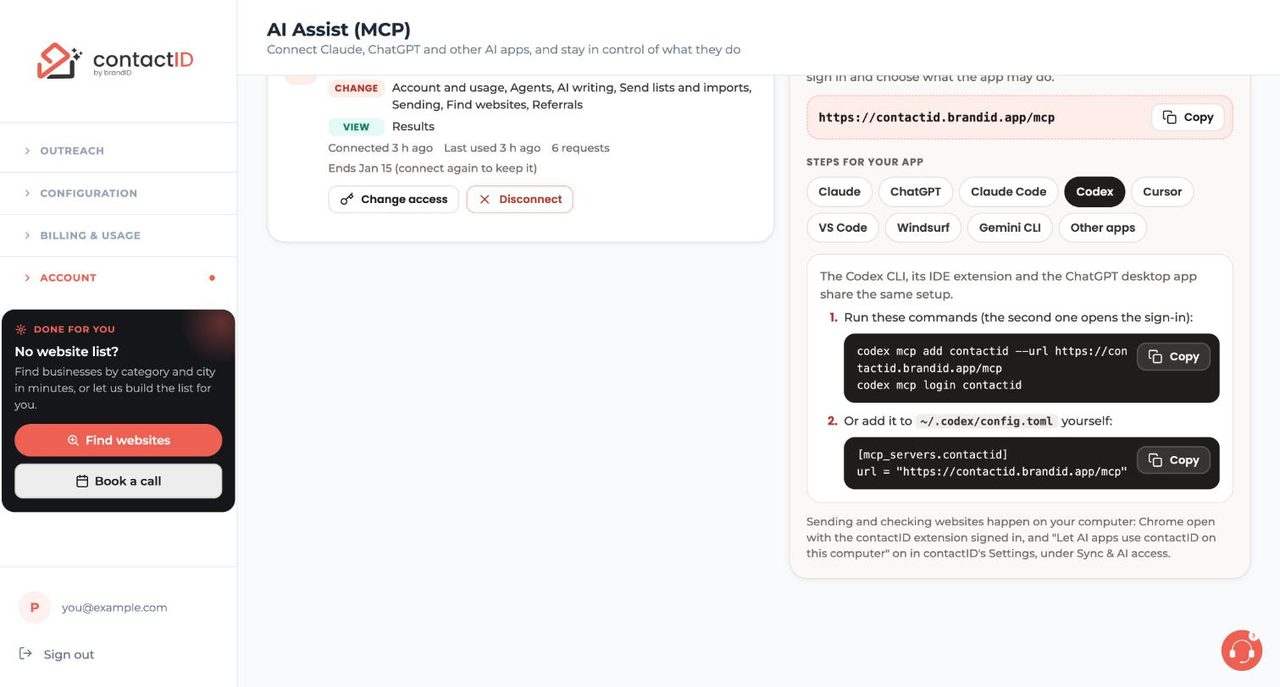
For terminal and editor apps the panel gives copy-paste commands or config. Codex needs two commands (the second opens the sign-in), and you can also edit its config file; see how to connect Codex to contactID. Cursor takes a small JSON block in its MCP settings, and the steps to connect Cursor to contactID are on one screen.
The same pattern works elsewhere: GitHub Copilot in VS Code uses MCP: Add Server with the HTTP address, so you can connect VS Code in two steps; Windsurf takes a serverUrl entry in its MCP configuration (and warns that Windsurf allows 100 tools in total), so you can connect Windsurf to contactID; and the Gemini CLI uses one command plus /mcp auth, so you can connect Gemini CLI. If your app is not listed, any app that supports remote MCP servers with sign-in works the same way: any other AI app only needs the address and a sign-in.
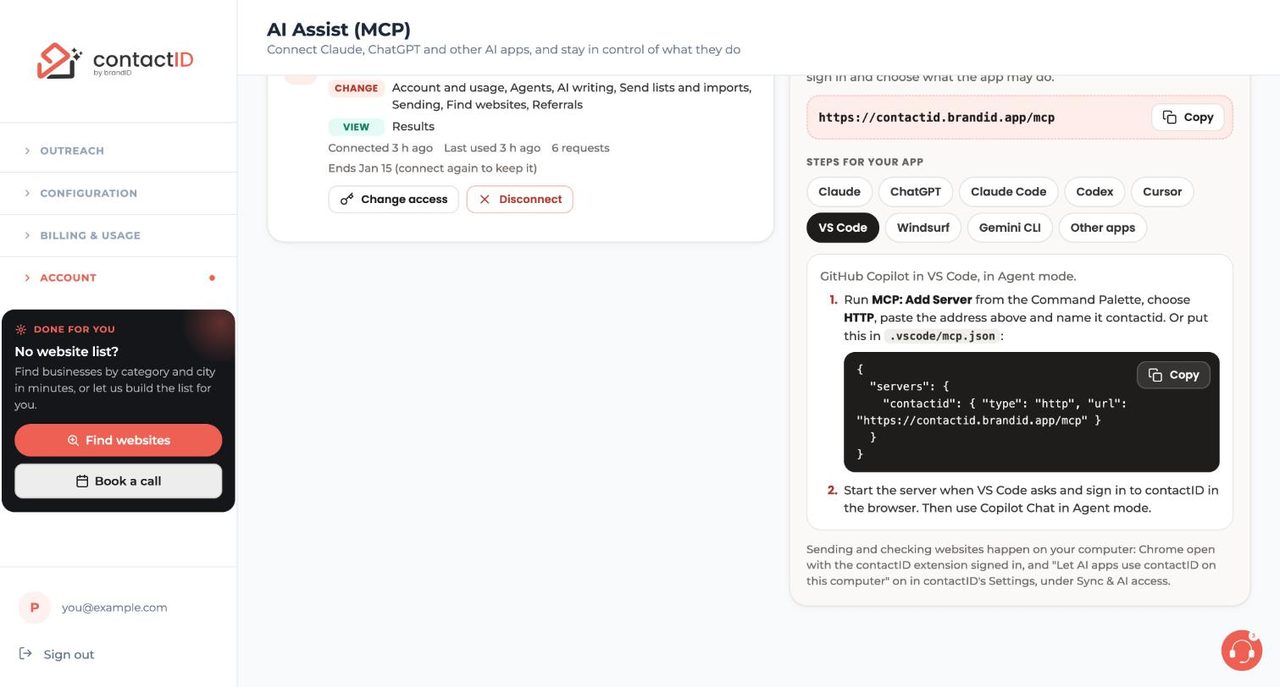
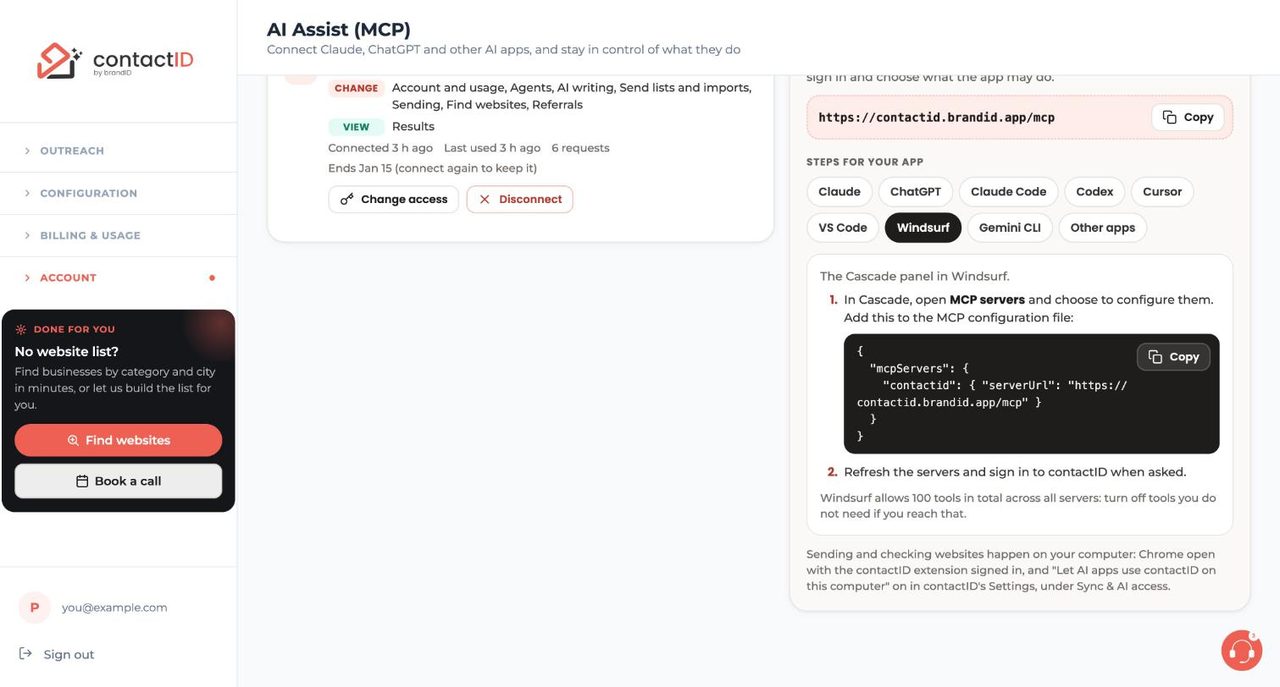
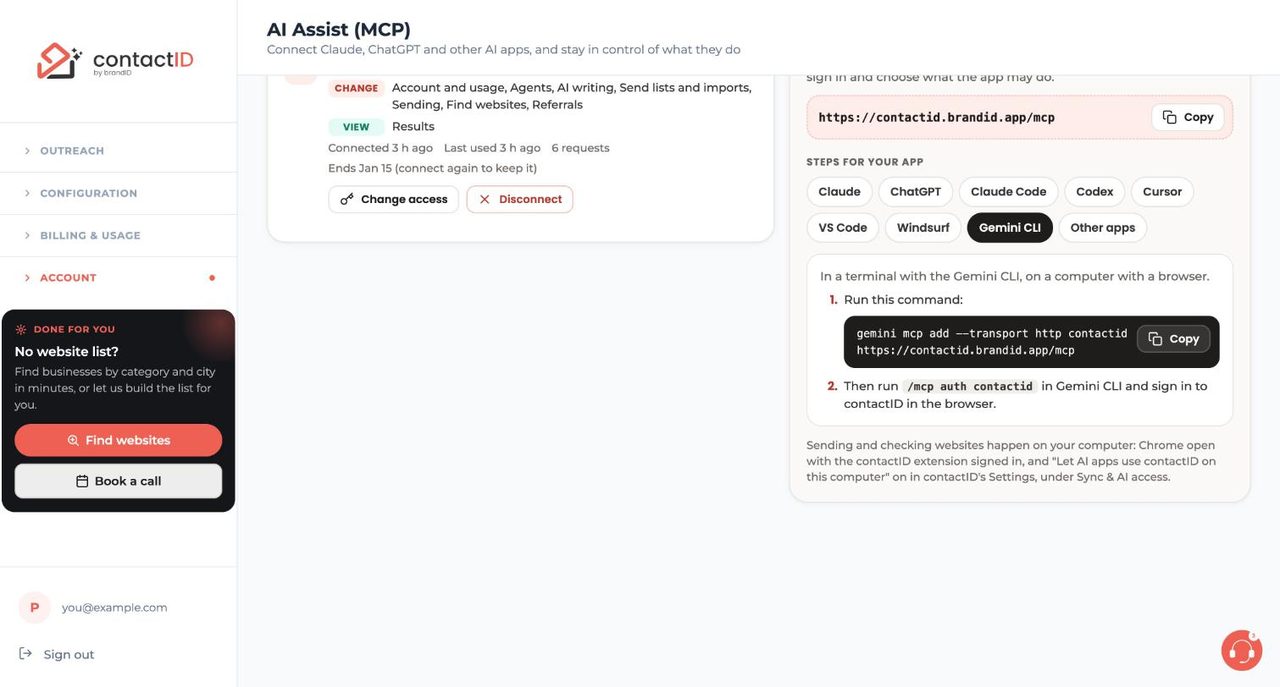
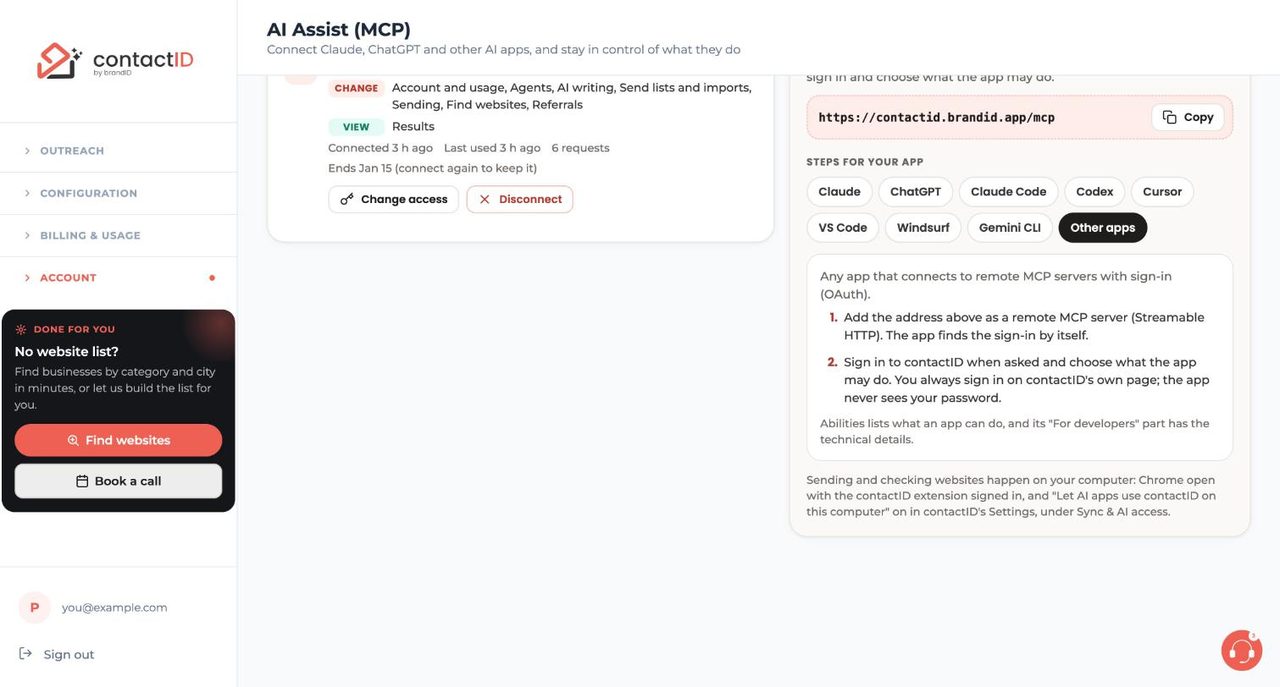
What makes AI Assist more than a gimmick is the control model. When an app connects, a contactID page (not the app) asks what it may do: View only, View and manage, or Custom, where each area (Account and usage, Agents, AI writing, Send lists and imports, Sending, Find websites, Results, Referrals) is set to Off, View or Change. You can choose app permissions later with Change access, and the Abilities tab lists all 85 abilities with labels such as View, Change, Delete, May ask you first, May wait for your approval and Reaches people.
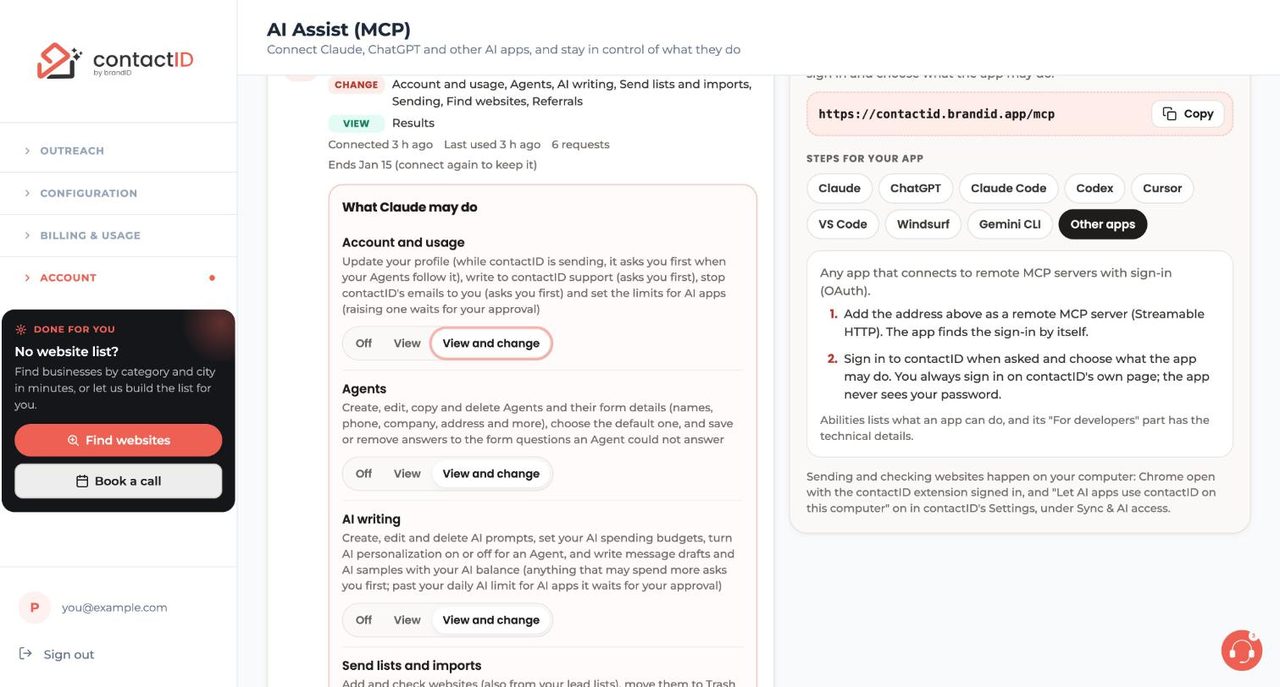
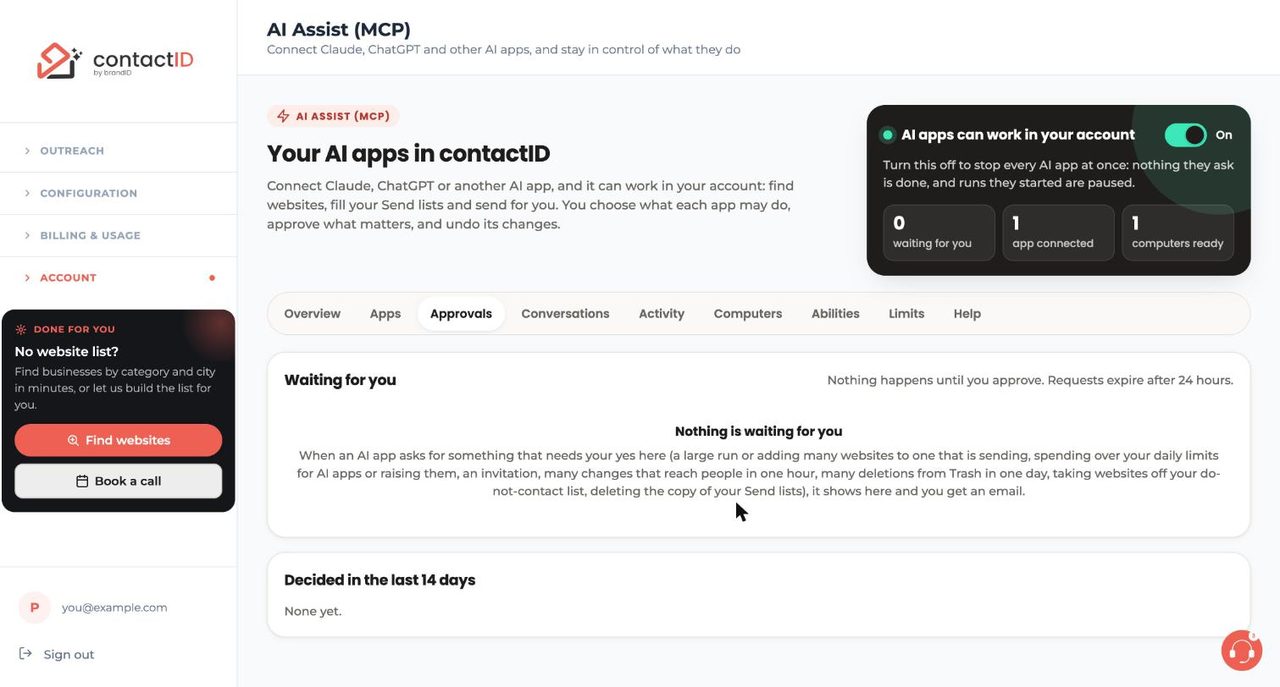
Changes are sorted into four groups. Changes to your own things, such as an Agent, a prompt, a category or moving websites to Trash, happen at once and can be undone for 30 days. Anything that reaches people, spends credits or cannot be taken back asks you first: the app has to show you what will happen, for example send to 40 websites with the Sales Agent using up to 40 website credits, and do it only after you say yes in the chat. High-impact requests wait for you on the Approvals tab and by email. And some things are never available to an AI app: paying, buying credits, changing your plan, cards and refunds, your password and email, and the speed, proxies and captcha keys of your sending. When you need to decide, you can approve or reject requests from the Approvals tab.
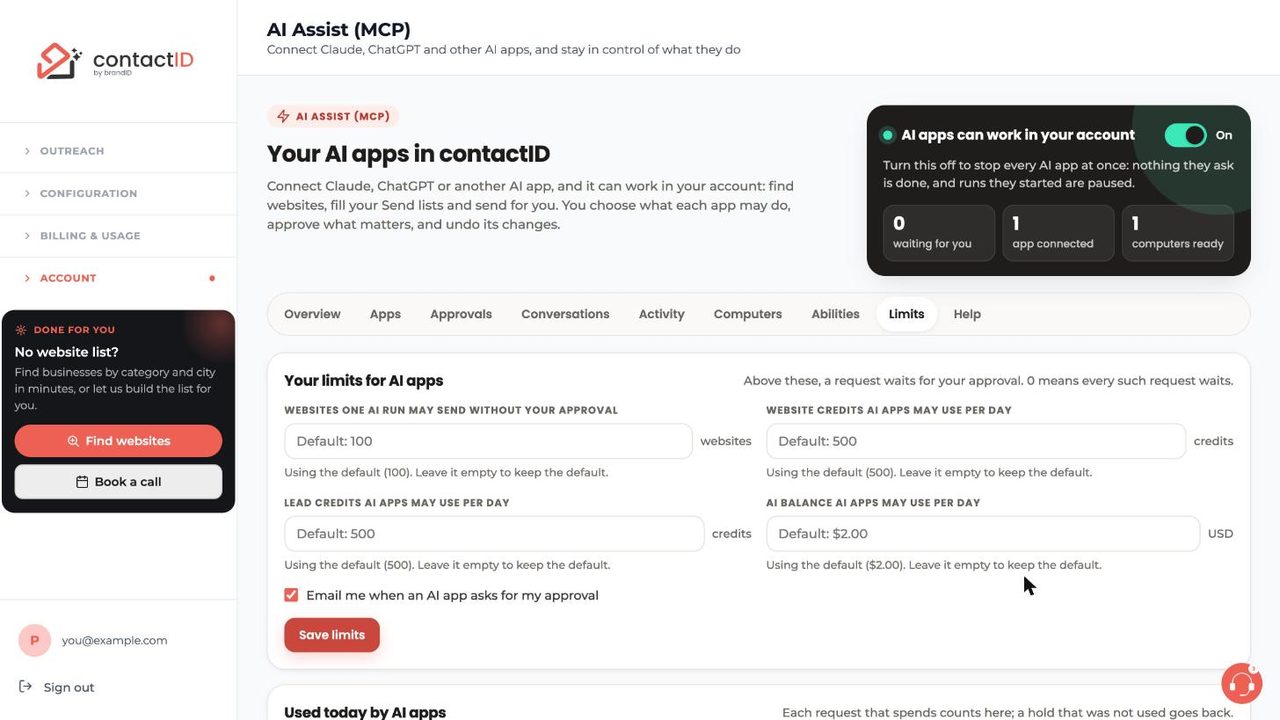
Four daily limits keep spending in check, and you can set AI app limits yourself: 100 websites per AI-started run, 500 website credits a day, 500 lead credits a day and $2.00 of AI balance a day by default. A value of 0 means every such request waits for your approval. All AI apps together are also held to 90 requests a minute and 3,000 a day, 20 changes a minute, and 30 deletions an hour.
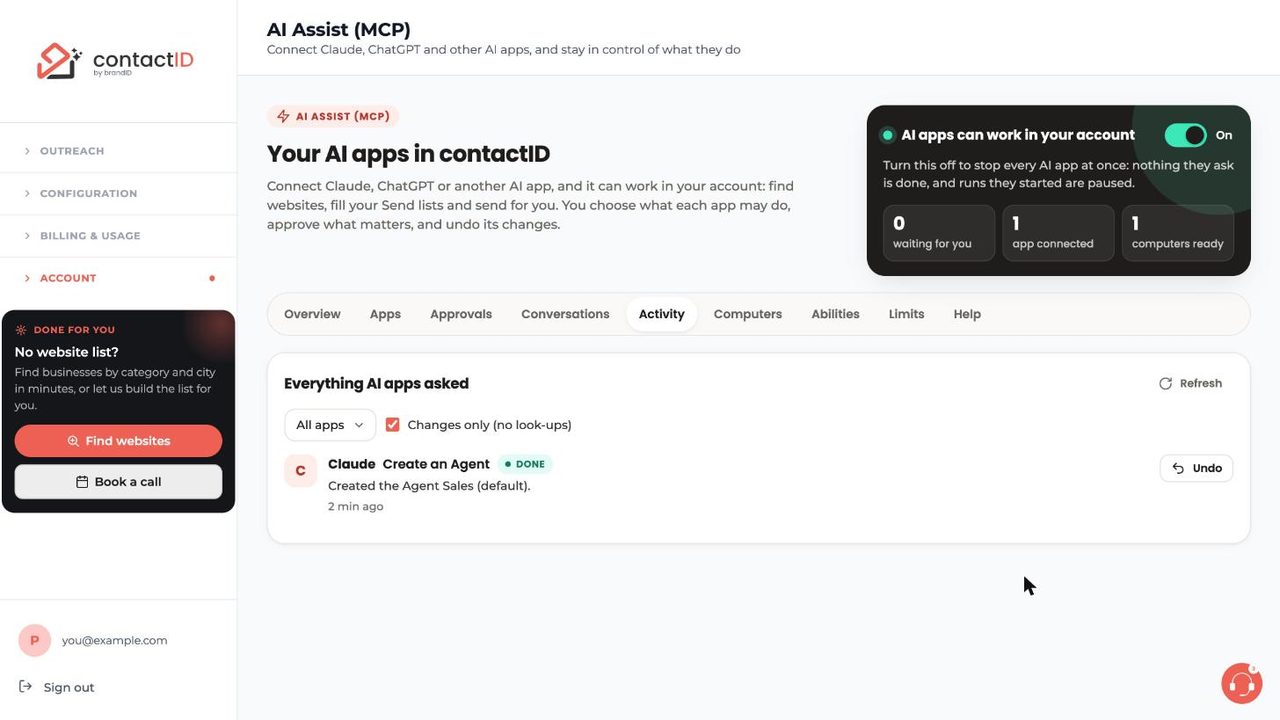
Everything an app does is written down. The Activity tab lists each request, and the Conversations tab groups them by chat. Here you can see and undo changes: press Undo on a change, and if you changed the same thing afterwards contactID offers Undo anyway or Keep it. Messages already sent, lead lists already unlocked and AI drafts already paid for cannot be undone.
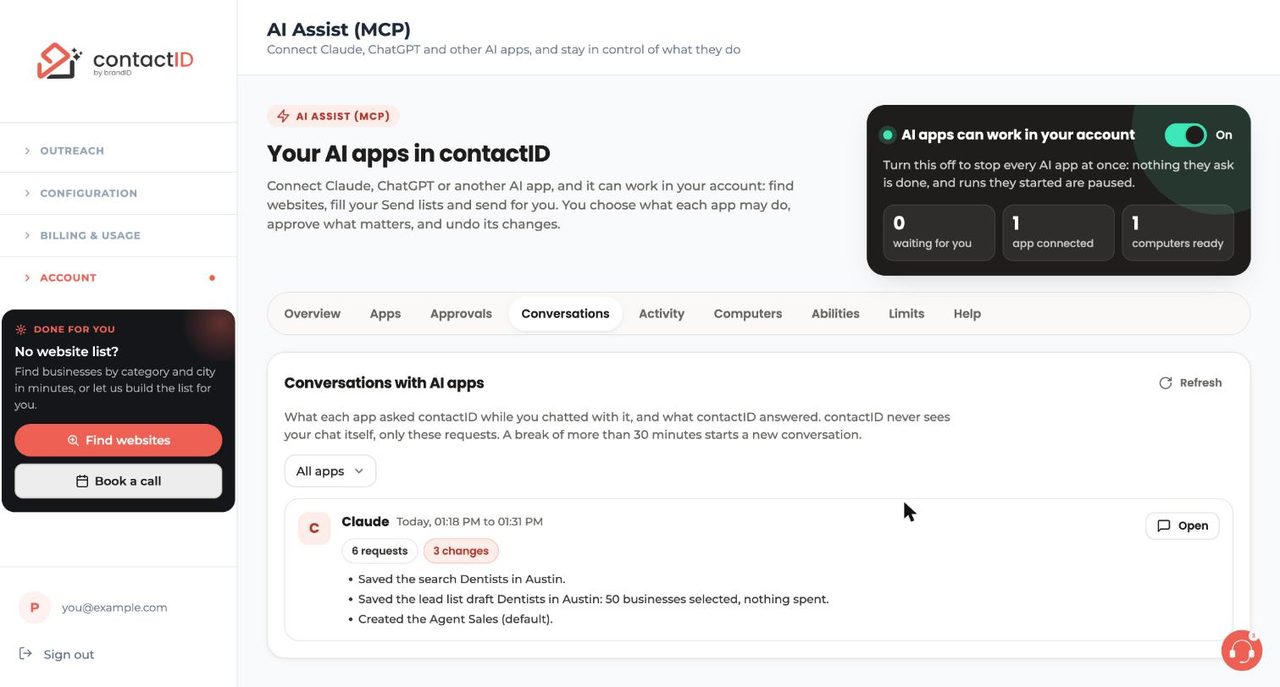
Because sending happens in your browser, an AI request that adds websites or starts a run is carried out by the contactID extension on your computer. Chrome must be open with the extension signed in to the same account, and the side panel does not need to be open. Each computer has a switch for this, and the Computers tab shows every Chrome profile that is online. You can allow AI computer access or stop it per computer. A run an AI app starts sends at most the number of websites you said yes to, then stops.
To stop everything at once, the switch at the top of the page pauses every AI app, and any run they started pauses too. You can also narrow one app or remove it: pause or disconnect apps. Connections last 90 days and end after 30 days unused. The app never sees your password, and receives a key that works only for contactID’s AI address and lasts 15 minutes at a time. For ideas on what to write, see ask an AI app to prepare a list or a send.
8. Plans, billing and referrals
contactID prices by websites, not by seats. Each new account starts with 10 free website credits that never expire. A credit is used only when a website confirms your send (a thank-you message or page, or the form’s own answer). A send the site does not confirm shows as Sent, not confirmed and costs nothing, and so do failed attempts, sites with no form, previews and canceled imports.
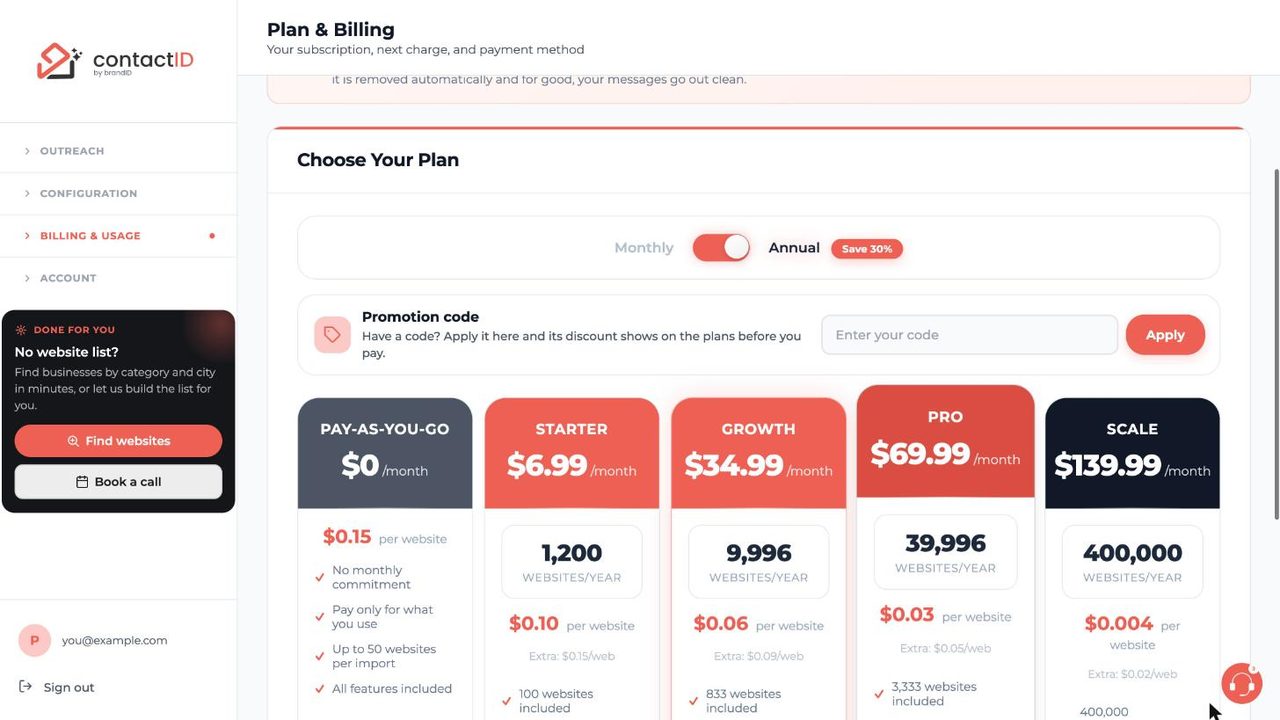
The Plan & Billing page opens on Annual billing, so switch to Monthly before you subscribe if you want to pay monthly. See choose or change plans for the exact moves, including how downgrades work (cancel, then subscribe to the smaller plan after the period ends). If you have a code, use a promotion code in the box under the switch before you pay.
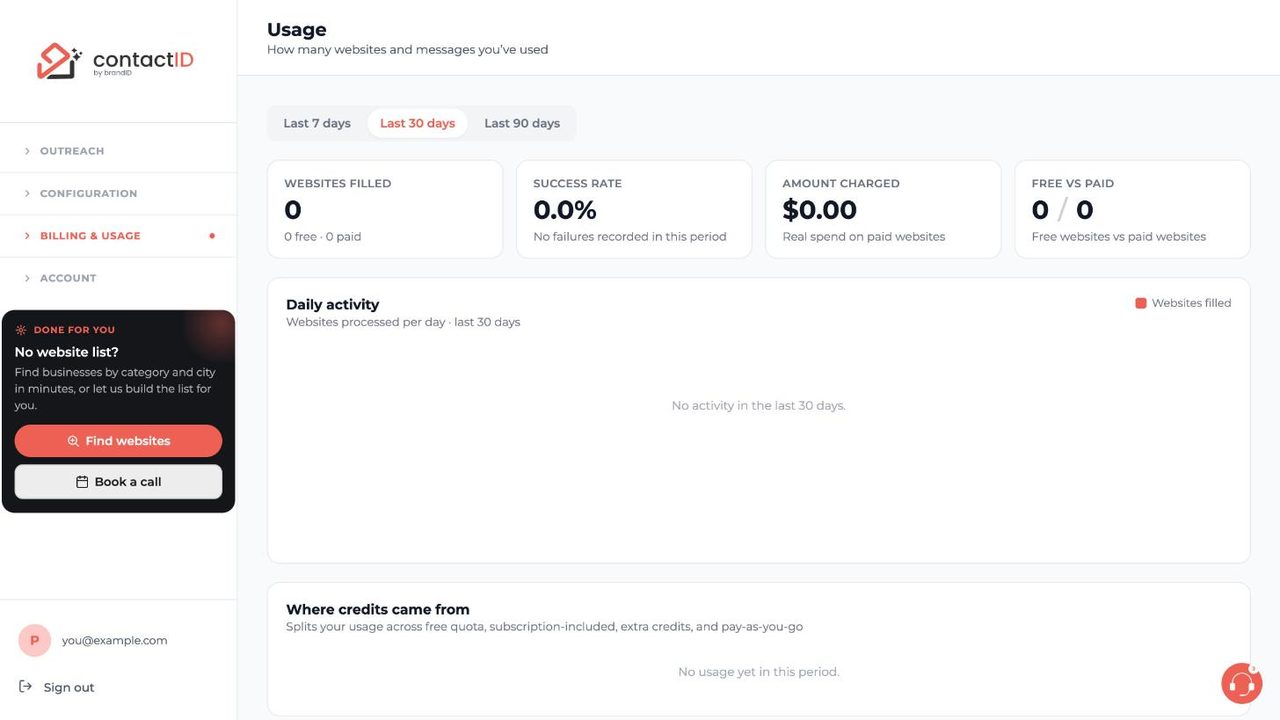
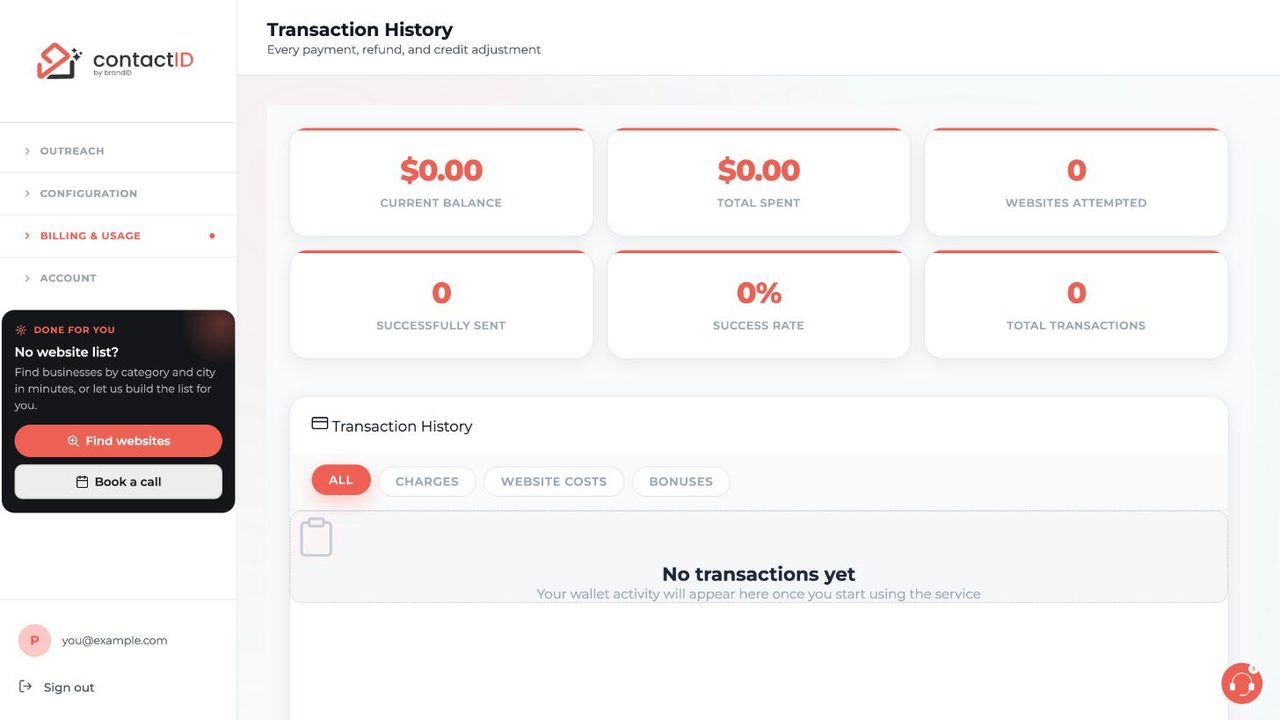
Two pages help you keep an eye on spend. Usage shows websites filled, success rate, amount charged and free versus paid for the last 7, 30 or 90 days, with a daily chart and a breakdown of where credits came from. Transaction History lists every payment, refund and credit adjustment, filterable by charges, website costs and bonuses. Our guide to usage and transaction history explains both.
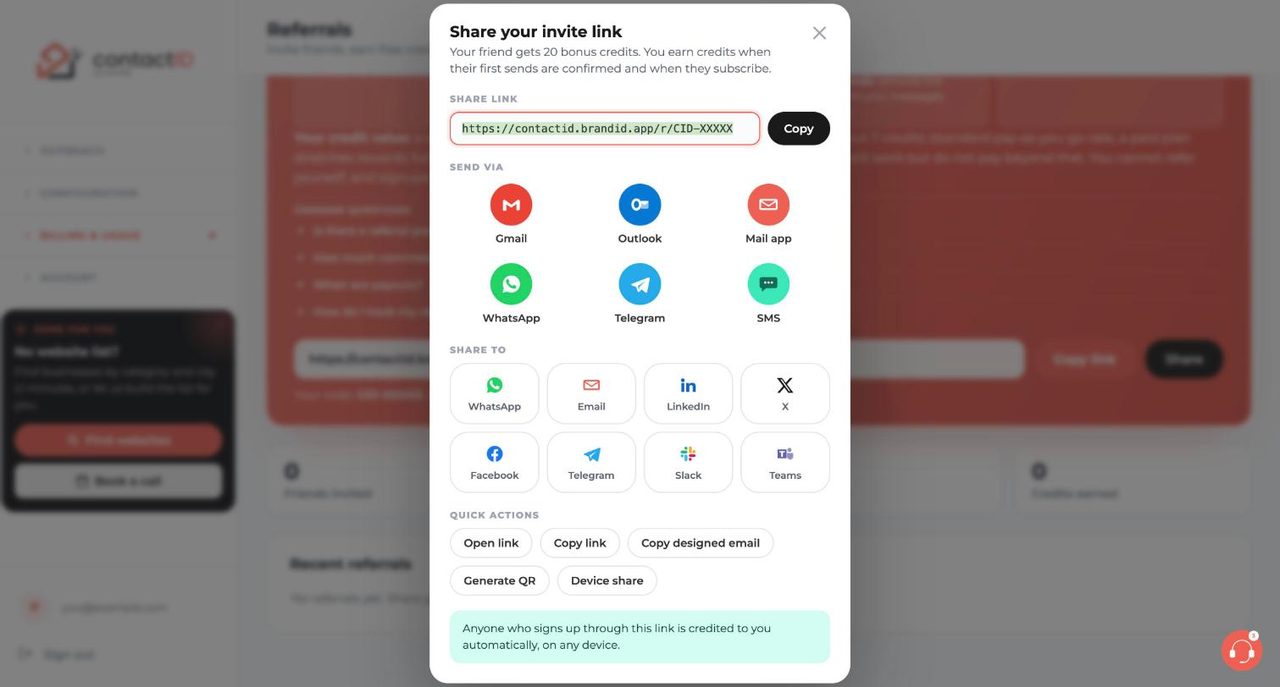
Referrals are built into the dashboard. Your link has Copy link and Share buttons, with shortcuts for Gmail, Outlook, WhatsApp, Telegram, SMS and more, plus a QR code. A friend who signs up gets 20 bonus website credits, you earn credits when their first sends are confirmed and again when they buy a paid plan, and rewards count for up to 10 friends a month. See how to share your referral link.
contactID Pricing
| Plan | Price | What is included |
|---|---|---|
| Free | $0 | 10 website credits, one time, never expire. All features, up to 50 websites per import, a plain-text signature line until your first purchase |
| Pay-as-you-go | $0.15 per website | Packs from $10 (66 websites) to $200 (1,600 websites), with bonuses on larger packs. Credits never expire. Up to 50 websites per import |
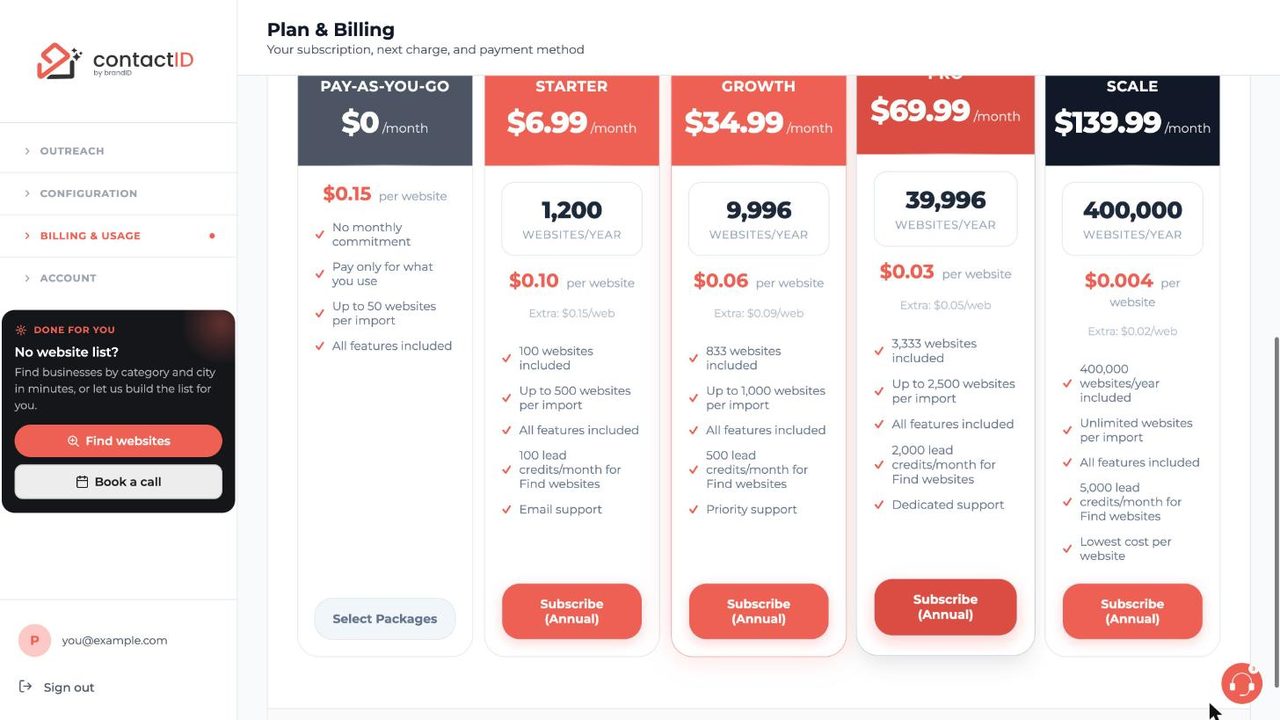
| Starter | $9.99 a month, or $6.99 annual | 100 websites a month, extras at $0.15, 500 per import, 100 lead credits a month |
| Growth | $49.99 a month, or $34.99 annual | 833 websites a month, extras at $0.09, 1,000 per import, 500 lead credits a month, priority support |
| Pro | $99.99 a month, or $69.99 annual | 3,333 websites a month, extras at $0.05, 2,500 per import, 2,000 lead credits a month, dedicated support |
| Scale | $199.99 a month, or $139.99 annual | 19,999 websites a month (400,000 a year on annual), extras at $0.02, unlimited per import, 5,000 lead credits a month |
Lead credits, AI credits and website credits are three separate balances. Annual billing is charged once for the year, includes the whole year of websites on day one and has no cancellation refund. Volumes above 20,000 websites a month are handled as enterprise pricing through the dashboard’s Buy Bulk Websites button or by email. Prices were checked in the Help Center and the app on 17 October 2026, so confirm them on the Plan & Billing page before you pay.
What does it cost in practice? A small agency sending 500 websites a month would use Growth at $49.99 (833 included, about six cents a site). A freelancer sending 60 a month is better on pay-as-you-go until Starter’s 100 websites for $9.99 becomes cheaper, which the Help Center puts at around 67 sends a month. AI personalization on the default model adds roughly a few cents per hundred websites.
Security, privacy and what contactID keeps
The Help Center is open about what is stored. Your pitch messages and send history are private to your account and encrypted at rest, and no one reviews your messages before they are sent. Administrators can see account, billing and usage details and can sign in to your account to investigate a problem you report, and every such sign-in is recorded in an audit log. When AI personalization is used, contactID sends the AI prompt, the website’s name and address, and your name, company and job title to the provider of the model you chose, not your full message or the website’s pages, so keep sensitive pitches plain.
Payments go through Stripe, so contactID never sees card numbers. For AI Assist, the app never sees your password, and contactID keeps what you allowed, when each app connected and what it asked (with passwords and keys removed) for 12 months, never your chat with the app.
Refunds and billing rules worth knowing
Credits already used are not refundable, a subscription period that has started is not automatically refundable, and annual billing has no cancellation refund. Unused lead packs can be refunded through support within 14 days, and other unused credit packs and AI balance are reviewed case by case. Charges made in error or caused by a failure on the contactID side are investigated and corrected. If a payment fails, there is a grace period, and the extension shows a Payment Due meter.
contactID Pros and Cons
contactID Pros
- Sends through the contact form businesses already read, with details and a message you set up once
- A real free tier: 10 credits that never expire, and you pay only for sends the website confirms
- Built-in Find websites with free counting and a free Search by AI
- Clear safety tools: deliverability check, Contacted before guard, pre-flight report, Pause and Stop
- Automatic captcha solving for the common types at no extra charge
- AI Assist with per-area permissions, daily limits, approvals and 30-day undo
- Detailed Analytics with the exact values typed into every field
- Transparent pricing, and a plan ladder that gets cheaper per site with volume
contactID Cons
- No reply tracking: replies land in your own inbox and you count them yourself
- No screenshots of filled forms and no two-factor sign-in
- Works only in Chrome and other Chromium browsers, and Chrome must stay open to send
- Some full-page bot checks and sliders still block submissions
- AI credits, lead credits and website credits are three separate balances
- Free accounts add a Sent via contactID extension line until the first purchase
- Whole-state and country search is not on the current plan
- Annual billing has no cancellation refund, and there is no direct downgrade
Who Should Use contactID?
| If you are… | Fit | Why |
|---|---|---|
| A freelancer or small agency doing outbound | Strong | Cheap per site, a free start, and you reach businesses that ignore cold email |
| A local-services or B2B team that needs lists | Strong | Find websites builds the list and the extension sends it |
| A team that wants AI to run the workflow | Strong | AI Assist adds permissions, limits and undo to Claude, ChatGPT and Cursor |
| Someone who needs reply tracking and sequences | Limited | contactID sends one message per form and does not track replies |
| Someone who wants a mobile or Safari app | Not a fit | It runs in Chromium browsers on a computer |
contactID Alternatives
| Alternative | Choose it if | Pricing basis |
|---|---|---|
| Cold email platforms | You have verified email addresses and want sequences and open tracking | Per mailbox or per seat |
| LinkedIn outreach tools | Your buyers are active on LinkedIn and you accept account-risk limits | Per seat |
| Lead data providers | You need contact data and firmographics more than a way to send | Per credit or per seat |
| A virtual assistant | You want a person to read each site and write by hand | Per hour |
Compare approaches in our contact form automation tools ranking and our cold email software roundup.
How to Get Started With contactID
- Step 1. Create an account. Sign up with an email code or Google and answer the short onboarding.
- Step 2. Install the extension. Add contactID from the Chrome Web Store and pin it to your toolbar.
- Step 3. Build your Agent. Write your pitch with merge fields and run the deliverability check.
- Step 4. Add 10 to 20 websites. Paste addresses, drop a file or use Find websites.
- Step 5. Check Settings. Review your sending pace, do-not-contact list and required-question rule.
- Step 6. Start small and read the results. Press Start sending, watch the first sites on the Send tab and then check Analytics.
Final Verdict
contactID does one job well: it gets a personalised message into the contact form of thousands of websites, with settings that let you slow down, skip risky targets and see exactly what was typed. The free tier is real, you pay only for confirmed sends, and the finder plus Search by AI removes the biggest barrier, which is having a list.
AI Assist is the most distinctive part. Connecting Claude, ChatGPT, Cursor or another AI app is a few minutes of work, and the permissions, daily limits, approvals and 30-day undo make it safer than most agent integrations we have seen. The missing pieces are honest ones: no reply tracking yet, no screenshots of forms, no two-factor sign-in, and a Chromium-only extension that must stay open to send. If your outreach depends on tracked sequences, pair it with a mailbox tool. If you want to reach businesses that ignore cold email, start with the 10 free credits and a list of 10 to 20 websites.
For another angle on reaching businesses without cold email, read AiGrow’s guide to contact form outreach on the AiGrow blog.
contactID Review FAQs
What is contactID?
contactID is a Chrome extension with a web dashboard. It finds the contact form on each website in your list, fills it with your sender details and message, submits it and records the result.
Is contactID free?
Every new account gets 10 free website credits that never expire. After that you buy credit packs from $10 at $0.15 per website or subscribe to a plan from $9.99 a month. Find websites uses lead credits, and AI features use a separate AI wallet.
When does contactID charge a credit?
Only when a website confirms your send, for example with a thank-you message or page. Failed attempts, sites with no form, previews and sends the site did not confirm do not use a credit.
Can Claude or ChatGPT use contactID?
Yes, through AI Assist. You add the address https://contactid.brandid.app/mcp to your AI app, sign in on contactID’s own page and choose what the app may do. ChatGPT changes need a Business, Enterprise or Edu workspace, per the in-app steps.
Is AI Assist safe?
Changes to your own things can be undone for 30 days, anything that reaches people or spends credits asks you first, high-impact requests wait for your approval, and you set daily limits. An AI app can never pay, change your plan or see your password.
Does contactID track replies?
Not yet. Replies arrive in the inbox of the email address your Agent used. You can measure the success rate and A/B results, but not replies.
Which browsers does contactID support?
Chrome and other Chromium-based browsers such as Brave, Edge, Opera and Arc. Firefox and Safari are not supported.
Does contactID solve captchas?
Yes for reCAPTCHA, hCaptcha, Cloudflare Turnstile, FunCaptcha and picture captchas, automatically and at no extra charge. Sliders and some full-page bot checks are not solved.
What does AI personalization cost?
About $0.0003 per placeholder on the default model, GPT-6 Luna, paid from a separate AI wallet you top up from $5 to $500. Larger models cost more.
How do I get a refund?
Email support with your account email and transaction details. Unused lead packs are refundable within 14 days. Used credits and started subscription periods are not automatically refundable.
 Summarize this article with: