
How to approve or reject an AI app’s request
Review a high-impact request an AI app made and decide whether it runs. It takes about 2 minutes.
Before you start
- An AI app connected to contactID that has asked for something above your limits
Notice a waiting request
High-impact requests wait for you instead of running. You will see them in three places: the waiting for you counter at the top right of the AI Assist page, Waiting for your approval on the Overview tab, and an email titled “(app) is waiting for your approval in contactID” (on by default).
Examples that wait for you: a run larger than your limit for runs AI apps start, spending past your daily limits or raising them, invitations to other people, taking websites off your do-not-contact list, deleting the copy of your Send lists in your account, and deleting many websites from Trash in one day.
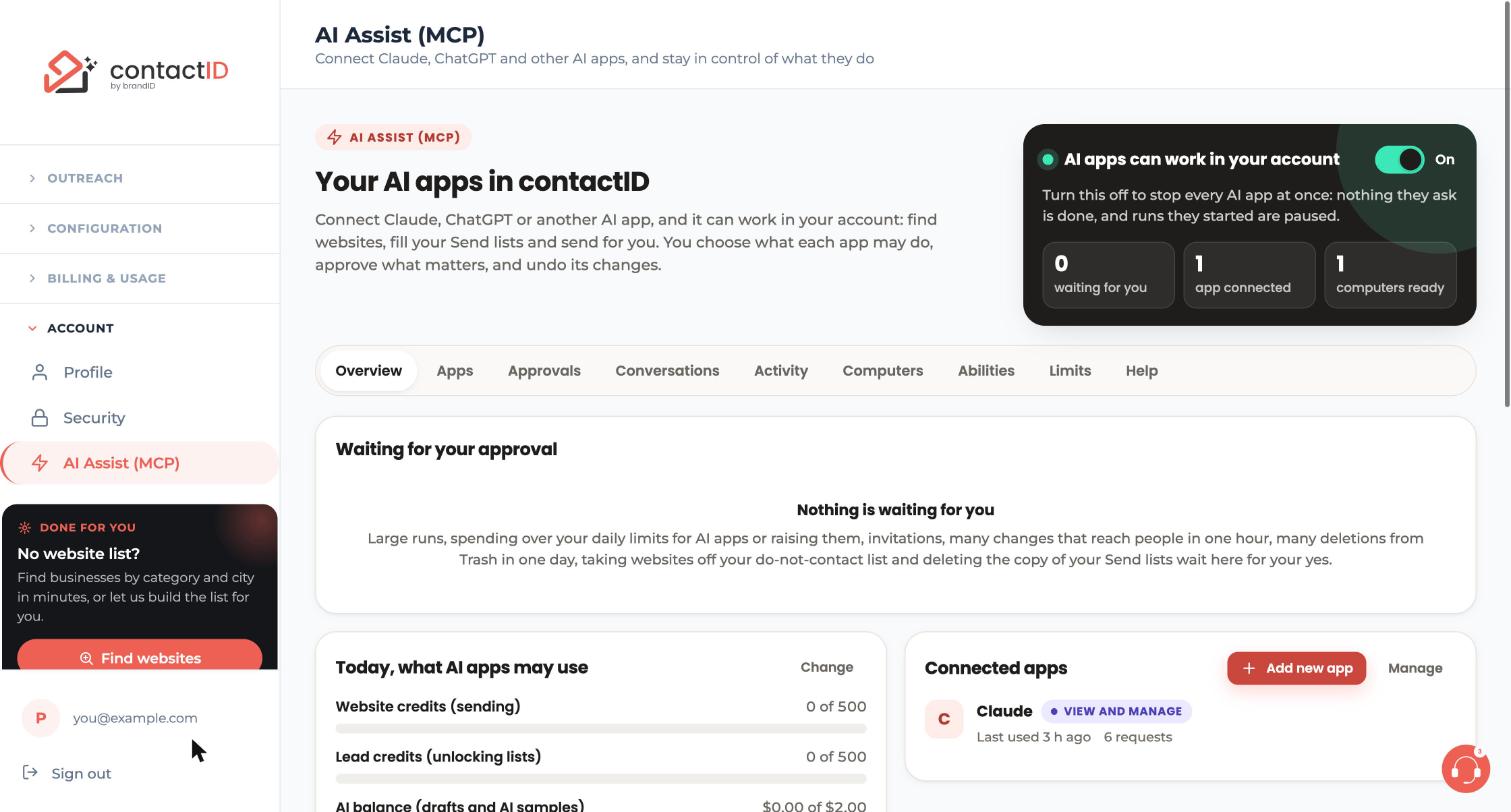
Open the Approvals tab
In the dashboard, open Account, then AI Assist (MCP), then the Approvals tab. Requests waiting for you are listed under Waiting for you. The page reminds you that nothing happens until you approve and that requests expire after 24 hours.
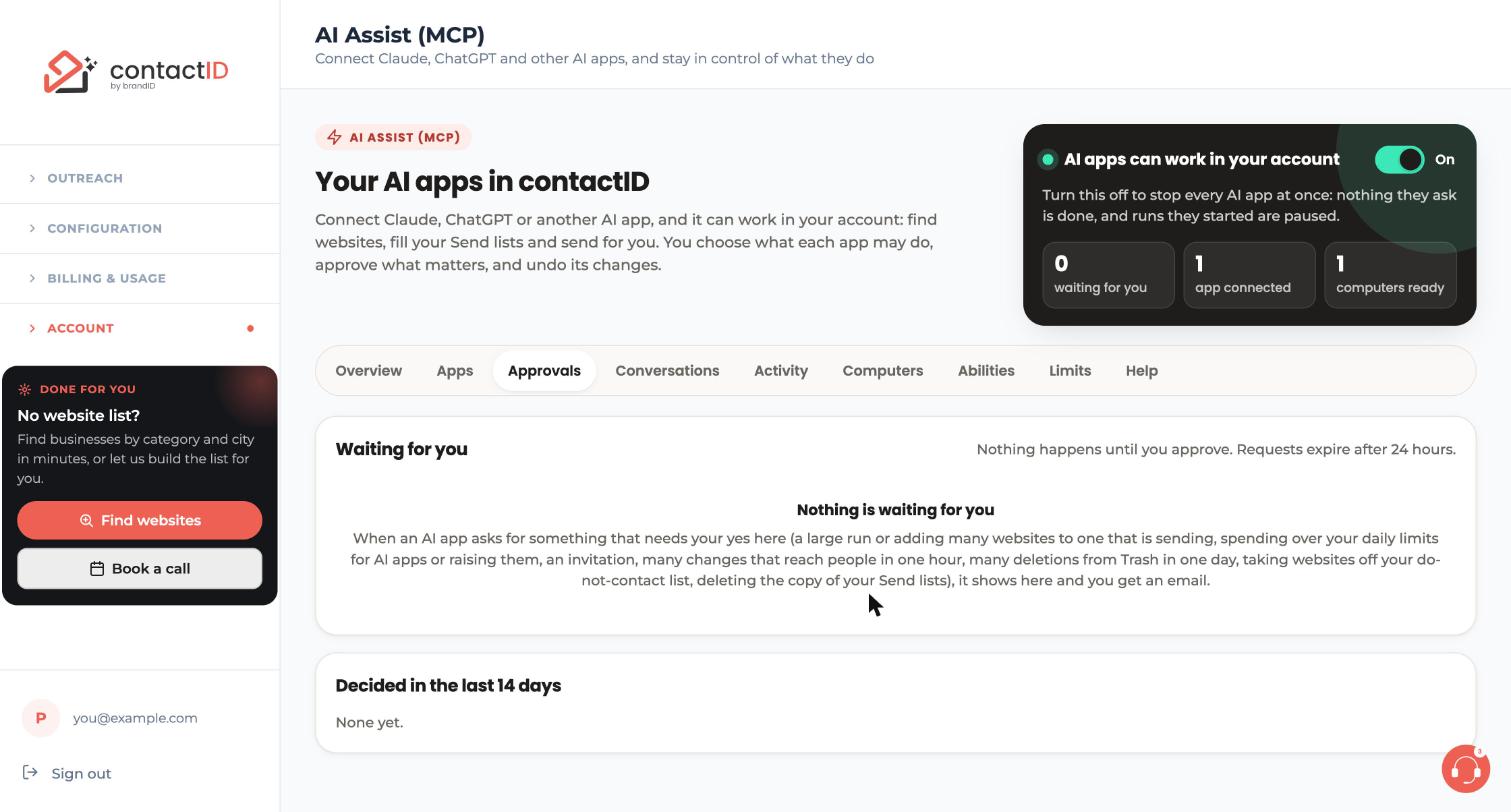
Read what would happen
Each request says what would happen, which app asked and why it needs you. Read it carefully, especially numbers such as how many websites would be sent or how much would be spent.
Press Approve or Reject
Approve runs the request once, at that moment, exactly as it was asked. The app sees the result when it checks back. Reject cancels it.
A request nobody approves within 24 hours expires and nothing is done.
Check what happened afterwards
Under Decided in the last 14 days, every decided request stays listed with what happened. Drafts or an AI sample written by an approved request can be read and copied there (Show what it gave back).
Choose whether you get approval emails
Open the Limits tab and use Email me when an AI app asks for my approval. Turn it off or on and press Save limits. Requests still wait on the page either way.
Tips
- Most AI app work never needs approval. Raising or lowering your limits on the Limits tab changes how often requests wait.
- An AI app cannot approve its own request. Only you can, on the AI Assist page.
- If you want to stop everything at once, use the switch at the top of the AI Assist page instead. See the guide on pausing or disconnecting an AI app.
If something goes wrong
I did not see the request in time
A request nobody approves within 24 hours expires and nothing is done. Ask the app to make the request again.
I am not getting approval emails
Check Email me when an AI app asks for my approval is ticked on the Limits tab. Requests still show on Approvals and Overview.
I approved something I should not have
Approve runs the request once. Some results cannot be taken back, such as messages already sent or credits spent. Changes to your own things can be undone for 30 days on the Activity tab.
Related how-to guides
Still stuck? We’re happy to help.
Install the extension, start a free trial, or reach out to support.




