
How to turn on AI auto-recharge
Auto-recharge tops up your AI wallet from a saved card when the balance gets low, so a run does not pause on an empty wallet. Setup takes about three minutes.
Before you start
- A card you can save as a payment method
- A rough idea of how much AI you use. A top-up of $5 or more is possible at any time
Open Buy AI Credits
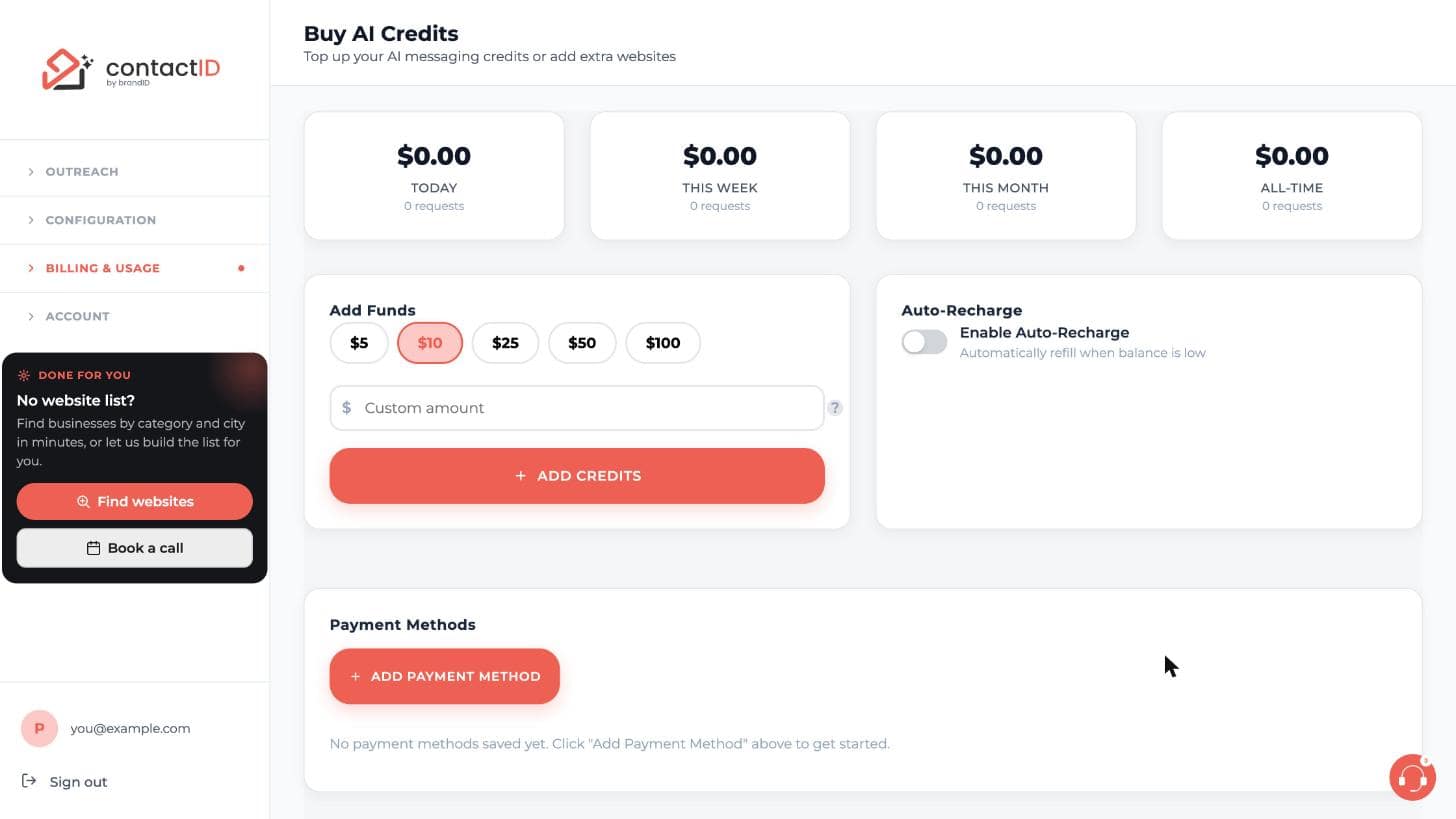
In the dashboard sidebar, open Billing & Usage and click Buy AI Credits. Auto-recharge sits in its own panel on the right, next to Add Funds. In the extension, open the account menu, click the AI credits row and open the Auto-Recharge tab.
Save a card first
Auto-recharge charges your saved card. At the bottom of the page, under Payment Methods, press ADD PAYMENT METHOD and complete the card form. If you have no card saved, the page says No payment methods saved yet. In the extension the same place is called Cards.
Switch on Enable Auto-Recharge
In the Auto-Recharge panel turn on the Enable Auto-Recharge switch. Its description reads Automatically refill when balance is low. Then you enter the trigger balance and the recharge amount, as described in the next step.
Set the trigger balance and the recharge amount
- Trigger balance: from $1 to $100. When an AI request leaves the wallet below this number, contactID recharges.
- Recharge amount: from $5 to $500. This is the amount charged to your saved card each time.
A good rule of thumb is a trigger of $1 to $3 and a recharge amount big enough for at least one full batch. For example, a trigger of $3 and a recharge amount of $25. A larger recharge amount means fewer charges.
Save your settings
Click Save Settings. The change is effective immediately. From now on, when an AI request leaves your balance below the trigger, contactID charges the card and the new balance appears within seconds. Runs keep going as long as the charge goes through.
Optionally set a daily cap
On the dashboard’s Buy AI Credits page you can set a daily auto-recharge cap, the most that auto-recharge may charge in one day. It must be at least one recharge amount. When the next charge would go past the cap, auto-recharge pauses until tomorrow (midnight UTC) and then starts again by itself. You can also pause it until a date and time you choose.
Check the charges later, or turn it off
Every auto-recharge charge is listed in Payment History on the Buy AI Credits page. contactID does not email you for each charge. To stop auto-recharge, turn off Enable Auto-Recharge and click Save Settings. No further auto-charges occur.
Tips
- Only AI credits have auto-recharge here. Website credits have none and are bought on Plan & Billing. Lead credits for Find websites have their own auto-recharge.
- If recharges fire more often than you expect, raise the recharge amount so they happen less often.
- You can also set daily, monthly and per-request limits in the AI Wallet’s Limits tab in the extension to cap spending.
If something goes wrong
My card was declined and the run paused.
The recharge does not happen, the website goes back to Queued and the run pauses with Paused: insufficient AI credits. Update the card (Payment Methods on the dashboard, Cards in the extension), add funds, turn auto-recharge back on if it switched off, and press Resume.
Auto-recharge turned itself off.
It turns off when the card has expired, when the card needs 3D Secure verification, and after 3 declined charges in a row. The AI wallet page says why. Fix the card, then turn it on again.
Auto-recharge did not fire although my balance is low.
It is checked after every AI request. If the wallet was already too low for a request, add funds by hand once. Also check whether a daily cap has paused it until tomorrow.
Related how-to guides
Still stuck? We’re happy to help.
Install the extension, start a free trial, or reach out to support.




