
How to find websites by category and city
Build a search in Find websites and see, for free, how many businesses with a website exist in each city. It takes about two minutes.
Before you start
- A contactID account signed in to the dashboard at https://contactid.brandid.app/
- Nothing to pay: counting, previews and saving a selection are free. Lead credits are only used when you unlock a list
Open Find websites
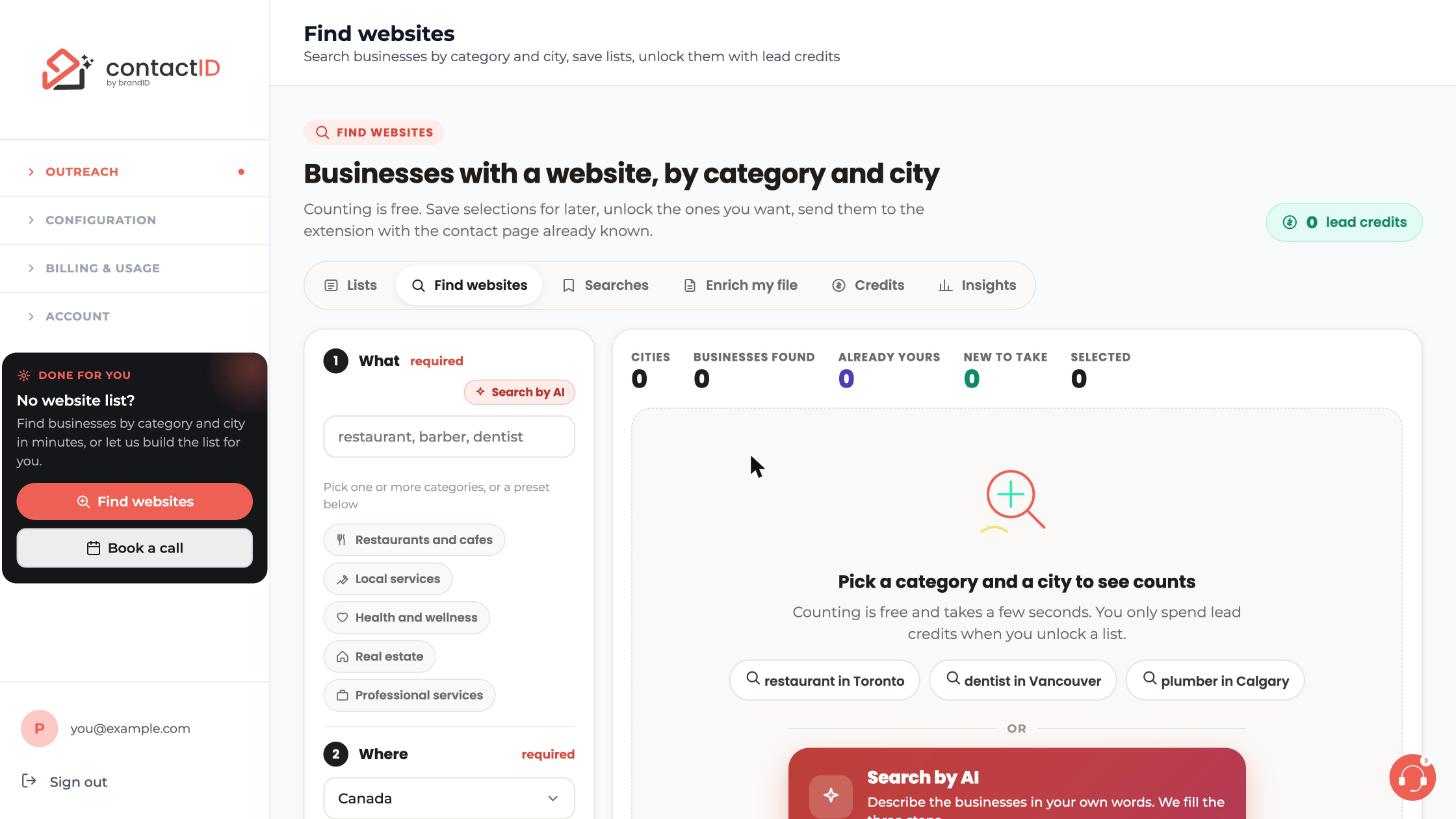
In the dashboard sidebar, open Outreach and click Find websites. The page has six tabs: Lists, Find websites, Searches, Enrich my file, Credits and Insights. Make sure the Find websites tab is selected.
The search is built in three steps on the left: 1 What, 2 Where and 3 Filters. Your lead credit balance is shown at the top right.
Choose what to search for
In step 1 What, click the box that says restaurant, barber, dentist and type a category, for example dentist. Pick the match from the suggestions. The category appears as a chip under the box.
You can also click a preset such as Restaurants and cafes or Local services. You can add as many categories as you like, and the count for a city adds them up.
Choose the country and cities
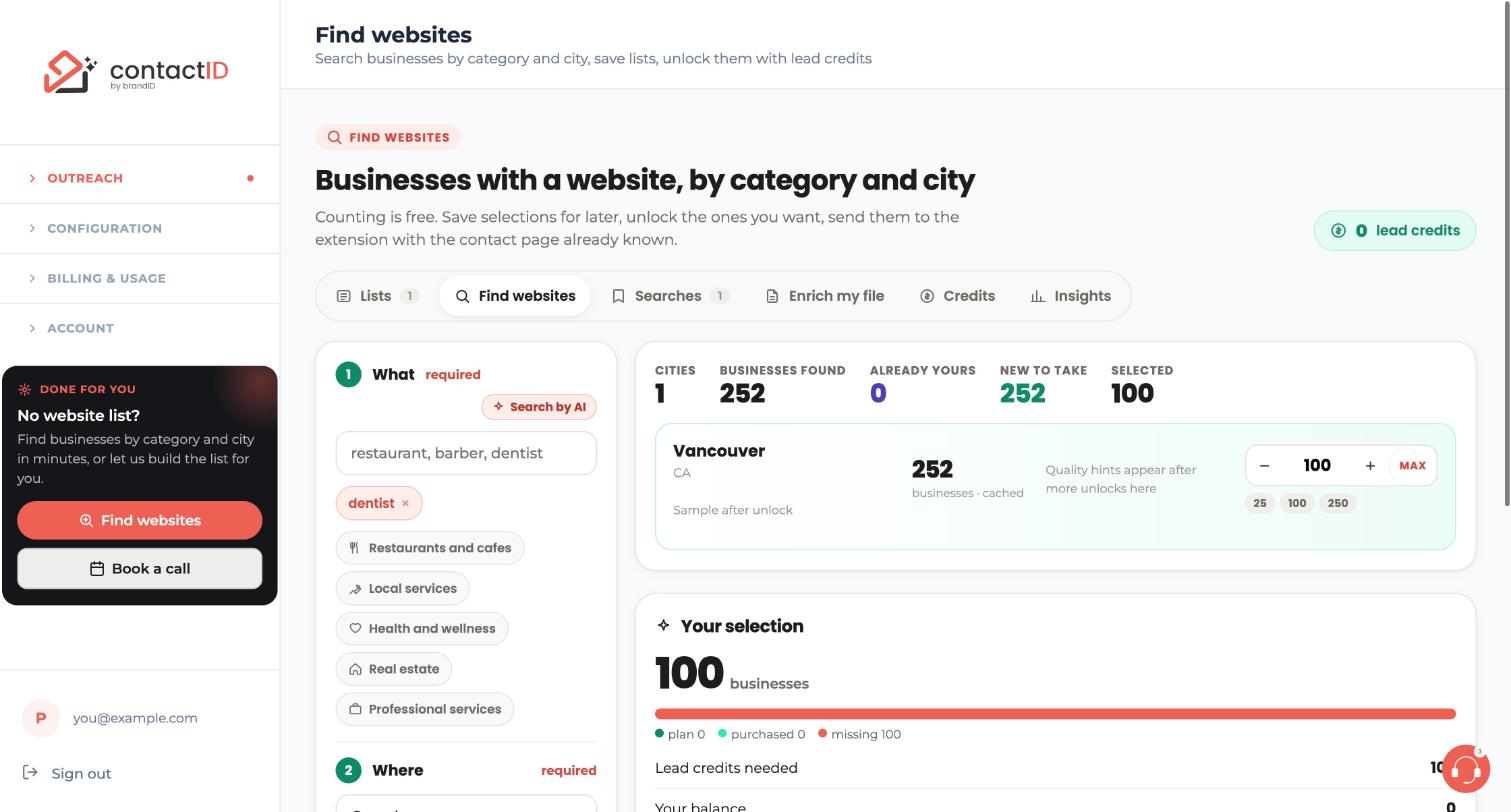
In step 2 Where, pick a country, then type a city in the Add a city box and choose it, for example Vancouver. Each city becomes a chip.
To search many cities at once, press Add popular cities. It adds up to 20 of the largest cities in that country. Clear removes all the cities.
Read the free counts
As soon as What and Where are both filled, the search runs by itself. Counts stream in city by city on the right. The bar at the top shows Cities, Businesses found, Already yours, New to take and Selected.
Each city has its own card. In this example Vancouver shows 252 businesses and a quantity box. If you already hold businesses in a city, the card tells you how many are already yours and how many are new.
Compare several cities
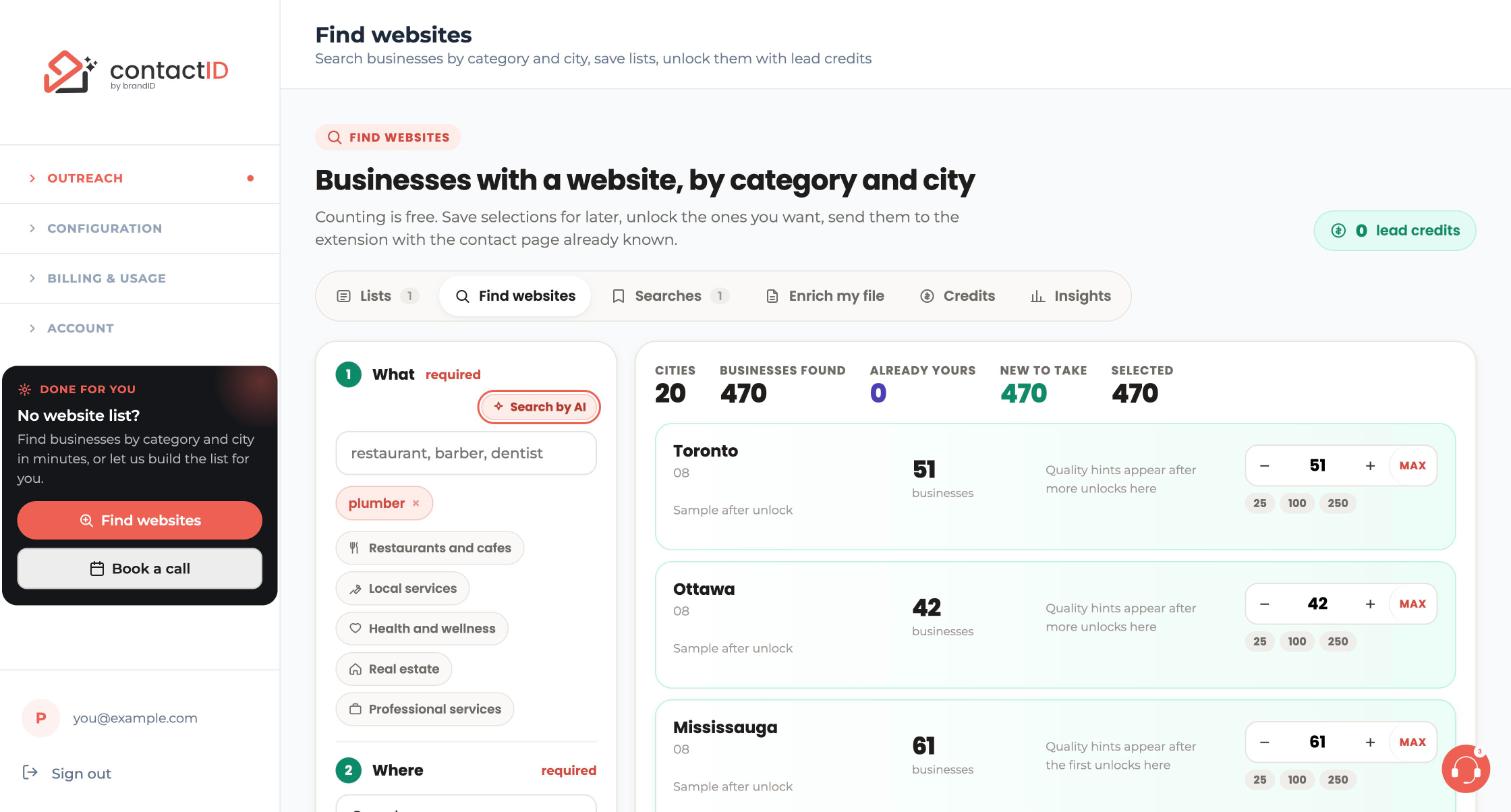
With more cities, you get one card per city with its own count. In this example a plumber search over 20 cities in Ontario shows 470 businesses in total, for example Toronto 51, Ottawa 42 and Mississauga 61.
If you picked more than one category, each city card also shows By category with the count for every category, and a line showing how your quantity will be split between them.
Set how many businesses you want per city
On each city card, use the minus and plus buttons to set a quantity, or press a quick pick: 25, 100, 250, or MAX to take every business in that city that is new to you. Set a city to 0 to leave it out.
The totals bar updates as you change the numbers.
Review your selection
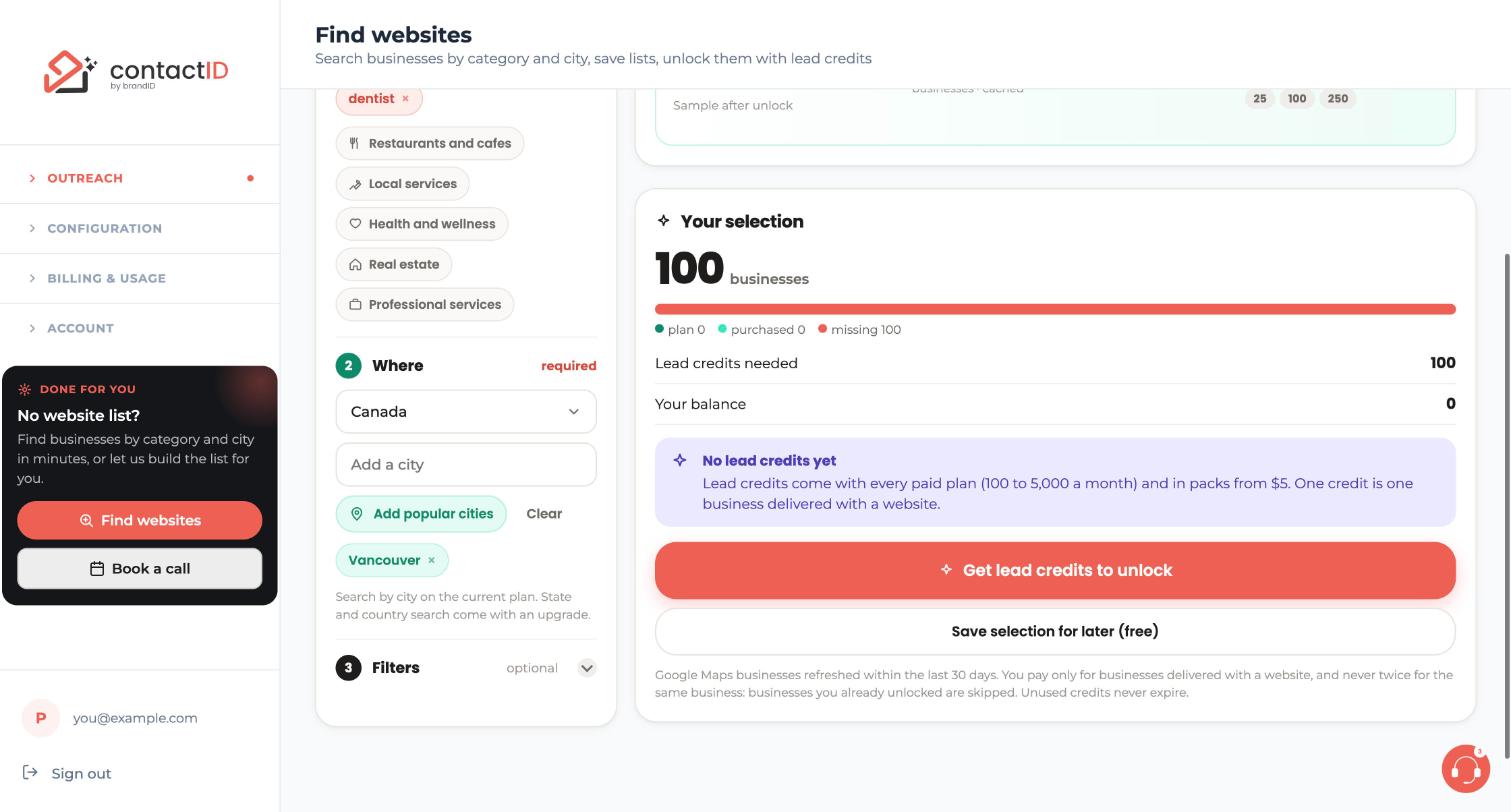
Scroll down to the Your selection card. It shows how many businesses you selected, the Lead credits needed and Your balance. In this example the account has no lead credits yet, so the main button reads Get lead credits to unlock.
Underneath is Save selection for later (free). Nothing is spent until you unlock a list.
Tips
- Counting is free, so try several categories and cities before you spend anything.
- You never pay twice for the same business: businesses you already hold in your other lists are skipped, and each city card tells you how many are already yours.
- Prefer to describe the search in a sentence? Press Search by AI in step 1 and it fills What, Where and Filters for you.
If something goes wrong
A city shows 0 businesses.
That city has no business for your category and filters. Try another category, add a nearby city, or relax a filter such as minimum rating. A category with no businesses in a city gets none of your quantity.
I do not see a state or country option.
On the current plan the search is by city. State and country search appear automatically when they become available. Use Add popular cities to cover a whole country quickly.
The search does not start.
What and Where are both required. The search runs by itself once you have at least one category and one city.
Related how-to guides
Still stuck? We’re happy to help.
Install the extension, start a free trial, or reach out to support.




