
How to create your first Agent
An Agent is the sender and pitch that contactID types into every contact form. Creating one on the dashboard takes about two minutes.
Before you start
- A contactID account (an Agent called Outreach Agent may already exist from onboarding)
- The email address where you want replies to land
- A short idea of what you offer and what you want the reader to do
Open the Agents page
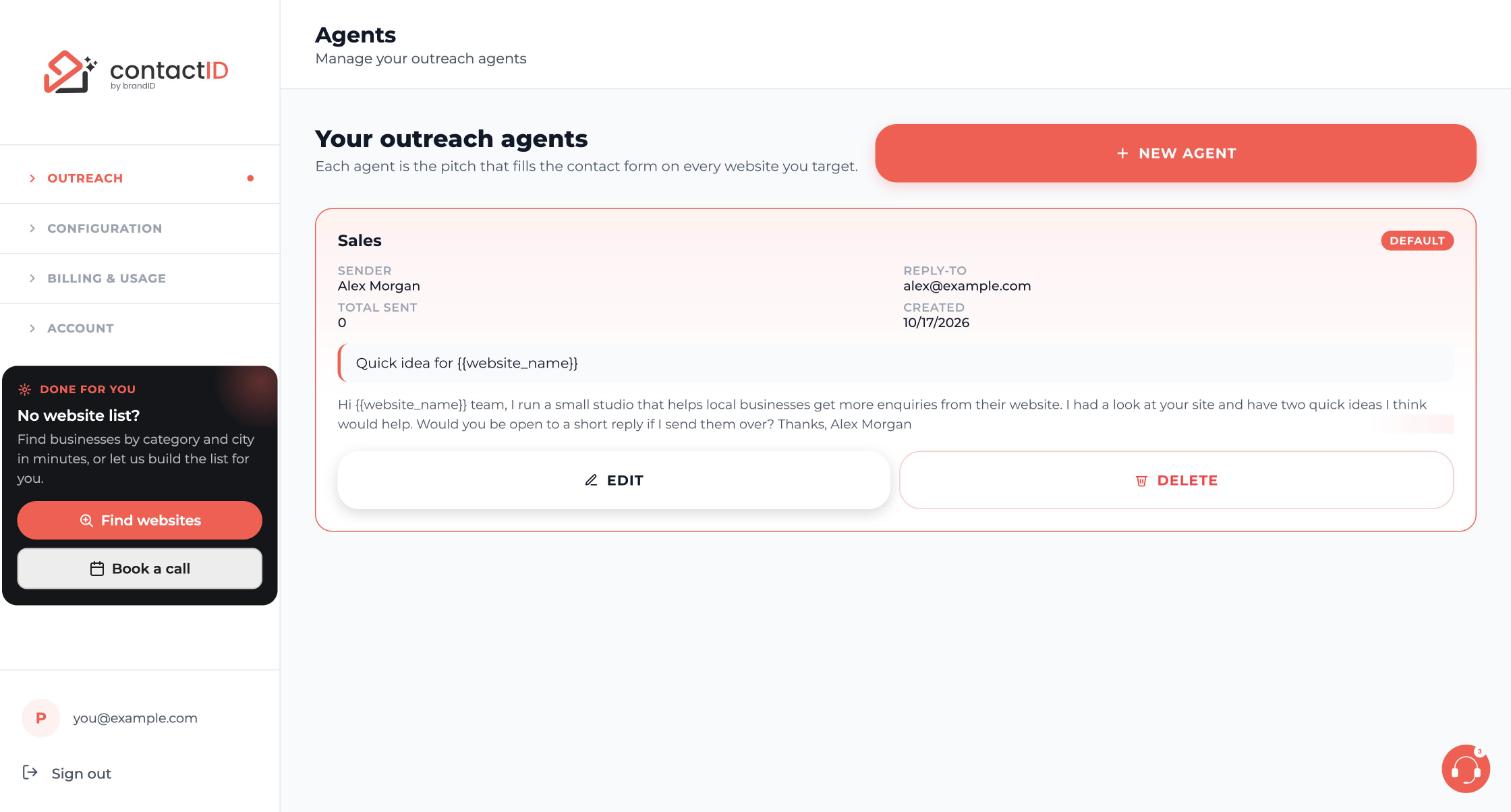
In the dashboard sidebar, open the group Outreach and click Agents. The page is titled Your outreach agents and lists every agent with its sender, reply-to email, total sent, subject and message. Press the red NEW AGENT button at the top right.
Name the agent and add the sender details
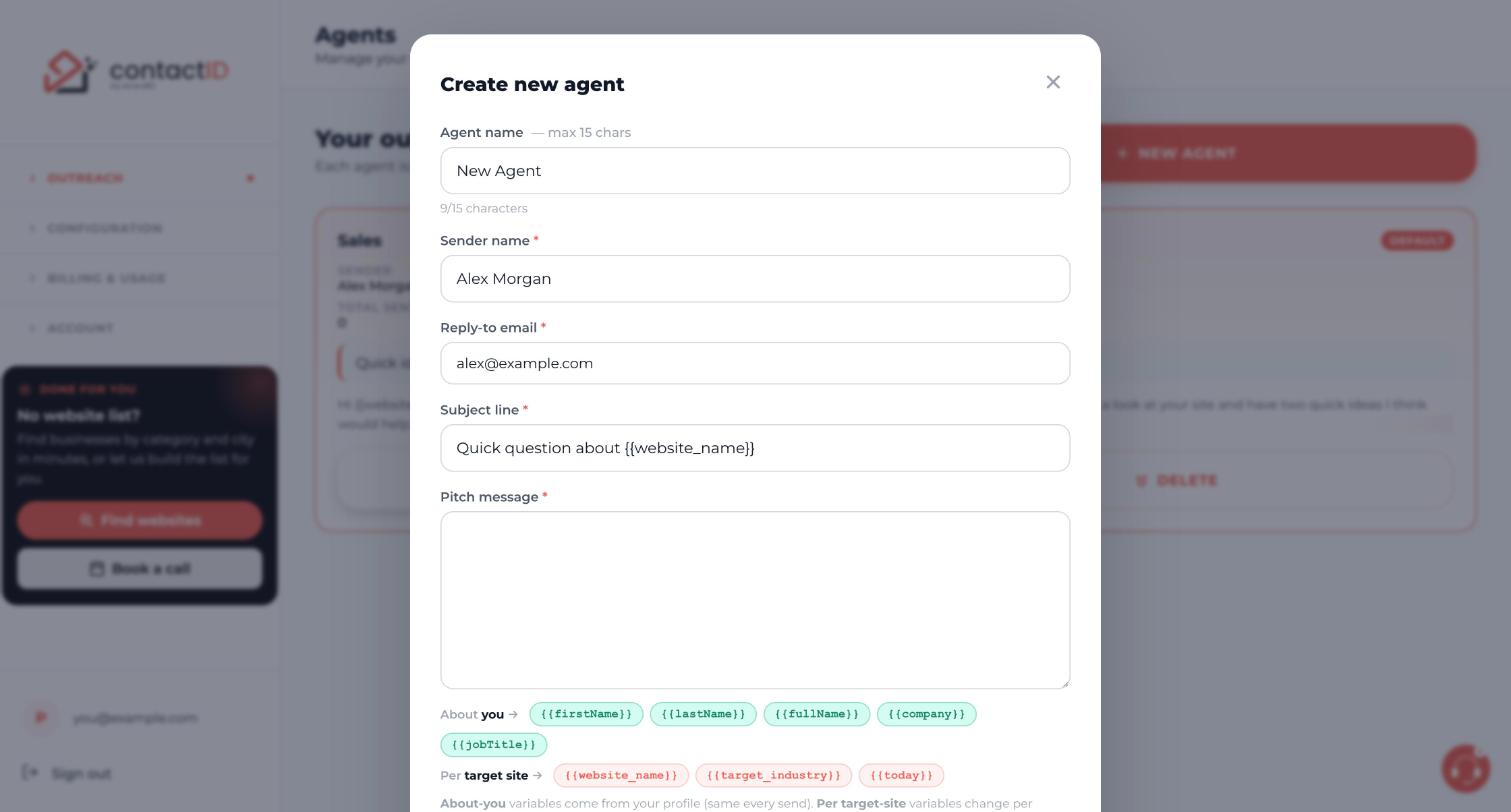
The Create new agent window opens. Fill in the first fields:
- Agent name: a short label only you see, 2 to 15 characters, for example
Web design. A counter under the box shows how many characters you have used. - Sender name: the name the recipient will see, for example
Alex Morgan. Use your real name. - Reply-to email: for example
[email protected]. Use a real inbox you read, because this is where replies land.
Write a subject line
The Subject line sits between Reply-to email and Pitch message, and it is required. New agents start with Quick question about {{website_name}}, where {{website_name}} becomes the name of each website.
Keep it specific and under 60 characters, in normal capitals, for example Homepage ideas for {{website_name}}. Avoid Hi, Business Inquiry, URGENT and fake RE: prefixes.
Only forms that have a Subject field use it. On roughly one form in four or five it appears, and elsewhere only your message is sent.
Write the pitch message
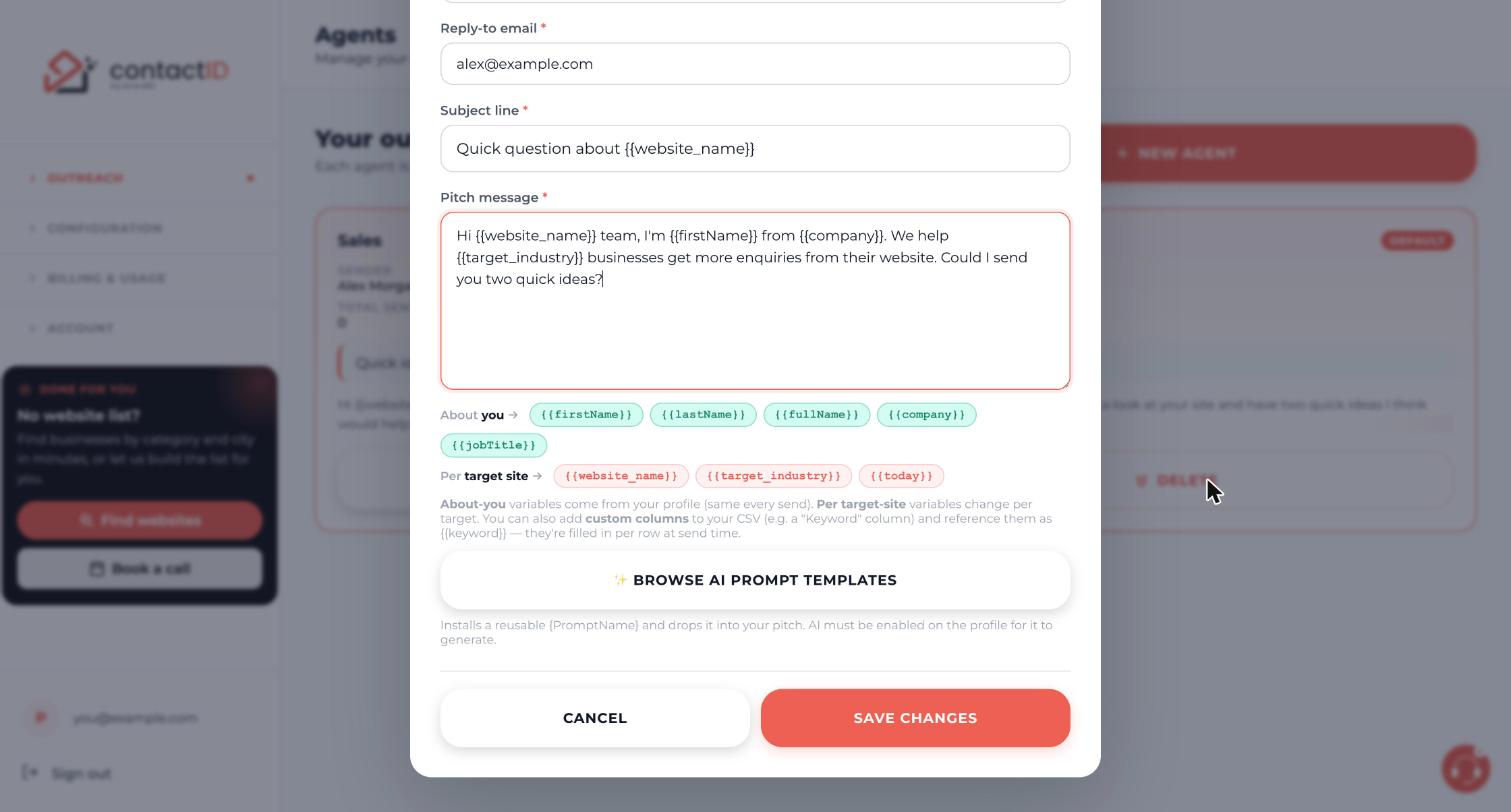
Click into Pitch message and write your message. Contact forms are read quickly, so aim for 60 to 120 words with one idea and one clear ask. Name the website with {{website_name}} at least once. For example:
Hi {{website_name}} team, I’m {{firstName}} from {{company}}. We help local businesses get more enquiries from their website. Could I send you two quick ideas?
Tags such as {{firstName}} and {{website_name}} are replaced for each website when the form is filled. End with one question or one next step, and keep the message under about 2,000 characters.
Save the agent
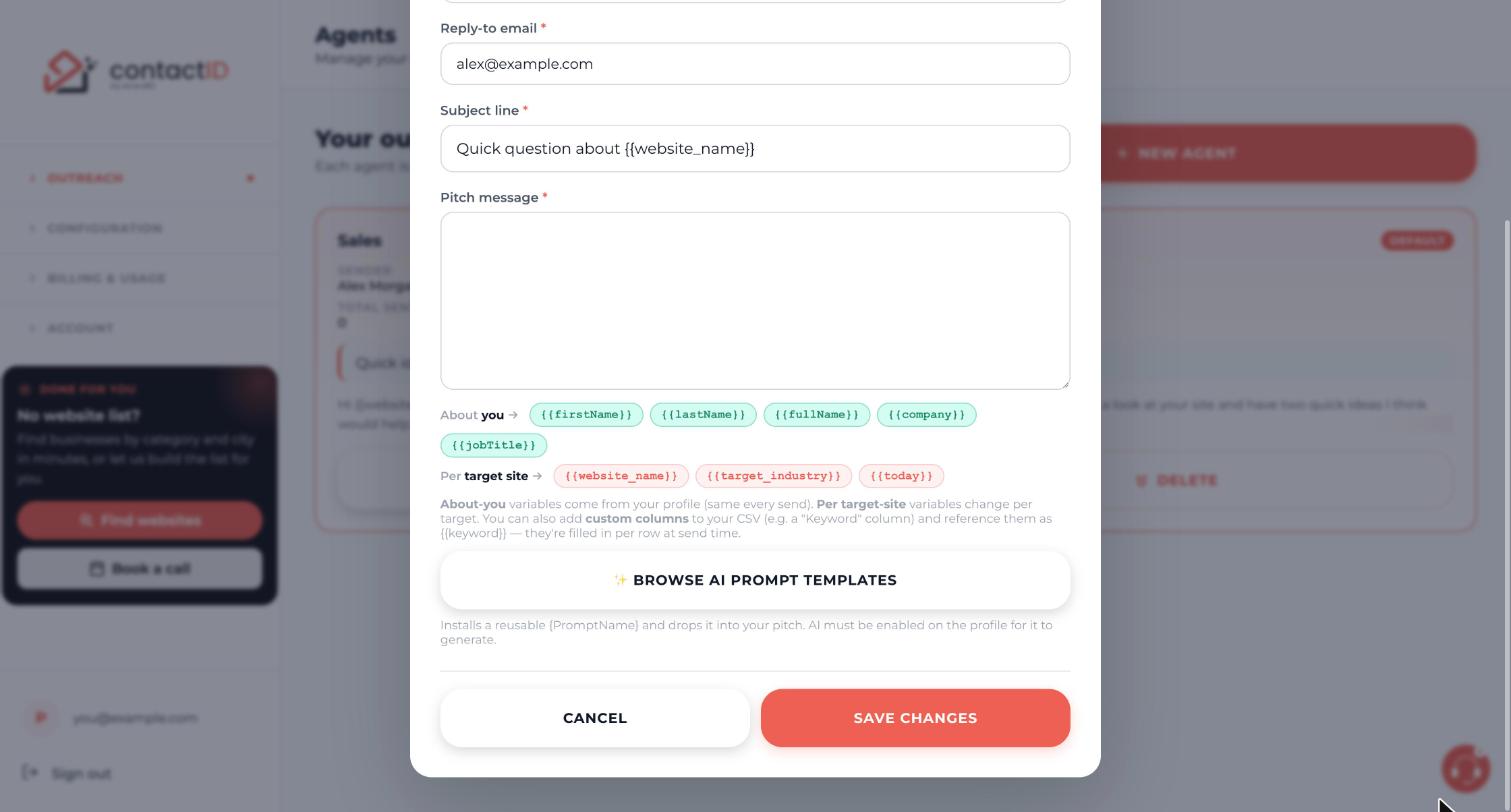
Scroll to the bottom of the window. Press SAVE CHANGES to create the agent, or CANCEL to close the window without saving. Underneath the pitch you also see the tag chips and a BROWSE AI PROMPT TEMPLATES button, which you can ignore for now.
Check the new agent in the list
Back on the Agents page your new agent appears as a card showing the sender, reply-to email, subject and the start of the message. Use EDIT on the card to change anything later. If you have more than one agent, the one with the DEFAULT badge is the default sender. See the guide on default agents to change it.
Add the extra details in the extension
The dashboard form covers the essentials. Open the contactID extension and go to the Agent tab to complete the rest. Your first name, last name, email and phone are used by almost every form. Phone is asked by about one form in three. If a form requires a phone number and yours is empty, contactID skips that website before anything is sent and no credit is used.
Write your phone number with its country code, for example +1 555 123 4567. Optional sections such as Company & job title help forms that ask for a company. The extension also has AI write my message and Start from a template above the editor if you would rather not start from a blank page.
Tips
- Keep one idea and one ask per message. Short, specific pitches get more replies than long, generic ones.
- Use your real name and a monitored email address. Generic names such as John Smith get flagged as suspicious more often.
- Accounts that have never paid include the line Sent via contactID extension at the end of every message. Any purchase removes it for good.
- Run a handful of websites first and read the result in Analytics before you send a large batch.
If something goes wrong
I cannot save the agent.
The fields marked with a red star are required: Sender name, Reply-to email, Subject line and Pitch message. The Agent name must be 2 to 15 characters.
A website was skipped because the form needs a phone number.
Add your phone number, with its country code, to your agent on the Agent tab in the extension. contactID never types a made-up number, so a form that requires a phone is skipped when yours is empty. No credit is used.
My longer message did not reach the extension.
The dashboard lets you type up to 5,000 characters, but a message longer than 2,000 characters does not reach the extension. Shorten it to well under 2,000 characters.
Related how-to guides
Still stuck? We’re happy to help.
Install the extension, start a free trial, or reach out to support.




