
How to update your profile
Change your name, phone number and company details on the Profile page. It takes about two minutes.
Before you start
- A contactID account signed in on the dashboard at https://contactid.brandid.app/
Open the Profile page
In the left sidebar, click Account, then click Profile. The page is titled Your name, business, and contact info, and every field you can edit is on it.
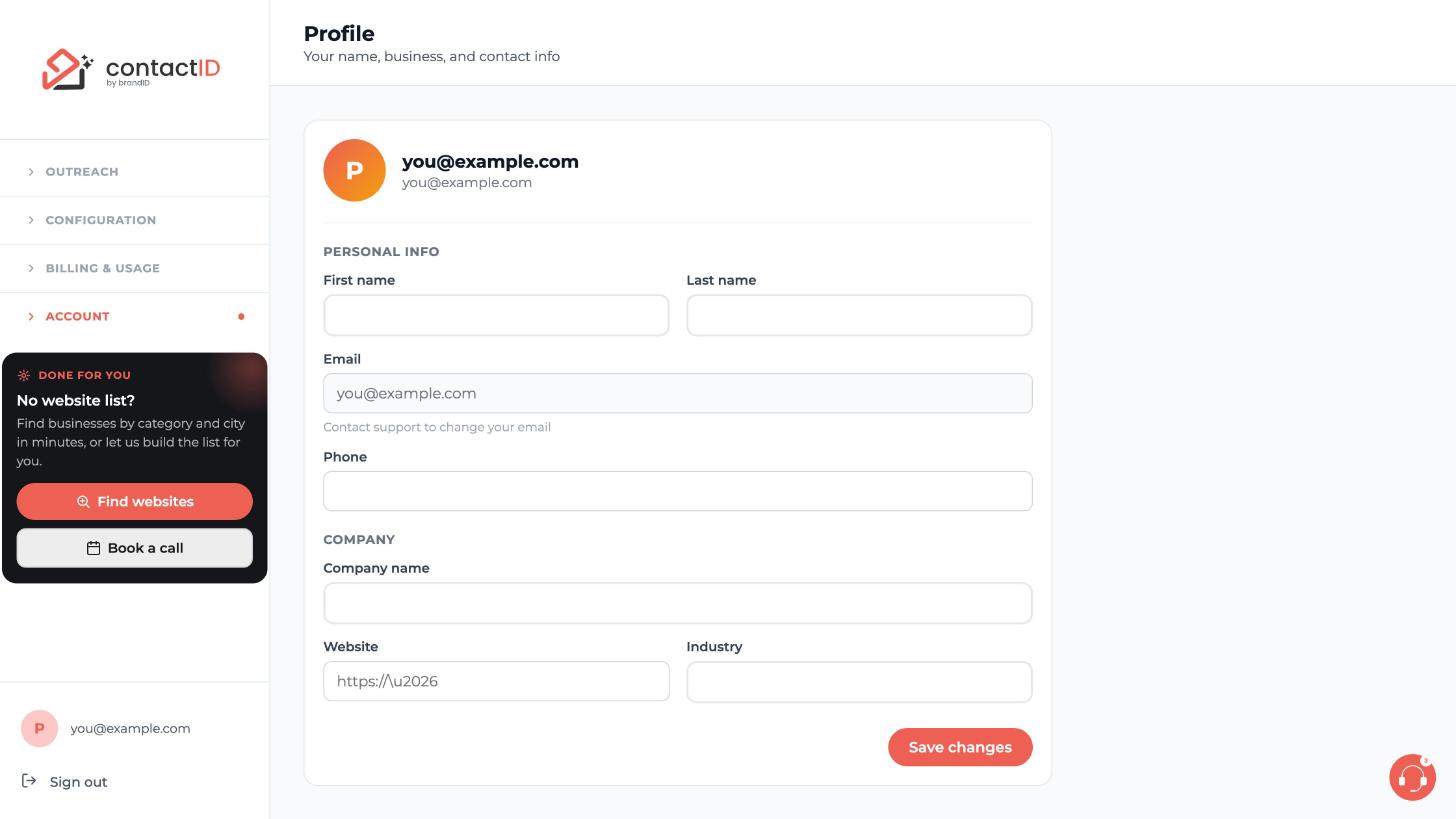
Enter your name
Under Personal info, type your First name and Last name, for example Sarah and Chen. Each needs at least 2 characters.
Add your phone number
Type your Phone with digits only. It may start with a plus sign. Do not use spaces, dashes or brackets, and do not start it with 0. For example, +15555550123.
Fill in your company details
Under Company, type your Company name, your Website, starting with https://, and your Industry.
Know that your email is locked
The Email field is greyed out and says Contact support to change your email. You cannot change it in this form. To change it, contact support from the dashboard, or write to [email protected] from your current account email with the new address you want.
Click Save changes
Click Save changes at the bottom of the form. A Profile saved message appears. If a value is not accepted, you see Please check your input data, so check the name, phone and website fields and save again.
Tips
- Your profile is your own account information. It is separate from an Agent, which is the sender identity used on the forms, so the two can differ.
- There are no time zone, language or email preference settings in the current version.
- Tips and onboarding emails can be stopped with the unsubscribe link at the bottom of each one.
If something goes wrong
I see Please check your input data.
A value was not accepted. Names need at least 2 characters, and the phone must be digits only, optionally starting with a plus sign, with no spaces, dashes or brackets and not starting with 0.
I need to change my email address.
The field is locked. Contact support from the dashboard or write to [email protected] from your current account email, with the new address you want.
Does the profile change what my messages say?
No. Messages come from your Agent, not from your profile.
Related how-to guides
Still stuck? We’re happy to help.
Install the extension, start a free trial, or reach out to support.




