
How to top up your AI credits
AI credits pay for AI-written messages and drafts. Add funds on the Buy AI Credits page in about two minutes.
Before you start
- A contactID account
- A payment card. Payment is taken through Stripe Checkout
Open Buy AI Credits
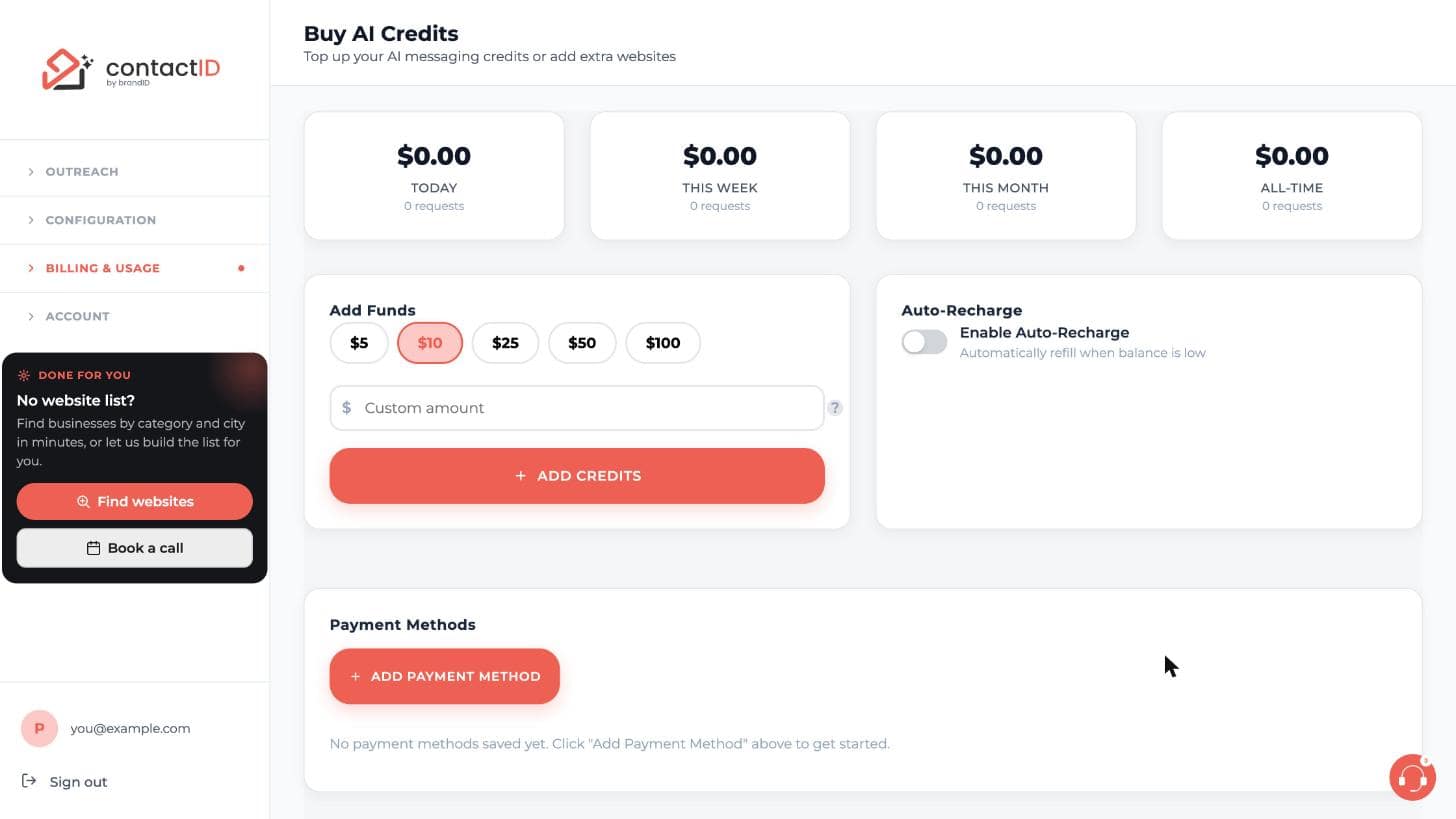
In the dashboard sidebar, open the group Billing & Usage and click Buy AI Credits. The page is titled Top up your AI messaging credits or add extra websites.
AI credits are a separate balance in US dollars. Website credits are not affected, and no plan includes AI credits, so every account tops up the AI wallet itself.
Look at your spending
Four cards at the top show what you spent Today, This week, This month and All-time, with the number of AI requests for each. Use them to judge how much you need. Under Recent Usage further down, every AI request is listed with its model and cost.
Choose an amount
In the Add Funds box choose a preset: $5, $10, $25, $50 or $100. Or type your own number into Custom amount. The smallest top-up is $5 and the largest is $500. There is no bonus on AI top-ups, so you pay exactly what is added, and the balance does not expire.
Press ADD CREDITS and pay
Press ADD CREDITS. You are taken to Stripe Checkout, where you complete the payment yourself. Enter your payment details on Stripe’s page. The credits are added the moment the payment completes.
Confirm the credits arrived
Return to Buy AI Credits. Your top-up is listed under Payment History, where auto-recharge charges are listed too. In the extension, open the account menu and look at the AI credits row. It shows your balance and says Low balance when it drops under $1.
Top up from the extension if you prefer
Open the extension, click your avatar to open the account menu, click the AI credits row, then Add or Manage. The AI Wallet sheet shows the balance, what you spent today and this month, and a Pricing tab with each model’s price. It also opens by itself when a run pauses because the balance ran out.
Resume a paused run
If a run paused because the AI wallet was empty, the website that needed the AI is back in the queue. After you add credits, go to the Send tab and press Resume. Sending continues from where it stopped. Nothing is charged for the pause, and no website was sent without its AI text.
Tips
- On the default model one placeholder costs about $0.0003 per website. A batch of 1,000 websites with one placeholder is about $0.30, so $5 goes a long way.
- To estimate a batch, multiply websites by placeholders by the price of one call on your model, then add about 20 percent as a safety margin.
- To avoid pauses altogether, turn on auto-recharge. See the guide on AI auto-recharge.
If something goes wrong
Pressing Start sending says my AI-written messages need credits.
An empty AI balance blocks the start. Press Add credits or top up on Buy AI Credits. If the balance may not cover the whole run, the sheet AI credits may run out shows an estimate and also offers Continue anyway.
I paid but I do not see the credits.
Credits are added the moment the payment completes. Check Payment History on Buy AI Credits. If a charge was made in error or twice, write to [email protected] with your account email and the transaction details.
Can I get a refund on unused AI credits?
Used credits are not refundable. Refunds of unused balance are not automatic and are decided case by case. Write to [email protected] with your account email and the transaction details.
Related how-to guides
Still stuck? We’re happy to help.
Install the extension, start a free trial, or reach out to support.




