
What to ask an AI app: find websites and prepare a send
Example requests to give a connected AI app, from finding businesses to preparing a send, and the rules that keep sending in your hands. Allow about 10 minutes.
Before you start
- An AI app connected to contactID (see the guide for Claude or ChatGPT)
- For finding and listing: access of View and change on Find websites and Send lists and imports; for sending, also on Sending
- For anything on websites or sending: Chrome open with the contactID extension signed in to the same account
Check what the app may do
In the dashboard, open Account, AI Assist (MCP) and the Apps tab, then press Change access to check the areas. To let an app unlock a lead list and add it to your Send lists, it needs Change on both Find websites and Send lists and imports. To start sending it also needs Sending. If you only want it to look, leave them on View.
Ask it to find businesses
In a chat with contactID turned on, describe the businesses in your own words. Try:
- Find dentists in Austin and add them to my Send lists
- How many plumbers in Ontario do I already have? Show me a list by city, but do not unlock anything yet
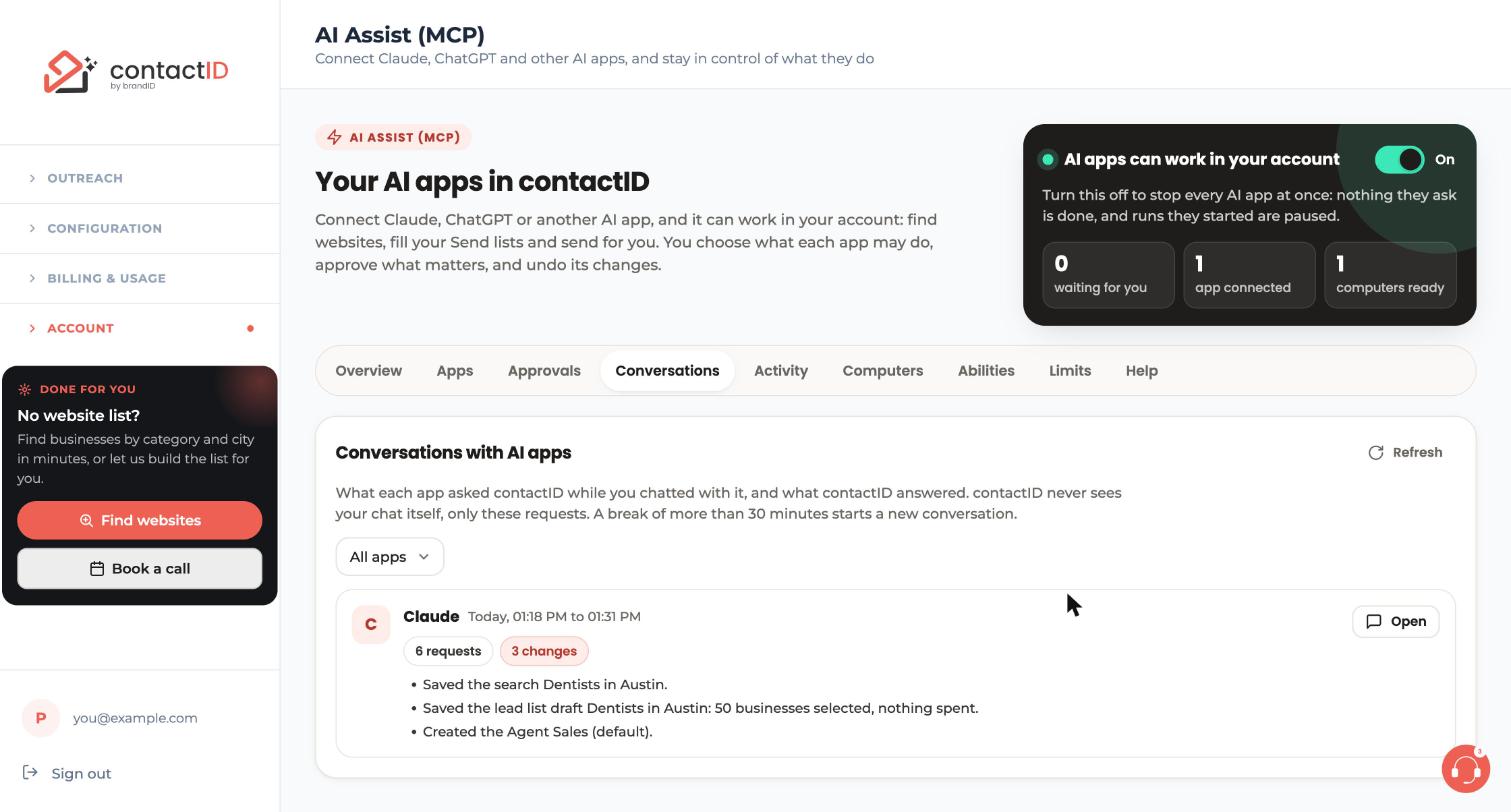
- Save a search for dentists in Austin, and build a lead list draft of 50 businesses
Finding businesses and saving a draft cost nothing. Unlocking a lead list uses lead credits, so the app asks you first and tells you exactly what will happen.
Ask it to prepare your message, not send it
Try:
- Show me what my default Agent would write for a dentist, as a preview
- Check my message for mistakes and show me how it looks on one of these websites
- Tell me what would happen if I sent this list, but do not start
Check your Agent, targets and message yourself
Before anything is sent, check three things yourself: the Agent that will send (name, sender, subject and pitch message), the websites that will receive it (your Send lists and Settings, Targeting), and the message itself. Read each one in contactID, not only in the chat.
Start sending only when you choose to
Sending never happens on its own. An AI app sends only when you start sending yourself, or when you say yes to the exact plan it shows you in the chat, for example “Send to 40 websites with the Sales Agent, up to 40 website credits”. Reply yes only if that matches what you checked. If you are not sure, say no or ask it to change the plan.
A run an AI app starts sends at most the number of websites you said yes to, then stops. A run larger than your limit waits for your approval on the AI Assist page, and you get an email.
Keep Chrome open, and watch what happens
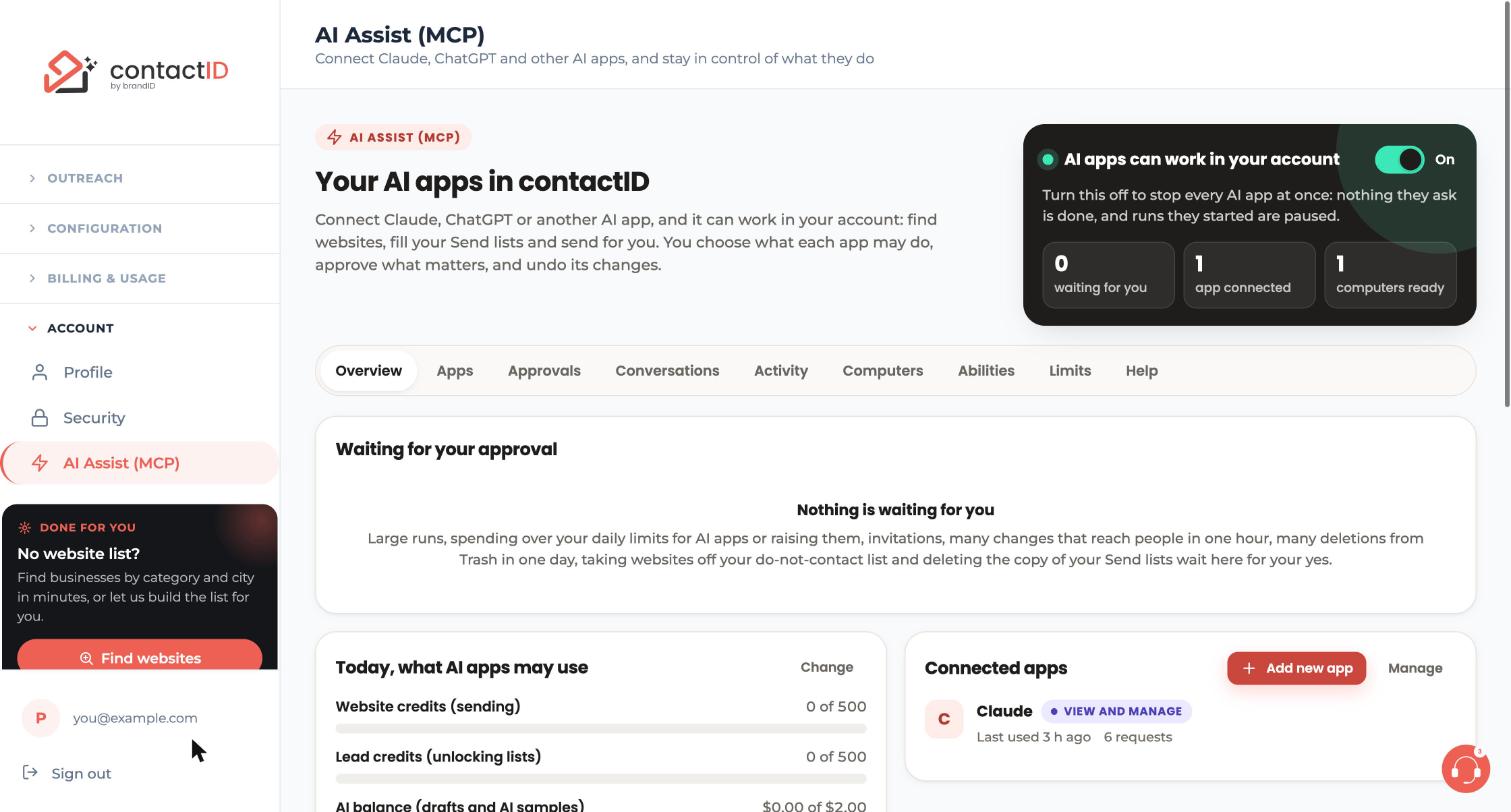
Sending and checking websites happen in the contactID extension, so Chrome must be open with the extension signed in to the same account. The side panel does not need to be open. Then open Account, AI Assist (MCP), Overview: waiting for you shows requests that need your approval, and Today, what AI apps may use shows credits used against your limits.
To stop at any time, use the switch at the top of that page, which pauses every AI app and the runs they started.
Tips
- Website text such as business names and reviews reaches the AI app as information, never as instructions, and nothing that reaches people happens without your yes.
- What an app does uses the same credits as when you do it yourself: website credits for sending, lead credits for unlocking, AI balance for message drafts and AI samples.
- Everything an app did is listed on the Activity and Conversations tabs, and changes to your own things can be undone there for 30 days.
If something goes wrong
The app says it cannot reach my computer
Open Chrome with the contactID extension signed in to the same account, and check Let AI apps use contactID on this computer is on in Settings, Sync & AI access.
The app says a limit is reached or a request is waiting
Open AI Assist (MCP), Approvals to approve or reject a waiting request, or the Limits tab to change your limits.
The app says AI apps are paused
Turn the switch at the top of the AI Assist page back On.
Related how-to guides
Still stuck? We’re happy to help.
Install the extension, start a free trial, or reach out to support.




