
How to block websites with the do-not-contact list
List the websites contactID must never send to, so they are skipped before anything is sent and no credit is used. It takes about two minutes.
Before you start
- contactID installed in Chrome and signed in to your account
- The websites, domains or email addresses you never want to contact
Open Settings and go to Targeting
In the left sidebar, click Configuration, then click Settings. Open it in the Chrome where contactID is installed and where you are signed in to the same account, because each computer keeps its own settings.
Click Targeting in the list on the left of the page. The Do not contact box is the first thing in this section.
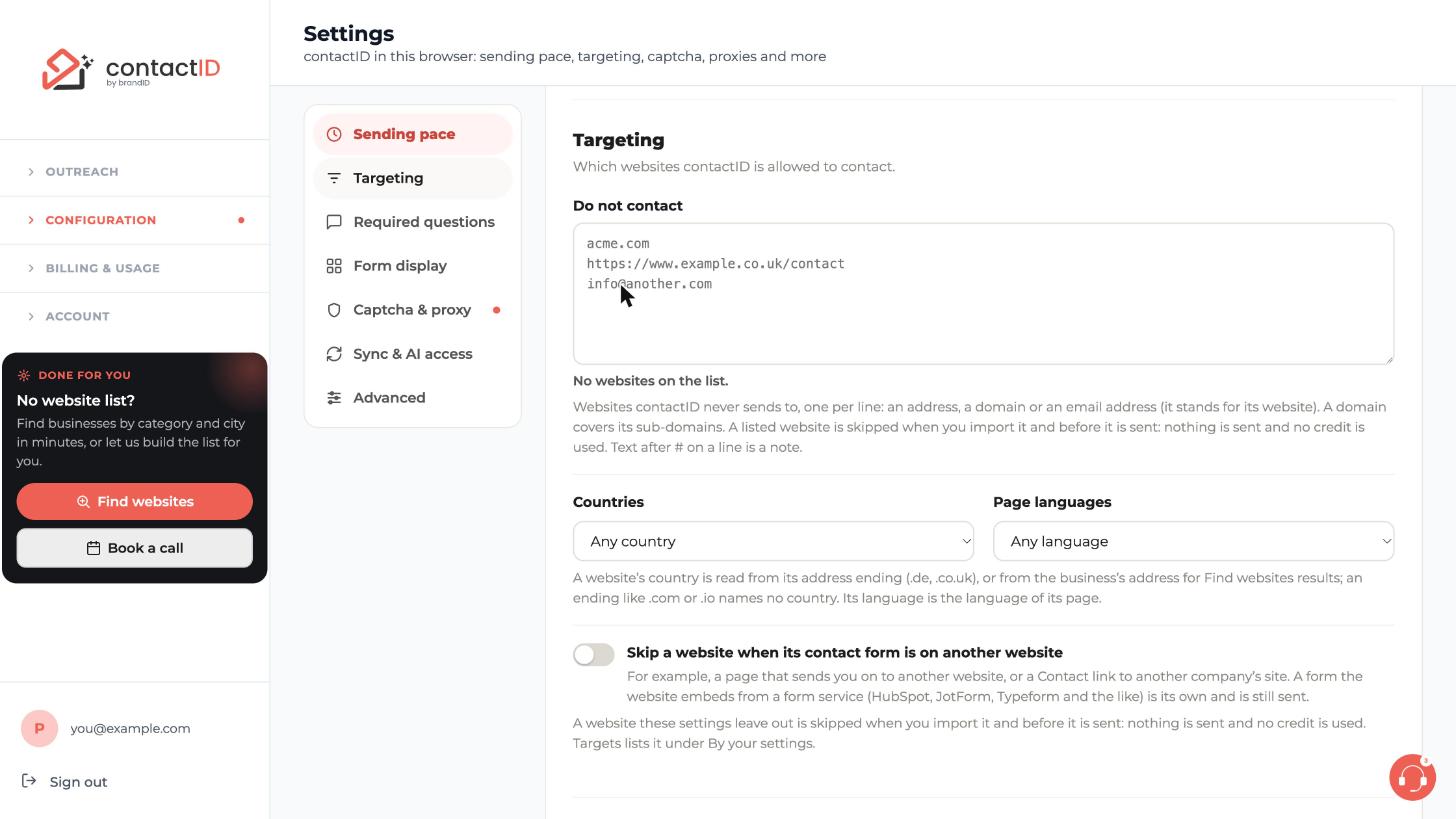
Type one website per line
Click inside the Do not contact box and type one entry per line. Each line can be:
- a domain, for example
acme.com, which also covers its sub-domains - an address, for example
https://www.example.co.uk/contact - an email address, for example
[email protected], which stands for its website
Text after # on a line is a note for you.
Press Save
Press Save at the top right of the page. Nothing changes until you do, and contactID then uses the list at once. The line under the box reads No websites on the list. while it is empty.
See how a listed website is treated
A listed website is not checked when you import it, and a queued one is not sent to. It shows with a reason that ends with (Settings), such as Not sent, no credit used: … is on your do-not-contact list (Settings). No credit is used.
On the Targets tab of the side panel these websites are listed under By your settings. On the Send tab they sit under the No form filter.
Remove a website from the list later
Open Settings, Targeting again, delete that website’s line from the box and press Save. A website that was skipped earlier is only checked again when you press Retry on it, and it then uses your settings as they are at that moment, so change the list first.
Tips
- Use a domain such as acme.com to block every page and sub-domain of a website in one line.
- The list is kept in the browser where you set it and goes with your settings when you use Export settings under Advanced.
- The same Targeting section can also keep only, or leave out, some countries and page languages, and skip a website whose contact form is on another website. All of these are off until you set them.
If something goes wrong
A website on my list still appears in my queue.
It is skipped, not sent. Look for it under By your settings on the Targets tab or under the No form filter on Send, with the reason ending in (Settings). No credit is used.
I changed the list but a skipped website is still skipped.
Retry checks the website again with your settings as they are then. Change and save the list first, then press Retry.
Why was a website skipped that is not on my list?
The other Targeting settings can leave a website out: its country, the language of its page, or a contact form that lives on another website. The reason on its card says which one, and it ends with (Settings).
Related how-to guides
Still stuck? We’re happy to help.
Install the extension, start a free trial, or reach out to support.




