
How to install contactID and open the app
Create your account, add the contactID Chrome extension, pin it to your toolbar and open the app. It takes about five minutes.
Before you start
- Google Chrome, or another Chromium browser such as Brave, Microsoft Edge, Opera or Arc (Firefox and Safari are not supported)
- An email address you can open, or a Google account
- A computer, because the extension is installed in a desktop browser
Create your contactID account
Go to contactid.brandid.app and click Get started free, then Sign up for free on the sign-in screen. You can sign up in two ways:
- Email. Enter your email address. contactID is passwordless: it sends a 6-digit code to that address, and entering the code verifies your email and signs you in.
- Continue with Google. The fastest way. Google has already confirmed your address, so there is no code step.
An emailed code expires after 10 minutes. You have 5 attempts per code, and you can ask for a new one after 2 minutes. Check your spam folder if it does not arrive within a minute.
Answer the short onboarding questions
contactID asks a few questions so it can fill forms for you:
- About you: your full name, country, a phone number (recommended, because many forms ask for one) and how you found contactID.
- Your business: company name, website, industry and role. All optional; Skip for now moves on.
- Targets: choose I have my own list or Help me find websites.
- Agent: your first sender, prefilled from your answers. Press Create agent to save it.
Open the Launch App page
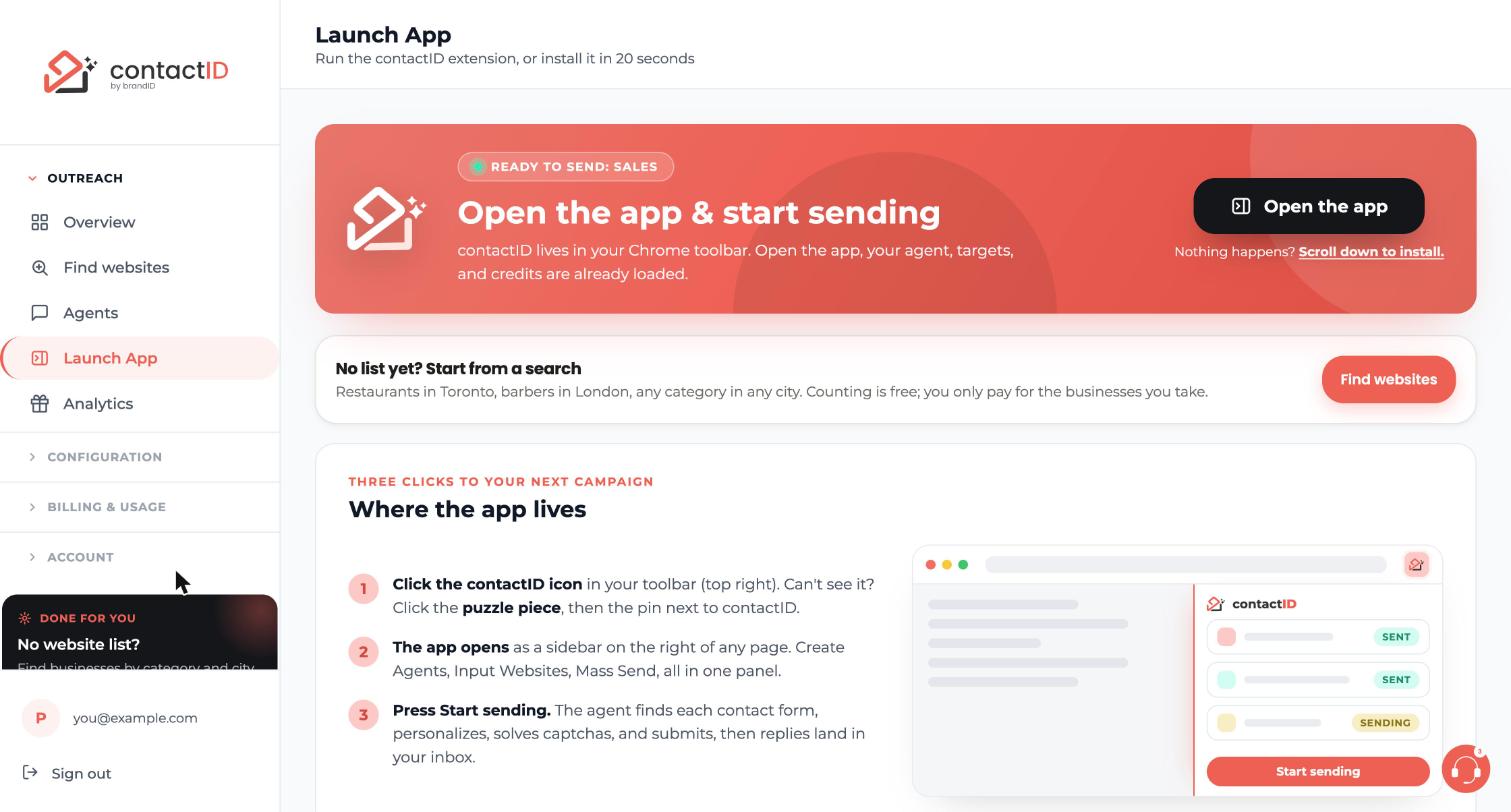
At the last onboarding step the Open app & start sending screen checks whether the extension is installed. You can also reach the same place any time: in the dashboard sidebar, under Outreach, click Launch App.
The big banner has an Open the app button. If the extension is not installed yet, nothing will happen when you press it. In that case click the Scroll down to install link beside it and use the Add to Chrome button there. That opens the Chrome Web Store listing for contactID.
Add contactID to Chrome
On the Chrome Web Store listing, click the blue Add to Chrome button. Chrome shows a dialog listing the permissions contactID needs. Click Add extension to confirm. Installing takes about 30 seconds.
contactID uses these permissions to open the websites in your list in background tabs and fill their contact forms. It only works on pages in your queue.
Pin contactID to your toolbar
Chrome hides new extensions behind a puzzle-piece icon at the top right of the window. To keep contactID one click away:
- Click the puzzle piece icon.
- Find contactID in the list.
- Click the pin icon next to it.
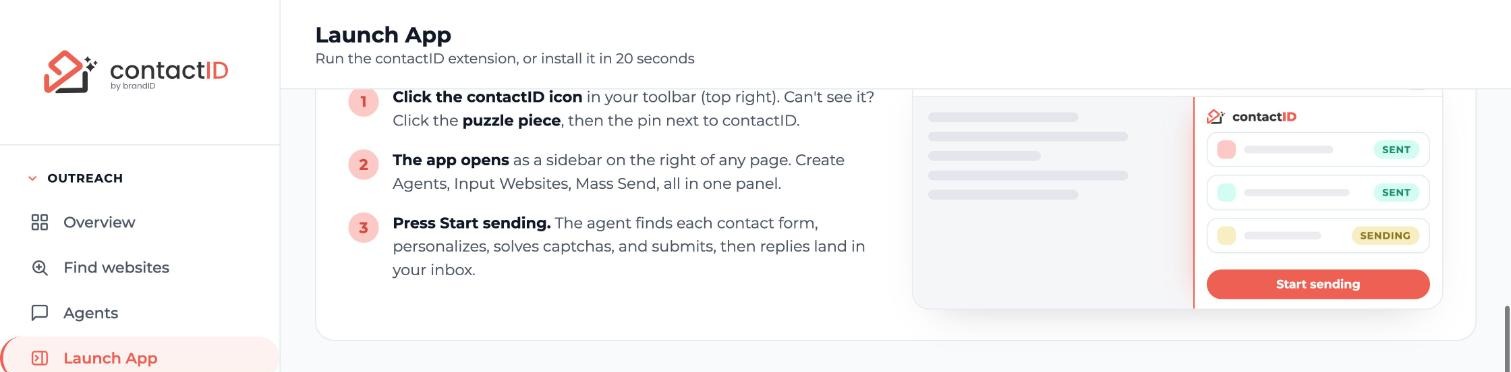
The contactID icon now stays in your toolbar. The Launch App page shows the same three clicks in its Where the app lives panel.
Open the app and sign in
Click the contactID icon in your toolbar. The app opens as a side panel on the right of your browser. If you are already signed in to the dashboard in this same browser, the extension signs in to the same account by itself. Otherwise the header shows Get Started. Click it and choose how to sign in:
- Google: one click with your Google account.
- Email code: click Sign in without a password, enter your email, press Send code, then type the 6-digit code.
Use the same email you used to create your account. Your session lasts 30 days and extends every time you use contactID.
Learn the four tabs
The side panel has four tabs:
- Setup: a three-step checklist that ticks itself as you go, plus short videos.
- Agent: your senders, their details and their message.
- Targets: where you paste websites or drop a file, and check them before sending.
- Send: where you start, pause, resume or stop a run and follow every website.
The fullscreen button in the header opens the same app in a wide tab. The panel stays open until you close it, and a run continues while you use other tabs.
Tips
- Pin the extension first. A pinned icon is the easiest way to reopen the app, and the Open the app button on the Launch App page opens it for you too.
- Sign in on each browser you use. Your agents and results sync through your account, but the websites queued on the Send tab stay in the browser where you added them.
- Settings are kept per computer. Open Settings from the account menu in the Chrome where contactID is installed and signed in.
If something goes wrong
The extension icon does nothing, or the side panel is blank. What should I do?
Open chrome://extensions/, find contactID and check that its switch is on. Then click the circular Reload arrow on the contactID card, wait five seconds and click the toolbar icon again. contactID needs Chrome version 116 or newer, so update Chrome if it is older. If nothing helps, remove the extension and add it again. Your agents, credits and history stay on your account.
I clicked Open the app and nothing happened.
That means the extension is not installed in this browser yet. On the Launch App page click Scroll down to install, then Add to Chrome, and confirm with Add extension.
I am signed in on the dashboard but the extension asks me to sign in.
Open the dashboard in a normal tab of the same Chrome profile and sign in there; the extension then signs in to the same account. If that does not work, reload the extension on chrome://extensions/. As a last step, choose Sign out in the extension’s account menu and sign in again.
The 6-digit code never arrives.
Check your spam folder first. A code is valid for 10 minutes, and you can request a new one after 2 minutes. Signing in with Continue with Google avoids the code entirely.
Related how-to guides
Still stuck? We’re happy to help.
Install the extension, start a free trial, or reach out to support.




