
How to pause, change access or disconnect an AI app
Stop every AI app at once, narrow what one app may do, or disconnect it for good. Each takes under a minute.
Before you start
- At least one AI app connected to contactID
Pause every AI app at once
In the dashboard, open Account, then AI Assist (MCP). At the top right, the box AI apps can work in your account has a switch. Turn it Off to stop every AI app at once: nothing they ask is done, and runs they started are paused.
Connections stay. Turn the switch back On when you are ready.
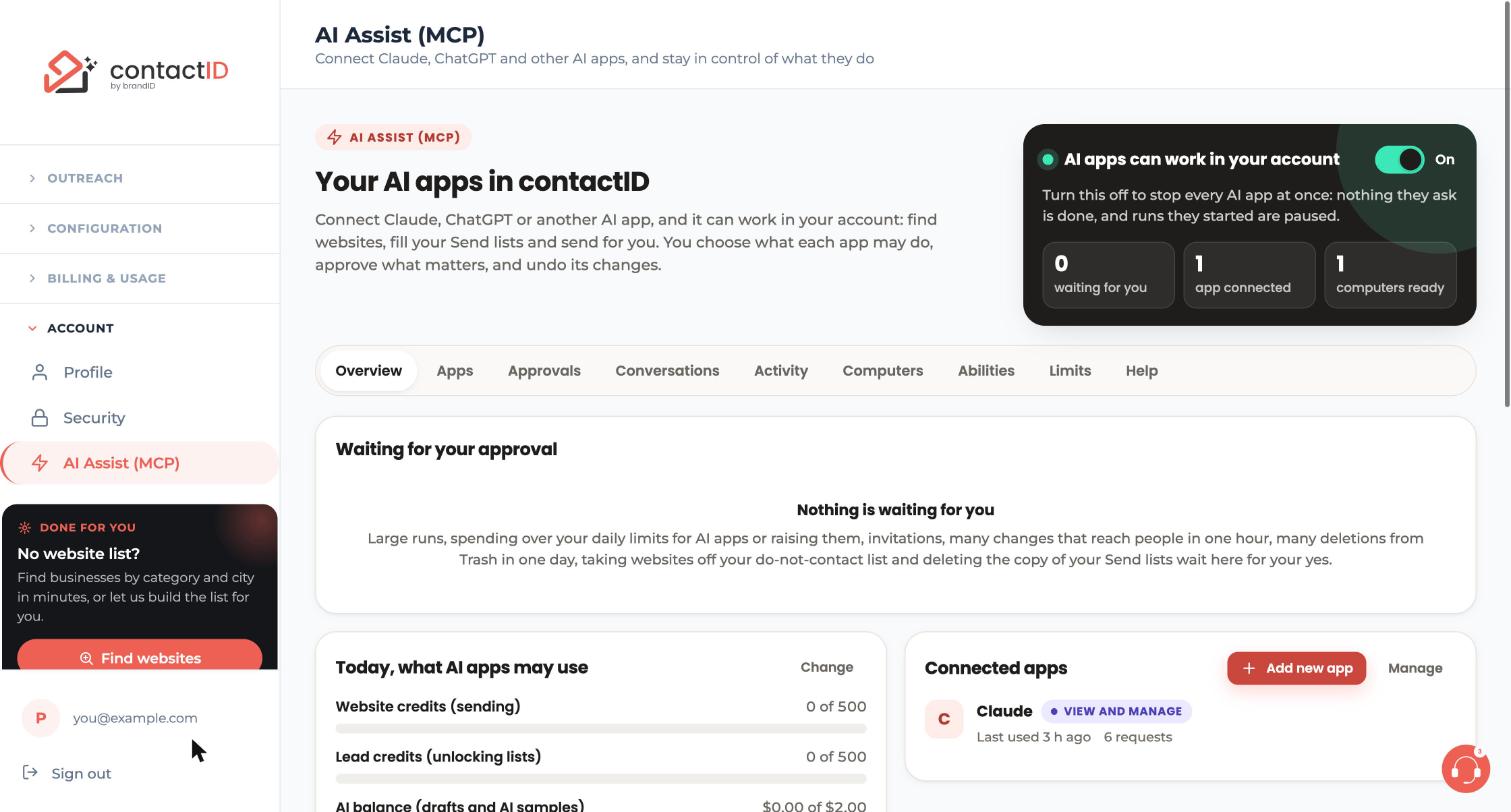
Open the Apps tab
Open the Apps tab. Connected apps lists each app with what it may do, when it connected and when it was last used. Under each app are two buttons: Change access and Disconnect.
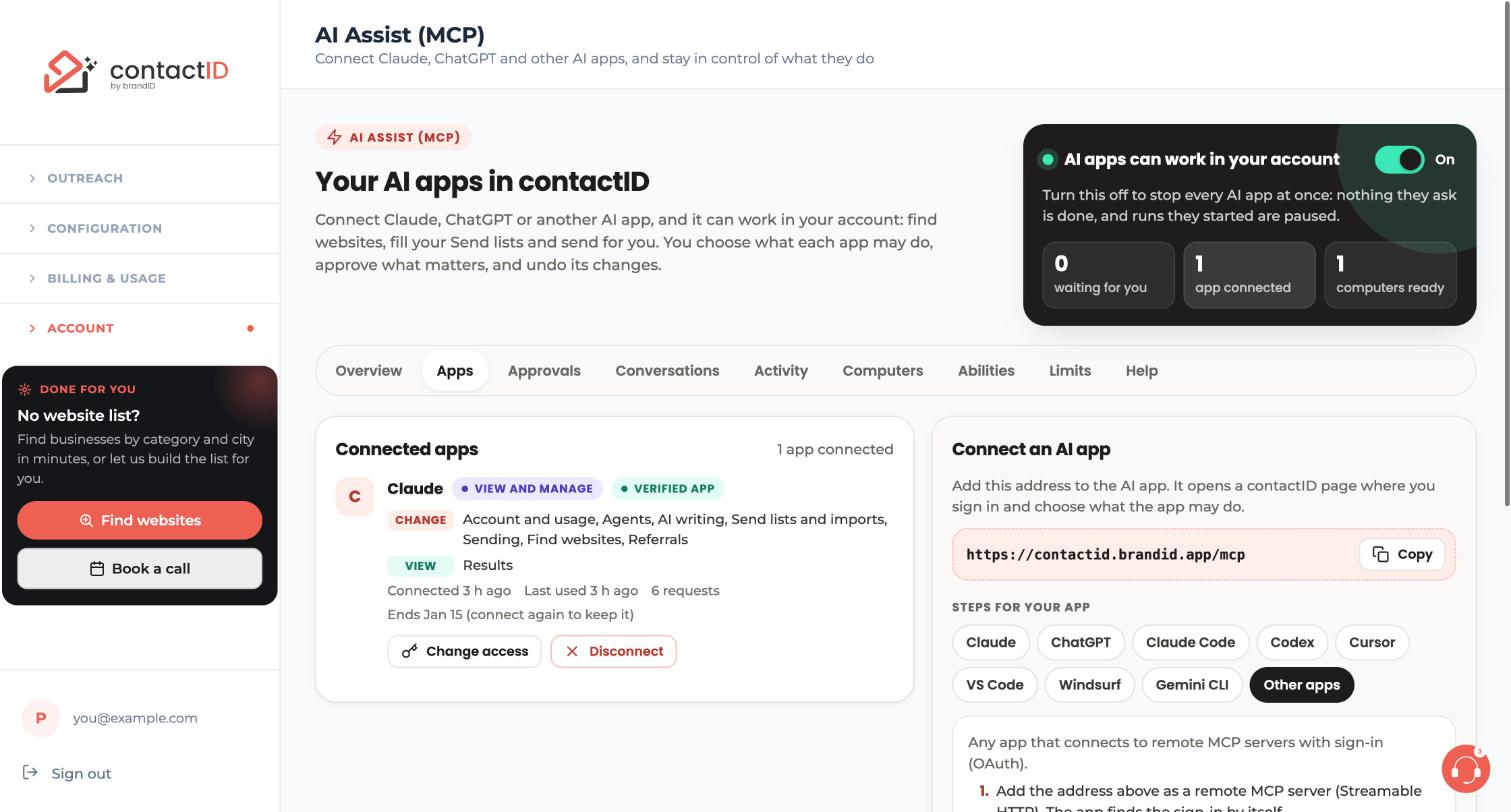
Narrow what one app may do
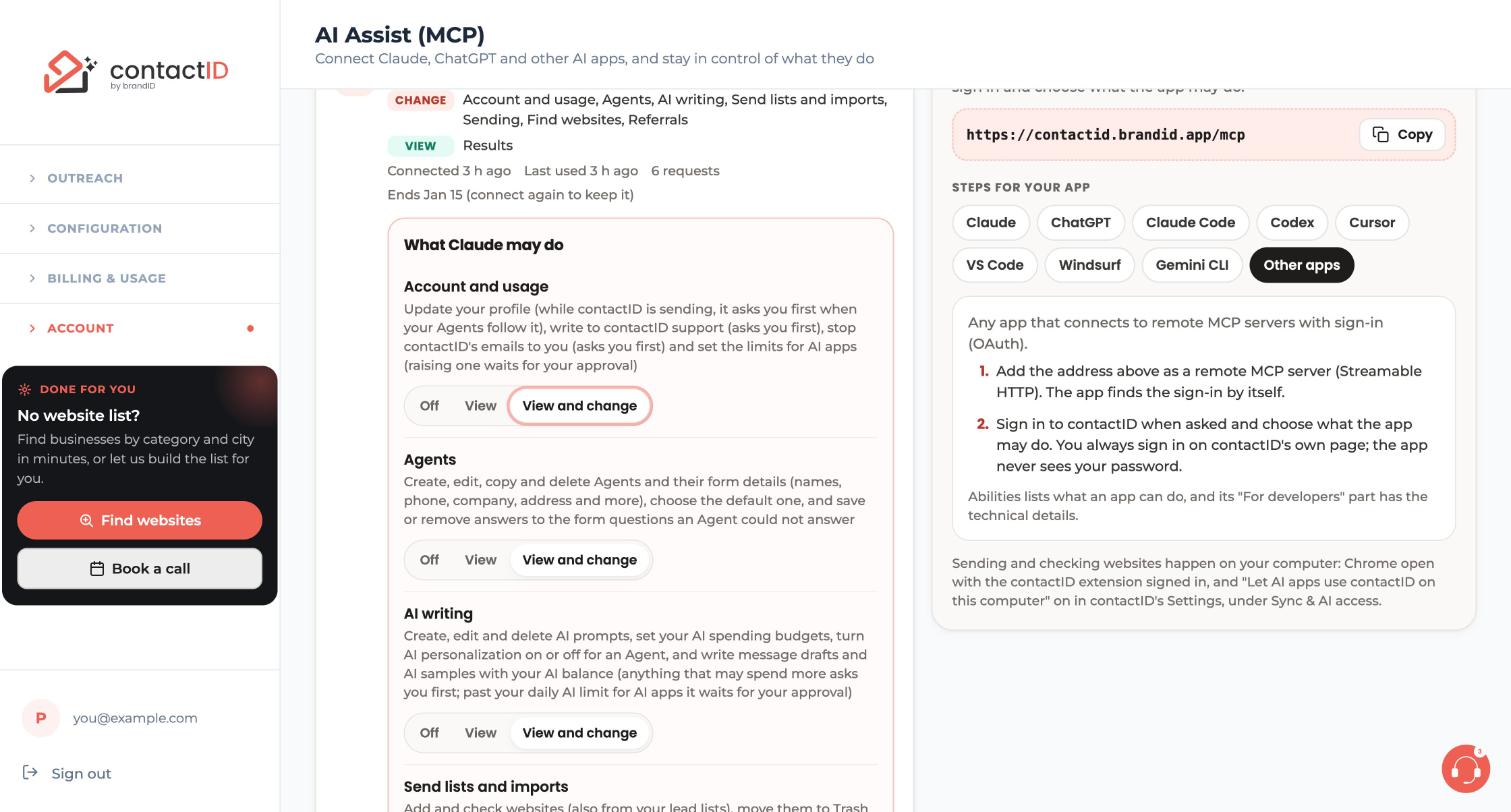
Press Change access on the app. The What Claude may do panel (showing your app’s name) opens with Off, View and View and change for each area. Choose less access for the areas you want to limit.
Less access applies at once, and work that needed the removed access stops. More access asks you to confirm it is you with an emailed code.
Disconnect an app
On the Apps tab, press Disconnect on the app. To remove all of them, use Disconnect every app. The app’s access ends at once, its requests waiting for you are closed, and what it asked your computers to do stops.
You can connect it again at any time.
Stop a run an app already started
A run the app already started goes on after you disconnect it. To stop it, turn the switch at the top of the AI Assist page (AI apps can work in your account) to Off, which pauses it on every computer, or use the extension’s Send tab on that computer to pause or stop it.
Know when connections end by themselves
A connection lasts 90 days and ends after 30 days unused. A new password ends every connection. The app then asks you to connect again, and Apps lists ended connections with why they ended.
Tips
- Pausing is the quick, reversible option. Disconnecting removes the app until you connect it again.
- On the Computers tab you can also pause or stop AI apps on one computer.
- If the page says contactID support stopped AI apps, write to [email protected].
If something goes wrong
AI apps say they are paused
Turn the switch at the top of the AI Assist page back On. If it says contactID support stopped AI apps, write to [email protected].
A run is still going after I disconnected the app
A run already started goes on until you pause or stop it. turn the switch at the top of the AI Assist page to Off, or pause or stop it from the extension’s Send tab.
The app asks me to connect again
The connection ended (90 days, 30 days unused, a new password or a disconnect). Connect it again with the guide for that app.
Related how-to guides
Still stuck? We’re happy to help.
Install the extension, start a free trial, or reach out to support.




