
How to connect Claude to contactID
Add contactID to Claude as a custom connector so you can ask Claude to work in your account. It takes about 5 minutes.
Before you start
- A contactID account you can sign in to
- A Claude account (web, desktop or mobile). Free plans can add one custom connector; Pro, Max, Team and Enterprise more
- On Team and Enterprise, an owner must first add the connector in Organization settings, Connectors
Open the Apps tab in AI Assist
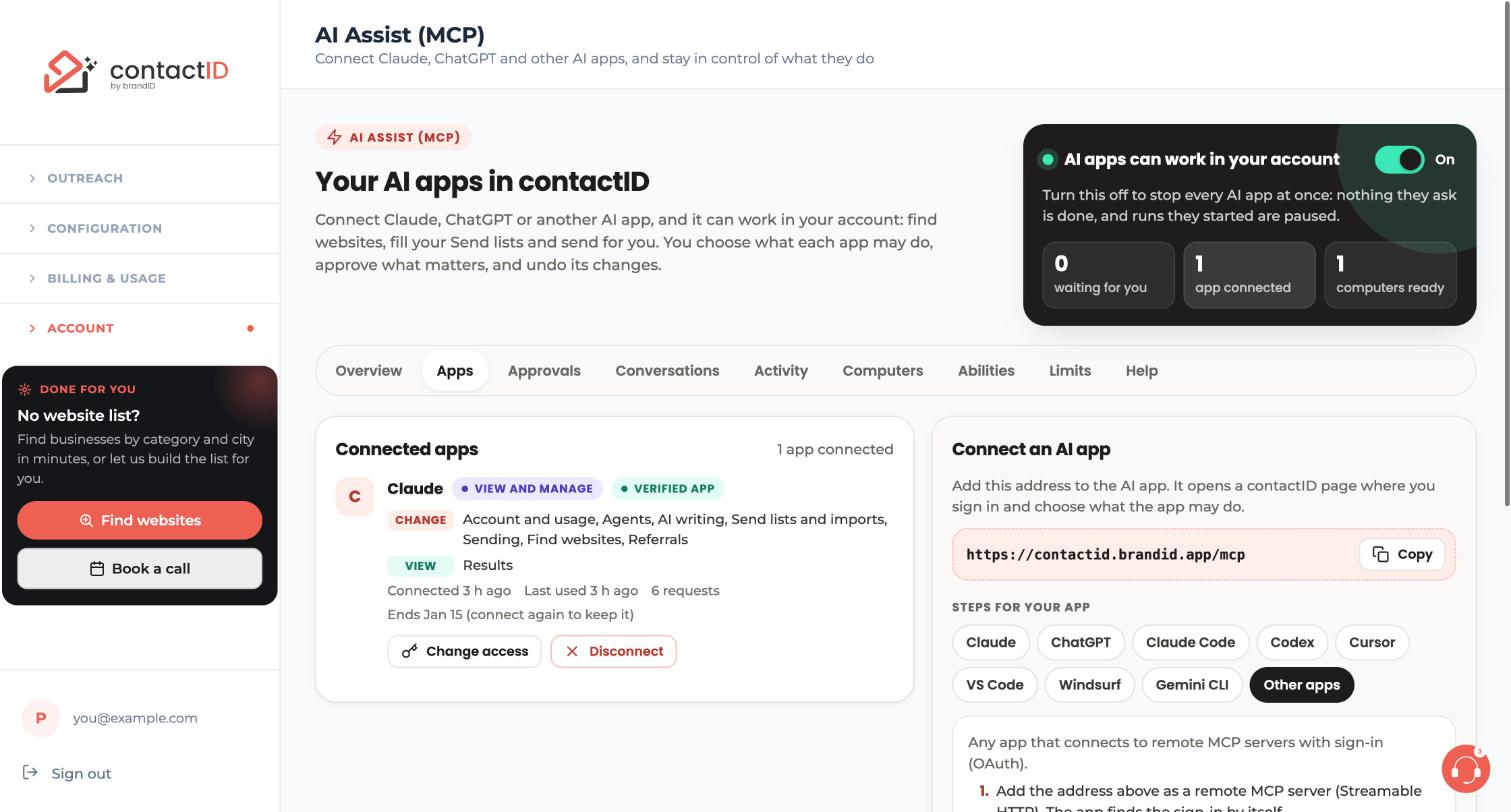
In the dashboard at https://contactid.brandid.app/, open Account in the sidebar and choose AI Assist (MCP), then open the Apps tab.
On the left, Connected apps lists every app you connected. On the right, Connect an AI app holds the address you need.
Copy the address and pick Claude
Press Copy next to the address in the panel:
https://contactid.brandid.app/mcpUnder Steps for your app, press Claude. The panel shows the same steps you follow below.
Add a custom connector in Claude
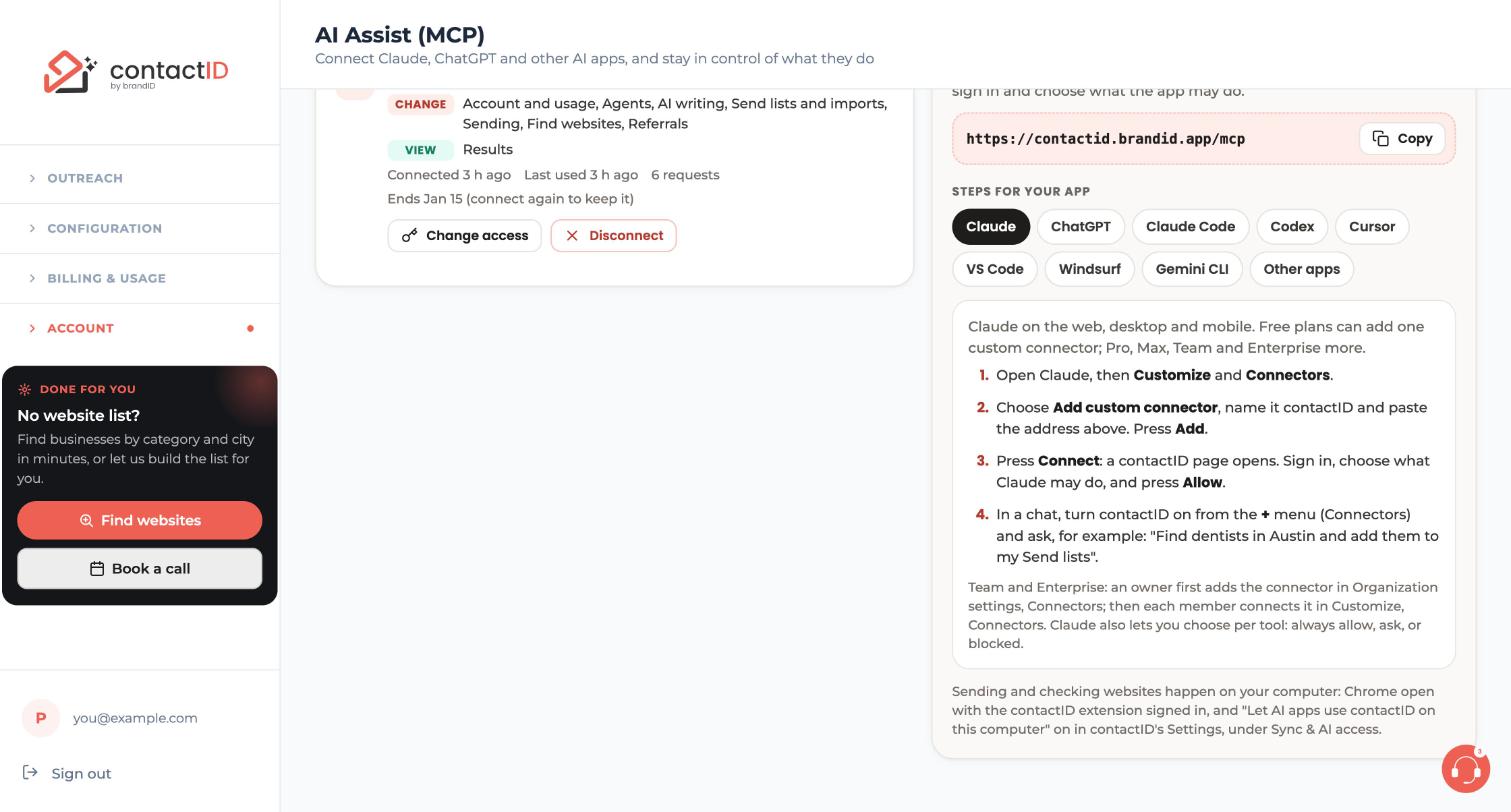
- Open Claude, then Customize and Connectors.
- Choose Add custom connector.
- Name it
contactID, paste the address and press Add.
Press Connect and sign in
In Claude, press Connect. A contactID page opens in your browser. Sign in if you are not already signed in. If you signed in more than 10 minutes ago, enter the 6-digit code contactID emails you (Confirm it is you).
The page shows the app’s name and the address it will return to.
Choose what Claude may do and press Allow
On the same contactID page, choose the access for Claude:
- View only: Claude can look at your account, lists, Agents, results and lead lists, and changes nothing.
- View and manage: Claude can also make changes, with contactID’s safety rules.
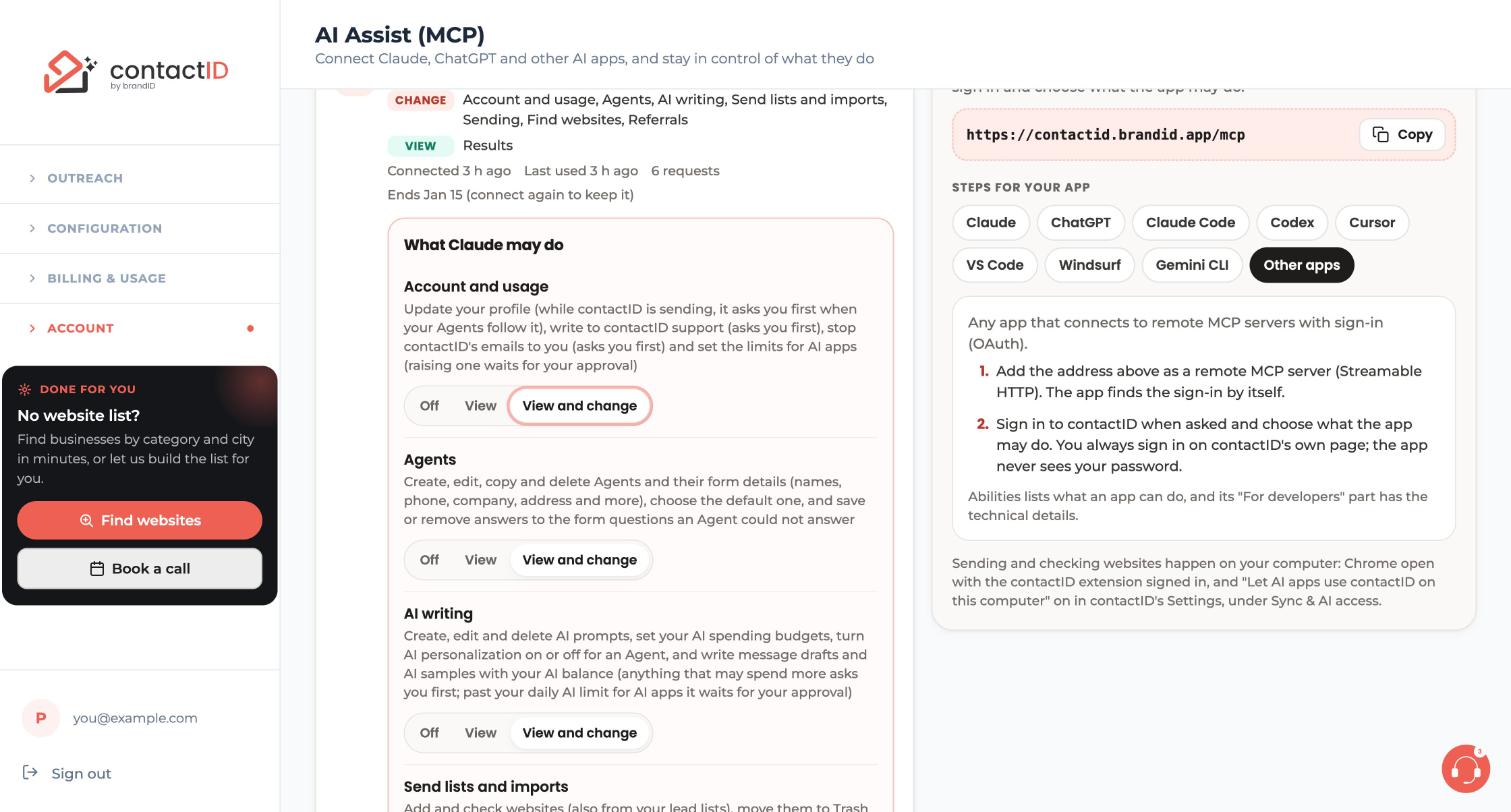
- Custom: for each area, choose Off, View or Change.
If you are not sure, start with View only. You can widen it later. Then press Allow. If this page opened and you did not start it, press Cancel instead.
Turn contactID on in a chat
In a new Claude chat, open the + menu (Connectors) and turn contactID on. Then ask something simple, for example:
Find dentists in Austin and add them to my Send lists
Claude lets you choose per tool: always allow, ask, or blocked. Choosing ask is a good habit while you get to know it. Nothing is sent to anyone unless you start sending or say yes when Claude asks.
Check the connection in contactID
Back in AI Assist (MCP), Apps, Claude now appears under Connected apps with what it may do. Press Change access on it any time to see What Claude may do and set each area to Off, View or View and change.
Tips
- Claude Code is a separate setup: it uses a terminal command instead of the connector screen. See the guide on connecting Claude Code.
- A connection lasts 90 days and ends after 30 days unused. The app then asks you to connect again.
- Sending and checking websites happen on your computer. For an AI app to add websites or send, keep Chrome open with the contactID extension signed in to the same account, and keep Let AI apps use contactID on this computer on in Settings, Sync & AI access. See the dashboard and the guide on letting AI apps use your computer.
If something goes wrong
Claude cannot connect to contactID
Check the address is exactly https://contactid.brandid.app/mcp. Claude’s free plan allows one custom connector, so remove another one if you already have it. Remove contactID in Claude and add it again.
contactID does not show in the chat
In Claude, turn contactID on from the + menu (Connectors) in the chat you are using.
Claude says it cannot reach my computer
Open Chrome with the contactID extension signed in to the same account. In Settings, Sync & AI access, check that Let AI apps use contactID on this computer is on, and that the computer is not stopped under Computers on the AI Assist page.
Claude asks me to connect again
The connection ended: 90 days passed, it was unused for 30 days, you set a new password, or you disconnected it. Connect it again with the same steps.
Related how-to guides
Still stuck? We’re happy to help.
Install the extension, start a free trial, or reach out to support.




