
How to control what each website card shows
Choose which details appear on every website’s card on the Send tab, such as the Agent, the category or the error message. It takes about a minute.
Before you start
- contactID installed in Chrome and signed in to your account
Open Settings
In the left sidebar, click Configuration, then click Settings. Open it in the Chrome where contactID is installed and where you are signed in to the same account, because each computer keeps its own settings.
Go to Form display
Click Form display in the list on the left of the page, or scroll down to it. The section says which details each website’s card on the Send tab shows, and it is a set of on and off switches.
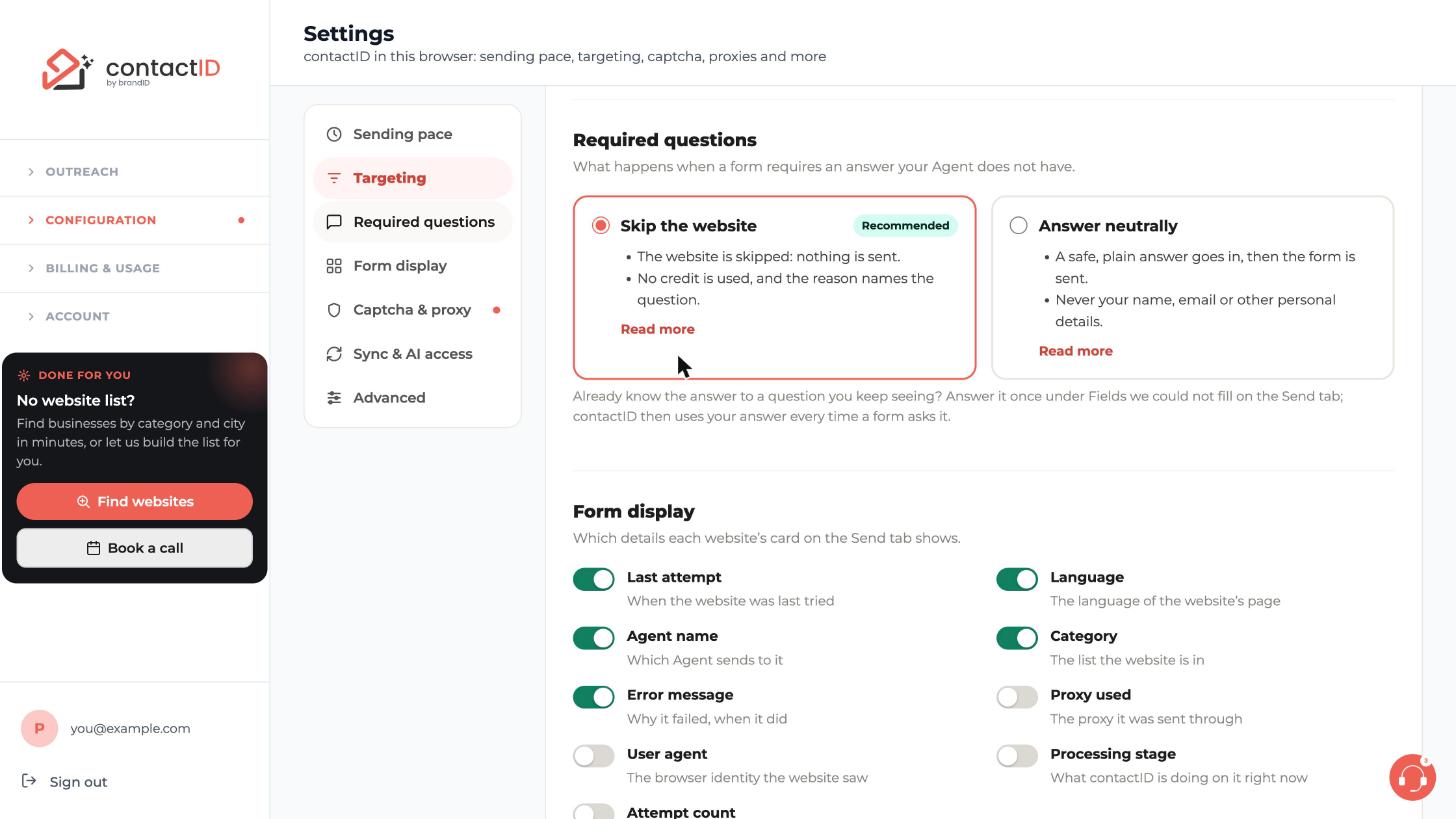
Turn the details you want on or off
Click a switch to turn it on (green) or off (grey). The details you can choose are:
- Last attempt: when the website was last tried
- Language: the language of the website’s page
- Agent name: which Agent sends to it
- Category: the list the website is in
- Error message: why it failed, and when
- Proxy used: the proxy it was sent through
- User agent: the browser identity the website saw
- Processing stage: what contactID is doing on it right now
- Attempt count
Press Save
Press Save at the top right of the page. contactID uses the new choices at once.
Look at the Send tab
Open the contactID side panel and click the Send tab. Every website card now shows the details you left on, along with its status. Change the switches any time to show more or less.
Tips
- Keep Error message on if you want to see at a glance why a website failed.
- Turn on Proxy used only if you use rotating proxies and want to see which one a website went through.
- These choices only change what the cards show. They do not change what contactID sends.
If something goes wrong
A detail I turned on is not on the card.
Make sure you pressed Save and that Settings was opened in the same Chrome where you look at the Send tab, because each computer keeps its own settings.
Settings says it cannot reach contactID.
The page tells you whether contactID is not installed or not on, needs an update, or is signed in to another account. Open it in the Chrome where the extension is installed and signed in.
Related how-to guides
Still stuck? We’re happy to help.
Install the extension, start a free trial, or reach out to support.




