
How to start sending your first campaign
Check your Agent, your targets and your message, then press Start sending in the extension and follow the run. Allow about ten minutes for your first batch setup.
Before you start
- The contactID extension installed and signed in
- At least one Agent with a subject and a pitch message
- Websites in your queue (pasted, imported from a file, or one of your lists from Find websites)
- Website credits. New accounts get 10 free websites
Open the app
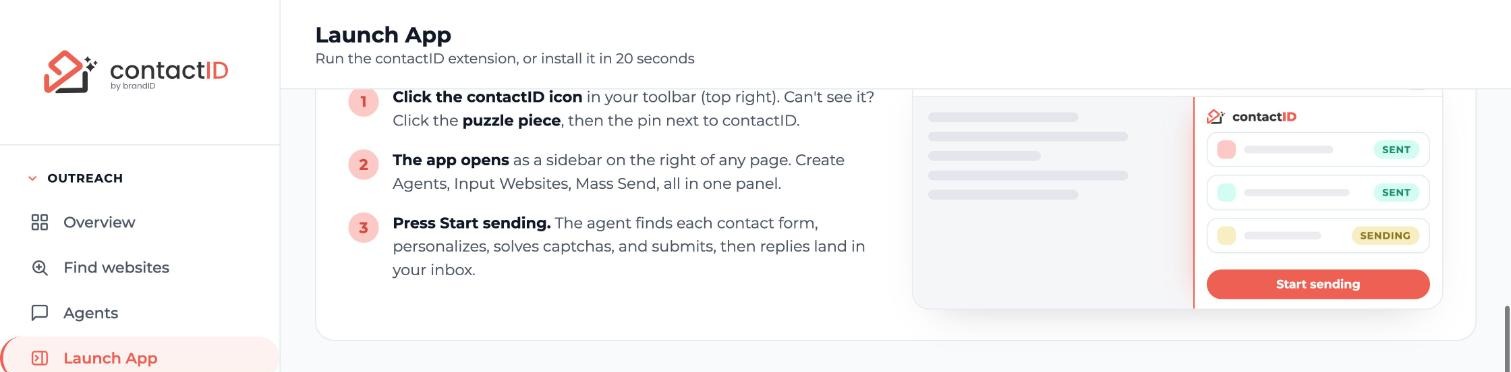
Click the contactID icon in your Chrome toolbar. The app opens as a side panel on the right with four tabs: Setup, Agent, Targets and Send. You can also open it from the dashboard: in the sidebar, under Outreach, click Launch App and press Open the app.
Make sure you see your queue and tabs, not a sign-in screen. If you see Get Started in the header, sign in first.
Check your Agent
Open the Agent tab. The agent you select in Sending as is the sender for the run, and it carries the badge DEFAULT. Check that:
- the sender name and reply-to email are yours, and the email is an inbox you actually read, because that is where replies land;
- the Subject line is filled in;
- the pitch message reads the way you want.
The agent you pick decides the sender identity, the pitch, the subject and whether AI Personalization applies. Every website in the batch uses that same agent.
Check your targets
Open the Targets tab. Paste your websites, drop a file, or load one of your lists from Find websites, and wait for the check to finish. contactID reports which sites have a contact form and which do not, and flags websites you contacted before so you can skip or keep them.
Use the Preview on a site card to pick one website and see the exact message it would get. Nothing is sent from the preview.
Read the message once more
Go back to the Agent tab and read your message as a stranger would. Look for a leftover [bracketed hint], a missing name, or a tag that is spelled wrong. The deliverability check under the editor scores the message live and tells you what to fix. It never blocks a run, and the Send tab shows its warnings once more before you start.
Press Start sending
Open the Send tab and press Start sending in the run panel at the top. In a few cases contactID asks you something first:
- You have several agents: a list titled Select Profile & Start Sending Messages appears. Pick the agent for this batch.
- You have fewer website credits than queued websites: a panel offers Send N now, which stops once N credits are used.
- The agent uses AI and your AI balance is empty or may not cover the run: a sheet offers Add credits, or Continue anyway when the balance is not empty.
Watch the run
The Send tab updates live. Each website moves through these statuses:
- Queued: a contact form was found and it is waiting.
- Processing: open in a background tab right now.
- Sent: the form was submitted and the site confirmed it. One credit is used.
- Failed: the form was found but the send did not complete. No credit is used. Use Retry to try again.
- No form: no usable contact form was found, or your settings left the site out. No credit is used.
You can work in other tabs while it runs, but leave Chrome open. Closing Chrome ends the run, and the queue waits for your next Start sending.
Pause, resume or stop when you need to
Click Pause in the run panel to stop new tabs from opening. Tabs already processing finish their current form, and the button changes to Resume. Stop ends the run; websites not sent yet stay Queued for a later run. Pausing and stopping cost nothing.
When the last website is processed the run panel shows COMPLETE and the button changes to Start again. For the full history open View Analytics from the More actions menu (three dots), or Analytics in the dashboard sidebar.
Tips
- Start small. Add a handful of websites for your first run, then check the results before sending a bigger batch.
- You are only charged for sends a site confirmed, one website credit each. Nothing is reserved up front, so failed sites and pauses cost nothing.
- Accounts that have never paid include the line Sent via contactID extension at the end of every message. Any purchase removes it for good.
- A Sent status means the site accepted the form. It does not guarantee that anyone reads or replies to your message.
If something goes wrong
The run shows WAITING and Resume is grayed out.
Waiting means your Sending pace setting is holding the run: the day’s limit is reached or it is outside your send window. The panel says why and when it sends again, and the run goes on by itself. To send now, raise or clear the limit, or widen the window, under Settings, Sending pace.
I have fewer website credits than websites in the queue.
When you press Start sending, a panel offers Send N now. It sends until N credits are used and stops. Buy more credits on the Plan & Billing page of the dashboard to send the rest.
The run paused and the AI wallet opened.
Your agent uses AI Personalization and the AI balance ran out. The website that needed the AI was not sent and went back to Queued. Add credits, then press Resume on the Send tab.
Many websites show Failed or No form.
Neither status uses a credit. Open a card to see the reason. Retry checks a site again, and you can add a direct contact page address from the Targets tab. Pages that only have a search, newsletter or sign-up form are never filled.
Related how-to guides
Still stuck? We’re happy to help.
Install the extension, start a free trial, or reach out to support.




