
How to set limits for AI apps
Set how many websites, credits and dollars AI apps may use per day before a request waits for your approval. It takes about 2 minutes.
Before you start
- At least one AI app connected, or about to be, to contactID
Open the Limits tab
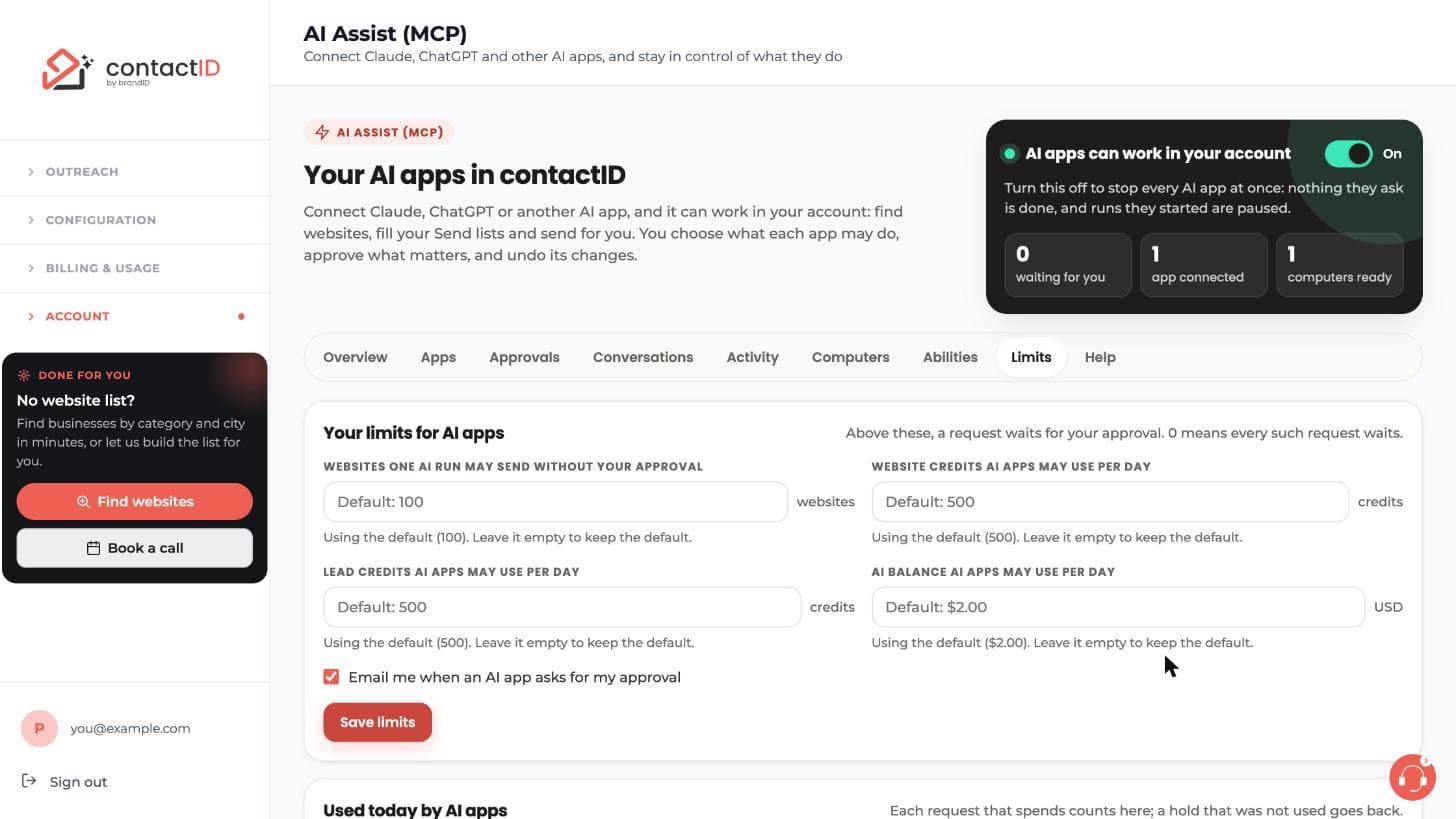
In the dashboard, open Account, then AI Assist (MCP), then the Limits tab. The top box is Your limits for AI apps. Above these, a request waits for your approval.
Understand the four limits
- Websites one AI run may send without your approval: default 100. A larger run waits for your approval.
- Website credits AI apps may use per day: default 500, for runs AI apps start.
- Lead credits AI apps may use per day: default 500, for unlocking lead lists.
- AI balance AI apps may use per day: default $2.00 (USD), for message drafts and AI samples.
Type your numbers
Click a field and type a number, for example 25 websites for one run, or 5.00 for the AI balance. Leave a field empty to keep the default.
0 and every such request waits for your approval. That is the strictest setting.Choose whether to get approval emails
The checkbox Email me when an AI app asks for my approval is on by default. Turn it off if you only want to see requests on the page; they still wait there either way.
Press Save limits
Press Save limits. Lowering a limit applies at once. An AI app that asks to raise a limit waits for your approval, so it cannot loosen your limits by itself.
Check today’s use
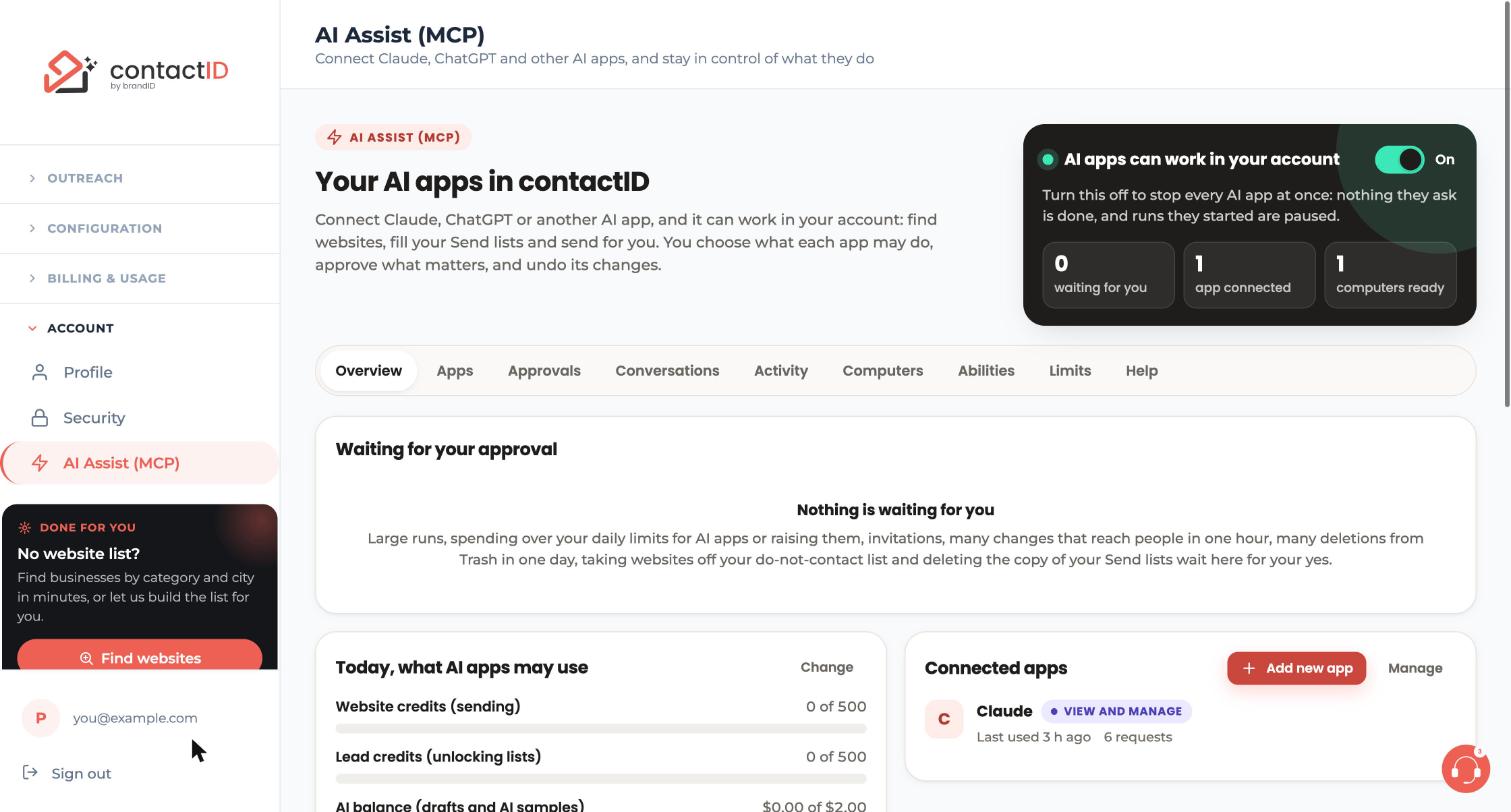
Scroll down on the Limits tab to Used today by AI apps. On the Overview tab, Today, what AI apps may use shows the same: Website credits (sending), Lead credits (unlocking lists) and AI balance (drafts and AI samples), each with how much is used of your limit. A Change link sits next to its title.
Tips
- Pace limits apply on top of yours: all AI apps of an account together can make up to 90 requests a minute and 3,000 a day, 20 changes a minute and 300 a day, and 30 deletions an hour.
- After 10 changes that reach people in one hour, the next one waits for your approval.
- An AI app’s own requests never trigger an automatic top-up of your lead credits or AI balance. A run you say yes to with AI personalization on is paid from your AI balance like your own runs.
If something goes wrong
An AI app says the limit is reached
Wait a moment and ask again for pace limits. For your own daily limits, raise them yourself on the Limits tab and press Save limits, or approve the request waiting for you.
Why does everything wait for my approval?
A limit set to 0 means every such request waits for your approval. Empty the field to return to the default.
I am not getting approval emails
Check Email me when an AI app asks for my approval is ticked on the Limits tab. The requests still wait on the Approvals tab either way.
Related how-to guides
Still stuck? We’re happy to help.
Install the extension, start a free trial, or reach out to support.




