
How to see and undo what an AI app did
Read every request an AI app made, and put back a change it made to your own things within 30 days. It takes about 3 minutes.
Before you start
- An AI app connected to contactID that has made at least one request
Open the Activity tab
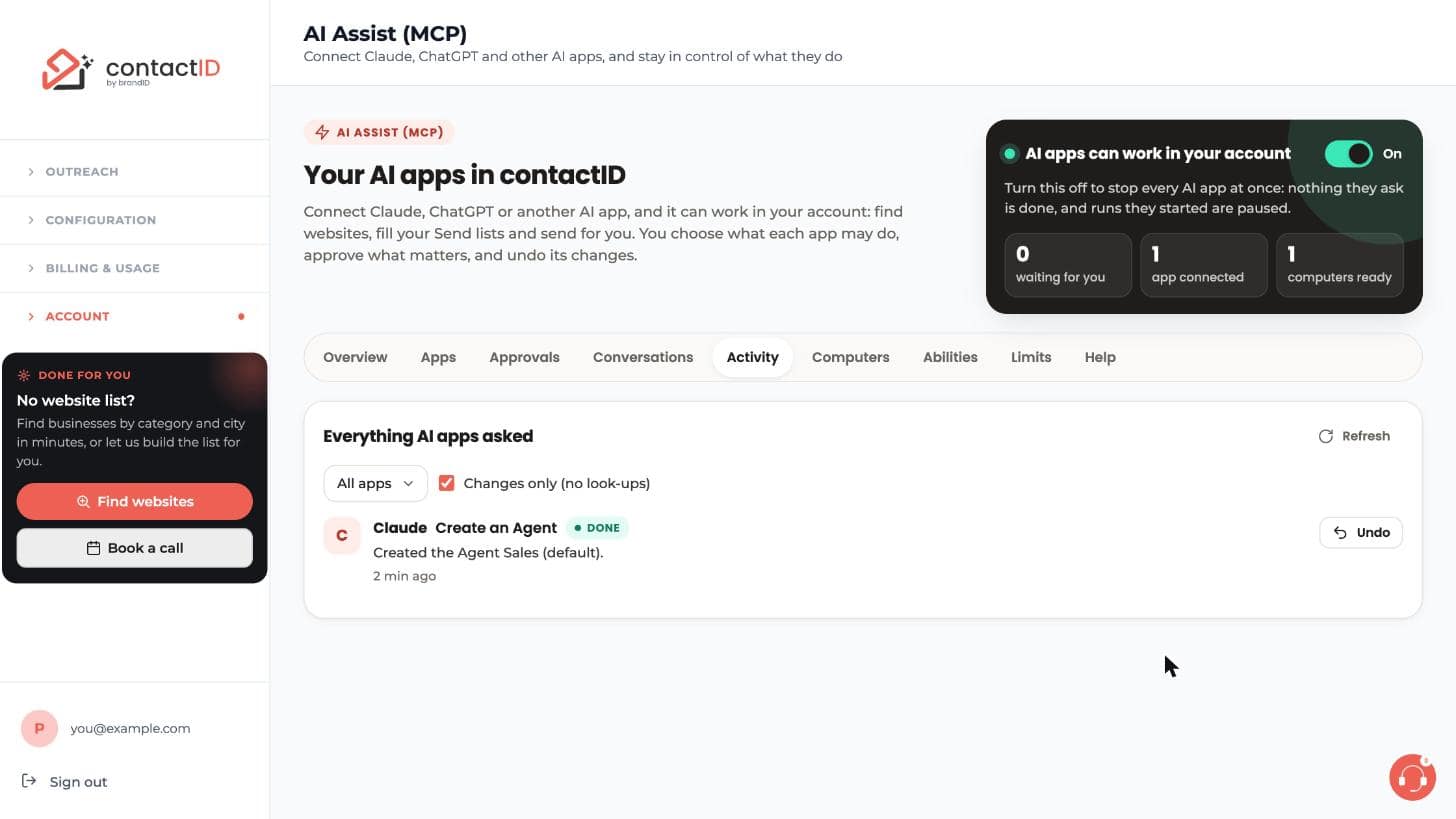
In the dashboard, open Account, then AI Assist (MCP), then the Activity tab. Everything AI apps asked lists every request, newest first, with which app, what it asked and whether it was done, refused or waits for you.
Filter what you see
Use the app list (All apps) to show one app only. The checkbox Changes only (no look-ups) hides requests that only looked at things, so you see just what changed. Press Refresh to update the list.
Press Undo on a change
On the entry you want to put back, press Undo. For example, websites moved to Trash come back, changed websites get their personal message, merge fields and category back, a deleted Agent returns, and a renamed category gets its old name.
Undo works for 30 days. An AI app cannot undo anything; only you can.
Read a whole conversation
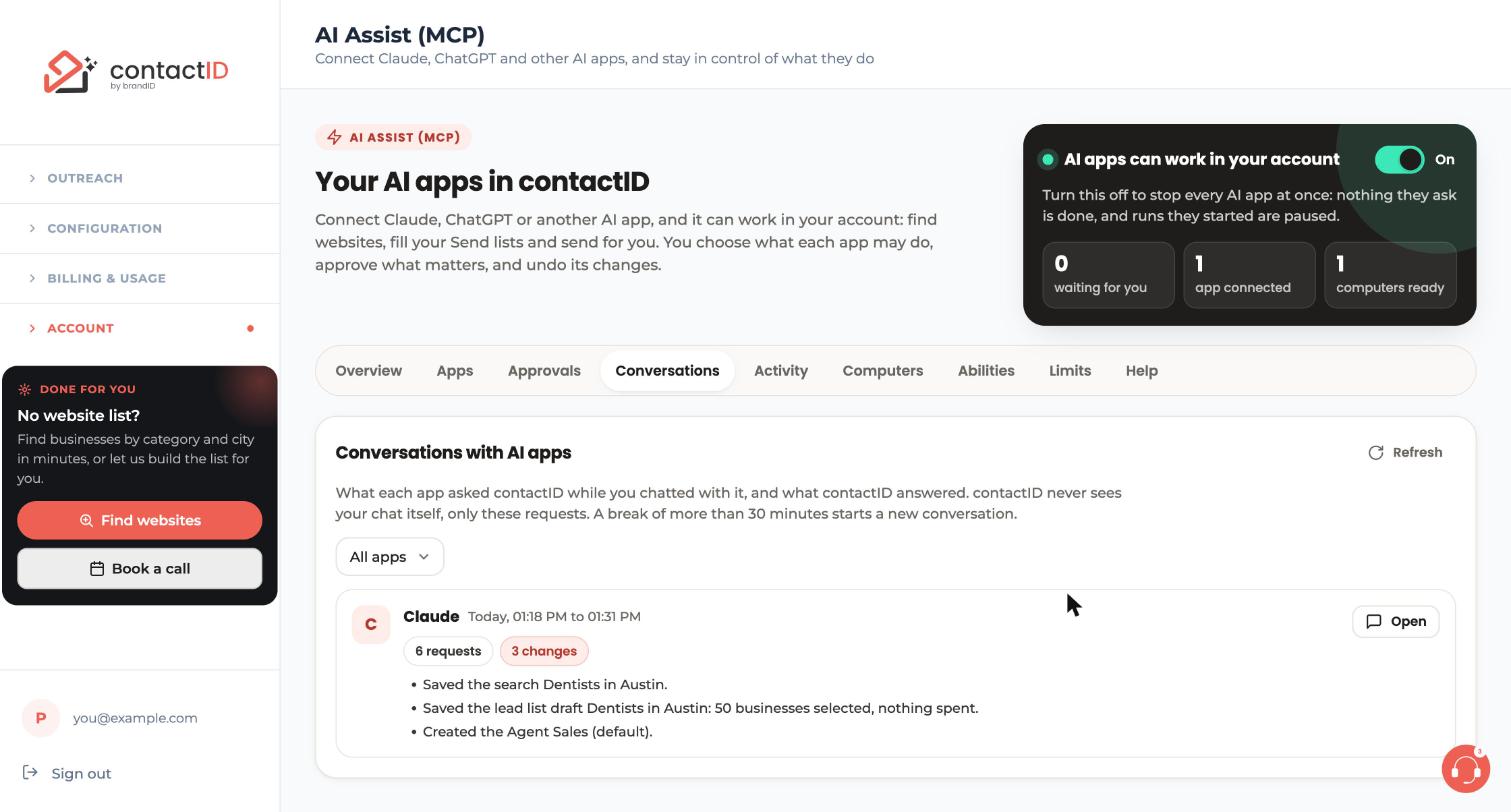
Open the Conversations tab. contactID never sees your chat with the app. A conversation here is one app’s requests with no break longer than 30 minutes. Press Open to read, like a chat, what the app asked and what contactID did. Undo is available there too.
When you changed it after the app did
If you changed the same thing after the app did, contactID tells you what changed and offers Undo anyway (it puts back the app’s change and yours) or Keep it.
Know what cannot be undone
Some things cannot be put back: messages already sent, lead lists unlocked, drafts and AI samples written with your AI balance, invitations, deleting from Trash, deleting the copy of your Send lists, an answer to the Send lists question, and closing a website being sent. Those ask you first or wait for your approval.
Changes to the Send lists, sending settings and form answers are done by the extension on your computer. Undo is available once the computer has done the change, and the computer puts it back when it is online.
Tips
- Your own steps on the page (approve, undo, pause) are listed as You. Something contactID support did is listed as contactID support.
- Requests are kept for 12 months.
- Ask an app to “preview” a change first, to see what it would do without doing it.
If something goes wrong
I do not see an Undo button
The change may be older than 30 days, or it cannot be undone (for example messages already sent or lead lists unlocked). Look-ups have nothing to undo.
Undo says I changed it since
Choose Undo anyway to put back the app’s change and yours, or Keep it to leave things as they are.
An undo on a Send list change has not happened yet
The extension on your computer does it. Open Chrome with the contactID extension signed in to the same account; the computer puts the change back when it is online.
Related how-to guides
Still stuck? We’re happy to help.
Install the extension, start a free trial, or reach out to support.




