
How to use Search by AI
Describe the businesses you want in one sentence and let Search by AI fill What, Where and Filters for you. It is free and takes about a minute.
Before you start
- A contactID account signed in to the dashboard
- No credits needed: Search by AI never uses AI credits or lead credits
Open Search by AI
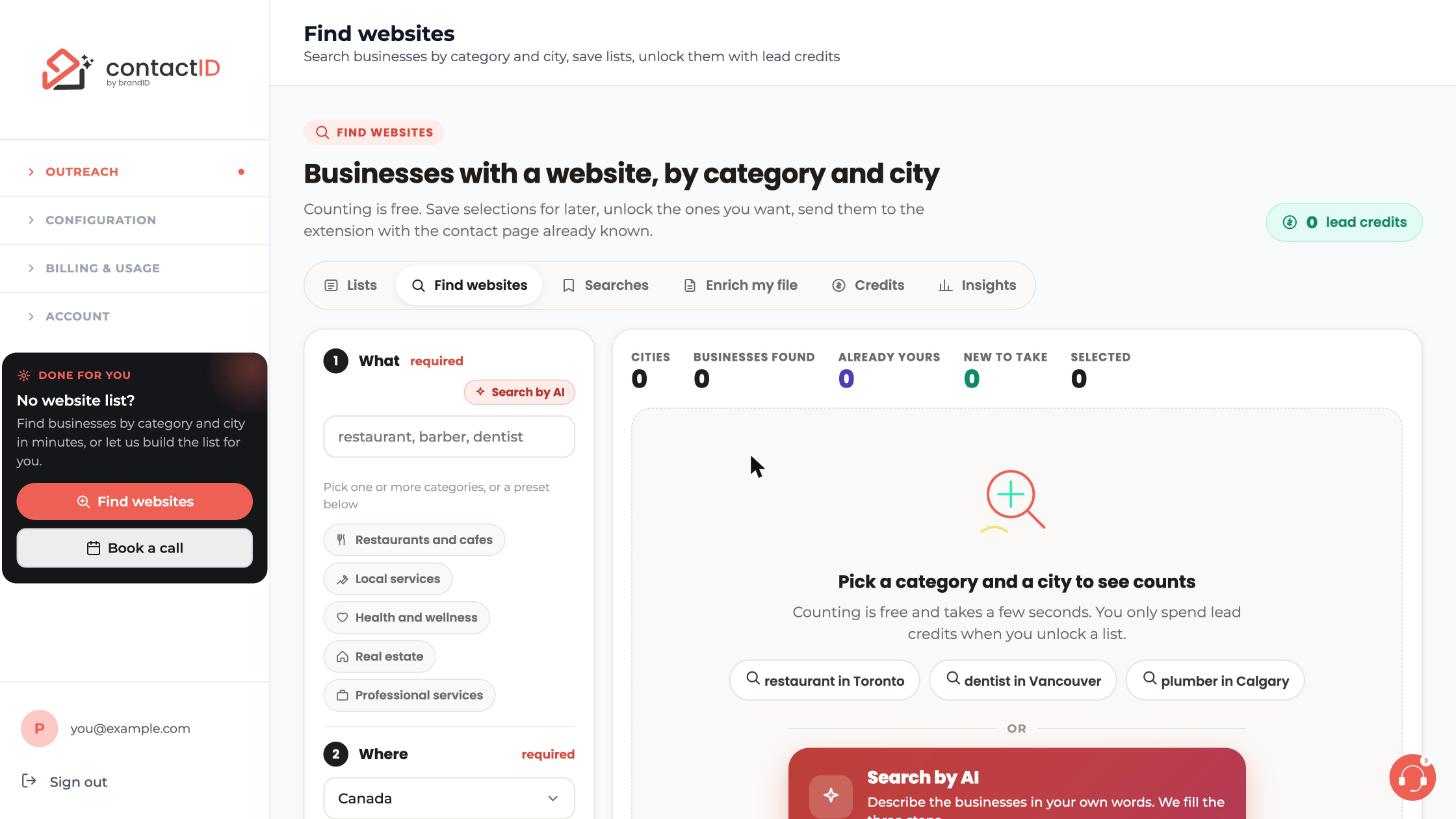
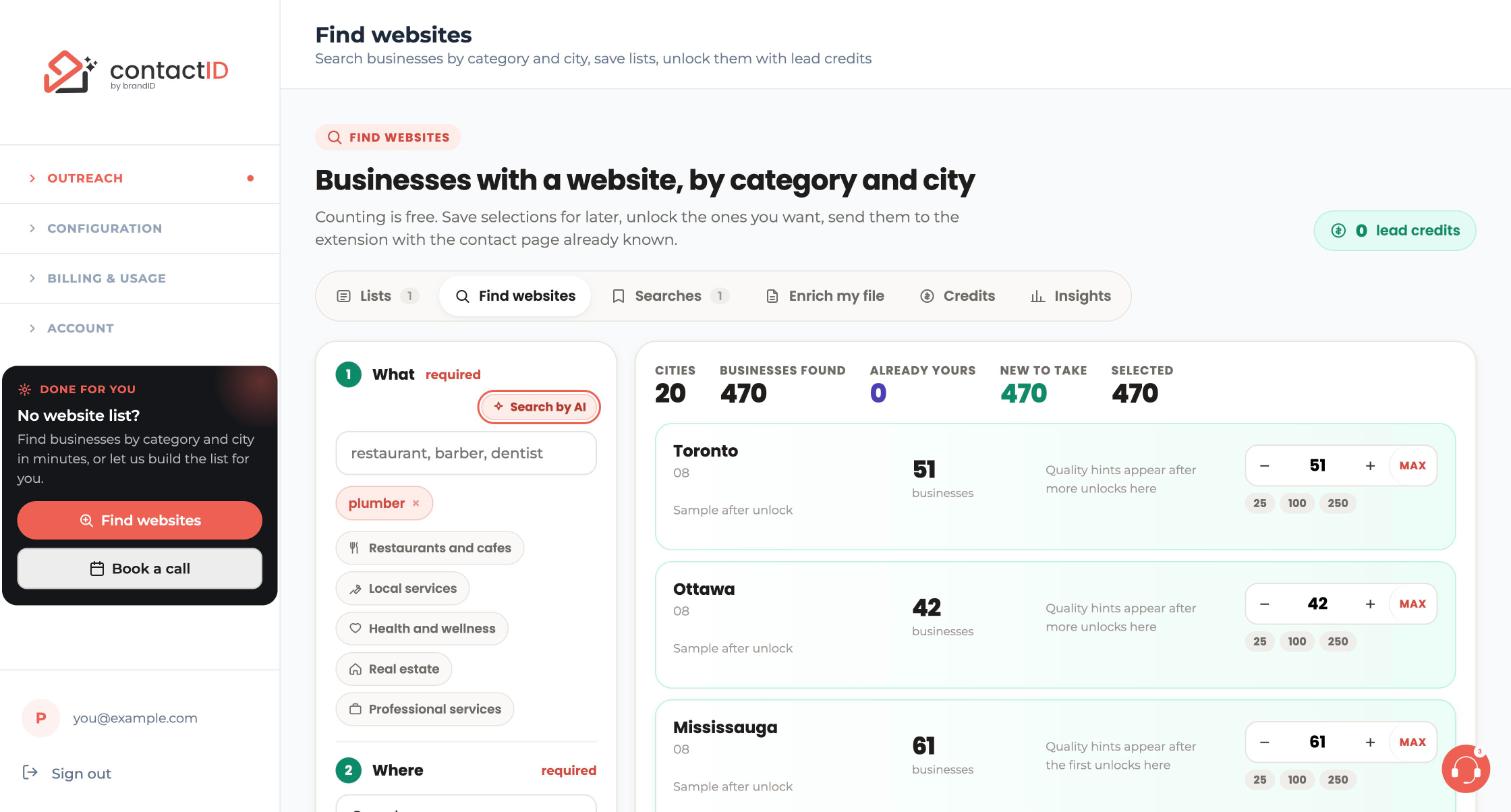
Go to Outreach, then Find websites, and make sure the Find websites tab is open. Press the Search by AI button in step 1, or the Search by AI banner under the example searches.
Look at the dialog
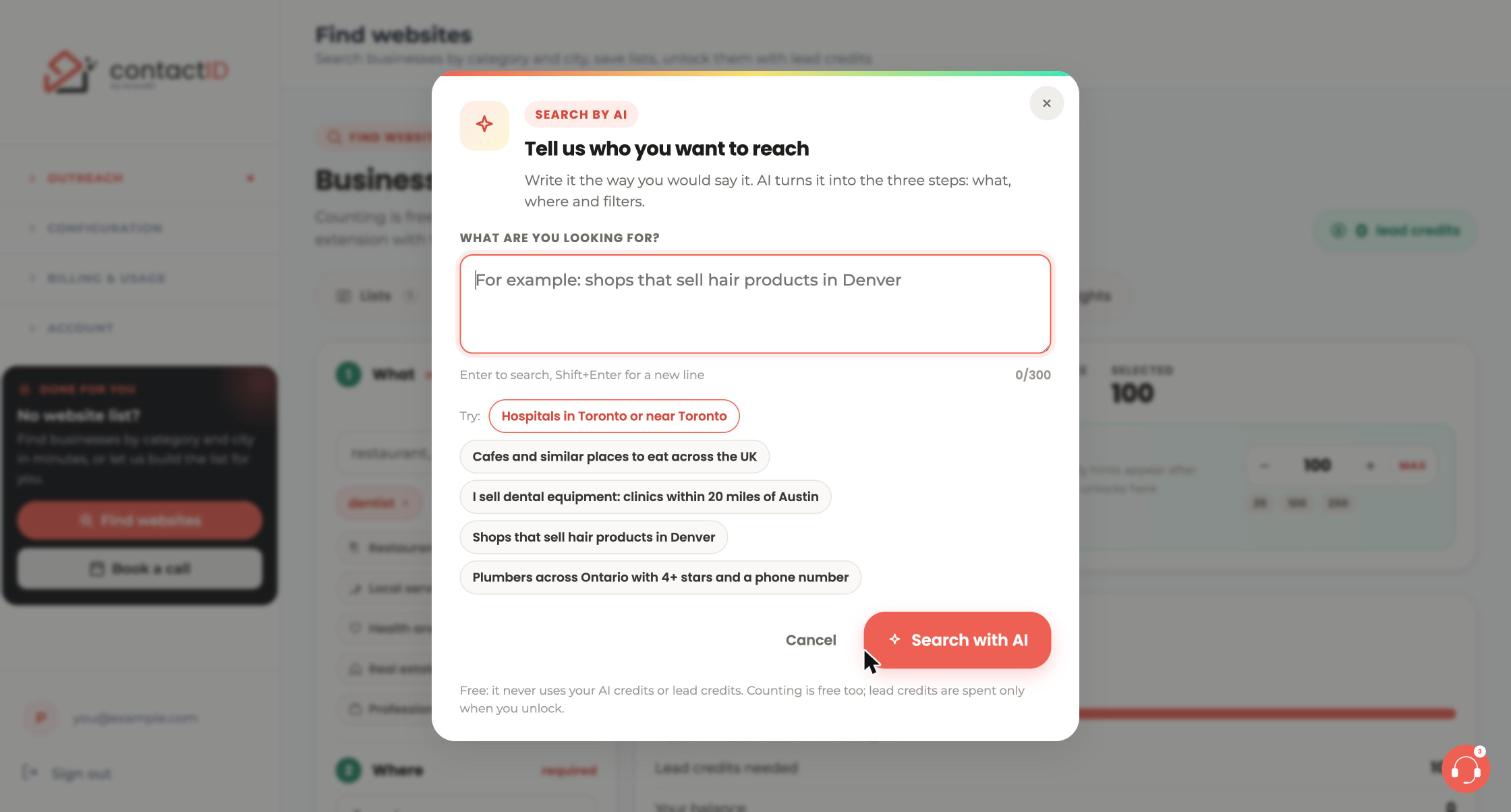
A dialog titled Tell us who you want to reach opens. Under WHAT ARE YOU LOOKING FOR? there is a text box that holds up to 300 characters. Under it, Try: lists example sentences you can click to start from, such as Shops that sell hair products in Denver.
The note at the bottom reminds you it is free: it never uses your AI credits or lead credits.
Type your sentence and search
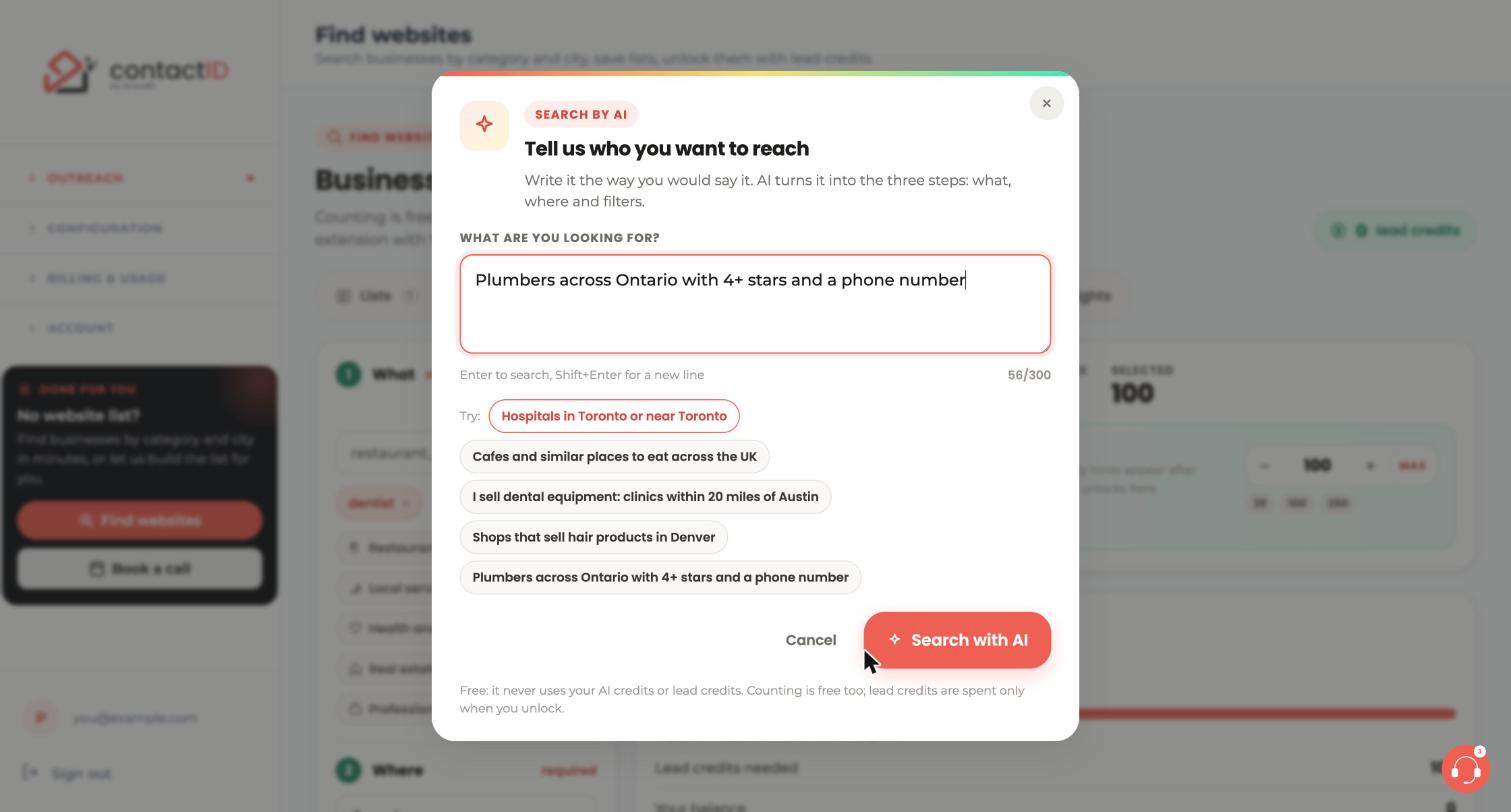
Write what you want the way you would say it, for example Plumbers across Ontario with 4+ stars and a phone number. Spelling mistakes are fine.
Press Enter (use Shift+Enter for a new line) or click Search with AI. Cancel closes the dialog and leaves the finder as it was.
Check the answer
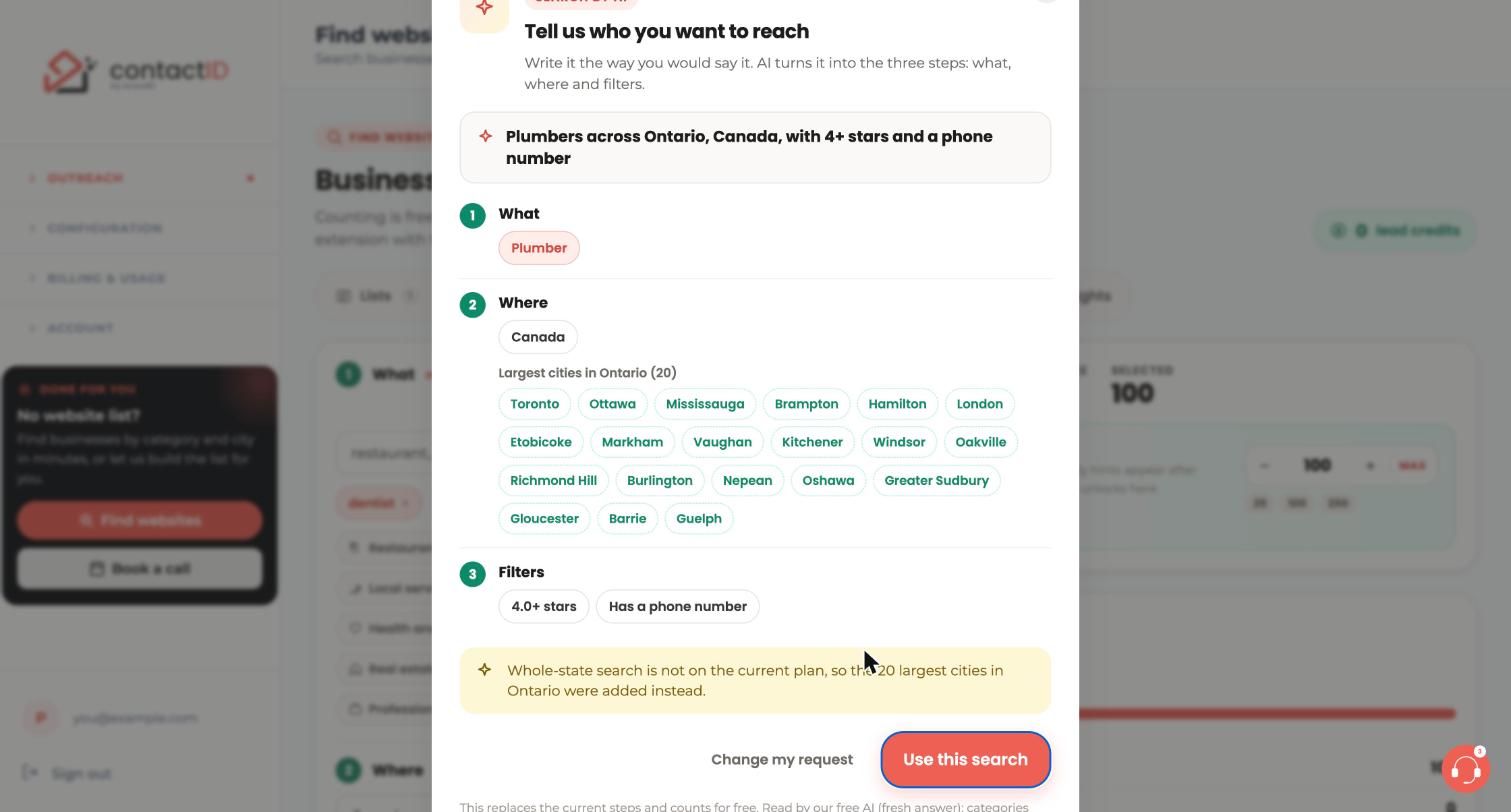
After a few seconds you see a one-line summary and the three steps as they will be filled: 1 What (the category), 2 Where (the country and the cities) and 3 Filters (only the filters you asked for).
A yellow note explains anything that could not be used. In this example, whole-state search is not on the current plan, so the 20 largest cities in Ontario were added instead.
Use the search or change your request
If the result is right, click Use this search. It replaces the current steps and starts the free count as soon as What and Where are filled. If not, click Change my request: you go back to the box with your text kept, so you can reword it.
Adjust anything by hand
Search by AI only fills the steps. You can still change any of them: add or remove a category, add or remove cities, or switch filters in step 3. Once the steps are filled, the small Search by AI link in the header of step 1 opens the dialog again.
Set quantities and continue
Set a quantity per city, then save the selection for free or unlock it. Lead credits are only spent when you unlock a list.
Tips
- Give a category and a place: "Dentists in Vancouver and Calgary with 4+ stars" works well. Up to 4 categories and 10 places are taken from one sentence.
- A sentence with filters only, such as "businesses with 4 stars or more", sets the filters and keeps your categories and cities.
- Star ratings and review counts are rounded down to the finder’s options (3.0+ to 4.5+ stars; 5+, 20+, 50+ or 100+ reviews).
If something goes wrong
A city or category I named was not used.
Every category and city is checked against the Google Maps catalog and only a close match is used. The notes under the answer explain what could not be used, for example a city that was not found. Reword your request or add it by hand in step 1 or 2.
It shows Try again with a countdown.
Each account can run 10 searches a minute and 200 a day. After 10 in a minute, Try again counts down the seconds. The daily allowance resets at midnight UTC. The three steps still work by hand.
I named cities in two countries.
Search by AI works with one country at a time. If you name several, the first covered one is used and a note tells you to search the others separately.
The AI says it is busy.
Try again in a moment, or fill the steps yourself.
Related how-to guides
Still stuck? We’re happy to help.
Install the extension, start a free trial, or reach out to support.




