
How to set up captcha solving and proxies
Check how contactID solves captchas, optionally save your own 2Captcha or Anti-Captcha key, and decide whether to send through your own proxies. It takes about five minutes.
Before you start
- contactID installed in Chrome and signed in to your account
- Only if you want them: a 2Captcha or Anti-Captcha account with its key, and your own proxies
Know that captchas are solved for you
There is nothing you must set up. When a form shows reCAPTCHA, hCaptcha, Cloudflare Turnstile or FunCaptcha, contactID solves it through its own server and fills the answer in before it submits, at no extra charge. Every website is filled in a background tab, so you never solve a captcha by hand.
Some full-page bot checks can still stop a website. contactID does not try to defeat behavior-based bot detection.
Open Settings and go to Captcha & proxy
In the left sidebar, click Configuration, then click Settings. Open it in the Chrome where contactID is installed and where you are signed in to the same account, because each computer keeps its own settings.
Click Captcha & proxy in the list on the left of the page.
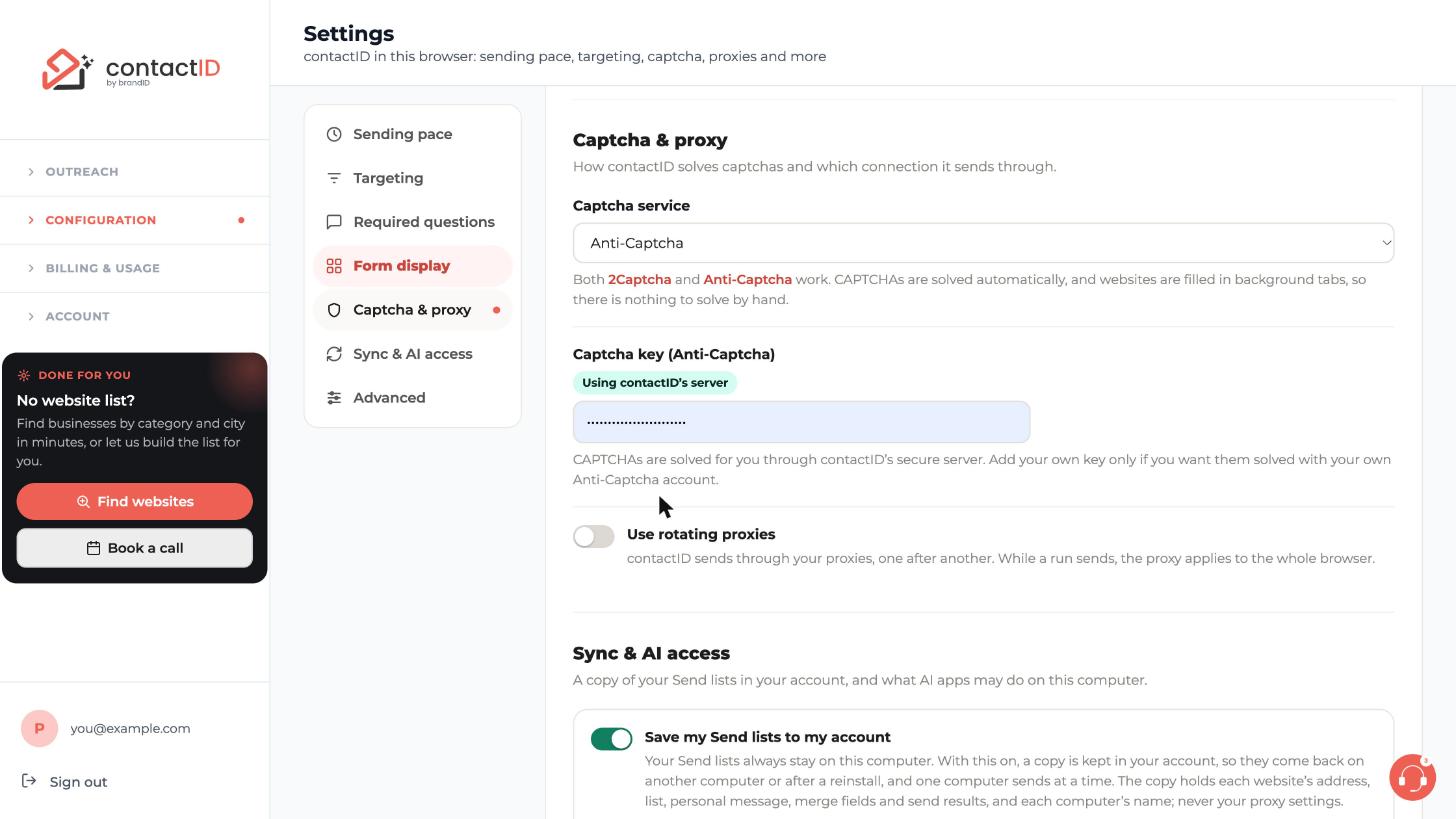
Optional: use your own captcha key
Open the Captcha service list and choose 2Captcha or Anti-Captcha. Both work. Then paste your key from that service into the Captcha key box.
The green label Using contactID’s server means you have no key of your own saved. Add one only if you want captchas solved with your own account. With your own key, picture captchas are solved through your account too.
Optional: turn on rotating proxies
Turn on Use rotating proxies if you want contactID to send through your own proxies, one after another. While a run sends, the proxy applies to the whole browser. After you turn it on, you can add or import your proxies, choose how they rotate and test them.
Press Save and check the key
Press Save at the top right of the page. A saved key is never shown again: the page says a key is saved and shows only its last 4 characters. You can replace it, or press Remove my key and Save to go back to contactID’s server.
If you saved your own key, make sure it is valid and that the account has balance.
Tips
- When a captcha cannot be solved, the website is marked Failed with the reason and no credit is used. Retry it once, because solving services sometimes time out.
- Export settings under Advanced never includes your captcha key, so you add it again on another computer.
- To see which proxy a website used, turn on Proxy used in the Form display section.
If something goes wrong
A website fails with a captcha reason.
Press Retry once. If you saved your own key, check that it is valid and has balance, or remove it so contactID solves through its server. If the same website fails again for the same reason, move on.
A site shows a Verifying you are human page.
That is a full-page bot check, not a captcha on the form. Every website opens in a real Chrome tab, which clears many of them on its own, but sites that judge behavior can still block it. The website is marked Failed or under No form, and no credit is used.
Where is my saved key?
It is never shown again once saved. The page tells you a key is saved and shows its last 4 characters. To change it, replace it or remove it and save.
Related how-to guides
Still stuck? We’re happy to help.
Install the extension, start a free trial, or reach out to support.




