
Account Management
Your profile, email, connected accounts, sessions, notification preferences and signing out.
Your DMpro profile stores your display name, company or brand, and country, and this article shows how to update them.
1. Where To Update
Go to Dashboard → Profile. You see your Email and the fields Display Name, Company / Brand and Country.
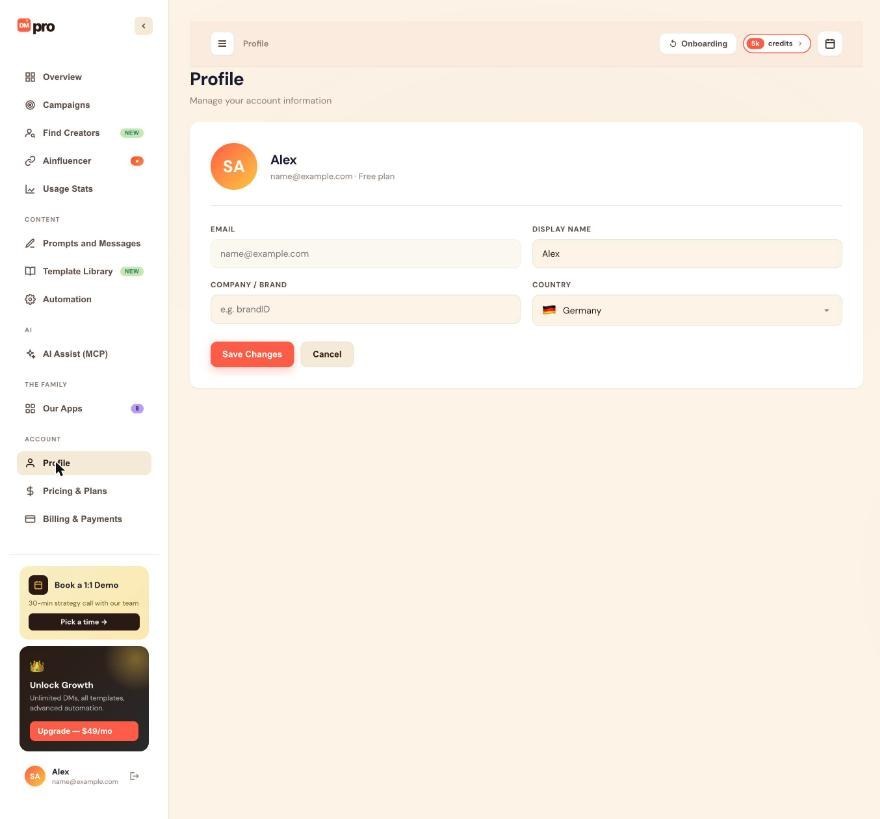
2. Fields You Can Edit
- Display Name. Your name in DMpro.
- Company / Brand. The company or brand you work for.
- Country. Pick it from the searchable list. It is the country you chose in onboarding.
Change what you want and click Save Changes (or Cancel to go back to the saved values). Changes take effect immediately.
3. What Is Not On This Page
- Your onboarding answers (persona, persona details, platform): click Onboarding at the top of the dashboard and go through the five steps again; Finish adds the starter prompt for your new answers and makes it active. See “Understanding The Three Personas (Brand, Creator, Business)”, including the note about brandID. Your existing prompts and campaigns are kept.
- Email preferences: see “Setting Notification Preferences”.
- Your offer and ideal customer (
$offer,$icp): set in onboarding (Business persona). An AI app connected through AI Assist (MCP) can also update them for you.
4. Your Name In Messages
There is no prompt variable for your own name. If you want the AI to introduce you, write your name into the prompt (or use $brandidName if brandID is connected).
5. Business Address For Emails
The business address shown in outreach email footers is set on the Auto Email card (Prompts and Messages or Automation), not here. See “What Is Auto Email And How Do You Turn It On?”.
6. Cannot Edit Your Email
Your email is the primary key for your DMpro account. It cannot be directly edited. To change your email, see “How To Change Your Email Address?”.
7. Cannot Edit Your Referral Code
Your personal referral code is auto-generated. It cannot be customized. If you’re on Professional+ and want a custom code, contact support.
8. Photo Upload
DMpro doesn’t currently support profile photos. Just name and text.
9. Multiple Profiles?
One DMpro account = one profile. If you want a separate identity for different work, create a second DMpro account (mindful of fingerprint block on shared social accounts).
Related questions:
Changing your email address on DMpro is a security-sensitive action. Here is the process and what to know.
1. Why Email Changes Are Special
Your email is:
- Your primary account identifier.
- Where verification codes are sent (magic code login).
- The billing email in Stripe.
- Where all notifications land.
Changing it affects login and receipts. DMpro handles it carefully.
2. Standard Email Change Flow
- Go to Dashboard → Profile → Change Email.
- Enter your new email address.
- DMpro sends a 6-digit code to your NEW email.
- Enter the code to confirm.
- DMpro sends a notification to your OLD email confirming the change (security notification).
- New email is now active.
3. Both Emails Notified
- Old email: Gets a security notification: “Your DMpro account email was changed to [new email]. If this wasn’t you, contact support immediately.”
- New email: Gets the verification code, then a welcome message.
4. Stripe Billing Email Update
Stripe stores your billing email separately. After changing your DMpro email:
- Automatic: DMpro updates Stripe with the new billing email.
- Manual: If you want a different billing email (say, personal DMpro but corporate billing), you can set it separately in Stripe Customer Portal.
5. Confirmation Delay
The 6-digit code expires after 10 minutes. If you don’t confirm in time, request a new one.
6. If The New Email Is Already In Use
DMpro allows one account per email address. If the new email is already tied to another DMpro account, you’ll get an error: “This email is already in use.”
Options:
- Use a different email.
- Merge the two accounts (contact support for manual assistance).
7. Recovery If Old Email Is Compromised
If you lost access to your old email and can’t sign in:
- Try the “Sign in” flow with your account email.
- The verification code goes to your account email, which you may have lost access to.
- Contact support at [email protected] from any email you control.
- Support requires proof of ownership (past invoice, Stripe email, etc.) before making the change.
Recovery is case-by-case and typically takes 24-48 hours.
8. Email Change During Active Trial Or Subscription
- Active trial: Email change doesn’t affect trial. Trial continues.
- Active subscription: Email change doesn’t cancel subscription. Charges continue to whatever payment method is on file.
9. Preventing Unauthorized Email Changes
DMpro’s email change flow requires access to the NEW email (via verification code). This ensures whoever’s changing the email actually controls it.
For extra security on Enterprise, additional verification steps may be required.
Related questions:
Your DMpro account tracks which Instagram and TikTok handles you use. Here is how to view, add, and remove them.
1. Where To View Connected Accounts
Go to Dashboard → Profile → Connected Social Accounts. You see a list of every Instagram or TikTok handle DMpro has associated with your account.
2. What Each Entry Shows
- Handle. E.g., @yourbrand.
- Platform. Instagram or TikTok.
- Connected date. When DMpro first saw this handle.
- Last used. When you last sent a DM from this account.
- Usage stats. DMs sent from this handle over the last 30 days.
- Remove button.
3. How Accounts Get Added
You don’t manually add. DMpro detects automatically:
- You sign in to Instagram or TikTok in a browser where DMpro is installed.
- You open the DMpro extension.
- DMpro reads your current handle from your active browser session.
- The handle is added to your Connected Accounts list.
4. Removing An Account
Click the trash icon next to any handle. Confirm.
Removing an account:
- Doesn’t affect anything on Instagram or TikTok.
- Removes the association from DMpro.
- Sends from that handle stop counting toward your DMpro stats.
The account can be re-added by signing back in and using the extension.
5. Connected Account Limit By Plan
- Free: 2 accounts (1 IG + 1 TT).
- Starter: 2.
- Growth: 2.
- Professional: 3.
- Enterprise: 10.
If you exceed your limit (say by adding a 3rd on Growth), the extension warns and the 3rd account can’t send.
6. Switching Between Connected Accounts
Sign in to whichever account you want to send from in your browser. DMpro auto-detects and uses that account. No settings change needed in DMpro.
7. Fingerprint And Connected Accounts
When a new Instagram/TikTok handle is detected as connected to your DMpro account:
- If NOT previously seen by DMpro’s fingerprint system → Recorded, no issue.
- If previously seen but on a different DMpro account → Fingerprint block triggered on THIS DMpro account.
See “Multi-Account Fingerprint Detected Error” for how the block works.
8. Sharing Accounts Across Users
- Free/Starter/Growth: One user per account. If your teammate signs in to Instagram in their browser with DMpro, they’d be using their own DMpro account, not yours.
- Enterprise: Team plans allow multiple team members to share one DMpro account, using multiple Instagram/TikTok handles across the team.
9. Disconnecting Instagram/TikTok
DMpro doesn’t “disconnect” from Instagram or TikTok in the traditional sense (no OAuth). To stop DMpro from using an account:
- Sign out of Instagram/TikTok in your browser.
- OR uninstall the DMpro extension.
10. Privacy: What DMpro Does With Handle Data
- Handle name (public): Stored in your Connected Accounts list.
- Handle stats: Aggregated for your Usage view.
- Handle password: Never captured or stored.
Handles are considered public since they’re your public identity. DMpro treats them accordingly.
Related questions:
DMpro sessions use JWT tokens. Here is how long they last, how they refresh, and when you’ll be asked to sign in again.
1. Session Duration
Your DMpro session lasts 30 days on each device. After that, you’re asked to sign in again with a fresh 6-digit code.
2. Sliding Window Renewal
Each time you use the extension or dashboard, your session token is refreshed. The 30-day clock resets from that point. So if you use DMpro daily, you effectively stay signed in indefinitely.
3. When You Get Signed Out
- You didn’t use DMpro for 30 days straight. Session expires.
- You explicitly signed out. Manual sign-out clears the session.
- A security event. In rare cases (suspicious activity), DMpro invalidates your session server-side.
- You changed your email. Old sessions are invalidated (you sign in with the new email).
4. Multiple Devices
Each device has its own session. Signing out on your laptop doesn’t sign you out on your desktop. All sessions run independently.
5. Session Storage
Your JWT token is stored locally:
- Extension: In Chrome extension storage.
- Dashboard: In localStorage.
Both are same-origin scoped so other websites can’t access them.
6. Signing Out
To sign out on any device:
- Extension: Settings gear → Sign Out.
- Dashboard: Top-right avatar → Sign Out.
Immediate effect. To sign back in, use the standard magic code flow.
7. Signing Out On All Devices
DMpro doesn’t have a “sign out everywhere” button yet. Workaround:
- Contact support at [email protected].
- Request “sign me out of all sessions.”
- Support invalidates all your active tokens.
You’d then sign in fresh on any device you want to keep using.
8. Session Invalidation From Security Events
DMpro’s server monitors for:
- Sudden burst of API calls from unusual IP.
- Attempts to abuse the system.
If detected, all your sessions are invalidated as a precaution. You’ll receive an email and need to sign in again.
9. JWT Token Details
- Algorithm: HS256 (HMAC SHA-256).
- Expires: 30 days from issue.
- Contains: Your user ID and email (nothing sensitive).
If your token is stolen, it can be used until it expires. Contact support to invalidate.
10. Session In Incognito Mode
Incognito sessions are separate from your normal sessions. Signing in in incognito doesn’t share the login with your normal browser. Closing incognito loses the session.
Related questions:
DMpro tracks each device’s session independently. Here is how to see, manage, and control multiple sessions.
1. Where To See Active Sessions
Go to Dashboard → Profile → Sessions. You see a list of every device currently signed in to your DMpro account.
2. What Each Session Shows
- Device. Browser + OS (e.g., “Chrome on Mac”, “Brave on Windows”).
- IP address (approximate, for security review).
- Location (city + country, approximate).
- Last active. When this session last called DMpro API.
- Sign out button.
3. Signing Out A Specific Session
Click Sign Out on any session in the list. That specific device is signed out. Other sessions remain active.
Useful when:
- You lost a laptop and want to remotely revoke it.
- You signed in on a friend’s computer and want to make sure you’re out.
- You changed browsers and want to clean up.
4. Signing Out All Sessions
Click Sign Out All Sessions. Every device signed in is signed out.
You will be signed out too. You can sign back in with your standard magic code flow.
5. Automatic Session Expiry
Sessions inactive for 30 days automatically expire. You don’t need to manually sign out inactive sessions; they eventually go away.
6. Suspicious Sessions
If you see a session you don’t recognize:
- Sign it out immediately from the Sessions list.
- Change your email or password (though DMpro is passwordless, you can force a fresh sign-in by signing out all and signing back in from your legitimate device).
- Contact support to investigate.
- Review your Payments for any unauthorized charges.
7. Sessions Across Browsers
Each browser you sign in to is a separate session. If you have DMpro in Chrome, Brave, and Edge, that’s 3 sessions.
8. Sessions On The Extension
The extension has its own session, separate from the dashboard on the same computer. So on one device you may have:
- One dashboard session (
chrome://localhostor dmpro.brandid.app). - One extension session.
9. Enterprise: Team Sessions
On Enterprise team accounts, team members each have their own sessions under a shared account. Admins can see all team member sessions in a separate Team Sessions view.
10. Session History
Currently DMpro doesn’t show a full session history (only active sessions). If you need historical audit for security review, contact support with your DMpro email.
Related questions:
DMpro sends emails for various events. You control which ones you receive from Notification Preferences.
1. Where To Set Preferences
Go to Dashboard → Profile → Notification Preferences. You see toggles for every notification type.
2. Notification Categories
- Product updates. Feature announcements, changelog highlights. Default: ON.
- Marketing. Promotional emails, discount announcements. Default: OFF.
- Weekly usage report. Every Monday, activity summary. Default: ON.
- Monthly usage report. Every 1st, extended summary. Default: ON.
- Payment notifications. Charge success, invoice available, failed payment. Default: ON. (Cannot be turned off entirely, required for account safety.)
- Trial expiry warnings. 3 days before trial ends. Default: ON.
- Gift expiry warnings. 7 and 3 days before gift ends. Default: ON.
- Runway warnings. When credits are running low. Default: ON.
- Security alerts. Login from new device, session invalidation. Default: ON. (Cannot be turned off.)
3. Which Ones You Can Turn Off
Most can be toggled off, except:
- Payment notifications (required for financial transparency).
- Security alerts (required for account safety).
Everything else is optional. Toggle any off if you don’t want that specific email.
4. Marketing Emails
Default is OFF. You explicitly opt in to receive marketing. This is compliant with CAN-SPAM (US), GDPR (EU), and CASL (Canada) email regulations.
To opt in:
- Toggle Marketing on in Notification Preferences.
- Or click a promotional link in an email that asks to opt you in.
5. Product Updates Vs Marketing
- Product updates: Related to DMpro’s features and roadmap. Non-promotional. Default ON.
- Marketing: Discounts, sales, referral opportunities. Default OFF.
Sometimes the line blurs. If in doubt, product updates are informational; marketing is asking you to buy or share.
6. Delivery Frequency
- Weekly report: Every Monday, 6-8 AM local time.
- Monthly report: Every 1st, 6-8 AM local time.
- Product updates: Occasional, ~2-4 per month.
- Marketing: Occasional, ~1-2 per month (if opted in).
DMpro doesn’t spam. If you’re getting more than you expected, check your promotions folder for volume you didn’t expect.
7. Unsubscribe From Individual Emails
Every email has an unsubscribe link at the bottom. Click it to opt out of that specific category.
8. Sending From Address
DMpro sends from [email protected] for transactional emails and [email protected] for marketing emails. Add both to your contacts to prevent spam filtering.
9. Notifications Beyond Email
DMpro doesn’t currently send SMS, push, or in-app notifications. All notifications go via email.
10. Team Account Notifications
On Enterprise team plans, admins can configure which notifications team members receive. Individual toggles still work but admin-level defaults apply.
Related questions:
Signing out clears your session on the current device. Your account stays intact. Here is how to sign out from various places.
1. Sign Out From Dashboard
- Click your avatar in the top-right corner of the dashboard.
- Click Sign Out.
- Session is cleared.
- You are redirected to the login page.
2. Sign Out From Extension
- Open the DMpro extension.
- Click your initials at the top right to open the account menu.
- Click Sign Out.
- Session on this browser is cleared.
- Extension shows the Sign In screen.
3. What Happens On Sign Out
- Local session token deleted.
- No effect on your DMpro account data.
- No effect on other devices you’re signed in to.
- No effect on active subscriptions or credits.
4. What Doesn’t Happen On Sign Out
- Your account is NOT deleted.
- Your prompts, campaigns, credits, subscription: all preserved.
- Your Instagram/TikTok connection: not affected (DMpro doesn’t control that).
5. Signing Back In
Standard magic code flow:
- Enter your DMpro email.
- Receive 6-digit code.
- Enter code.
- You’re signed in.
Takes about 30 seconds.
6. Signing Out On Public Or Shared Computers
Best practice: sign out when done. Otherwise your session remains active for 30 days on that computer.
7. Signing Out All Devices
See “Managing Multiple Sessions” for the “Sign Out All Sessions” flow.
8. Automatic Sign Out
If you don’t use DMpro for 30 days, your session automatically expires. Next visit, you’ll be asked to sign in.
9. Sign Out On Password Change
DMpro is passwordless. There’s no password to change. Instead, if you suspect a session is compromised:
- Sign Out All Sessions.
- Sign in fresh.
- Contact support if suspicious activity happened.
Related questions:
DMpro currently uses passwordless magic code authentication which is inherently a form of 2FA (something you know + something you have, i.e., email access). Here is more on security.
1. Why DMpro Is Passwordless
DMpro uses email magic codes instead of passwords because:
- No passwords to steal. Password databases are the #1 target for hackers. If we don’t store passwords, they can’t be stolen.
- Every sign-in is verified via email. Effectively 2FA out of the box (you need email access, not just a password).
- No password reset flow needed. Simpler UX.
2. Is This Really 2FA?
Standard 2FA is “something you know (password) + something you have (phone or authenticator).” DMpro’s flow is “something you have (email access) + something you have (6-digit code).”
It’s an inherent form of 2FA in the sense that it requires access to your email. However, it’s not classical 2FA in the sense of a password + a separate factor.
3. Additional 2FA Layers (Not Yet Available)
Some security-conscious users want:
- TOTP (Google Authenticator). Not yet supported by DMpro.
- Hardware keys (YubiKey). Not yet supported.
- SMS 2FA. Not supported (SMS is not considered strongly secure anymore).
These are on the roadmap. Contact us if you’d like to advocate for them.
4. Best Security Practices Today
- Use a strong email account. Enable 2FA on your email provider (Gmail, Outlook, etc.). This effectively secures your DMpro too.
- Watch for phishing. DMpro will never ask for your password (we don’t have one). If someone claims to represent DMpro and asks for your credentials, it’s a scam.
- Sign out on shared devices.
- Review sessions periodically.
5. Session Security
Your JWT token is your session. Anyone with the token has access. Protect:
- Your browser. Don’t share browser profiles with untrusted people.
- Your extension. Only install DMpro from the official Chrome Web Store.
- Your email. Your email = the recovery mechanism for your DMpro account.
6. What DMpro Does On Its End
Server-side:
- Rate limiting. Prevents brute-force attempts on your email.
- Session invalidation. For suspicious activity.
- Encrypted storage. All data encrypted at rest.
- HTTPS everywhere. All API traffic encrypted in transit.
7. Enterprise Security Features
For enterprise plans, additional security features are available:
- SSO (SAML, OAuth). Contact [email protected] for setup.
- IP allowlisting. Restrict logins to specific IP ranges.
- Audit logs. Full log of admin actions.
- Custom session timeout. Shorter than 30 days if desired.
Related questions:
Still stuck? We’re happy to help.
Create your account, or reach out to support.




