
Usage, Credits And Analytics
Generations and credits, usage stats, reports, the ROI Command Center and the credit runway predictor.
Credits pay for the work DMpro does for you, and this article explains what uses a credit, what is free, and how your credit pools work.
1. What Uses A Credit
- An AI-written message: 1 credit each time DMpro’s AI writes a DM, whether you send it or not. Writing again for the same profile uses another credit.
- An own DM sent: 1 credit each time DMpro sends a DM with your own message.
- A prompt test by an AI app: 1 credit (asked for through AI Assist (MCP); it asks you first).
- Revealing a creator in Find Creators (when available on your account) beyond your plan’s monthly reveals: 3 credits each, shown before you confirm. Plans include 100 (Starter), 500 (Growth), 2,000 (Professional) or 10,000 (Enterprise) reveals a month.
The older word “generation” means one AI-written message.
2. What Is Free
- Sending an AI message that was already written (the credit was used when it was written).
- Editing a message before you send it.
- Writing, previewing, filling in and copying your own DMs.
- An own DM that failed to send (the credit is given back).
- An AI message the AI failed to write (you are not charged).
- An own DM campaign with Auto-send DMs off.
3. Credit Types
DMpro has three credit sources:
- Free credits. 10 to start on a new account; they do not renew, and they count only while you have no subscription or one-time credits.
- Subscription credits. From your monthly or annual subscription.
- One-time credits. From one-time credit packages you’ve bought.
4. Credit Priority
DMpro uses credits in this order:
- Subscription credits (if you have an active subscription).
- One-time credits (from packages).
- Free credits.
This ordering is intentional: subscription credits renew each period, while one-time credits never expire.
5. Where To See Your Balance
- Extension: the credits badge at the top of the panel.
- Dashboard → Usage Stats: detailed breakdown, including AI messages written and own DMs sent.
- Dashboard → Overview: the Remaining card.
- Campaign cards: credits used by the campaign, credits left on your account, and what is still needed to finish.
6. What “Remaining” Means
Your remaining balance is:
Remaining = (Subscription credits remaining) + (One-time credits remaining)
(Free credits count only while you have neither of the others: when you subscribe or buy a package, free credits you had left are not added on top.) So if you have a Growth subscription (2,000 credits/month) with 1,500 used and a one-time Starter package (200 credits) with 100 used:
- Subscription remaining = 500.
- One-time remaining = 100.
- Total remaining = 600.
7. What Happens When Subscription Credits Reset
Your subscription credits reset to full on your billing date. Unused subscription credits from last period do not roll over. If you had 100 credits left, on reset you have 2,000 (not 2,100).
One-time credits are separate. They stay until you use them.
8. What Happens When You Cancel Subscription
- Subscription credits remaining: Consumable until your billing period ends. After that they zero out.
- One-time credits: Stay in your account forever, even after canceling.
Related questions:
DMpro has two independent credit pools: monthly subscription credits and one-time credits from packages. They behave differently. Here is the full comparison.
1. Subscription Credits
- Source: Your monthly or annual subscription (Starter, Growth, Professional, Enterprise).
- Refresh: Monthly, on your billing date.
- Expiry: Unused credits at reset are lost (they zero out and the new month starts fresh).
- Cancellation: After cancel, credits remain usable until the current period ends, then zero out.
2. One-Time Credits
- Source: One-time credit packages you buy (Starter $19, Growth $49, Professional $149, Enterprise $299 packages).
- Refresh: Never. What you buy is what you have.
- Expiry: Never expire. Sit in your account until you use them.
- Cancellation: Not affected by subscription changes. Stay forever.
3. Why Have Both?
Subscription credits fit predictable users: same volume every month, predictable spend. One-time credits fit lumpy users: occasional bursts of outreach, no ongoing budget.
Many DMpro users use both:
- Subscription for baseline monthly volume.
- One-time for occasional overflow when a campaign runs long.
4. Which Gets Used First
Subscription credits are consumed before one-time credits. This is deliberate: subscription credits expire monthly, one-time credits don’t. Better to spend the disposable ones.
5. Buying More While You Have Some
- Buying a subscription while you have one-time credits: Both pools coexist. You now have both.
- Buying a one-time package while on subscription: Same. Both pools coexist.
- Buying a subscription upgrade: Your existing subscription credits reset to the new tier’s full amount (or you’re prorated).
6. What About Trial Credits?
Trial credits are treated as subscription credits belonging to the trial. When your trial ends and converts to paid subscription, your credits refresh to the paid tier’s amount. Unused trial credits do not roll over.
7. What If I Cancel Then Come Back?
- After cancel: Subscription credits remain usable until end of period. One-time credits stay.
- Resubscribe: Fresh subscription credits at your new tier. One-time credits still there.
8. Refunds
- Subscription refunds: See “Refund Policy” for details. Monthly plans have a 3-day full refund and annual plans a 7-day full refund; generally not refunded after those windows.
- One-time credit refunds: Refundable within 30 days if not used. See “Refund Policy”.
Related questions:
Your credit balance shows in the extension, at the top of the dashboard, on the Overview page, on Usage Stats and on every campaign card, and this article explains what each place shows.
1. In The Extension
When you are signed in, the extension shows a credits pill at the top right of the panel. Large numbers are shortened (for example 1.2K); point at the pill to see the exact number. Clicking it opens the upgrade options.
The number is what you can spend right now: your subscription credits plus your one-time credits, or your free credits if you have neither. The extension reads it again after each message DMpro writes or sends.
2. At The Top Of The Dashboard
Every dashboard page shows the same balance in the credits pill at the top right (large numbers are shortened, for example 1.2k). Clicking it opens Pricing & Plans.
3. On The Overview Page
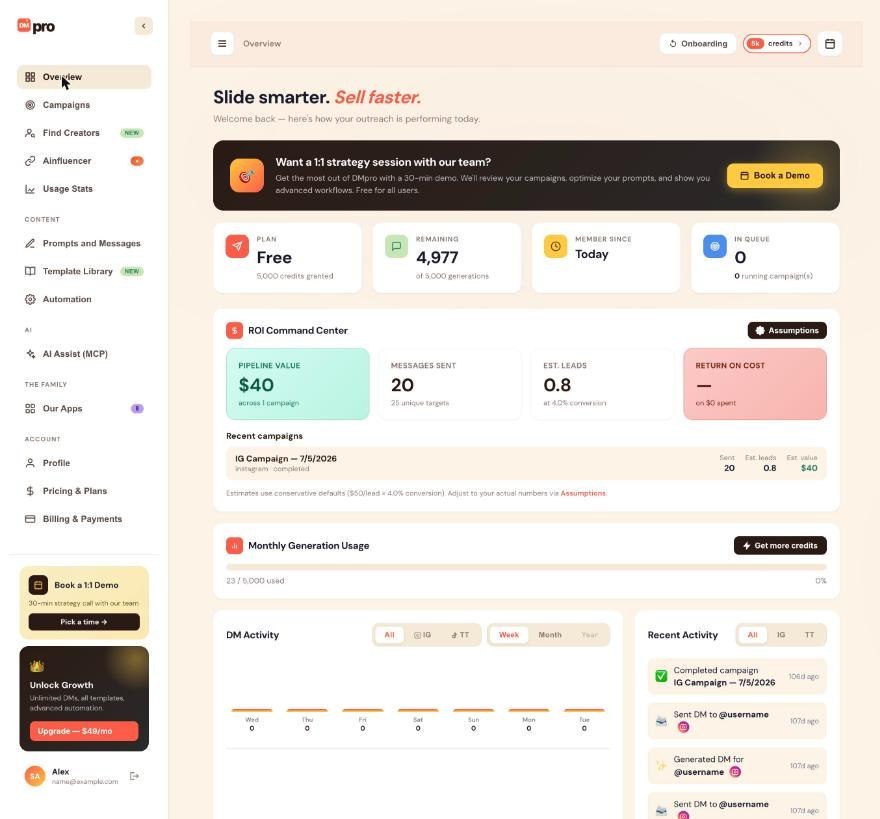
Go to Overview in the left navigation:
- Remaining: the credits you can spend right now. The line under it (“of N generations”) is the total they came from: your plan’s credits plus the one-time credits you have bought, or 10 on a free account.
- Monthly Generation Usage: a bar showing how many of those credits you have used (“X / Y used”) and the percentage used. Get more credits opens Pricing & Plans.
4. On Usage Stats
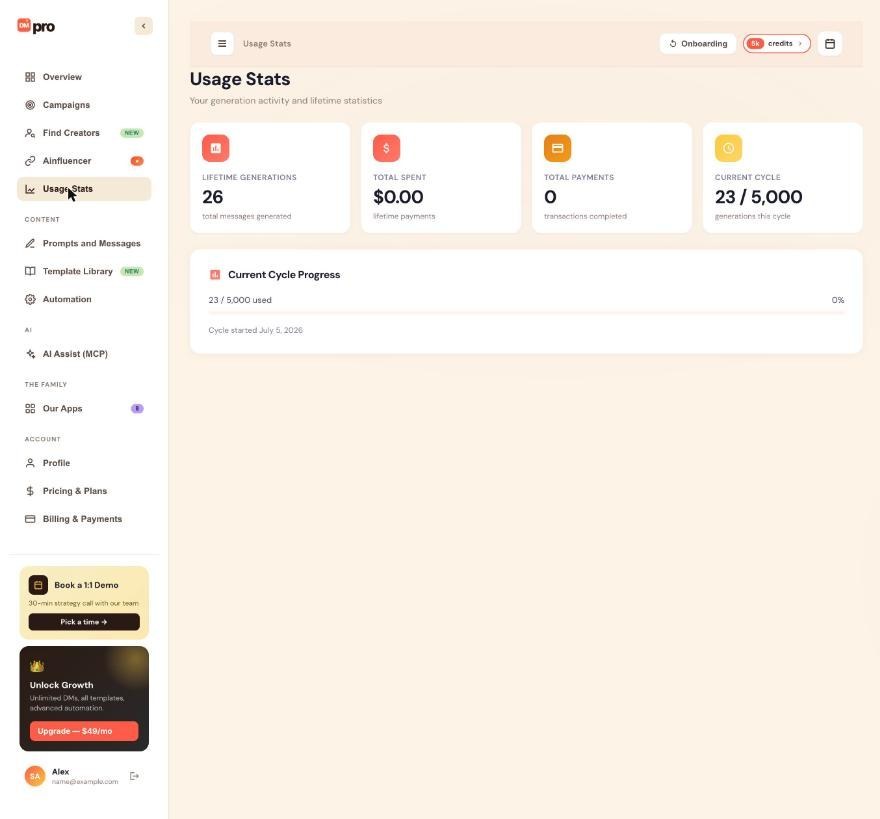
Go to Usage Stats in the left navigation:
- Lifetime Generations: the messages DMpro’s AI has written for you. Once you have sent own DMs, the line under it reads “AI messages written · N own DMs sent”.
- Total Spent and Total Payments: what you have paid DMpro, and in how many payments.
- Current Cycle: credits used of your current total (the same numbers as Monthly Generation Usage).
- Current Cycle Progress: the same as a bar, with the date the cycle started (“Cycle started” and the date).
See “Usage Analytics: Understanding Your Stats” for what each number counts.
5. On Campaign Cards
Each card on Campaigns shows Credits used by this campaign, Credits left on your account and Still needed to finish (Needed at most to finish for an own DM campaign). A “more than you have” tag appears when your balance does not cover the rest of the campaign.
6. Which Credits Count
- DMpro spends subscription credits first, then one-time credits.
- A free account gets 10 credits once. They do not reset each month, and they count only while you have no subscription or one-time credits.
- Subscription credits refill when your subscription renews. One-time credits stay until you use them.
- For how many credits each plan and package gives, see “Understanding The Plans (Starter, Growth, Professional, Enterprise)” and “One-Time Credit Packages Explained”.
7. When The Numbers Update
- Extension: after each message DMpro writes or sends, and each time you open the panel.
- Dashboard while a campaign runs: the credits pill and Remaining refresh every 5 seconds on the Campaigns page and every 20 seconds on other pages. The other Overview numbers follow within about 20 seconds.
- Dashboard otherwise: about every 30 to 60 seconds.
- Hidden tab: the dashboard does not refresh while its browser tab is hidden. It catches up when you come back.
- After a payment: the dashboard shows “Payment successful! Your plan is now active.” and reloads your balance.
8. If Your Balance Looks Wrong
- Reload the dashboard (Ctrl+Shift+R on Windows, Cmd+Shift+R on Mac).
- Close and reopen the extension panel so it reads your balance again.
- Check that the extension and the dashboard are signed in to the same account. Balances belong to the account, not to the browser.
- Just paid? Wait a minute and reload. If the credits still have not arrived, contact support.
- Update the extension if it is out of date.
Related questions:
DMpro shows your usage on the Overview page, the Usage Stats page and each campaign card, and this article explains what every number counts and what DMpro does not track.
1. Where Your Stats Are
- Overview: your balance, this cycle’s credit use, DM Activity, Recent Activity and the ROI Command Center.
- Usage Stats: lifetime totals and your current cycle.
- Campaigns: each campaign’s own results.
There is no separate “Usage” page beyond these.
2. The Usage Stats Page
Go to Usage Stats in the left navigation. You see four cards:
- Lifetime Generations: every message DMpro’s AI has written for you. An AI write that failed is not counted, because it is not charged. Once you have sent own DMs, the line under it reads “AI messages written · N own DMs sent”, so both kinds of credit use are visible.
- Total Spent: everything you have paid DMpro (“lifetime payments”).
- Total Payments: how many payments that was (“transactions completed”).
- Current Cycle: credits used of your current total (“generations this cycle”). The total is your plan’s credits plus the one-time credits you have bought, or your 10 free credits.
Below the cards, Current Cycle Progress shows the same numbers as a bar (“X / Y used” and the percentage used) with “Cycle started” and the date.
Credits spent revealing creators in Find Creators (when available on your account) are not part of Lifetime Generations or the own DMs count, but they do count in Current Cycle.
3. Overview: Remaining And Monthly Generation Usage
- Remaining: the credits you can spend now. “of N generations” under it shows the total.
- Monthly Generation Usage: the same used and total as Current Cycle, as a bar.
See “Viewing Your Credit Balance” for how often these refresh.
4. Overview: DM Activity
A bar chart of the DMs the extension sent in Single Profile mode, per day:
- Week shows the last 7 days and Month the last 30. A Year view is not available yet.
- All, IG and TT filter by platform.
- Point at a bar to see that day’s count.
- Every attempt counts, including DMs that failed to send.
- Days are counted in UTC, so a DM sent late in your evening can land on the next day’s bar.
- New DMs can take up to 5 minutes to appear.
Campaign DMs are not in this chart. Each campaign reports its own results on its card.
5. Overview: Recent Activity
Your 10 latest events, newest first:
- “Sent DM to” a username, or “DM attempt to” a username when a single-profile DM did not go through.
- “Generated DM for” a username when the AI wrote a message in Single Profile mode.
- “Started campaign”, “Paused campaign” or “Completed campaign”, once per campaign with its latest state.
All, IG and TT filter by platform; campaign events show under All only. The list can take up to a minute to catch up.
6. Campaign Results
Each card on Campaigns shows how many people were sent, generated (prepared, for an own DM campaign), failed, skipped and waiting for credits, today’s sends against the daily limit (“Today:” with the count), and the credits the campaign used. View Details lists every person with their status and message, and Export CSV downloads the results. See “Viewing Campaign Details And Exporting Results”.
7. ROI Command Center
This card on the Overview turns the DMs your campaigns sent into estimated leads and pipeline value, using your own value per lead and conversion rate. See “ROI Command Center: Tracking Your Outreach ROI”.
8. What DMpro Does Not Track
- Replies. DMpro does not record replies, so no screen shows a reply rate.
- Breakdowns by prompt or time of day. There is no per-prompt report and no trend analysis beyond the DM Activity chart.
- A usage export. There is no usage export. To analyze sends, export a campaign’s results with Export CSV on its card.
- Email reports. DMpro does not email usage reports. See “Weekly And Monthly Usage Reports”.
Related questions:
DMpro does not send weekly or monthly usage reports by email, and this article shows where to see the same information yourself, whenever you want it.
1. No Report Emails
DMpro does not email usage summaries, and there is no report setting to turn on. If you get a weekly email from DMpro, it is the Find Creators email about new creators that match one of your saved searches (when Find Creators is available on your account), not a usage report.
2. This Week And This Month: The Overview
Go to Overview in the dashboard:
- DM Activity: the DMs the extension sent in Single Profile mode, per day. Choose Week for the last 7 days or Month for the last 30, and All, IG or TT for a platform.
- Recent Activity: your 10 latest DMs, AI-written messages and campaign events.
- Remaining and Monthly Generation Usage: your balance and how much of your current credits you have used.
- ROI Command Center: estimated leads and pipeline value from your campaign DMs.
- A yellow warning banner at the top when, at your current pace, you are set to run out of credits early.
3. Lifetime Totals: Usage Stats
Go to Usage Stats for Lifetime Generations (AI messages written, with your own DMs sent in the line under it), Total Spent, Total Payments and Current Cycle.
4. Campaign Results
Campaign DMs are reported per campaign, not in DM Activity. Each campaign card shows sent, failed, skipped and the credits used; View Details lists every person, and Export CSV downloads the results.
5. A Report On Request From An AI App
If you connect an AI app such as Claude or ChatGPT through AI Assist (MCP) and let it see Reports (“See your DM activity, usage, ROI and credit runway”), you can ask it for a report at any time, for example “Give me my DMpro usage for the last 30 days.” It can read:
- Your credits and how they split (plan, bought, free), this cycle’s use, your pace and, when it can be projected, the date your credits would run out.
- DMs per day for the last 7 or 30 days (DMs sent in Single Profile mode), lifetime AI messages written and own DMs sent, and running campaigns with the people still waiting in them.
- The ROI estimate, overall and for your 10 latest campaigns.
- Your recent activity.
With access to Campaigns it can also read each campaign’s progress and every person’s result.
6. Keeping A Record Over Time
DMpro keeps no archive of past weeks or months: DM Activity reaches back 30 days, and Usage Stats shows lifetime totals and the current cycle. To keep your own history:
- Export each campaign’s results with Export CSV when it finishes.
- Note your Usage Stats numbers on a fixed day, for example the first of each month.
- Ask your connected AI app for a usage report whenever you need one.
Related questions:
A generation is one message DMpro’s AI writes, and this article explains exactly what uses a credit, including own DMs, and the edge cases.
1. Definition
One generation = one AI-written message. The AI takes your prompt with the profile’s details filled in and writes one personalized DM. Each generation uses 1 credit.
Your Own DM is not a generation: no AI is involved. It uses 1 credit only when DMpro sends it.
2. What Uses A Credit
- Generate on a profile (AI Prompt mode): 1 credit.
- Generate again for the same profile: 1 credit each time.
- Smart Message Update rewriting with AI (on Refresh): 1 credit.
- Each person in an AI campaign: 1 credit when their message is written, sent or not.
- Each own DM DMpro sends (single profile or campaign): 1 credit.
3. What Does Not Use A Credit
- Sending an AI message already written: free.
- Editing a message before sending: free.
- Fill in, previews and copying your own DM: free.
- A failed AI write (the AI returned nothing or an error): not charged.
- A failed own DM send: refunded.
4. Edge Cases
- You generated but did not send: still 1 credit. The AI did the work.
- Same profile, generated 3 times, sent once: 3 credits.
- A campaign paused or restarted after a message was written: that message is reused, never charged twice.
- An own DM whose result DMpro cannot confirm (for example Chrome closed mid-send): the credit is kept, and in a campaign the DM is never sent again.
5. Instagram And TikTok
Both cost the same: 1 credit per AI-written message or per own DM sent.
6. Campaigns
- AI campaign: 1 credit per person whose message is written. A campaign of 100 usernames uses up to 100 credits.
- Own DM campaign: at most 1 credit per person, only for DMs sent; failed ones are refunded.
7. Spent Credits Are Not Refunded For Quality
A credit used by a completed AI message is not refunded if you did not like the message, did not send it, or wanted a different tone. Improving your prompt is the fix, or use Your Own DM for exact wording.
8. Estimating Cost Per DM
- 1 generation = 1 credit.
- Assuming Growth ($49/month, 2000 credits) = $0.0245 per generation.
- Assuming Enterprise ($299/month, 30000 credits) = $0.00996 per generation.
Higher tiers offer better per-credit value.
Related questions:
ROI Command Center is a card on your dashboard Overview, on every plan, that estimates the leads and pipeline value your campaign DMs create, and this article explains each number and how to set your own assumptions.
1. Where To Find It
Go to Overview in the dashboard. The ROI Command Center card sits below the Plan, Remaining, Member Since and In Queue cards. Every account has it, free accounts included.
2. The Four Numbers
- Pipeline value: your estimated leads times your value per lead. The line under it says how many campaigns it covers (“across N campaigns”).
- Messages sent: the DMs your campaigns have sent. The line under it counts the people on those campaigns’ lists (“unique targets”).
- Est. leads: messages sent times your conversion rate. The line under it shows the rate used (“at 4.0% conversion”).
- Return on cost: pipeline value divided by what you have paid DMpro, shown as a multiple (for example 20.4x), with the amount paid under it (“on $49 spent”). It shows no multiple until you have made a payment.
3. Recent Campaigns
Below the numbers, your 10 most recent campaigns are listed with their platform and status, Sent, Est. leads and Est. value. With no campaigns yet, the list offers a “Create your first campaign” link.
4. What Counts
- Only DMs that campaigns sent. DMs you send one at a time in Single Profile mode are not included, and neither are messages a campaign wrote but did not send (Auto-DM off).
- Your 50 most recent campaigns. Deleting a campaign removes its DMs from the estimate.
- Nothing about replies. DMpro does not record replies or deals, so every number is an estimate from your assumptions, not real leads or revenue.
5. Setting Your Assumptions
The estimate starts from conservative defaults: $50 per lead, and 4% of sent messages becoming leads. To use your own numbers:
- Click Assumptions at the top right of the card (or the Assumptions link in the note under it).
- In the ROI Assumptions window, enter Value per lead (USD), from 1 to 10,000, and Conversion rate (%), the percentage of sent messages that become leads, from 0.1 to 100.
- Click Save. The card recalculates right away.
Your assumptions are saved to your account and are only visible to you. Leaving a box empty saves its default ($50 or 4%). The note under the card always shows the values in use.
6. How The Numbers Are Calculated
- Est. leads = messages sent × conversion rate (shown to one decimal).
- Pipeline value = Est. leads × value per lead (rounded to whole dollars).
- Return on cost = pipeline value ÷ the total you have paid DMpro (one decimal).
7. Example
- Your campaigns have sent 500 DMs.
- Your assumptions are $50 per lead and 4% conversion.
- Est. leads: 500 × 4% = 20.
- Pipeline value: 20 × $50 = $1,000.
- You have paid $49 for one month of Growth, so Return on cost is $1,000 ÷ $49 = 20.4x.
8. Making The Estimate Realistic
- Set the value per lead to what a lead is really worth to you, for example your average deal value times the share of leads that buy.
- Set the conversion rate from your own results: count the conversations from a campaign that became leads and divide by the DMs it sent.
- Revisit both numbers as your results change.
Related questions:
The Credit Runway Predictor is a warning banner at the top of your dashboard Overview that appears only when, at your current pace, you are set to run out of credits early, and this article explains when it shows and what to do about it.
1. What You See
When it applies, a yellow banner with a warning sign appears at the top of Overview, just under the page heading. It has a headline, one line of detail and a button. When you are not set to run out early, nothing is shown: there is no separate runway page, chart or setting.
2. On A Subscription
DMpro looks at your plan’s credits for the current billing period:
- Your pace: the credits your plan has used this period, divided by the days since the period started.
- Your run-out date: when your remaining plan credits would be used up at that pace.
- The check: if that date is more than one day before your period ends, the banner appears.
The headline reads like “At 120/day, you’ll run out on Oct 17 (13 days early)”. The line under it suggests the next plan and says how many plan credits you have left. The button reads Upgrade to the next plan up (Starter to Growth, Growth to Professional, Professional to Enterprise), or Upgrade plan on Enterprise, and opens Pricing & Plans.
3. Example
You are on Growth with 2,000 credits for the period. Ten days in, you have used 1,200, a pace of 120 a day. The remaining 800 last about 7 more days, so you would run out around day 17 of a 30-day period, 13 days early. The banner appears.
4. On A Free Account
A free account gets 10 credits once. The banner appears once you have used more than three quarters of them (8 of 10). It shows the percentage used and how many credits are left, suggests Starter, and its See plans button opens Pricing & Plans.
5. What It Does Not Count
- One-time credits. On a subscription, the banner looks only at your plan’s credits for the period. Credits from one-time packages are not counted, so it can appear even when your one-time credits would cover the gap.
- One-time packages alone. With only one-time credits (no subscription), the banner does not appear. Watch Remaining instead.
- Your plans. It is a straight-line projection from your pace so far. It does not know about campaigns you are about to start, pauses or quiet days. Early in a period it rests on only a few days, so one busy day can make it appear.
6. When It Updates
DMpro checks when the dashboard opens and each time you go back to Overview. There is no close button. The banner goes away on its own once you are no longer set to run out early, for example when your pace slows or a new billing period starts.
7. What To Do When You See It
- Slow down: pause campaigns that can wait.
- Add credits: buy a one-time package to cover the gap. One-time credits stay until you use them.
- Upgrade: if you regularly need more, use the banner’s button or see “How To Upgrade Your Plan?”.
- Let it run out: if your campaigns can wait for your renewal, a campaign that runs out of credits stops as Out of Credits, and nobody is skipped. Add credits or wait for the refill, then click Resume.
8. Checking Your Pace Any Time
The banner appears only when there is a problem. To check your pace whenever you like, watch Remaining and Monthly Generation Usage on the Overview, or ask an AI app connected through AI Assist (MCP) for your usage report: it includes this period’s use, your credits per day and, when it can be projected, the date you would run out.
Related questions:
Still stuck? We’re happy to help.
Create your account, or reach out to support.




