
Onboarding And Persona Setup
Choose Brand, Creator or Business, connect Ainfluencer or brandID, and pick your platform so DMpro writes in the right voice.
The first onboarding question asks whether you are a brand, a creator or a business, and this article explains what each persona means, what it changes and how to switch later.
1. Where You Pick A Persona
Onboarding opens by itself after you create your account: on the website right after the “What should we call you?” screen, and in the extension right after you sign up. If you sign in before finishing it, it opens again. Its first screen asks What brings you to DMpro? and shows three cards:
- I’m a Brand or Agency: you want to find and DM creators to promote your product, service or campaign.
- I’m a Creator or Influencer: you want more brand collabs and to pitch brands on your own terms.
- I run a Business or Service: you want to use DMs for lead generation (cold outreach, demos, sales, recruiting or anything else).
2. The Five Onboarding Steps
Every persona goes through five steps. The footer shows where you are (“Step 1 of 5” and so on), Next stays grayed out until the current step is complete, and Back returns to the previous step.
- Persona. Pick one of the three cards.
- Persona details. Brand: connect Ainfluencer and pick an active campaign (required). Creator: connect brandID (optional) and choose what you pitch. Business: pick your business type (required) and describe your offer and ideal customer (optional).
- Platform and country. Instagram, TikTok or Both, plus your country (required).
- Prompt preview. Your perfect prompt is ready shows the starter prompt DMpro will add for you.
- Handles and emails. Your Instagram and TikTok handles (optional) and a checkbox for occasional product update emails. Click Finish.
3. What The Persona Changes
- Step 2. Each persona gets its own details step (see the persona articles).
- Your starter prompt. When you click Finish, DMpro adds a starter prompt that matches your answers and makes it your active prompt. Your “Default Prompt” stays as it is. Brand gets “Recruit Creators, Active Campaign”, Creator gets a pitch to brands whose name starts with “Pitch Brands”, and Business gets a cold outreach prompt for your business type, such as “SaaS Cold Outreach”.
- Your own variables in the prompt editor. Under “Your own details (from onboarding)”, the editor offers
$offerand$icpto Business accounts (or whenever you entered an offer or ideal customer), the brandID variables once brandID is connected, and the campaign variables once Ainfluencer is connected.
4. What The Persona Does Not Change
Every persona can send on Instagram and TikTok, run campaigns, use Your Own DM, and choose any plan. Any persona can connect Ainfluencer later from the Ainfluencer page in the dashboard sidebar. Onboarding does not touch your sending settings either: Safety Mode starts off for every account.
5. If You Skip Or Close The Onboarding
Skip and the close button close onboarding without saving your answers. Only an Ainfluencer connection and a campaign you clicked are saved right away. Until you finish, the dashboard shows Finish setting up your DMpro account with a Continue setup button, and the extension shows Finish your setup with Continue.
6. Can I Change My Persona Later?
Yes. Click Onboarding at the top of the dashboard to restart it, then go through the five steps with your new answers. When you click Finish:
- DMpro adds the starter prompt for your new answers and makes it active. Your other prompts stay.
- If you already have that starter prompt, DMpro updates its text instead of adding a copy (only if you never edited it) and does not make it active again.
- Your Ainfluencer connection and selected campaign stay as they are.
7. Onboarding In The Extension
The extension has its own copy of the same five steps, with the same rules, and saves to the same account, so you only need to finish it once. A few labels are shorter there: the business types read SaaS, Agency, Coach, E-commerce, Recruiter and Other, and the Creator step shows What are you pitching brands? before you connect brandID. The extension has no button to restart onboarding: use Onboarding on the dashboard.
8. Using DMpro For More Than One Role
One account holds one set of your own details: one offer and ideal customer, one brandID page and one selected Ainfluencer campaign. To pitch in more than one way, keep a prompt for each role and make the right one active before you send, or rotate prompts in a campaign.
Related questions:
This article walks through onboarding with the Brand persona, which connects your Ainfluencer account so every DM can invite creators to one of your Ainfluencer campaigns.
1. Before You Start
You need an Ainfluencer account with at least one active campaign, because the Brand persona cannot finish onboarding without one. If you don’t have an account yet, the Brand step shows Don’t have an Ainfluencer account? with a Sign up at ainfluencer.com link: create a campaign there, then come back.
2. Step 1: Pick The Brand Persona
Click I’m a Brand or Agency, then Next.
3. Step 2: Connect Your Ainfluencer Account
Under Sign in to Ainfluencer, enter the Email and Password you use at ainfluencer.com and click Connect Ainfluencer. DMpro signs you in to Ainfluencer, saves the connection and clears the password field. Your password is not saved.
If the sign-in fails, an error appears under the button. Check your email and password and try again.
4. Pick A Campaign To Recruit For
Once you are connected, an Ainfluencer connected banner appears (with a Disconnect link), followed by Pick a campaign to recruit for and your active Ainfluencer campaigns, 10 per page (page buttons appear below the list when you have more). Click the campaign your DMs should promote. Its card gets a check mark.
Next only becomes available when Ainfluencer is connected and a campaign is selected. If the list says there are no active campaigns yet, create one on Ainfluencer and come back.
Your Ainfluencer connection and the campaign you click are saved right away, even if you close onboarding before the end.
5. Step 3: Platform And Country
Pick Instagram, TikTok or Both (selected by default) and choose Your country. Next stays grayed out until a country is chosen. See “Choosing Your Platform (Instagram, TikTok, Both)”.
6. Step 4: Your Starter Prompt
Your perfect prompt is ready previews “Recruit Creators, Active Campaign”. It is written as instructions for the AI: open with something specific from the creator’s bio or content, name your campaign and its most relevant point, and put the apply link near the end. DMpro fills its three campaign variables from the campaign you selected:
$campaign_title: the campaign’s title.$campaign_description: the campaign’s description as shown on its card (long descriptions are shortened).$campaign_URL: the campaign’s short apply link.
7. Step 5: Handles And Emails
Add your Instagram and TikTok handles if you like (both optional) and leave Send me product updates and outreach tips on or click it to turn it off. Click Finish.
8. After You Finish
- “Recruit Creators, Active Campaign” appears in Prompts and Messages as your active prompt. Your “Default Prompt” is still there.
- The selected campaign fills the campaign variables in every DM the AI writes, for single profiles and campaigns.
- To switch or clear the campaign later, open Ainfluencer in the dashboard sidebar.
The extension’s onboarding has the same steps. There, the campaign list is titled Pick a campaign.
Related questions:
Connecting your Ainfluencer account lets DMpro load your active Ainfluencer campaigns and put the details of the one you select into your AI prompts, and this article shows how to connect, switch, clear and disconnect.
1. What Ainfluencer Is And What Connecting Gives You
Ainfluencer is an influencer marketing platform in the brandID family, where brands run campaigns that creators apply to. Once it is connected:
- Your active Ainfluencer campaigns appear in DMpro.
- Three prompt variables,
$campaign_title,$campaign_descriptionand$campaign_URL, are filled from the campaign you select, so every AI-written DM can invite the person to that campaign. - On a paid plan, connecting Ainfluencer adds 100 creator reveals a month in Find Creators (the Ainfluencer page says so).
2. Where To Connect
- During onboarding, on the Brand step. It is required for the Brand persona (see “Onboarding As A Brand”).
- Any time, on the Ainfluencer page in the dashboard sidebar, whatever your persona.
3. How To Connect From The Dashboard
- Click Ainfluencer in the dashboard sidebar.
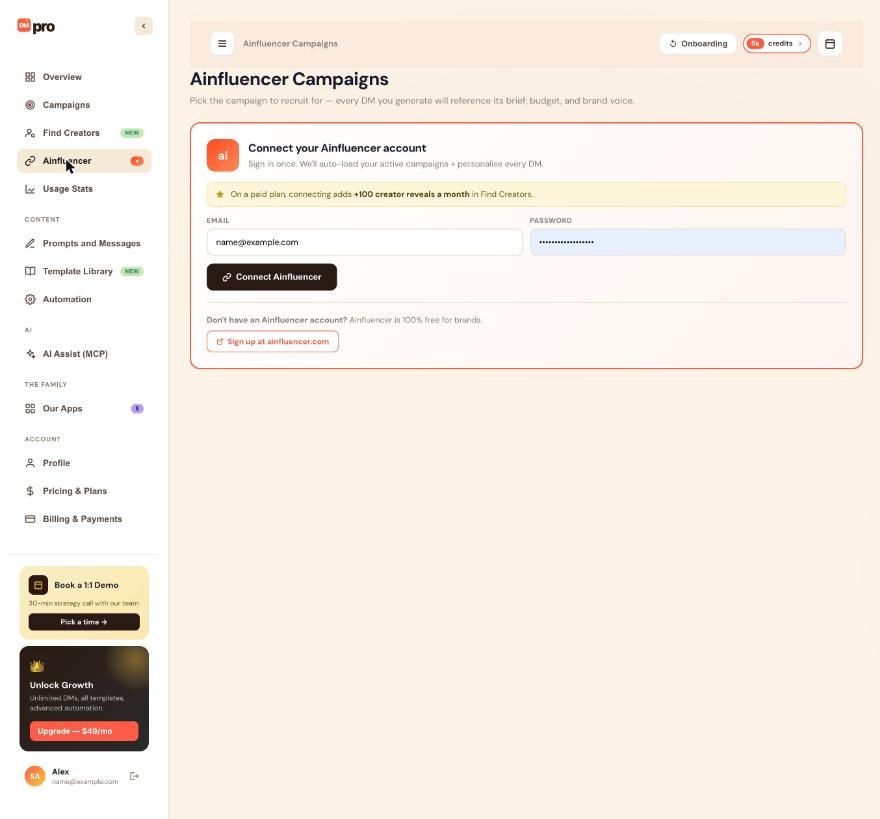
- In Connect your Ainfluencer account, enter your Ainfluencer Email and Password.
- Click Connect Ainfluencer.
- The page switches to the connected view: a Connected as line with a Disconnect link, and your Active campaigns with a Refresh button. A dot appears next to Ainfluencer in the sidebar while you are connected.
No Ainfluencer account yet? Use Sign up at ainfluencer.com on the same card, create a campaign, then come back.
4. Selecting A Campaign
Click a campaign card. DMpro saves it and shows it in a Currently selected for DMs banner at the top. Only active campaigns are listed, 10 per page. If none show up, create a campaign on Ainfluencer and click Refresh.
The variables then contain:
$campaign_title: the campaign’s title.$campaign_description: its description as shown on the card (long descriptions are shortened).$campaign_URL: the campaign’s short apply link from Ainfluencer.
5. Using Campaign Variables In Prompts
Use them in any AI prompt, for example:
While Ainfluencer is connected, the prompt editor offers the three variables under “Your own details (from onboarding)”. They work for single profiles and campaigns. Write them exactly as shown, including the capital letters in $campaign_URL.
6. Switching Or Clearing The Campaign
- Switch: click another campaign on the Ainfluencer page. The next DMs the AI writes use it.
- Clear: click Clear in the Currently selected for DMs banner and confirm. With no campaign selected, DMpro leaves the campaign variables (and a short label in front of them) out of your prompts before the AI writes.
7. When Your Ainfluencer Session Ends
The Ainfluencer connection lasts about 30 days. When it ends, the page shows Ainfluencer session expired with a Reconnect button, or simply the connect form again. Sign in again to see your campaigns. Until you do, DMpro keeps using the campaign you last selected, but you cannot switch or clear it.
8. Disconnecting Ainfluencer
Click Disconnect (on the Ainfluencer page or on the onboarding Brand step) and confirm. DMpro deletes the saved Ainfluencer connection and your selected campaign, so the campaign variables are left out until you connect again and select a campaign. Disconnecting does not change your persona or your prompts.
9. Your Password And Security
DMpro sends your email and password to Ainfluencer once to sign you in, then keeps only the resulting access key on its server and uses it to load your campaigns. Your Ainfluencer password is not saved.
10. Do I Need Ainfluencer?
Only to finish onboarding with the Brand persona. Creator and Business accounts never need it, and you can disconnect it at any time.
Related questions:
This article walks through onboarding with the Creator persona, which connects your brandID page so your DMs can pitch brands with your own link, name and niche.
1. Step 1: Pick The Creator Persona
Click I’m a Creator or Influencer, then Next.
2. Step 2: Connect Your brandID Page
The step is titled Connect your brandID link-in-bio. Under Your brandID handle, type the part of your page address that comes after brandid.app/ and click Connect brandID. DMpro looks up your public brandID account and shows a brandID connected banner with your page address, display name and niche.
No brandID page? I don’t have one opens brandid.app in a new tab. Connecting is optional: Next works either way. See “Connecting Your brandID Profile” for what DMpro pulls in.
3. Choose What You Pitch
Under What are you pitching brands?, pick one or both:
- Collab with me: a short pitch plus your brandID link, where brands see your media kit.
- Rent my billboard ad spot (marked PREMIUM): offer brands the paid ad placement on your brandID page.
Your choice decides the starter prompt: Collab, Billboard, or Collab and Billboard together. If you pick neither, you get the Collab prompt. On the dashboard these choices appear once brandID is connected. In the extension they are always shown.
4. Step 3: Platform And Country
Pick Instagram, TikTok or Both (selected by default) and choose Your country. Next stays grayed out until a country is chosen.
5. Step 4: Your Starter Prompt
Your perfect prompt is ready previews your pitch. It introduces you with $brandidName and $niche and links your page with $brandidUrl. The Billboard and Collab and Billboard versions also offer your billboard ad slot.
6. Step 5: Handles And Emails
Add your Instagram and TikTok handles if you like (both optional), decide on Send me product updates and outreach tips, and click Finish. Enter only your own handles: if one is already linked to a different DMpro account, this account does not get free credits, a free trial or a gift link.
7. After You Finish
- Your starter prompt (its name starts with “Pitch Brands”) is your active prompt in Prompts and Messages. The “Default Prompt” is still there.
- Your brandID details are saved only when you click Finish. If you close onboarding earlier, connect brandID again next time.
Related questions:
Connecting your brandID page lets DMpro put your page link, display name and niche into your AI prompts, and this article explains how to connect it, what is pulled in, and how to update or remove it.
1. What brandID Is
brandID is the link-in-bio platform of the brandID family (brandid.app). Creators use their brandID page as the one link in their Instagram or TikTok bio.
2. Where To Connect
brandID is connected only on the Creator step of onboarding, on the dashboard or in the extension. There is no brandID setting anywhere else. To connect it after your first onboarding, click Onboarding at the top of the dashboard, pick I’m a Creator or Influencer, and connect it on step 2.
3. How To Connect
- On the Creator step, type your handle under Your brandID handle: the part of your page address after
brandid.app/(letters, numbers, dots, dashes and underscores). - Click Connect brandID.
- DMpro looks up your public brandID account. When it finds it, a brandID connected banner shows your page address, display name and niche.
- Complete the remaining steps and click Finish. Your brandID details are saved at that moment, not when you click Connect brandID.
If DMpro cannot find the account, an error appears under the field. Check the handle and try again.
4. What DMpro Pulls In
- Page address:
brandid.app/followed by your page name. If you have several pages, DMpro uses the published page whose name matches the handle you typed, otherwise your first published page. - Display name: the name on your brandID account.
- Niche: up to three of your brandID categories, separated by commas.
5. brandID Variables In Prompts
$brandidUrl: your page address.$brandidName: your display name.$niche: your niche.
For example:
While brandID is connected, the prompt editor offers these variables under “Your own details (from onboarding)”. If one of them is empty, DMpro leaves it out before the AI writes.
6. Updating Your brandID Details
DMpro does not refresh them by itself. After you change your brandID name, categories or page, click Onboarding on the dashboard, pick the Creator persona, click Connect brandID again and finish the steps.
7. Disconnecting brandID
There is no Disconnect button for brandID. To remove it, contact DMpro support.
8. Do I Need brandID?
No. It is optional, even for creators. Without it, write your name, niche and link into your prompt yourself.
Related questions:
This article walks through onboarding with the Business persona, where you pick your business type and describe your offer and ideal customer so DMpro can add a cold outreach starter prompt.
1. Step 1: Pick The Business Persona
Click I run a Business or Service, then Next. You do not need an Ainfluencer or brandID account.
2. Step 2: Tell Us About Your Business
Under What’s your business type?, pick one (required):
- SaaS / Software
- Agency / Consultancy
- Coach / Course Creator
- E-commerce / DTC
- Recruiter / Hiring
- Something else
Then, under Your offer & ideal customer, fill in (optional):
- What are you offering? For example a free audit, your product, or the role you are hiring for.
- Who’s your ideal customer? The people you want to reach.
DMpro keeps up to 500 characters of each. They become your $offer and $icp variables. In the extension the business types are shorter: SaaS, Agency, Coach, E-commerce, Recruiter and Other.
3. Which Starter Prompt You Get
Your business type decides the starter prompt. All of them use the person’s name and bio:
- SaaS / Software: “SaaS Cold Outreach”, which uses
$offer. - Agency / Consultancy: “Agency Cold Outreach”, with
$icpand$offer. - Coach / Course Creator: “Coaching Cold Outreach”, with
$icpand$offer. - E-commerce / DTC: “E-commerce Cold Outreach”, with
$icpand$offer. - Recruiter / Hiring: “Recruiter Cold Outreach”, where
$offeris the role you are hiring for and$icpthe candidates you are looking for. - Something else: “Lead-Gen Cold Outreach”, with
$icpand$offer.
4. Steps 3 To 5
Pick your platform and country (step 3, the country is required), check the preview on Your perfect prompt is ready (step 4), then add your Instagram and TikTok handles if you like and click Finish (step 5). Enter only your own handles: if one is already linked to a different DMpro account, this account does not get free credits, a free trial or a gift link.
5. After You Finish
- Your starter prompt is your active prompt in Prompts and Messages, next to the “Default Prompt”. Edit it there so it sounds like you.
- To change your offer or ideal customer later, click Onboarding at the top of the dashboard and go through the steps again, or ask an AI app connected through AI Assist (MCP) to update them.
6. Before You Send At Volume
Safety Mode starts off for every account. Turn it on under Automation if you want new campaigns to send at most 20 DMs a day, with 3 to 6 minutes between DMs (see “Safety Mode: What It Does And Why Use It”).
Related questions:
Step 3 of onboarding asks which platform you use and which country you are in, and this article explains both choices and what they do and do not change.
1. The Platform And Country Step
The screen is titled Which platform? and shows three cards:
- Instagram (“Creators & brands”)
- TikTok (“Short-form video”)
- Both (“Multi-platform · Recommended”), selected by default.
Below them, Your country opens a searchable list of countries. A country is required: Next stays grayed out until you pick one.
2. What Your Platform Choice Changes
DMpro saves your choice with your account. Your starter prompt does not depend on it: that comes from your persona and your step 2 answers.
3. What It Does Not Change
- Where you can send. The extension works on Instagram and TikTok profiles for every account, whatever you picked.
- Campaigns. Every campaign has its own Instagram or TikTok switch. Check it each time you create a campaign.
- Credits. One credit balance covers both platforms.
- Your messages. The same prompts and own DMs work on both platforms.
4. Your Country
Your country is saved to your account and shown in the Country field on the Profile page, where you can change it at any time.
5. If You Pick Both
Pick Both if you plan to message on Instagram and TikTok. You switch platforms simply by opening a profile on the other site: the extension reads whichever profile you have open.
6. Changing Your Platform Later
Click Onboarding at the top of the dashboard, go through the steps again and choose another platform on step 3. Finishing onboarding again also saves your other answers, so read “Understanding The Three Personas (Brand, Creator, Business)” first, especially the note about brandID.
7. Instagram And TikTok Work A Little Differently
Sending is not identical on the two platforms. See “Sending On TikTok Vs Instagram: Differences”.
Related questions:
Still stuck? We’re happy to help.
Create your account, or reach out to support.




