
Bulk Campaigns
Create campaigns for a whole list of usernames, set the pace, start, pause and stop them and read every status.
A campaign sends a personalized DM to every person on a list, one at a time and at a safe pace, and this article explains how campaigns work from start to finish.
1. Campaign Vs Single Profile
- Single Profile: you open each profile yourself and send from the extension.
- Bulk Campaign: you give DMpro a list of usernames, press Start, and the extension works through the list in the background with delays between DMs and a daily limit.
2. What A Campaign Has
- A name (if you leave it empty, DMpro names it “IG Campaign” or “TT Campaign” with the date).
- One platform: Instagram or TikTok.
- A list of usernames. There is no limit on its size.
- A message: an AI prompt (your active prompt at the moment each DM is written, or 2 to 20 prompts with Rotate prompts) or your own DM.
- A pace: daily limit, Min delay and Max delay.
- Auto-send DMs: on to send, off to only write (or prepare) the messages.
- A status: Draft, Running, Paused, Out of Credits, Completed or Stopped.
3. Where To Manage Campaigns
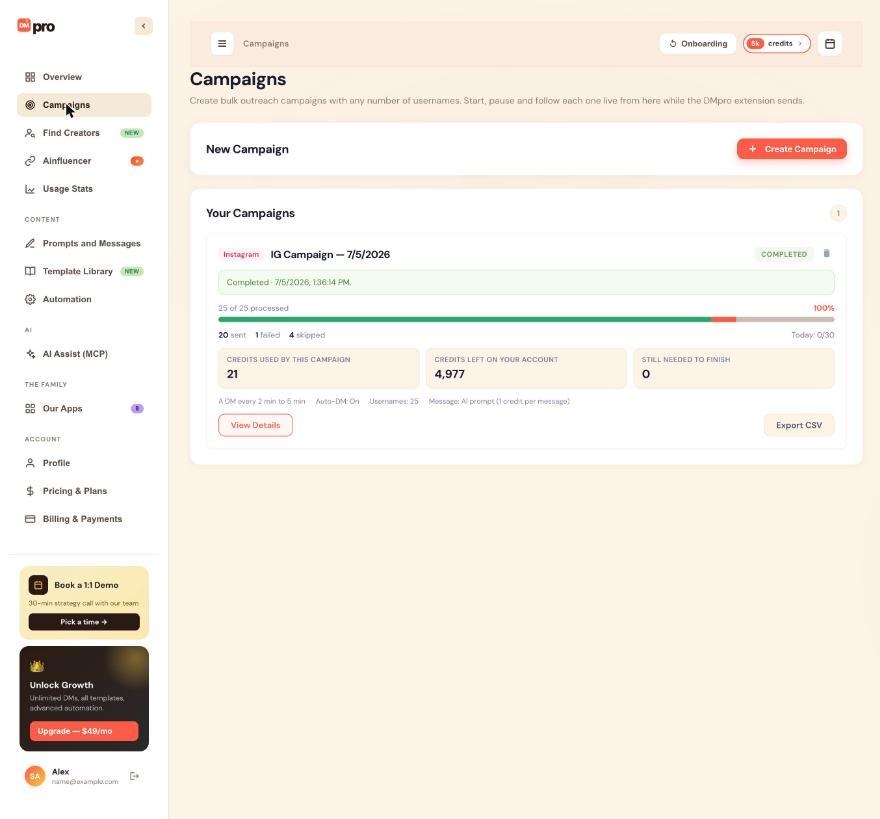
- Dashboard: Campaigns in the left menu. Create campaigns, then Start, Pause, Resume and Stop them, and follow each one live.
- Extension: the Bulk Campaign mode (or Campaigns in the account menu) shows the active campaign, a form to start a new one and your recent campaigns. While a campaign is running, paused or out of credits in that browser, the form is hidden: create the next one on the dashboard, or stop or finish the current one first.
4. Who Does The Sending
The DMpro extension in your Chrome sends every campaign DM, from the Instagram or TikTok account signed in there, in its own tab. Chrome must be open with the extension signed in to DMpro. When you start a campaign from the dashboard, the extension picks it up within about a minute.
5. How A Campaign Runs
For each person, in list order, the extension opens the profile, reads it, writes the DM (AI) or fills in your own DM, waits for the delay, then sends. It stops for the day at the daily limit and continues after your midnight. When everyone has been handled, the campaign is Completed.
6. One Campaign At A Time
The extension sends one DM at a time and runs one campaign at a time. If several campaigns are running, the others wait (“Queued”) and start when the current one finishes.
7. Credits
- AI prompt campaigns: 1 credit for every message the AI writes, sent or not.
- Own DM campaigns: 1 credit for every DM sent; a DM that fails is refunded.
If credits run out, the campaign pauses as Out of Credits and nobody is skipped.
8. Deleting A Campaign
Deleting removes the campaign and all its results. DMs already sent stay sent.
Related questions:
Creating a campaign takes a few minutes on the dashboard or in the extension, and this article walks through every field.
1. Open The Campaign Form
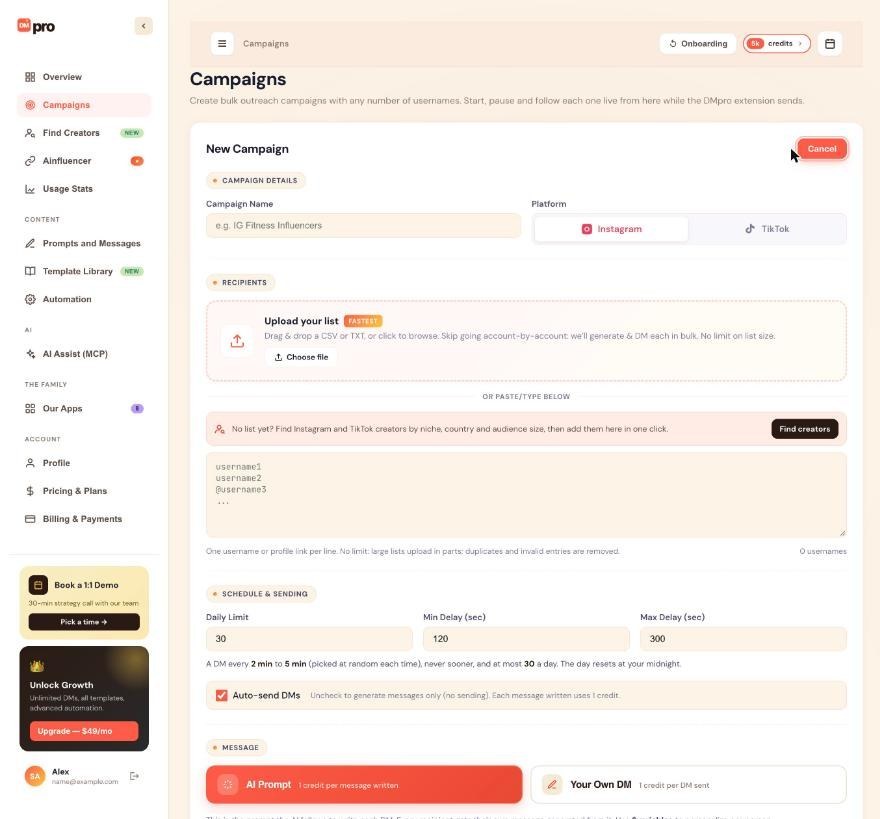
- Dashboard: click Campaigns in the left menu, then Create Campaign.
- Extension: click Bulk Campaign at the top of the panel (or Campaigns in the account menu). The form is under New Campaign.
2. Name And Platform
Enter a Campaign Name (only you see it) and choose Instagram or TikTok. One campaign targets one platform.
3. Add Recipients
Click Upload your list to drop in a CSV, TSV or TXT file, or paste usernames below, one username or profile link per line. See “Adding Usernames To A Campaign (CSV Import Or Manual)”.
4. Set The Pace
- Daily Limit: 1 to 200 DMs a day.
- Min Delay and Max Delay (seconds): the time between two DMs, at least 30 and at most 3,600 seconds. Max can equal Min for a fixed delay.
The fields start from your Automation defaults. If Safety Mode is on, they show 20 a day and 180 to 360 seconds and cannot be changed. See “Campaign Settings: Daily Limits And Delays”.
5. Auto-Send DMs
Leave Auto-send DMs checked to send. Uncheck it to only write the messages (AI, 1 credit each) or only prepare them (own DM, free).
6. Choose The Message
- AI Prompt (“1 credit per message written”). Then choose Single prompt (every DM is written from your active prompt at the moment it is written) or Rotate prompts (2 to 20 prompts you pick). The card shows a live preview of the active prompt with Browse Templates, Edit Prompt and Copy. Picking another prompt or a template here, or saving Edit Prompt, changes your account’s active prompt, so it also changes your AI-written single-profile DMs and every single-prompt AI campaign still running.
- Your Own DM (“1 credit per DM sent”). Pick which own DM to send and check the preview. See “Running A Campaign With Your Own DM”.
The choice starts on your current message mode, and you can change it for each campaign.
7. Check The Cost Line
Under the message, DMpro shows the cost per message. On the dashboard it also shows what the whole list can cost, for example “1 credit per message the AI writes, sent or not: up to 250 credits for this list”, and whether Auto Email will email people.
8. Create It
- Dashboard: click Create & Save. The campaign is saved as a Draft (“Ready. Press Start: the DMpro extension in Chrome does the sending.”). Click Start on its card when you are ready.
- Extension: click Start Campaign. The campaign is created and starts right away.
If DMpro had to change a number, it says so: “Safety Mode applied: up to 20 a day, a DM every 3 to 6 min.” when Safety Mode is on, otherwise which number changed and why (for example “Min delay 10 became 30 (the lowest allowed is 30 s)”).
9. After The Start
The card shows the live step, such as “Running in the DMpro extension · Opening the profile of @username”, the progress bar and “Today: x/y”.
Related questions:
You can paste usernames or upload a file, with no limit on the size of the list, and this article explains the formats DMpro accepts.
1. Paste Usernames
Type or paste one username or profile link per line:
garyvee
@mrbeast
https://www.instagram.com/natgeo/
https://www.tiktok.com/@khaby.lame
DMpro removes the @, reads the username from profile links, and lowercases everything.
2. Upload A File
Click Upload your list (or drop a file on it). DMpro accepts CSV, TSV and TXT files:
- If the file has a header such as “username”, “handle”, “Instagram”, “TikTok” or “profile url”, DMpro uses only that column, so emails, names and follower counts in other columns never become recipients.
- Without a known header, DMpro picks the column that looks most like usernames or profile links.
- TXT lists can be separated by new lines, commas, semicolons or tabs.
The hint under the upload box tells you which column was used and how many entries were skipped.
3. What Counts As A Valid Username
Letters, numbers, dots and underscores, up to 30 characters, or a profile link. Instagram links to posts or Reels are not profiles and are skipped; a TikTok video link counts as that creator’s profile. Blank lines are ignored.
4. Duplicates And Invalid Entries
Duplicates are removed automatically, so each person is in the campaign once. Invalid entries are skipped and counted.
5. No Size Limit
A campaign can have any number of usernames. Very large lists are uploaded in parts of 5,000; the form shows the progress. If an upload is interrupted, the dashboard card shows Upload incomplete, and Start asks whether to run the usernames received so far. In the extension, the campaign stays a draft that you run with Resume in Recent Campaigns.
6. Adding Usernames Later
Usernames are added when you create the campaign. Once a campaign has started, you cannot add more to it: create a new campaign for the next list.
7. Removing People
You cannot remove individual usernames from a campaign. To skip the rest of a list, stop the campaign. People already messaged in other campaigns are not removed automatically, so check your list if you do not want to message someone twice.
Related questions:
Every campaign has a daily limit and a Min and Max delay, and this article explains what each number means and the rules DMpro applies.
1. Daily Limit
The most DMs this campaign sends in one day, from 1 to 200. The day resets at your own midnight (your browser’s time zone). Only DMs that went out count (including ones delivered by email); failed and skipped people do not. With Auto-send DMs off, the limit counts messages written instead.
2. Min Delay And Max Delay
The time between two DMs that go out, measured from one send to the next:
- DMpro picks a random time between Min and Max for each gap, both included, and never sends sooner than Min.
- Min Delay is at least 30 seconds. Both delays are at most 3,600 seconds (1 hour).
- Max Delay cannot be lower than Min Delay. Use the same number for both to get a fixed delay.
The extension opens and reads the next profile during the wait, so the gaps stay close to what you chose.
3. The Pace Note
Under the fields, DMpro describes the pace in words, for example “A DM every 2 min to 5 min (picked at random each time), never sooner, and at most 30 a day. The day resets at your midnight.”
4. Defaults
New campaigns start from your Sending Limits & Delays defaults (Automation page on the dashboard, Automation settings in the extension): 30 a day and 120 to 300 seconds unless you change them. While the default daily limit is 30, a new TikTok campaign starts at 20 a day.
5. Safety Mode
With Safety Mode on, new campaigns send at most 20 DMs a day with 180 to 360 seconds (3 to 6 minutes) between them, and the fields are locked. See “Safety Mode: What It Does And Why Use It”.
6. Numbers Outside The Rules
The forms refuse numbers outside the rules and say why, for example “Min delay: at least 30 s. Faster DMs get accounts restricted.” Nothing is changed silently.
7. Settings Are Fixed When You Create The Campaign
The daily limit and delays cannot be changed after the campaign is created. To use other numbers, stop the campaign and create a new one with the remaining usernames.
8. Several Campaigns
Each campaign has its own daily limit. The extension runs one campaign at a time, but over a day several campaigns can add up, so keep your total in mind.
Related questions:
You control every campaign with Start, Pause, Resume and Stop, and this article explains exactly what each does.
1. Start
- Dashboard: a campaign created with Create & Save is a Draft. Click Start on its card. DMpro says “Started. It begins as soon as Chrome with the DMpro extension is open (within a minute).” If the extension runs in the same browser, it picks the campaign up at once.
- Extension: Start Campaign creates and starts the campaign in one step.
2. Pause
Click Pause (dashboard card or the extension’s Active Campaign card). “Paused. The extension stops within about 30 seconds; a DM already being sent finishes first.” People who were not messaged stay in the queue.
3. Resume
Click Resume on a paused or Out of Credits campaign (dashboard card; in the extension, the Active Campaign card’s Pause button turns into Resume, and Resume in Recent Campaigns also starts a draft). Sending continues with the next person, within today’s limit. Resuming another campaign in the extension while one runs puts the running one back in the queue.
4. Stop
Click Stop and confirm “Stop this campaign permanently? You will not be able to resume it.” (dashboard) or “Stop this campaign permanently?” (extension). Nobody left in the campaign is messaged, and it cannot be started again. Use Pause if you might continue later.
5. Completed
When every person has been handled, the campaign becomes Completed on its own. Its results stay available in View Details and Export CSV.
6. Delete
Click the trash icon on the dashboard card and confirm “Delete this campaign and all its results? This cannot be undone.” (for a running campaign: “This campaign is running. Delete it and all its results? This cannot be undone.”). Deleting a running campaign also stops it.
7. Controls Work From Anywhere
Start, Pause, Resume and Stop on the dashboard reach the extension wherever it runs, even on another computer: a pause within about 30 seconds, a start within about a minute, as long as Chrome with the extension is open.
8. Campaigns Started By An AI App
If you use AI Assist (MCP), an AI app can start, pause and stop campaigns too (starting always asks you first). They run exactly like campaigns you started, and the AI Assist Sending tab shows which app started them. See “How AI Apps Use Your Prompts, Own DMs And Campaigns”.
Related questions:
Every campaign shows one of six statuses, and this article explains each one and what you can do in it.
1. Draft
Created but not started. Nothing is sent. Card line: “Ready. Press Start: the DMpro extension in Chrome does the sending.” You can Start, Stop or delete it.
2. Running
DMpro is working through the list. The card shows what the extension is doing right now, for example “Running in the DMpro extension · Writing a message for @username”, or while it waits “Running in the DMpro extension · Waiting before the next DM · next DM in 1:42”. You can Pause or Stop it.
Running does not always mean a DM is going out this minute. The card may say:
- “Waiting for the DMpro extension. Keep Chrome open with the extension signed in; it picks this campaign up within a minute.”
- “Queued. It starts when [another campaign] finishes (the extension runs one campaign at a time).”
- “Daily limit reached for today · continues after midnight, in [time]”.
3. Paused
Stopped for now, by you, an AI app, DMpro support, or by DMpro itself when an own DM campaign’s DM is empty (“This campaign’s own DM is empty. Write it in Prompts and Messages, then resume the campaign.”). “Resume to continue where it stopped.” You can Resume or Stop it.
4. Out Of Credits
Your account ran out of credits during the run. “Out of credits. Add credits, then Resume: nobody is skipped.” You can Resume, Stop, or click Get credits.
5. Completed
Every person has been handled. You can view details, export the results or delete it.
6. Stopped
Ended for good. People who were still waiting were not messaged. You can view details, export or delete it.
7. Which Changes Are Possible
- Draft to Running (Start), or to Stopped.
- Running to Paused, Out of Credits (automatic), Completed (automatic) or Stopped.
- Paused or Out of Credits to Running (Resume), or to Stopped.
- Completed and Stopped campaigns cannot be started again.
8. Status Colors On The Dashboard
Draft and Stopped are gray, Running green, Paused yellow, Completed olive green, and Out of Credits coral.
Related questions:
Each person in a campaign has their own status, and this article explains what each one means.
1. Pending
Waiting for their turn.
2. In Progress
The extension is working on this person right now: opening the profile, writing or filling in the message, or sending.
3. Sent
The DM went out. Under the status you may also see:
- “DM + email”: Auto Email sent the same message by email too.
- “by email”: the DM could not be sent, and Auto Email delivered the message by email instead.
4. Generated
The message was written but not sent, because the campaign’s Auto-send DMs was off. For own DM campaigns the card counts these as “prepared”.
5. Failed
The message could not be written (for example “The AI returned an empty message.”) or the DM could not be sent. The Reason column says why, for example “DM not sent” or a message from the page. Two special cases:
- “interrupted, not resent”: the DM was being sent when Chrome closed or the extension restarted, or the page never confirmed it (3 minutes; TikTok 90 seconds). It may have gone out, so DMpro never sends it again.
- “credit refunded”: an own DM that failed; its credit was given back.
6. Skipped
DMpro could not read the profile (for example the account no longer exists or the page did not load), so no message was written.
7. Waiting For Credits
Shown only on campaigns run by an older extension version. With a current extension, the person whose turn it was when credits ran out simply stays Pending. Either way, when you add credits and press Resume, they are handed out again.
8. Where To See Them
Click View Details on a campaign card. The table lists #, Username, Message, Status, Reason and When, with chips to filter by status and a search box (“Search username or name”). Long messages show 3 lines with Show more.
9. Failed And Skipped People Are Not Retried
DMpro does not retry failed or skipped people automatically, and the table has no retry button. To try them again, export the results, copy their usernames into a new campaign, and start it.
Related questions:
Each campaign counts its DMs per day and starts a new day at your own midnight, and this article explains how the count works.
1. What The Daily Limit Counts
The DMs this campaign sent today (or, with Auto-send DMs off, the messages it wrote today). When the count reaches the limit, the campaign waits.
2. When The Day Resets
At midnight in your own time zone, taken from your browser. If you are in Toronto, the day resets at midnight Eastern time.
3. What You See At The Limit
The card shows “Daily limit reached for today · continues after midnight, in 5 h 20 min” (the time left), and the campaign stays Running. You do not need to do anything: it continues by itself after midnight, as long as Chrome with the extension is open.
4. Today’s Count On The Card
Every campaign card shows “Today: x/y”, for example “Today: 12/30”.
5. Each Campaign Counts Separately
Two campaigns with a limit of 30 each can together send up to 60 in a day (one after the other, since the extension runs one campaign at a time). Keep your total in mind.
6. Changing The Limit
The daily limit is fixed when you create the campaign. Use a new campaign for a different number. Your default for new campaigns is in Sending Limits & Delays.
7. Time Zone Changes
The count keeps the time zone the campaign started counting in. If you travel, it still resets at midnight in that original time zone. Create a new campaign to count in your new time zone.
Related questions:
When your credits run out, a campaign pauses as Out of Credits without skipping anyone, and this article explains how to continue.
1. When It Happens
- AI prompt campaigns need 1 credit before the AI writes each message. With none left, the campaign pauses before writing.
- Own DM campaigns take 1 credit right before each DM is sent. With none left, the campaign pauses before sending.
The person whose turn it was stays in the queue.
2. What You See
The status becomes Out of Credits and the card says “Out of credits. Add credits, then Resume: nobody is skipped.” The card also shows Credits left on your account and Still needed to finish (or Needed at most to finish for own DMs). In the extension, the card shows No Credits and the upgrade window opens.
3. Continue The Campaign
- Add credits: click Get credits on the card, upgrade your plan, buy a one-time package, or wait for your subscription to renew.
- Click Resume.
The campaign does not resume by itself when credits arrive, so you decide when it continues.
4. All Campaigns Share Your Credits
Credits belong to your account. When they run out, any running campaign that needs one pauses as Out of Credits.
5. How Many Credits A Campaign Needs
- AI: 1 per person still to go, whether the DM is then sent or not.
- Own DM: at most 1 per person still to go; failed DMs are refunded. With Auto-send DMs off, an own DM campaign needs no credits.
A message already written and paid for is never charged twice, even after a pause or a restart.
6. Which Credits Are Used First
Subscription credits first, then one-time credits, then free credits.
7. Ending It Instead
If you do not want to continue, click Stop. Nobody left in the campaign is messaged.
Related questions:
Rotate prompts lets one AI campaign write from several of your prompts, so you can test messages against each other, and this article explains how to set it up.
1. What It Is
Instead of writing every DM from your active prompt, a rotating campaign uses 2 to 20 prompts you choose and splits the list between them. It is sometimes called God Rotate. It is only for AI prompt campaigns.
2. Turn It On
In the campaign form’s message section, choose AI Prompt, then Rotate prompts instead of Single prompt. Add at least 2 and at most 20 of your saved prompts (or add templates from the Template Library tab of the picker).
3. Choose A Rotation Style
- Even: “One after another. A, B, C, A, B…”
- Sequential: “Each prompt for a block of sends.” You choose how many people each prompt gets before switching (1 to 1,000; 10 by default).
- Weighted %: “Give each prompt a share.” Choose whether the prompts are mixed through the list or sent in blocks.
- Random: “Random pick per recipient,” following the shares. The pick is stable, so a retry reuses the same prompt.
A preview shows how your recipients will split across the prompts.
4. Which Prompt Each Person Gets
DMpro decides the prompt from each person’s place in the list, so the split matches the preview. The prompt’s current text is used when that person’s DM is written.
5. Change The Rotation Later
For a campaign that is not finished, click Edit rotation (or Set up rotation) in View Details on the dashboard, or Edit on the extension’s Active Campaign card. The change applies from the next person.
6. When A Rotated Prompt Is Deleted
The campaign leaves it out and splits the people still waiting across the remaining prompts. If fewer than 2 remain, it writes from your active prompt.
7. Rotation Ignores The Active Prompt
Switching your active prompt does not change a rotating campaign. Editing one of its prompts does change what it writes next.
8. Credits
The same as any AI campaign: 1 credit per message written.
Related questions:
A campaign can send your own DM to a whole list, filled in for each person, and this article explains how it works and what it costs.
1. Choose Your Own DM In The Campaign Form
In the message section, choose Your Own DM (“1 credit per DM sent”). If you have several own DMs, pick one under DM to send (the active one is selected first). The form shows a preview for sample profiles and the number of versions your spintax gives. Use Edit this DM to change it, or Write your DM if you have none yet.
2. What Each Person Gets
For each person, the extension fills in your variables (such as {{firstName|there}}) from their profile and picks one option from each {a|b} block, avoiding the wording it used just before. See “Using Spintax To Vary Your Wording”.
3. Edits Apply, Switching Does Not
An own DM campaign sends the own DM you picked in the form. Edits you save to that DM apply to the people still waiting (the dashboard says “Changes you save to this DM apply to the DMs still to go.”). Switching your active own DM or the message mode does not change it. If you delete the DM, the campaign keeps sending the copy it saved when it was created.
4. Credits
- 1 credit for each DM DMpro sends, taken right before the send.
- A DM that fails is refunded (the details show “credit refunded”).
- A DM that may have gone out when Chrome closed keeps its credit, and is never sent again.
- A DM that failed but was delivered by Auto Email (“by email”) counts as sent and keeps its credit.
- With Auto-send DMs off, DMpro only prepares each message, for free (“No credits. Auto-send is off, so DMpro only prepares each message for you to review.”).
5. Errors Are Caught Before The Start
DMpro does not create an own DM campaign without a saved own DM that passes its check (“Write and save your own DM first, or pick AI Prompt.”). Fix any error in the DM first.
6. Rotation Does Not Apply
Rotate prompts is for AI prompts only. To vary an own DM, use spintax.
7. Update The Extension
Own DM campaigns need an up-to-date extension. If yours is too old, the card says “Your DMpro extension needs an update to send your own DM.” Update DMpro in chrome://extensions (turn on Developer mode and press Update), or reinstall it from the Chrome Web Store. See “Updating The Extension To The Latest Version”. Then keep Chrome open.
Related questions:
An AI campaign with a single prompt always writes from the prompt that is active when each DM is written, and this article explains what that means for running campaigns.
1. The Rule
A campaign that writes with an AI prompt writes every DM from your account’s active prompt at the moment that DM is written. It does not keep a copy of the prompt from when it was created.
2. What Changes What A Running Campaign Writes
For AI campaigns that are Running, Paused or Out of Credits:
- making another prompt active,
- editing the active prompt,
- deleting the active prompt (the default prompt takes over),
- changing your own details that the prompt uses (
$offer,$icp) or the Ainfluencer campaign behind$campaign_title,$campaign_descriptionand$campaign_URL.
The people still waiting get DMs written with the change. DMs already written or sent are not affected.
3. What Does Not Change It
- Rotating campaigns use their own prompts; the active prompt does not matter to them (editing one of their prompts does).
- Own DM campaigns send the own DM picked when they were created (its latest saved text, or the saved copy if you delete it). Your active prompt does not affect them.
- The message mode (AI Prompt or Your Own DM) only decides single-profile DMs.
4. How To Change A Running Campaign Safely
- Pause the campaign.
- Change or switch the prompt, and test it on a profile or two.
- Resume the campaign.
5. Two AI Campaigns At Once
Two single-prompt AI campaigns always write from the same active prompt. To have them say different things, give one of them Rotate prompts.
6. AI Apps Ask You First
If an AI app connected through AI Assist (MCP) would change what a sending or paused AI campaign writes (for example by switching or editing the active prompt), it asks you first.
Related questions:
Every campaign keeps a full record of who was messaged and what happened, and this article shows where to find it and how to export it.
1. The Campaign Card
Each card on the dashboard’s Campaigns page shows:
- The status and a live line of what the extension is doing.
- Progress (“120 of 500 processed · 380 to go”) with a colored bar for sent, generated, failed, skipped and waiting for credits.
- Credits used by this campaign (live while it runs), Credits left on your account and Still needed to finish.
- “Today: x/y”, the pace (“A DM every 2 min to 5 min”), Auto-DM On or Off, the number of usernames, and the message it uses.
2. View Details
Click View Details for the full list:
- Totals for credits used, sent, failed and skipped, and how many are to go.
- The message source: the rotation (with Edit rotation) or the own DM it sends.
- Status chips with counts, to filter the list.
- A search box (“Search username or name”).
- A table with #, Username, Message, Status, Reason and When, 50 people per page.
While the campaign runs, the details refresh by themselves.
3. Export CSV
Click Export CSV on the dashboard card to download every person with their status, how it was delivered (DM, Email or DM + Email), the message, the reason for a failure, dates, credits, attempts, whether it was interrupted, and the profile details DMpro read. Export in the extension’s Recent Campaigns (shown once someone has been processed) gives a shorter file: status, message, dates, the reason for a failure and profile details.
4. In The Extension
The Bulk Campaign screen shows the active campaign (progress, Sent, Failed, Skipped, the countdown to the next DM, credits and today’s count) and your recent campaigns with Resume and Export.
5. Any Size
Details and exports work for lists of any size. The Campaigns page lists your 50 newest campaigns plus every active one (an AI app that lists your campaigns gets the 50 newest plus every running or paused one); the extension’s Recent Campaigns shows the 10 newest that are not running.
Related questions:
If a campaign shows Running but no DMs go out, the live line on its card usually says why, and this article walks through the common causes.
1. “Waiting for the DMpro extension”
Nothing is picking the campaign up. Check that:
- Chrome is open on a computer where the DMpro extension is installed.
- The extension is signed in to the same DMpro account. Signing out of DMpro in the extension stops the campaign in that browser; it continues after you sign in again.
The extension picks a running campaign up within about a minute.
2. “Queued. It starts when … finishes”
The extension runs one campaign at a time. This campaign starts when the current one finishes, or pause the other one.
3. “Daily limit reached for today”
The campaign reached its daily limit and continues after your midnight. See “Daily Send Limit Reset Behavior”.
4. “Waiting before the next DM”
It is working normally and waiting for the delay. The card shows when the next DM is due.
5. “Your DMpro extension needs an update to send your own DM”
Own DM campaigns need a current extension. Update DMpro in chrome://extensions (turn on Developer mode and press Update), or reinstall it from the Chrome Web Store. See “Updating The Extension To The Latest Version”. Then keep Chrome open.
6. “Retrying shortly (DMpro or a browser tab could not be reached)”
A short connection or tab problem. The extension tries again by itself.
7. Out Of Credits Or Paused
An Out of Credits campaign needs credits and Resume. A paused campaign needs Resume.
8. DMs Fail Instead Of Sending
If people end up Failed or Skipped, open View Details and read the Reason. Check that you are signed in to Instagram or TikTok in that Chrome. A platform restriction on your account is the most common cause. See “What Happens When Sending Fails?”.
9. Running In Another Browser
A campaign runs in one browser at a time: the first Chrome with the DMpro extension that picks it up keeps it (“This campaign is already running in another browser, so it keeps running there.”). Another browser takes over only if that one stops reporting for about 3 minutes.
Related questions:
Still stuck? We’re happy to help.
Create your account, or reach out to support.




