
AI Prompts And Message Generation
Write, manage and test prompts, use variables, browse the Template Library and let Smart Message Update refresh your DMs.
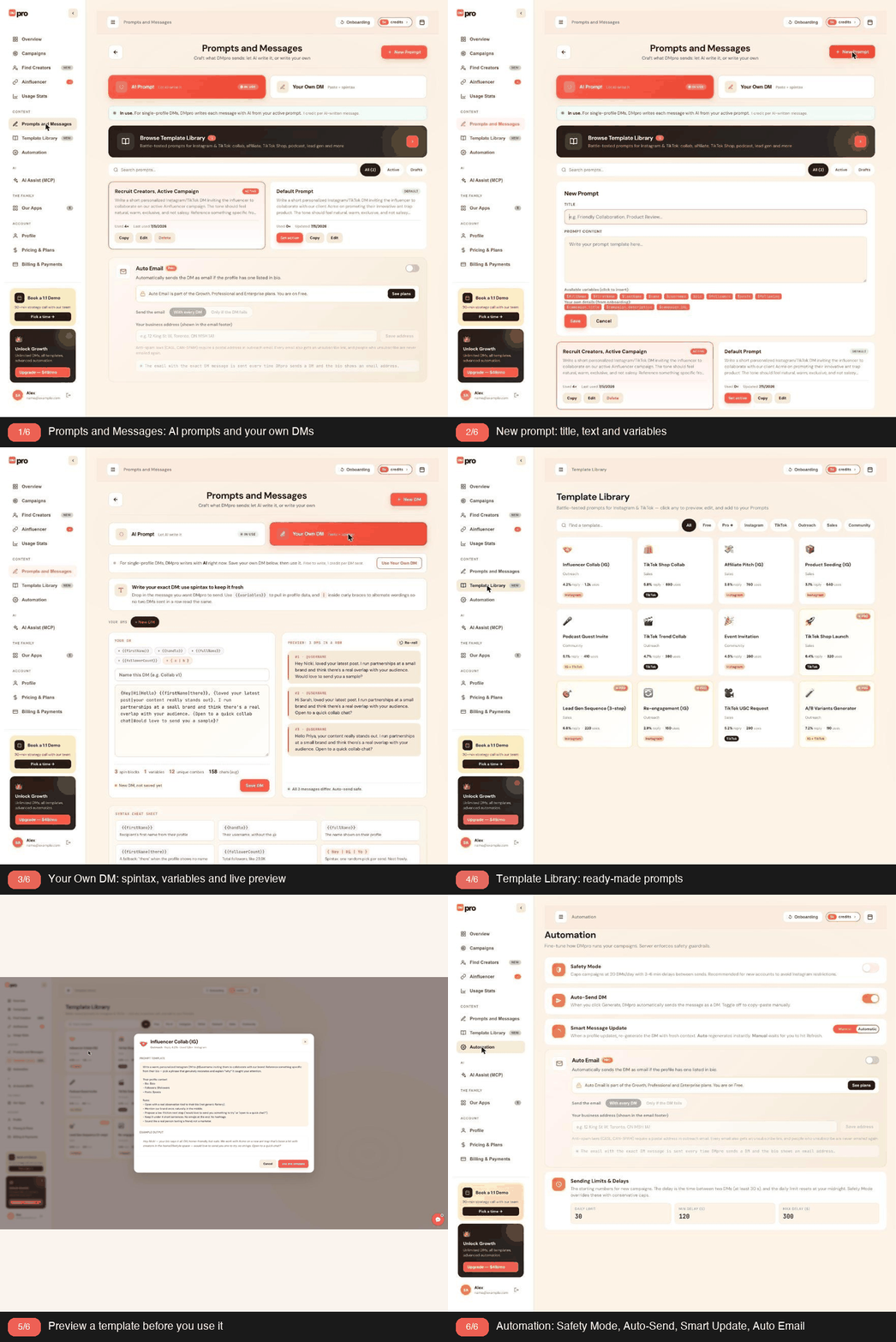
A prompt is the instruction DMpro’s AI follows to write a personalized DM for each profile, and this article explains how prompts fit into DMpro.
1. What A Prompt Is
A prompt tells the AI what kind of message to write: the tone, what to mention, how long it should be and what to ask for. When DMpro writes a DM, it fills your prompt’s variables with the public details of the profile (name, username, bio and counts). If your prompt uses none of them, DMpro adds those details for the AI itself. The AI then writes one message for that person.
A simple prompt might be:
The words that start with $ are variables. DMpro fills them in for each profile before the AI writes. See “Using Variables Like $firstName And $bio”.
2. AI Prompt Or Your Own DM
DMpro can write your DMs in two ways:
- AI Prompt. The AI writes a new message for every person from your prompt.
- Your Own DM. You write the exact message yourself, and DMpro fills in details like the first name and picks between wordings you provide. See “What Is Your Own DM?”.
The message mode on the Prompts and Messages page decides which one single-profile DMs use. Each campaign chooses its own message when you create it.
3. The Active Prompt
You can save many prompts, but only one is the active prompt at a time. The active prompt is used:
- For single-profile DMs, while the message mode is AI Prompt.
- By every campaign that writes with a single AI prompt. Such a campaign writes each DM from the active prompt at the moment that DM is written, so changing the active prompt changes what a running AI campaign writes next.
A campaign that uses Rotate prompts writes from its own set of prompts instead. See “Using Rotate Prompts (God Rotate) In A Campaign”.
4. The Default Prompt
Every account has one prompt marked DEFAULT, titled “Default Prompt”. If you skipped onboarding it is also your active prompt. Its text is a sample pitch for an example brand, so write your own prompt (or start from a template) before you send real DMs. It is your fallback:
- It cannot be deleted.
- Editing it never changes it. DMpro saves your edit as a new prompt of your own (named “My Prompt” unless you give it a name) and makes that new prompt active.
- If you delete the active prompt, the default prompt becomes active again.
5. Where Prompts Live
Prompts are saved to your DMpro account, not to your browser. The extension and the dashboard show the same prompts, and a change in one appears in the other.
- Dashboard: Prompts and Messages, AI Prompt tab.
- Extension: account menu, Prompts and Messages, AI Prompt tab.
6. Limits
- Up to 500 saved prompts per account.
- A title can be up to 200 characters.
- A prompt must be at least 10 characters and at most 20,000 characters.
7. What Prompts Cost
Every message the AI writes uses 1 credit, whether you send it or not. Writing again for the same profile uses another credit. If the AI fails to write a message, the credit is given back. Saving, editing and switching prompts is free.
Related questions:
Creating a prompt takes about a minute: give it a title, write the instruction, save it and make it active, and this article walks you through it on the dashboard and in the extension.
1. Open Prompts And Messages
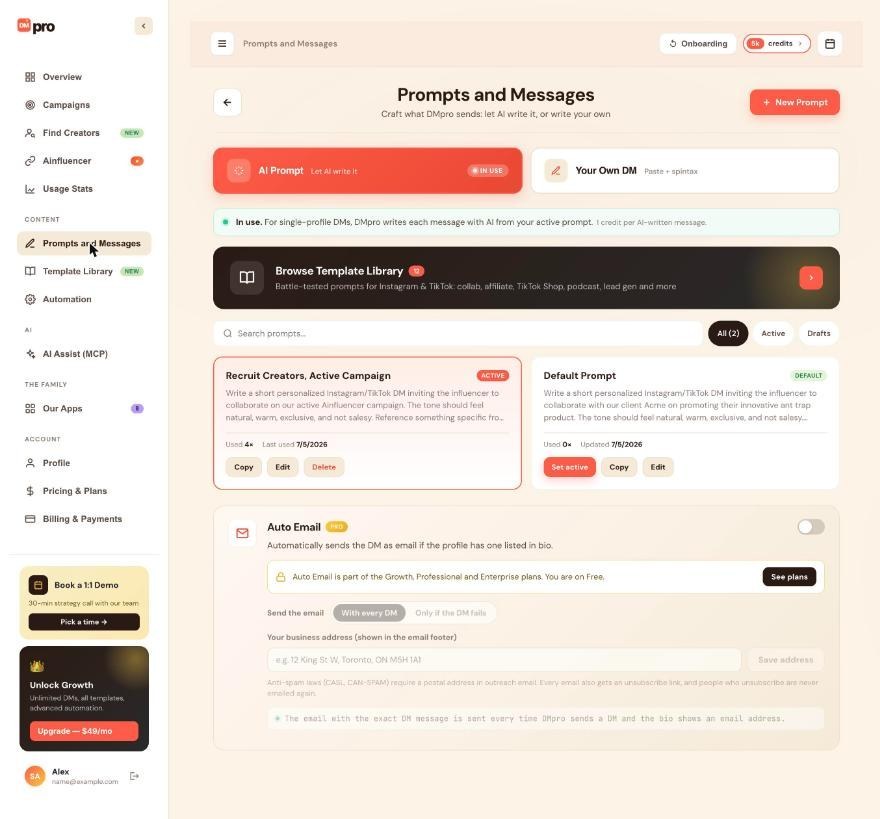
- Dashboard: click Prompts and Messages in the left menu and stay on the AI Prompt tab.
- Extension: open the account menu (your initials at the top right) and click Prompts and Messages.
2. Click New Prompt
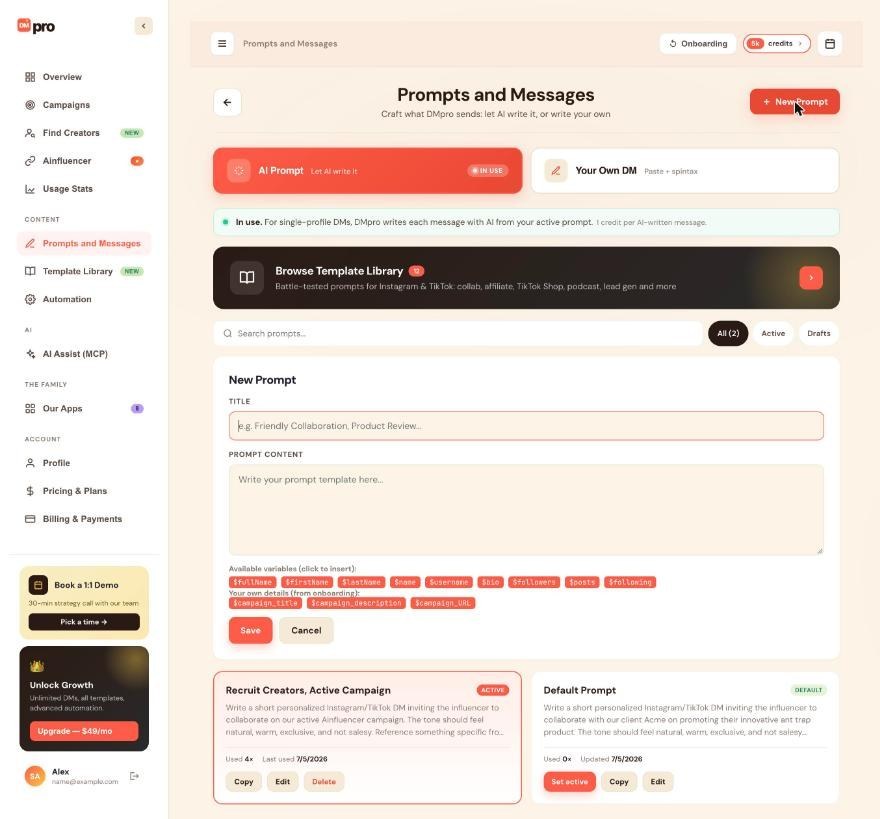
Click New Prompt at the top of the page. A form opens with a title field and a text box for the prompt (labeled Title and Prompt Content on the dashboard):
- Title. A short name only you see, for example “Collab pitch to fitness creators”. Up to 200 characters.
- Prompt. The instruction the AI follows. At least 10 and at most 20,000 characters.
3. Write The Instruction
A good prompt covers:
- Tone. “Write a warm, casual DM…”
- What to reference. “Mention something from $bio if it fits.”
- Who you are. “I run partnerships at a small skincare brand.”
- Length. “Keep it under 3 sentences.”
- The ask. “End by asking if they would be open to a quick chat.”
4. Insert Variables
Under the text box, click a variable chip to insert it at the cursor, for example $firstName, $username or $bio. Chips for your own details ($offer, $icp, $niche, $campaign_title and others) show when the matching information is set up on your account. See “Using Variables Like $firstName And $bio”.
5. Save It
Click Save. The prompt appears in your list. A new prompt is only saved: it is not used until you make it active.
6. Make It Active
- Dashboard: click Set active on the prompt card. The card then shows ACTIVE and moves to the top.
- Extension: select the round button next to the prompt in the list.
If the message mode is Your Own DM, single-profile DMs keep sending your own DM until you click Use AI Prompt. See “AI Prompt Or Your Own DM: How To Switch The Message Mode”.
7. Test It On Real Profiles
Turn Auto Send DMs off first (it is on by default, and then every Generate also sends the DM). Open a few Instagram or TikTok profiles and click Generate in the extension. Each message uses 1 credit. If the messages are not what you want, edit the prompt and try again.
8. Start From A Template Instead
Click Browse Template Library to start from a ready-made prompt. In the extension, Use this template adds it and makes it your active prompt; on the dashboard it is added to your prompts and you choose when to make it active. See “Template Library: Pre-Built Prompts”.
Related questions:
Variables let one prompt describe each person you message, and this article lists every variable DMpro fills in for AI prompts.
1. How Variables Work
A variable is a word that starts with $. Before the AI writes, DMpro replaces each variable with the matching detail, so the AI receives your instruction plus the real information about this person and about you.
2. Variables About The Person You Message
These come from the public profile DMpro reads:
$fullName: the name shown on the profile.$firstName: the first name, taken from the full name.$lastName: the last name, taken from the full name (when there is more than one word).$name: the same as$firstName.$username: the handle, without the @ (write@$usernameto show it).$bio: the bio text.$followers: the follower count.$following: how many accounts they follow.$posts: the post count (on TikTok, DMpro reads the likes count here).
3. Variables About You
These come from your own account and connections:
$offer: your offer, from onboarding (business persona).$icp: your ideal customer, from onboarding (business persona).$brandidUrl: your brandID page address (when brandID is connected).$brandidName: your brandID display name.$niche: your brandID niche.$campaign_title: the title of the Ainfluencer campaign you selected.$campaign_description: that campaign’s brief.$campaign_URL: that campaign’s apply link.
4. What Happens When One Of Your Details Is Empty
If one of your own details is missing (for example you never connected brandID, so $brandidUrl has no value), DMpro removes that variable before the AI writes, together with a short label in front of it such as “My link:” (or the whole bullet line it sits on), so the AI never sees an empty placeholder. Keep such variables on a line of their own, because a few words just before them can go too.
5. How Names Are Worked Out
$firstName (and $name) is the first word of the name shown on the profile, and $lastName the last word when there is more than one; a tail like “Jane Doe | Coach” is left out. When a profile shows no name, the username is used for the first name. Write variables exactly as listed, with the same capital letters: $Offer or $campaign_url reach the AI as typed.
6. Variables Are Not The Same In Your Own DM
Your Own DM uses double braces instead, for example {{firstName}} or {{firstName|there}}. See “Using Variables And Fallbacks In Your Own DM”. Writing {{firstName}} in an AI prompt, or $firstName in an own DM, does not work.
7. Custom Variables
You cannot create your own variables. If you need another detail, write it into the prompt as plain text.
Related questions:
The active prompt is the one DMpro’s AI writes from, and this article shows how to choose it and how it differs from the default prompt.
1. Active Vs Default
- Active prompt. The prompt the AI writes from right now. Exactly one prompt is active at a time. Its card shows ACTIVE on the dashboard.
- Default prompt. Your fallback prompt, shown with DEFAULT on the dashboard (ACTIVE instead while it is the active prompt) and “(Default)” in the extension. It cannot be deleted, and editing it saves a new prompt instead of changing it.
The default prompt can be the active prompt at the same time, but it does not have to be. If you completed onboarding, the starter prompt DMpro made for your persona is usually the active one.
2. Choose The Active Prompt On The Dashboard
- Open Prompts and Messages, AI Prompt tab.
- Click Set active on the prompt you want.
- The card moves to the top with ACTIVE.
3. Choose The Active Prompt In The Extension
- Open the account menu and click Prompts and Messages.
- On the AI Prompt tab, select the round button next to the prompt.
The choice is saved to your account, so the dashboard shows the same active prompt.
4. What The Active Prompt Controls
- Single-profile DMs while the message mode is AI Prompt. The main screen of the extension shows it in the Active prompt chip.
- AI campaigns with Single prompt. They write each DM from the active prompt at the moment the DM is written, including campaigns that are already running. See “What Happens If You Change Your Active Prompt While A Campaign Runs?”.
It does not affect campaigns that use Rotate prompts or campaigns that send your own DM.
5. Setting A Prompt Active Does Not Switch The Mode
If single-profile DMs currently send your own DM, making a prompt active does not change that. To have the AI write single-profile DMs again, click Use AI Prompt on the AI Prompt tab. See “AI Prompt Or Your Own DM: How To Switch The Message Mode”.
6. When The Active Prompt Changes By Itself
- You delete the active prompt: the default prompt becomes active.
- You edit the default prompt: your edit is saved as a new prompt, and that new prompt becomes active.
- You add a template in the extension: the new prompt becomes active.
Related questions:
Most DMpro users keep several prompts for different audiences, and this article explains how to organize them and how campaigns use them.
1. When Several Prompts Make Sense
Create separate prompts when your audiences differ:
- Different goals. A collab pitch versus a sales pitch.
- Different platforms. Instagram DMs often read differently from TikTok DMs.
- Different offers. One prompt per product or service.
- Different stages. A first message versus a follow-up.
2. Name Them Clearly
A pattern that works: “[Audience] [Purpose] [Version]”, for example “Fitness creators collab v2”. On the dashboard you can search prompts by title and text, and filter them with All, Active and Drafts (Drafts are every prompt that is not active).
3. How Campaigns Use Your Prompts
When you create an AI campaign you choose between:
- Single prompt. The campaign writes every DM from your active prompt at the moment each DM is written.
- Rotate prompts. The campaign writes from 2 to 20 prompts you pick, split the way you choose. See “Using Rotate Prompts (God Rotate) In A Campaign”.
So if you run two AI campaigns at the same time and want them to say different things, give at least one of them a rotation, or remember that both follow whichever prompt is active.
4. Copying A Prompt
- Dashboard: click Copy on a prompt card to copy its text, then click New Prompt and paste it to make a variation.
- Extension: each prompt in the list except the default has a Copy button.
5. Usage On Each Card
Dashboard prompt cards show how often a prompt was used and when it was last used or updated, so you can see which prompts do the work.
6. Deleting Old Prompts
There is no archive or bulk delete. Delete prompts one at a time with Delete on the card (the default prompt cannot be deleted). You can keep up to 500 prompts.
7. Sharing Prompts
Prompts belong to one DMpro account. To share one, copy its text and send it to the other person.
Related questions:
DMpro always writes from the prompt that is active at the moment a message is written, and this article explains exactly when that happens for single profiles and for campaigns.
1. Single-Profile DMs
When you click Generate in the extension, DMpro reads the active prompt at that moment. This means:
- Switching the active prompt before you click Generate changes the next message.
- A message that is already written does not change when you switch prompts.
- This only applies while the message mode is AI Prompt. In Your Own DM mode the extension fills in your own DM instead.
2. Campaigns With A Single Prompt
An AI campaign with Single prompt reads the active prompt every time it writes a DM for the next person. If you switch the active prompt or edit it while the campaign is running, paused or waiting for credits, the people still waiting get DMs written from the new version.
3. Campaigns With Rotate Prompts
A rotating campaign picks one of its own prompts for each person. Edits to those prompts apply from the next DM it writes. Switching the active prompt does not affect it, unless fewer than 2 of its prompts still exist: then it writes from the active prompt.
4. Own DM Campaigns
A campaign that sends your own DM sends the own DM picked when it was created, in its latest saved text (edits you save to that DM apply to the DMs still to go). Prompts never affect it.
5. Your Selection Follows Your Account
The active prompt is saved to your DMpro account. The dashboard, the extension and every browser where you are signed in use the same one.
6. What The AI Receives
For each DM, DMpro sends the AI your prompt with every variable filled in for that person and for your account, plus the person’s details when your prompt uses no profile variables. The AI does not browse the profile itself; it works from the details DMpro read.
7. Does Switching Prompts Cost Credits?
No. Only a message the AI writes uses a credit (1 per message). If writing fails, the credit is given back.
Related questions:
You can edit or delete your prompts from the dashboard or the extension, and this article explains what happens in each case, including for the default prompt.
1. Editing A Prompt On The Dashboard
- Open Prompts and Messages, AI Prompt tab.
- Click the prompt card, or Edit on it.
- Change the title or the content.
- Click Save.
2. Editing A Prompt In The Extension
- On the Prompts and Messages page, click Edit next to a prompt (not shown for the default prompt).
- On the campaign form, Edit Prompt edits the active prompt directly.
3. Editing The Default Prompt
The default prompt never changes. When you edit it (for example with Edit on the dashboard, or Edit Prompt on the campaign form), DMpro saves your version as a new prompt and makes it active, and you see “Saved as a new prompt and set as active. Your default prompt is kept as a fallback.” If you leave the title empty, the new prompt is named “My Prompt” (then “My Prompt 2” and so on).
4. Edits Apply To The Next Message
Messages already written are not changed. The next message written from that prompt uses the new text, and that includes running AI campaigns that use it (as the active prompt or in a rotation).
5. Deleting A Prompt
- Dashboard: click Delete on the card and confirm.
- Extension: click Delete next to the prompt.
The default prompt cannot be deleted.
6. Deleting The Active Prompt
The default prompt becomes active. If a running AI campaign used the deleted prompt as its active prompt, it continues with the default prompt. A rotating campaign leaves the deleted prompt out and keeps using its other prompts (with fewer than 2 left, it writes from the active prompt).
7. There Is No Undo
A deleted prompt cannot be restored from the dashboard or the extension. Copy its text somewhere first if you might need it again. (A prompt an AI app deleted for you can be brought back from the AI Assist (MCP) page. See “Undoing What An AI App Changed”.)
Related questions:
A clear prompt gets replies and a vague one gets generic messages, and this article collects what works.
1. Set The Tone In The First Sentence
- “Write a friendly, casual DM…”
- “Write a short, professional DM…”
- “Write a playful DM…”
Without a tone, the AI writes something moderately formal, which may not sound like you.
2. Point The AI At Something Specific
Prompts that say “Mention something from $bio that shows what they create” produce far more personal messages than prompts that do not. The AI only knows what DMpro read from the profile (name, username, bio and counts), so ask it to use those.
3. Control The Length
- “Keep it under 3 sentences.”
- “Keep it under 300 characters.”
Short DMs read better on Instagram and TikTok.
4. End With A Clear Ask
Good asks: “Would you be open to a quick call?”, “Can I send you the details?”, “Would you be up for a collab?”. Avoid ending with nothing or with “Let me know what you think”.
5. Say Who You Are
One sentence of context helps a lot. Use your own variables where they are set up:
- “I run a small brand that sells $offer.”
- “I’m $brandidName, a $niche creator.”
- “We are running $campaign_title on Ainfluencer.”
6. Avoid Corporate Language
Tell the AI what to avoid: “Do not start with ‘I hope this message finds you well’. No emojis. No hashtags.”
7. Test On Different Profiles
Try a prompt on a small account, a large account, a sparse bio and a rich bio before you use it in a campaign. Each test message uses 1 credit. Turn Auto Send DMs off while you test, or every Generate also sends the DM.
8. Iterate After Real DMs
After 10 to 20 real DMs, look at the replies. Try a variation, or put two versions in one campaign with Rotate prompts to see which one gets more replies.
9. Common Mistakes
- Writing the full message yourself. If you want exact wording, use Your Own DM instead. See “What Is Your Own DM?”.
- Contradictions. “Professional but super casual.” Pick one.
- Facts the AI cannot know. It cannot check your website or their posts. Write the facts into the prompt.
- Placeholders. Write
$firstName, not[Name]or{name}.
10. Example
Related questions:
The Template Library holds ready-made prompts you can add to your account in one click, and this article shows how to use it on the dashboard and in the extension.
1. What Is In The Library
The library currently has 12 templates, grouped as Outreach, Sales and Community, for Instagram, TikTok or both. Examples include Influencer Collab (IG), TikTok Shop Collab, Affiliate Pitch (IG), Podcast Guest Invite and Event Invitation. Some templates are marked PRO.
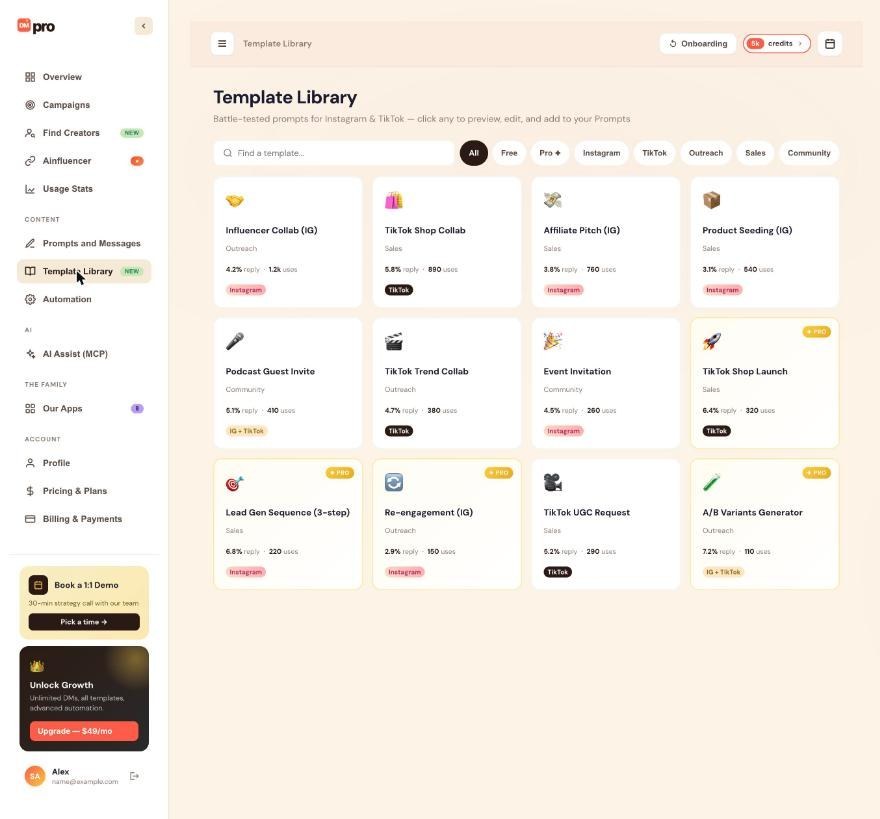
2. Open The Library
- Dashboard: click Template Library in the left menu, or Browse Template Library on the Prompts and Messages page.
- Extension: on the Prompts and Messages page, click Browse Template Library (“Proven DM openers, ready to use”). On the campaign form, click Browse Templates.
3. Find A Template
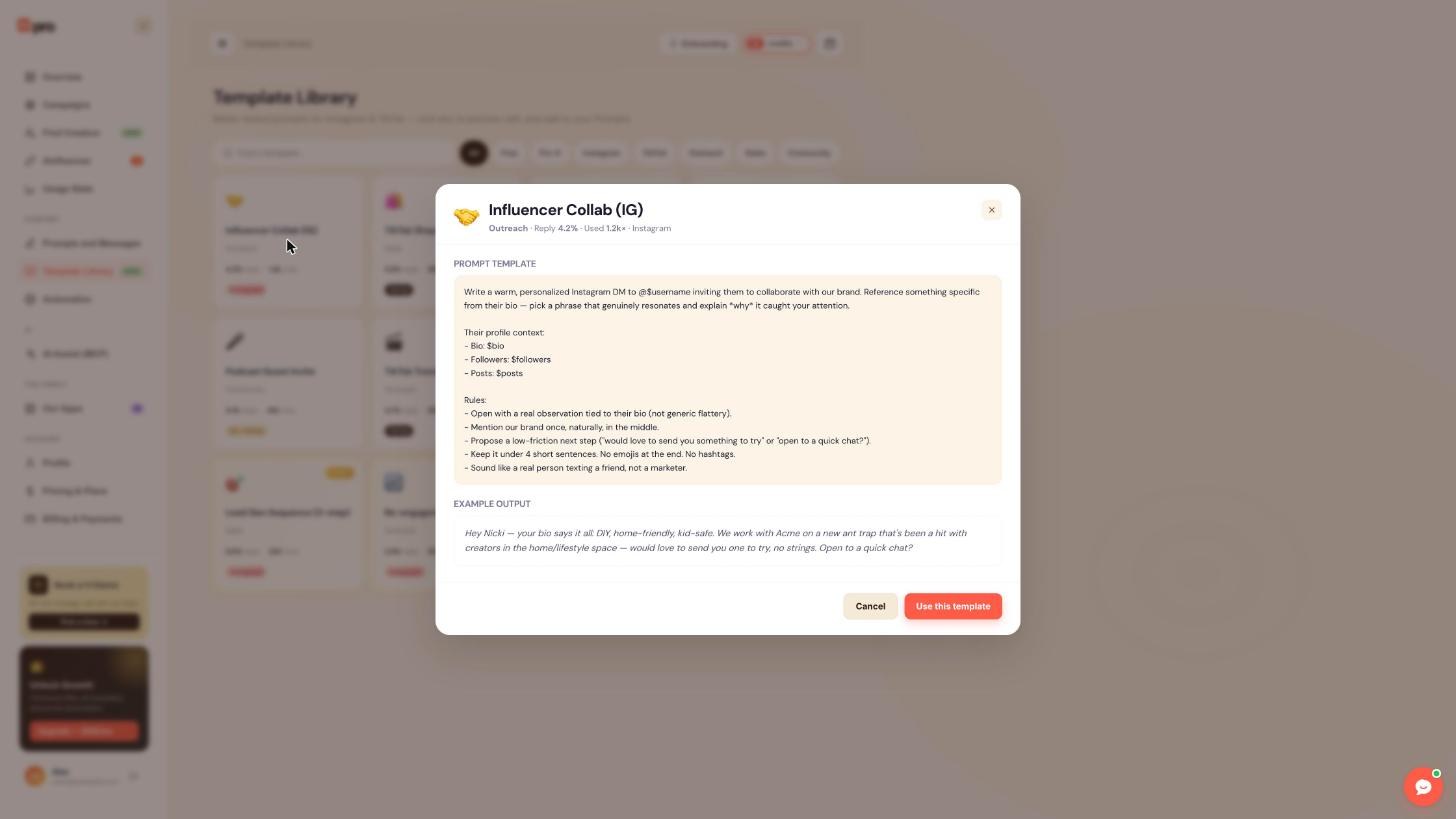
On the dashboard, search with Find a template… or use the filters All, Free, Pro, Instagram, TikTok, Outreach, Sales and Community. Click a card to see the full prompt text and an Example output.
4. Add It To Your Prompts
Click Use this template:
- In the extension, DMpro adds the template to your prompts and makes it your active prompt (“Template added and set as your active message.”).
- On the dashboard, DMpro adds it to your prompts and opens Prompts and Messages. Click Set active when you want to use it.
Your copy is independent: editing it never changes the library.
5. Adjust It To You
Templates use profile variables such as $username, $bio and $followers. Edit your copy so it mentions your brand, your offer and your tone; you can also add your own details such as $offer (see “Using Variables Like $firstName And $bio”).
6. What It Costs
Browsing and adding templates is free on every plan. Messages the AI writes from a template cost 1 credit each, like any prompt.
Related questions:
Smart Message Update rewrites the message in the extension for the next profile when you click Refresh, and this article explains how it behaves and what it costs.
1. The Problem It Solves
In single-profile mode you move from profile to profile. After you open the next profile, you click Refresh (the refresh button next to the profile) so DMpro reads it. Smart Message Update decides what happens to the message box at that moment.
2. Automatic (On)
With Smart Message Update set to Automatic and a message already in the box, clicking Refresh on a new profile makes DMpro write the message again for that profile:
- AI Prompt mode: the AI writes a new message from your active prompt (1 credit). This starts after your first Generate in that browser; before that, Refresh only loads the profile.
- Your Own DM mode: DMpro fills in your own DM for the new person (free to fill in).
If Auto Send DM is also on, the new message is sent right away (an own DM sent uses 1 credit).
3. Manual (Off)
With Manual, Refresh only loads the new profile. The message box shows any message you already wrote for that person, and you click Generate (or Fill in) yourself when you want a new one.
4. Where To Change It
- Extension: account menu, Automation settings, Smart Message Update (Manual or Automatic).
- Dashboard: Automation, Smart Message Update.
It is on (Automatic) for new accounts. The setting is saved to your account, so both places show the same choice.
5. What It Does Not Do
- It does not run by itself while you browse. It only acts when the profile is refreshed: when you click Refresh (even on the same profile, if a message is in the box), or when you open the next profile from the Find Creators DM queue.
- It does not affect campaigns. Campaigns write each DM once, when that person’s turn comes.
6. Credits
In AI Prompt mode every rewrite is a new AI message and uses 1 credit. In Your Own DM mode filling in is free; only a DM that is sent uses a credit.
Related questions:
Still stuck? We’re happy to help.
Create your account, or reach out to support.




