
How to choose what AI assistants can touch
Set, area by area, what every connected assistant may see or do in your DMpro account. Changes apply on the assistant’s next message, with no reconnecting.
Before you start
- At least one assistant connected, or about to be
- A few minutes to decide how much access you are comfortable with
Open What assistants can touch
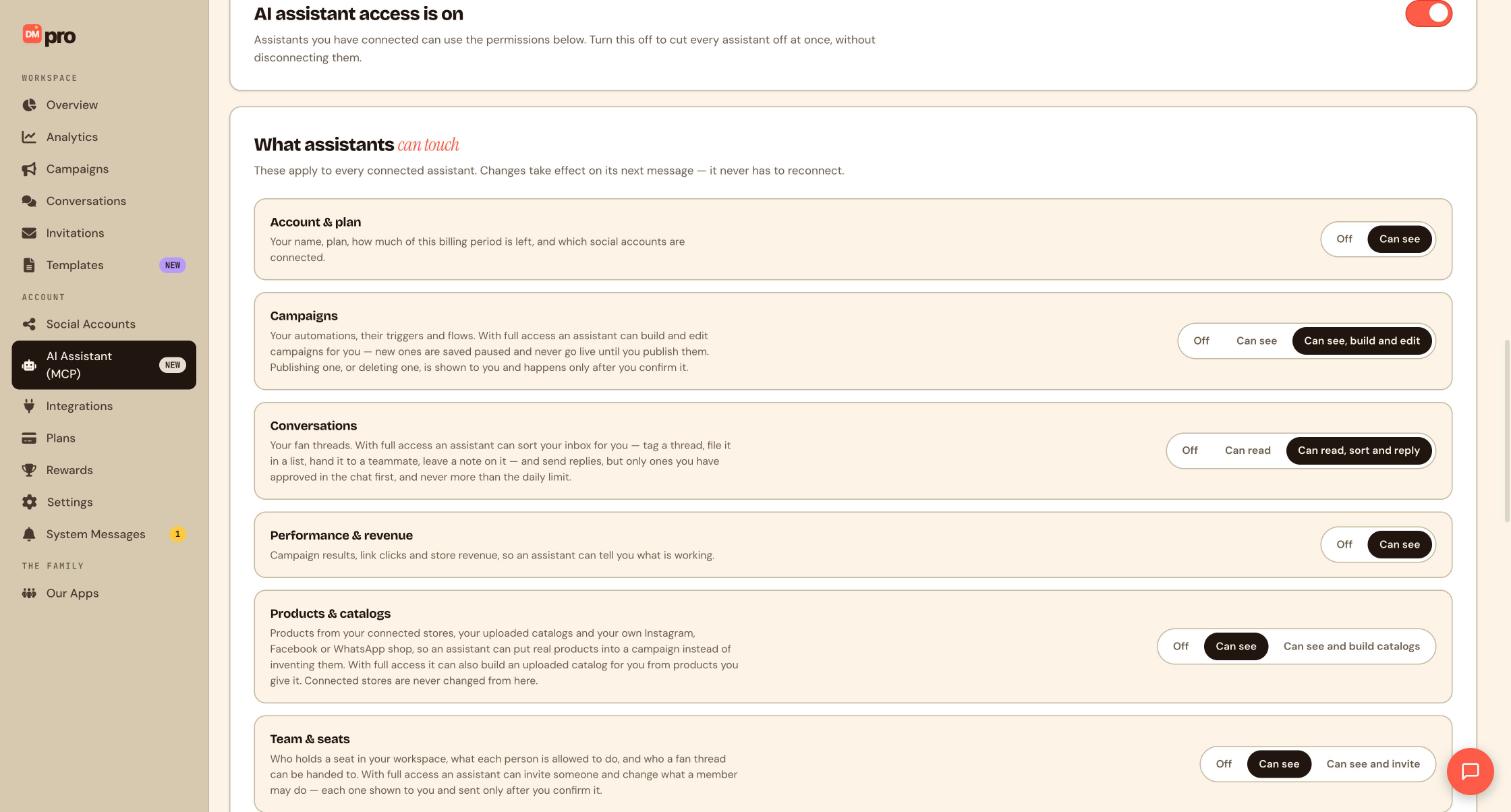
In the DMpro sidebar, under Account, click AI Assistant (MCP) and scroll to What assistants can touch. Just above it, the master switch reads AI assistant access is on. This section applies to every connected assistant at once.
Each of the 14 areas has its own segmented control. Click a level to select it. The last level in each row is full access.
Decide Account, Campaigns and Conversations
Account & plan is Off or Can see: your name, plan, how much of this billing period is left and which accounts are connected.
Campaigns is Off, Can see or Can see, build and edit. With full access an assistant can build and edit campaigns, but new ones are saved paused and never go live until you publish them. Publishing or deleting one is shown to you first and happens only after you confirm.
Conversations is Off, Can read or Can read, sort and reply. Full access lets an assistant tag a thread, file it in a list, hand it to a teammate, leave a note and send replies. Replies go out only after you approve them in the chat, and never beyond the daily limit.
Decide Performance, Products, Team and Messages
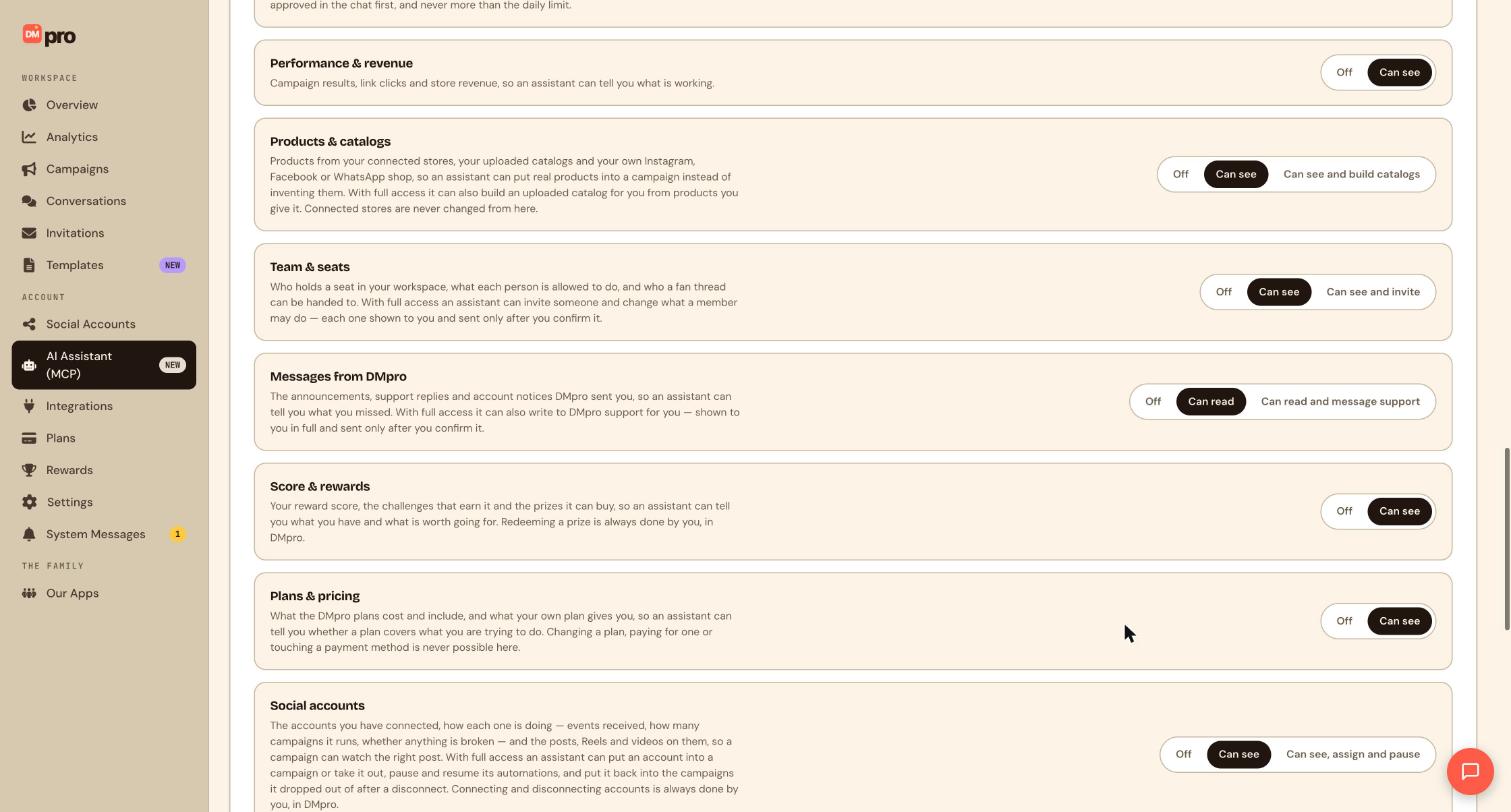
Performance & revenue (Off or Can see) covers campaign results, link clicks and store revenue.
Products & catalogs can be Can see or Can see and build catalogs. Connected stores are never changed from here.
Team & seats can be Can see or Can see and invite. Invites are shown to you and sent only after you confirm.
Messages from DMpro can be Can read or Can read and message support. A message to support is shown to you in full and sent only after you confirm.
Score & rewards and Plans & pricing are Off or Can see. Redeeming a prize, changing a plan or touching a payment method is never possible for an assistant.
Decide Social accounts, Integrations, Templates, Invitations and Quick replies
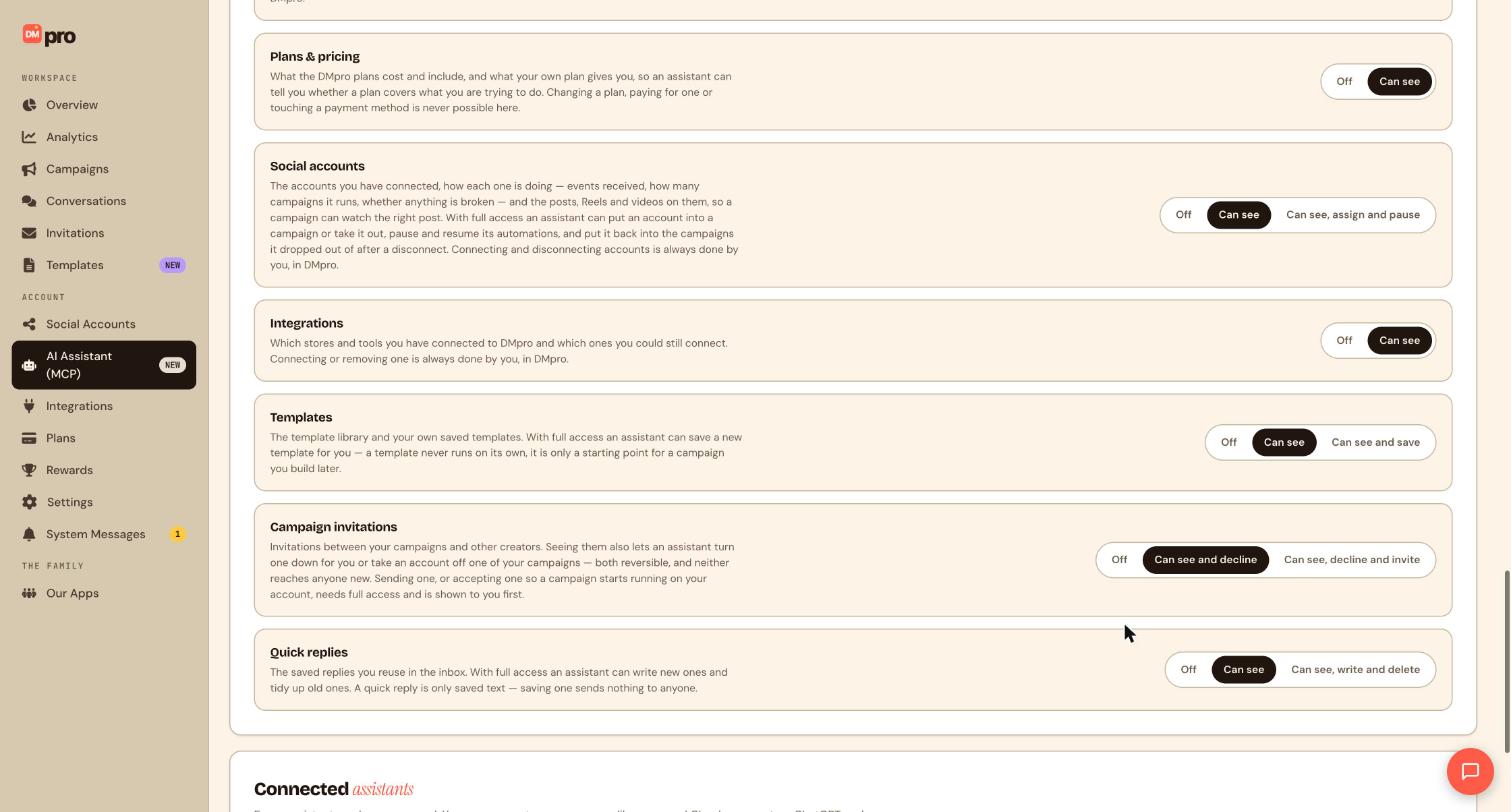
Social accounts can be Can see or Can see, assign and pause. Full access lets an assistant put an account into a campaign, take it out, and pause or resume its automations. Connecting and disconnecting accounts is always yours.
Integrations is Off or Can see. Connecting or removing one stays with you.
Templates can be Can see or Can see and save. A template never runs on its own.
Campaign invitations can be Can see and decline or Can see, decline and invite. Sending an invitation, or accepting one so a campaign runs on your account, needs full access and is shown to you first.
Quick replies can be Can see or Can see, write and delete. Saving a quick reply sends nothing to anyone.
Check the new levels with your assistant
Changes take effect on the assistant’s next message. Test one area you changed. For example, set Account & plan to Off, then ask:
What plan am I on in DMpro?The assistant should say it cannot see that. Set the row back to Can see, ask again, and it should answer. If the result does not match, refresh the page and check each row.
Tips
- Changes apply on the assistant’s next message, and you can raise or lower a level whenever you like.
- To cut every assistant off at once without touching these rows, use the master switch.
- Some things are never possible through an assistant, such as connecting social accounts, paying, changing your plan or redeeming a prize.
If something goes wrong
My assistant says it does not have access to something I need.
Open the matching area and raise the level. If every area fails, check the master switch reads AI assistant access is on.
An assistant refuses to publish or send without asking me.
This is by design. Publishing, deleting, sending a message and sending a bulk message are always shown to you first and happen only after you confirm.
Do I have to reconnect after changing a level?
No. Changes take effect on the assistant’s next message.
Related how-to guides
Still stuck? We’re happy to help.
Create your DMpro account, see pricing, or reach out to support directly.




