
How to connect Claude to DMpro
Add DMpro to Claude as a connector so you can ask Claude about your account in plain language. You approve the connection yourself and decide what Claude may touch.
Before you start
- A DMpro account you can sign in to
- A Claude account that lets you add connectors
- About five minutes; nothing here costs money
Open the AI Assistant (MCP) page
In the DMpro sidebar, under Account, click AI Assistant (MCP). The top card, Your connector link, shows the address https://api-dmpro.brandid.app/mcp with a Copy link button.
Under the link you will see five tabs: Claude, ChatGPT, Cursor, VS Code and Other tools. Click Claude.
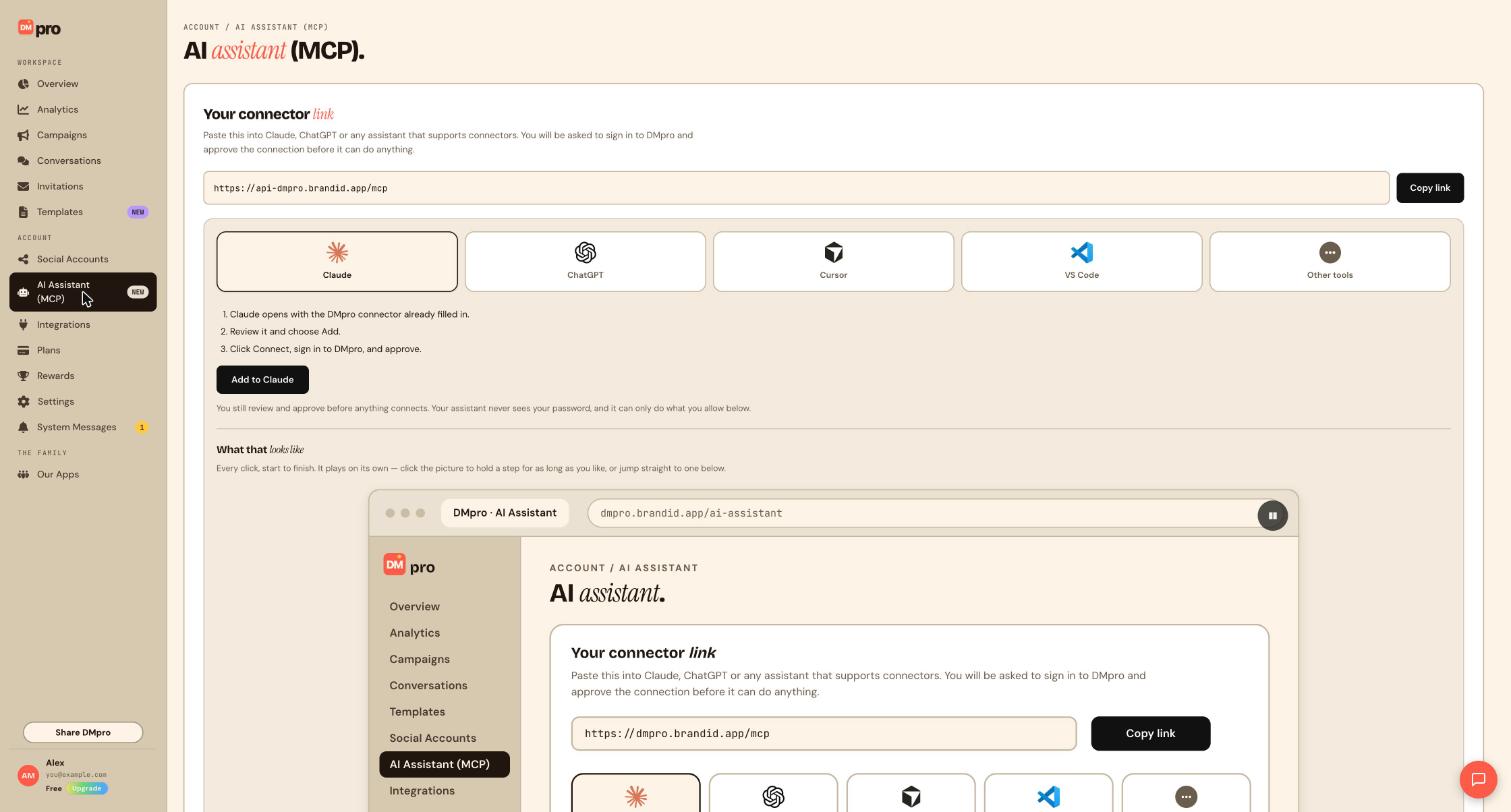
Click Add to Claude
Click Add to Claude. This only opens Claude with the DMpro connector already filled in. Nothing is connected yet and Claude cannot see your account.
DMpro and paste the link you copied with Copy link.Review the connector and add it
In Claude, check that the connector is named DMpro, choose Continue if Claude asks, and leave the sign-in settings Claude detected exactly as they are. Then choose Add.
Connect, sign in to DMpro and approve
Click Connect. Your browser opens the DMpro sign-in. Sign in, read the approval screen, then choose Allow Claude.
Check that Claude is listed in DMpro
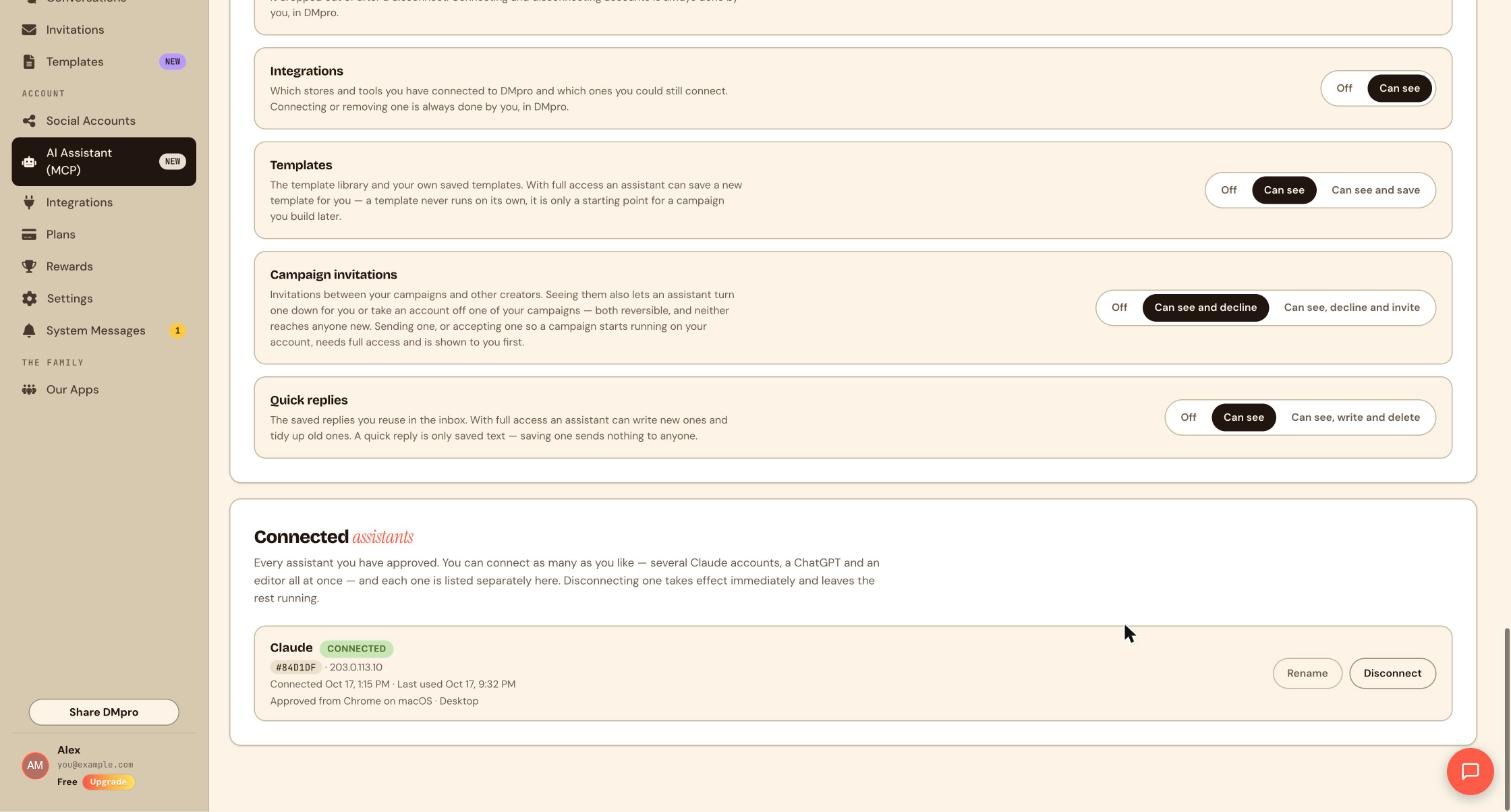
Go back to the AI Assistant (MCP) page and scroll to Connected assistants. Your new connection appears as its own row with a CONNECTED badge, the date it was connected and the device it was approved from.
You can connect more than one Claude account, and each one is listed separately.
Know what stays in your hands
Before you ask for more than a read, it helps to know the safety rules built into the connector:
- Campaigns an assistant creates are saved paused. They send nothing until you publish them.
- Publishing, deleting, sending a message or sending a bulk message is shown to you first, with the exact text, recipient and account. It happens only after you agree in the chat.
- An assistant can never connect or disconnect your social accounts, change your plan, pay, redeem a reward prize, connect or remove integrations, or change your password.
- Anything a fan wrote is treated as information, never as an instruction.
You decide how much each assistant may do under What assistants can touch, and you can cut every assistant off at once with the master switch.
Ask your first question
Open a new chat in Claude and start with something that only reads. Type one of these:
What plan am I on in DMpro, and how many conversations do I have left this month?Which social accounts are connected to my DMpro account?If Claude answers with your plan and accounts, the connection works. These questions need Account & plan to be set to Can see.
Tips
- Start with read-only questions until you are happy with how Claude answers, then switch on more access.
- Permission changes take effect on Claude’s next message. You never have to reconnect.
- You can connect Claude, ChatGPT and an editor at the same time. Each one is listed on its own row.
If something goes wrong
Claude says it cannot see my account or does not have that tool.
Check the master switch near the top of the AI Assistant (MCP) page says AI assistant access is on, and that the area you are asking about, for example Account & plan, is not set to Off.
Add to Claude did nothing.
Add the connector by hand instead: Customize, Connectors, + Add custom connector, name it DMpro and paste the connector link.
I approved the connection but I cannot find it in DMpro.
Refresh the AI Assistant (MCP) page and scroll to Connected assistants. If it is still missing, repeat the connect step in Claude and approve again.
Related how-to guides
Still stuck? We’re happy to help.
Create your DMpro account, see pricing, or reach out to support directly.




