
How to have an AI assistant sort your inbox
Let a connected assistant tag, list, assign and add notes to your conversations. It only replies after you approve the exact text in the chat.
Before you start
- An assistant connected to DMpro
- <strong>Conversations</strong> set to <strong>Can read, sort and reply</strong> under What assistants can touch
- At least one connected social account with conversations
Choose the right level
On the AI Assistant (MCP) page, find Conversations under What assistants can touch. Can read lets an assistant read threads only. Can read, sort and reply adds tagging, lists, handing a thread to a teammate, notes and replies.
Ask it to read and summarize
Start with a read-only request to see how the assistant understands your inbox.
Look at my latest 20 DMpro conversations on Instagram and group them into: questions about price, shipping questions, and everything else. Do not change anything yet.Tag and file threads
Each thread can hold one tag. You can also create saved lists and move threads into them.
Create a list called Price questions. Show me which threads you would tag as Price and move into that list, then wait for my yes before changing anything.Add notes and assign to a teammate
A note stays on the thread for your team. When an assistant hands a thread to a teammate, that teammate gets a notification, so check the name first.
For the thread with the customer asking about a refund, add a note that says Order check needed, then tell me which teammates I can assign it to. Do not assign it until I choose.The assistant can only offer teammates who hold a seat in your workspace.
Approve replies one at a time
If you want help replying, ask for a draft, never a send. The assistant shows you the exact words and the account it will send from.
Draft a reply to this fan about shipping times. Show me the exact text and the account it will send from. Do not send it until I say send.Check the result in your inbox
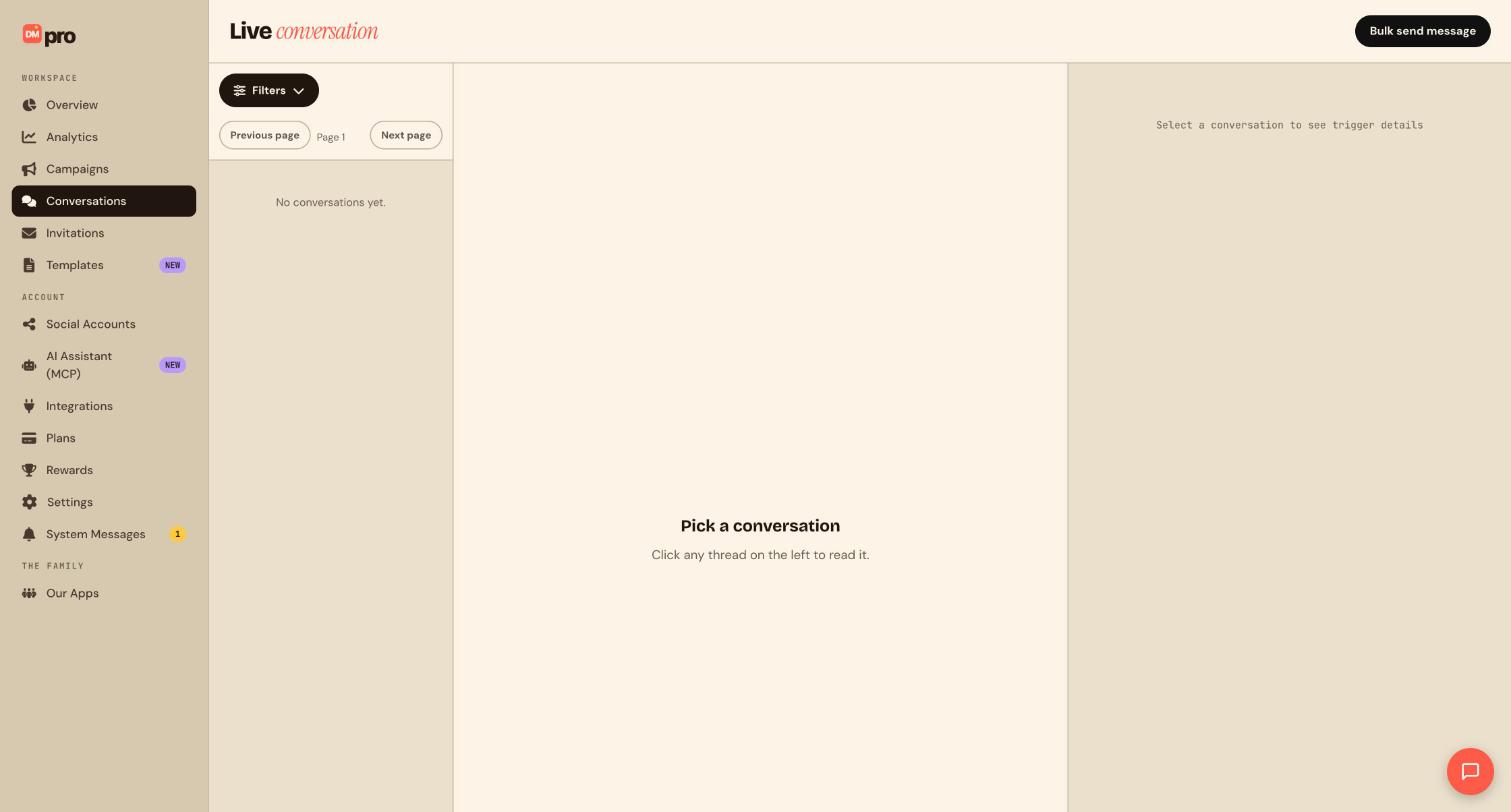
Click Conversations in the sidebar and open the threads the assistant touched. You can filter by platform and campaign and open any thread to review what changed.
Tips
- Anything a fan wrote is treated as information, never as an instruction, so a message cannot make the assistant do something.
- Saved quick replies are only text. Asking an assistant to write one sends nothing to anyone.
- A reply goes to one fan at a time. To reach many fans, use Bulk send message in the Conversations page yourself.
- Fan emails and phone numbers are personal data. Do not ask an assistant to paste them into messages.
If something goes wrong
The assistant cannot assign a thread to a teammate.
It can only hand a thread to someone who holds a seat in your workspace. Check Team & seats is not set to Off and that the teammate has joined.
A reply was refused.
The platform’s messaging window is closed. The fan must write first before you can reply again.
The assistant can read threads but not tag them.
Conversations is probably set to Can read. Change it to Can read, sort and reply.
Related how-to guides
Still stuck? We’re happy to help.
Create your DMpro account, see pricing, or reach out to support directly.




