
How to rename or disconnect an AI assistant
See every assistant you have approved, give each one a clear name and disconnect any of them straight away. The others keep running.
Before you start
- At least one assistant connected
Open Connected assistants
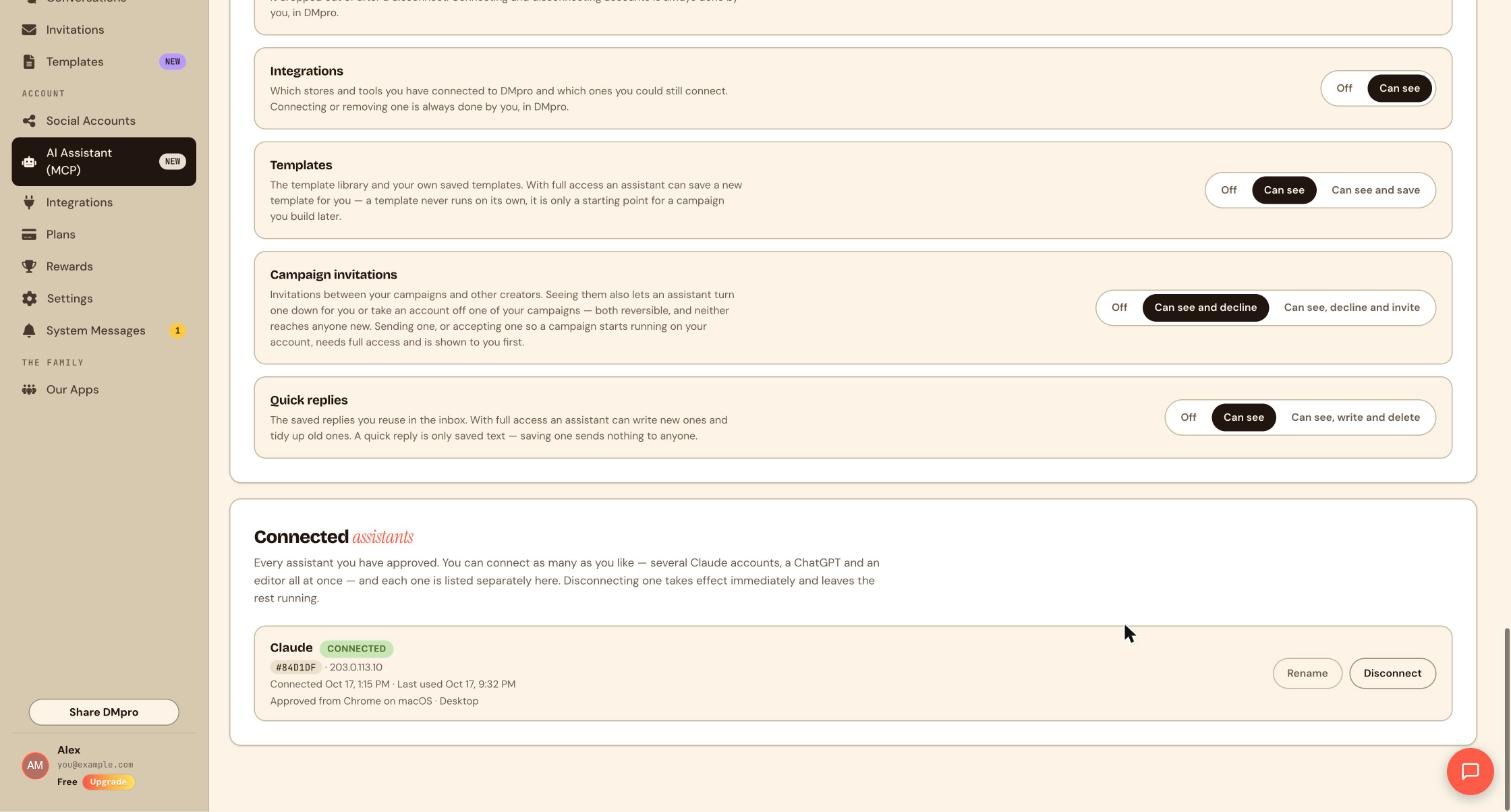
In the DMpro sidebar, under Account, click AI Assistant (MCP) and scroll to the bottom to Connected assistants.
Read each row
Each connection has its own row. It shows the assistant’s name, a CONNECTED badge, a short id and an address, the date it connected, the date it was last used, and where it was approved from, for example the browser and computer.
You can connect as many assistants as you like, such as several Claude accounts, a ChatGPT and an editor, and each is listed separately.
Rename an assistant
Click Rename on the row and give it a name that tells you who or what it is, such as the person, device or tool. This makes it easy to spot the right row when you want to disconnect one.
Disconnect an assistant
Click Disconnect on the row of the assistant you want to remove. Disconnecting takes effect immediately and leaves your other assistants running.
Check the row name before you click. If you have several connections with the same name, the short id and the Last used date tell them apart.
Decide whether to disconnect or lower access
Disconnecting removes one assistant. If you only want an assistant to do less, open What assistants can touch and lower the level of the areas you are unsure about. If you want every assistant to stop at once without removing anyone, use the master switch near the top of the page. Lowering access and the master switch take effect without reconnecting anyone. A disconnected assistant has to be connected and approved again.
Check the list
Confirm the row is gone from Connected assistants. If you do not recognize an assistant on the list, disconnect it, then consider changing your password in Settings and turning on two-step authentication.
Tips
- Use the Last used date to find assistants you no longer use.
- To pause everything without removing anyone, use the master switch instead.
- Disconnect takes effect immediately and does not touch your other assistants.
If something goes wrong
I do not recognize an assistant on the list.
Disconnect it. The row shows when and where it was approved from, which helps you decide. Then review your password and two-step authentication in Settings.
I disconnected the wrong one.
Connect it again from the matching tab on the AI Assistant (MCP) page and approve it. Nothing else is affected.
Related how-to guides
Still stuck? We’re happy to help.
Create your DMpro account, see pricing, or reach out to support directly.




